It’s true that we don’t work 24 hours a day, so it’s wise to set up an autoresponder to notify the person you’re trying to contact.
Outlook’s “Out of Office” feature lets you set up an automatic reply in case you can’t immediately respond to an email. This allows you to immediately notify the sender of your absence.
This feature can be used for a variety of reasons, such as when you’re on sick leave, vacation, or if you’re not at the office for any reason.
If you find it useful, learn how to set up this automatic reply feature in Outlook.
There are several ways to do this, and the steps vary depending on the device you are using, so follow one of the methods below that is appropriate for you.
Using autoresponder options
This is probably the easiest way. Here are the steps.
Step 1: Log in to your Outlook account.
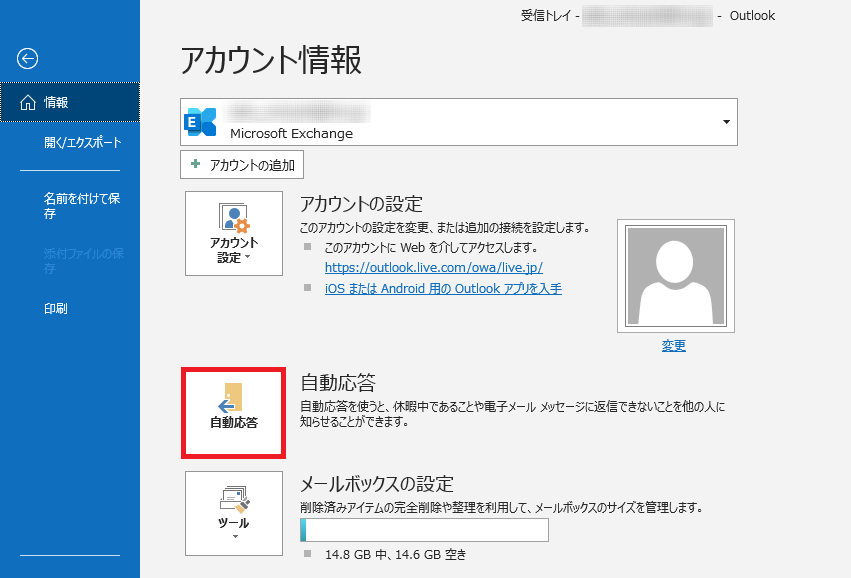
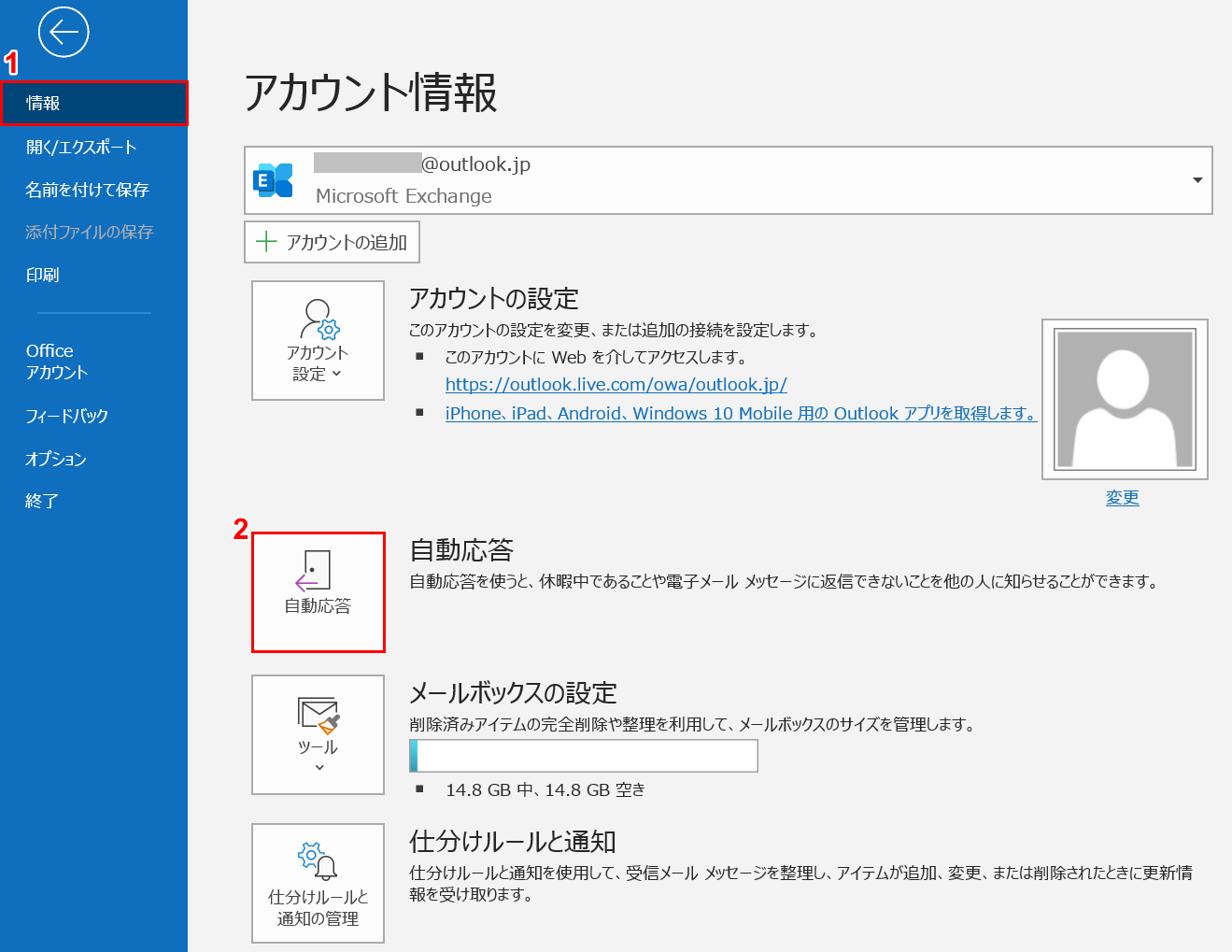
Step 2: From the options on the top left, click where it says “File”.
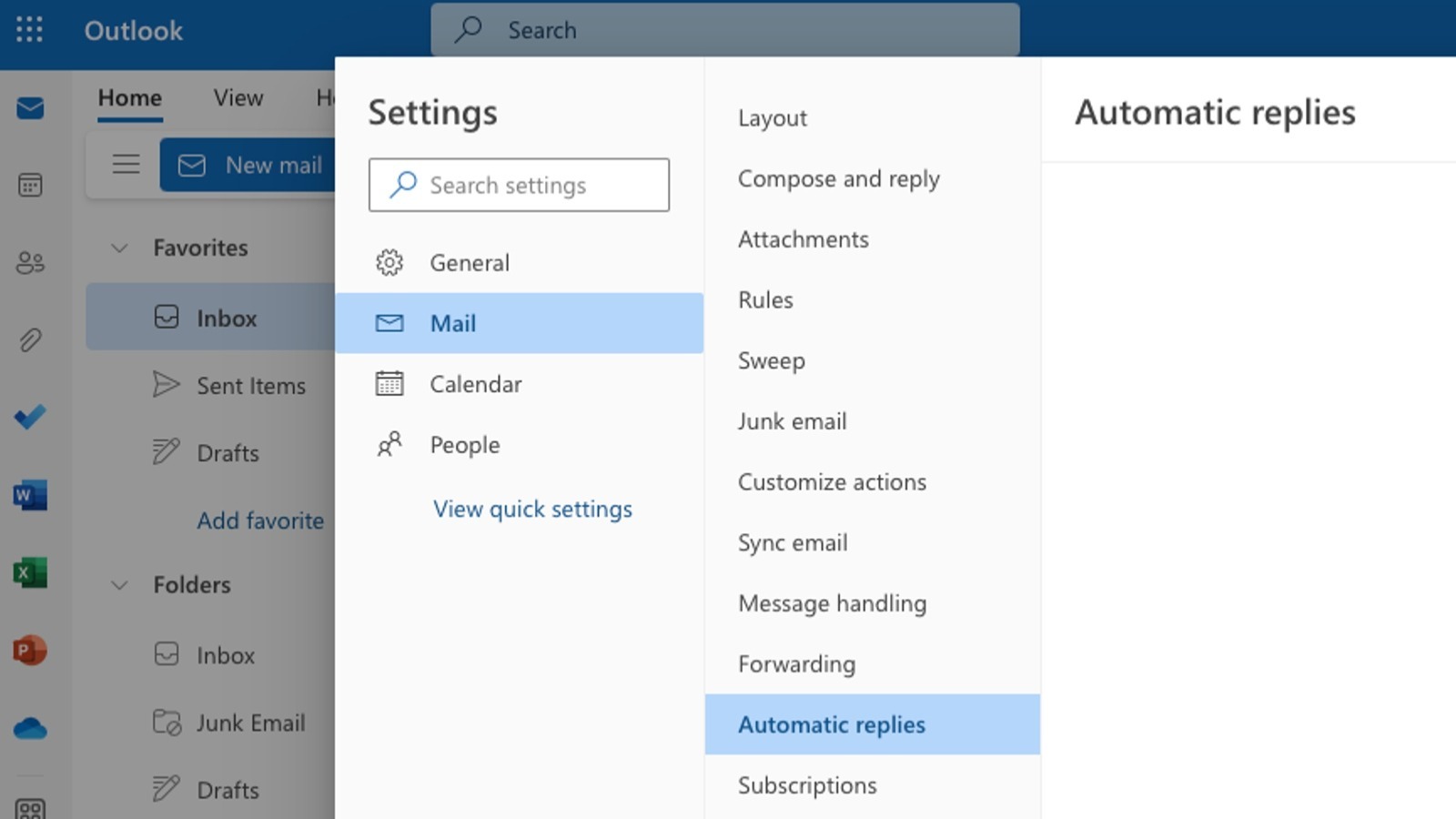
Step 3: Click Auto Reply (Out of Office).
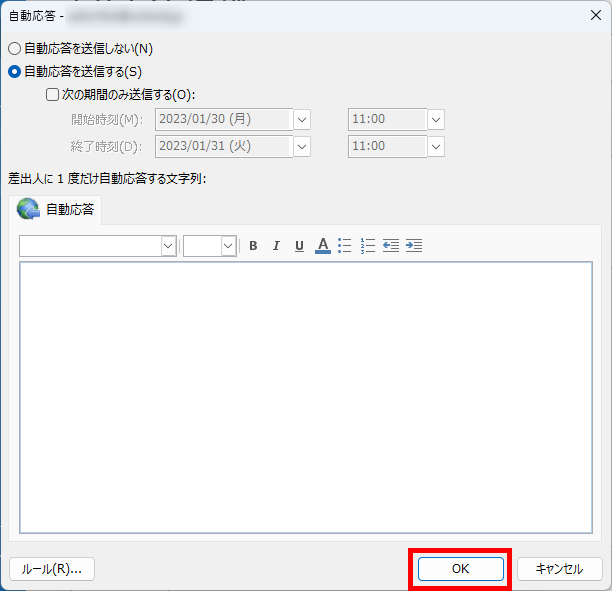
Step 4: Select the button labeled “Send automatic reply.”
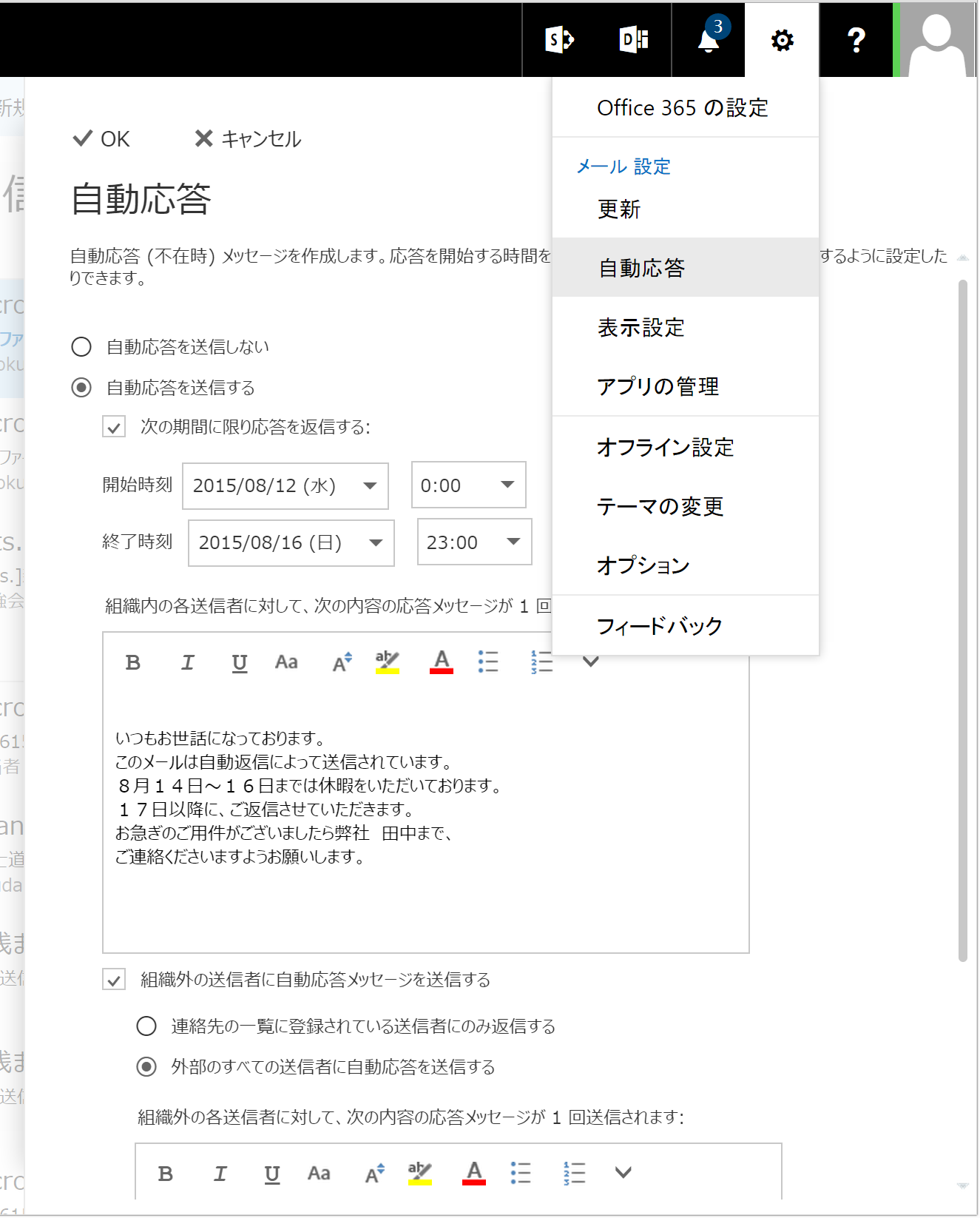
Step 5: You can type your message in the text box. Your message will be visible to anyone trying to contact you.
Since you never know who might be emailing you, it’s important to type your message in a way that’s appropriate for every case scenario.
Step 6: You can choose to send the automatic reply immediately or set a time to send it to the recipient. To do this, select “Send only during this period” and set the desired time and date.

Step 7: You can choose to create two different messages. One for users inside your organization and one for users outside your organization.
When everything is complete, press OK and you’re done.
Using rules and templates
Not all Outlook accounts support auto-reply (out of office). If you don’t see this feature in your account, it may not be available.
Fortunately, there’s another way to set up automatic replies, and that’s through rules and templates.
Here are the steps:
Step 1: First, you need to create a template. To do this, create a new message in Outlook. Fill in all the details such as subject and message body.
Note that the message body will be the message that is automatically sent as a reply to the person who sent you the email.
Step 2: Once done, click Save As in the File tab. In the Save As dialog box, you must name your template and select Outlook Template (*.oft) from the Save as type drop-down menu. Finally, click Save.
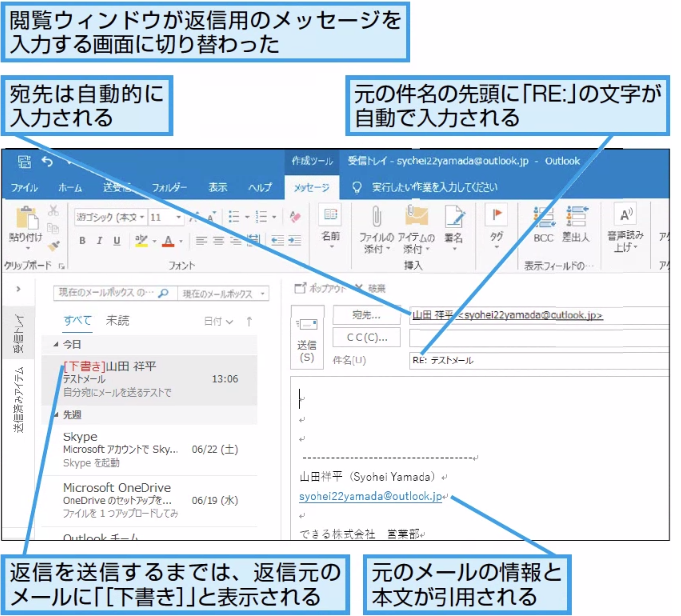
Step 3: Next, create an auto-reply rule using the template. In your Outlook account, click Info, then click Rules and Alerts.

Step 4: When the Rules and Alerts dialog opens, click the New Rule… button.
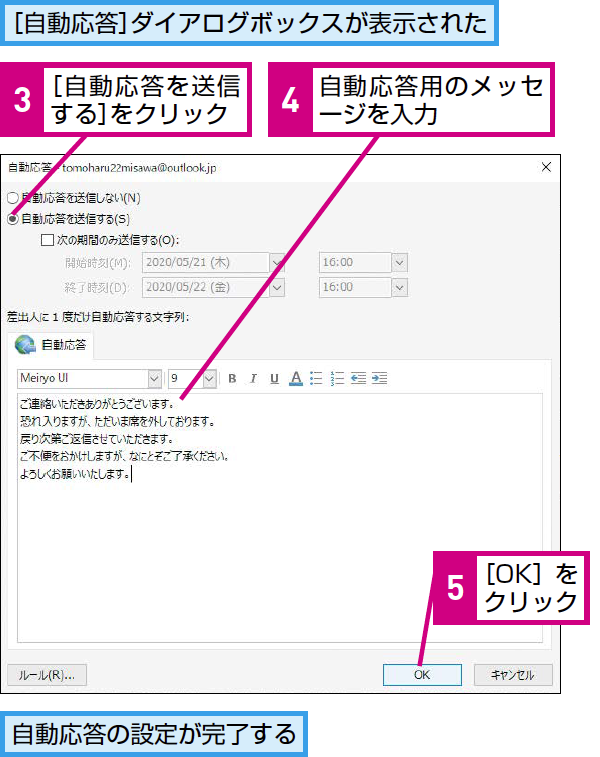
Step 5: Select “Apply rule to messages I receive” option from the options and click “Next” to create a new rule for automatic replies.
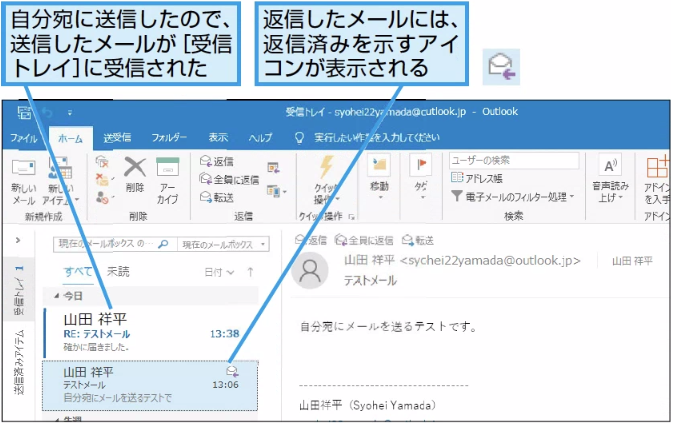
Step 6: Next, you will see the conditions for the autoresponder. Do not change the boxes in Step 1 and Step 2, as you want to reply to all messages you receive. Then click Next.
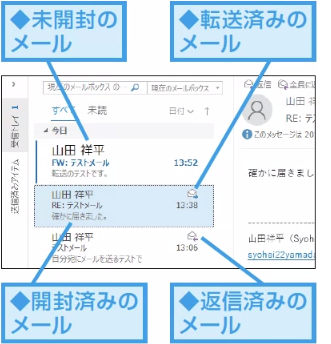
Step 7: Click Yes when a message pops up asking if you want to apply this rule to all messages.
Step 8: You will see a screen like this. From the options, select “Reply using a specific template” in step 1 and click where it says “specific template” in step 2. This will open another box where you can select the template you created earlier.
In the Choose Reply Template pop-up, under Look in, select File System User Templates.
Step 9: Click the Browse button and select a template on your computer to open it.

Step 10: In this step you will be asked if you want to apply the exception. Check the items you want to apply for and click “Next”.
Finally, name your rule and click Finish to complete the process. Now, whenever someone sends you an email while you’re away, the message in the template you created will be automatically sent as a reply.
on computer
The steps to set up autoresponders on your PC are similar to those in your browser. Here are the steps:
Step 1: Open Outlook on your Windows PC.
Step 2: Go to File > Autoresponders. If you are using Outlook 2007, you need to go to Tools > Out of Office Assistant.
Step 3: From the Auto Reply box, select Send Auto Reply.
Step 4: When the message box opens, choose whether you want the automatic reply to be sent to people within your organization or outside your organization. Then start typing your message.
Once completed, click OK to complete the process.
For iPhone apps
Setting up autoresponders on your iPhone is very easy. Please follow the steps below.
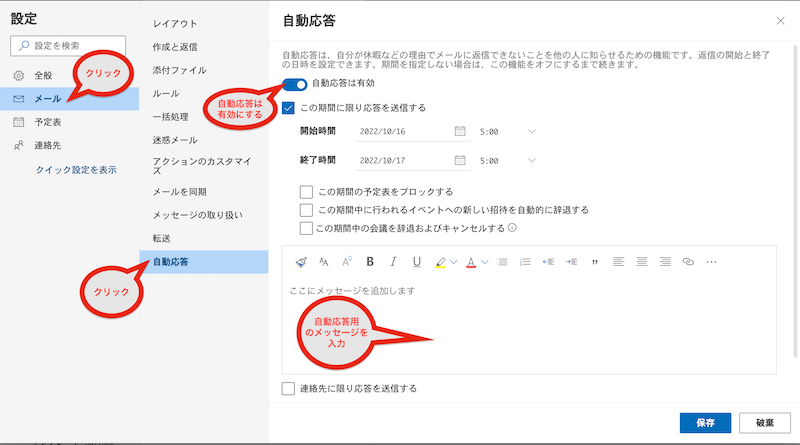
Step 1: Open the Outlook app and go to Settings > Email.
Step 2: Select a specific Outlook account.
Step 3: Turn on auto-reply if it isn’t turned on by default.
You can also choose whether to send the message to everyone in your organization or only to people in your organization. Once done, tap the check mark to confirm.
Also read: How to add a calendar to Outlook
For Android apps
Similar to the process on iPhone, here are the steps to set up automatic replies in the Outlook Android app.
Step 1: Open the app and tap the “Settings” icon.
Step 2: Select a specific Outlook account.
Step 3: Tap Autoresponder.
Step 4: Turn on the Auto Reply option.
Once enabled, you’ll see options to add a message, including choosing whether to send the message to everyone or only specific people.
Select the appropriate option as per your requirement and finally tap on the checkmark icon.
last word
Even while you’re trying to get some quality time for yourself away from the office, thoughts of people trying to contact you may pop into your head.
With Outlook’s AutoReply (Out of Office) feature, you can rest assured that people will instantly know when you’re out of the office.
Then check out these apps to organize your email inbox.


![How to set up a Raspberry Pi web server in 2021 [Guide]](https://i0.wp.com/pcmanabu.com/wp-content/uploads/2019/10/web-server-02-309x198.png?w=1200&resize=1200,0&ssl=1)


