Raspberry Pi is more than just a small board computer, it’s a modified card that can do almost anything. Want to set up Pi-hole on your Raspberry Pi to block ads and trackers from your entire home network? Yes, you can. Do you want to set up a Raspberry Pi web server for web development and local file transfer? Well, yes. In fact, using a Raspberry Pi is a great and affordable way to build a personal web server. If you’re interested, follow this simple guide to turn your Raspberry Pi into a web server in no time. ![How to set up a Raspberry Pi web server in 2021 [Guide]](https://fabcross.jp/news/2019/dmln5300000btitb-img/dmln5300000btiu0.jpg)
Setting up a Raspberry Pi web server (2021)
To set up the Raspberry Pi web server, you first need to install the web server. Two commonly used web servers are Apache and Nginx. However, this tutorial uses Apache, which is reliable and easy to use. Apart from that, we will also install PHP so that we can host dynamic web pages on the Raspberry Pi. Having said that, let’s move on to the next step.
Install Apache Web Server on Raspberry Pi
1. First, make sure you have the Raspberry Pi OS flashed with a desktop UI on your SD card. If you’re new to all this, follow our guide on how to set up your Raspberry Pi remotely. However, if you have an external monitor, things will go more smoothly.
2. Once Raspbian OS has started, open a terminal and run the following command to update Raspbian OS to the latest version .
sudo apt-get update && sudo apt-get upgrade -y 3. Next, you need to install Apache web server on your Raspberry Pi. Run the following command in your terminal.
sudo apt install apache2 -y 
4. Once the installation is complete, your Apache web server will be running. Simply open a browser on your Raspberry Pi, type localhost or 127.0.0.1 , and press Enter to access your web server. The Apache HTML page should load.
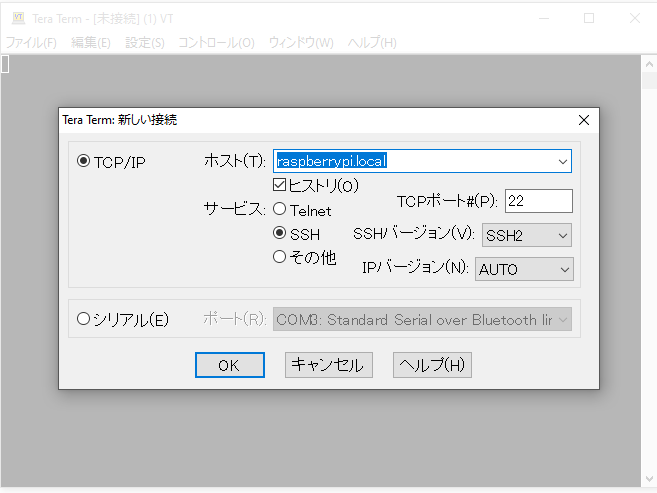
5. You can also access the web server by entering the Raspberry Pi’s IP address directly into your browser. Run hostname -I in Terminal to display the RPi’s IP address.
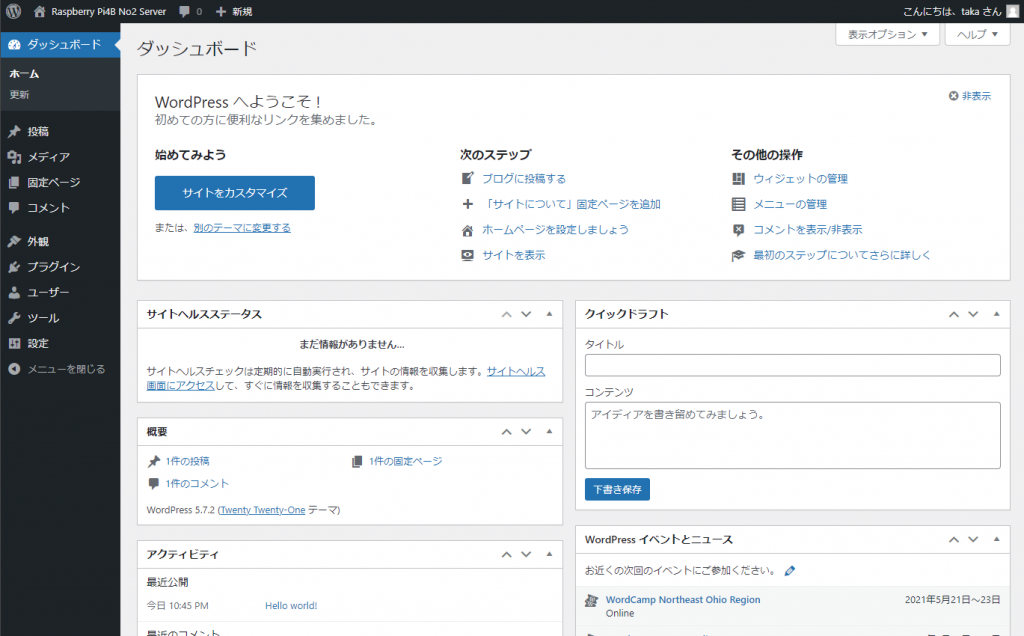
6. Type the IP address into your browser and you will get the IP address. In fact, any device on your local Wi-Fi network can use your IP address to access your web server. For example, you can easily access a Raspberry Pi’s web server from your Chromebook.
7. For your reference, all web server files are stored in the / var/www/html/ location. So you can change directory to this location and see all files. The command to run is:
 cd /var/www/html/
ls -al
8. As you can see in the screenshot above, the index.html file is owned by root . So before you change anything you need to change the owner to pi (you). Run the command below to change ownership .
 sudo chown pi: index.html
ls -al
You are now the owner of the pi web server as you can see in the screenshot below. The same format can also be used to change ownership of folders such as html and www .
9. Next, open the file using Terminal or a file manager. I use a file manager for easy access. Go to “var -> www -> HTML” , right click on the “index.html” file and select “Text Editor”.
10. Now make any changes to the title, save them, and they will be reflected on your web server immediately. Open the web server in a browser window to see the updated title. In this step, we will verify that the Raspberry Pi web server is working properly.
Install PHP on Raspberry Pi
If you want to test web pages on your Raspberry Pi, just installing a web server won’t cut it. To use solutions like XAMPP on your Raspberry Pi, you will also need to install PHP. This allows you to test dynamic web pages on your Raspberry Pi. Here’s how:
1. Run the following command to install the latest version of PHP on your Raspberry Pi.
sudo apt install php libapache2-mod-php -y 2. Next, go to the same var/www/html/ directory and use a text editor to create a PHP file .
3. Next, open the file in a text editor and enter the PHP code you want to add. For example, I added PHP code that prints a simple statement.
Test FileZilla on Raspberry Pi
After setting up the Apache web server and PHP on the Raspberry Pi, it’s time to test whether you can use the popular FTP client FileZilla to transfer existing web assets to the RPi web server. You can also use other FTP clients such as WinSCP if you prefer. Here are the steps:
1. Install FileZilla ( free ) on another PC connected to the same Wi-Fi network.
2. Next, on your Raspberry Pi, go to the Start Menu -> Preferences -> Raspberry Pi Configuration section. Now go to “Interfaces” and enable “SSH” .
3. In FileZilla, open File Menu -> Site Manager and add New Site. Here, select “SFTP” as the protocol and enter the IP address of the Raspberry Pi’s web server in the “Host” field. Leave the Port field blank. Then enter the default credentials ( pi as the username and raspberry as the password. Then click Connect.
Note : If you changed your Raspberry Pi password during setup, enter the new password.
4. Connect to the Raspberry Pi’s web server. You can now transfer all your HTML, CSS, and PHP assets directly to your Raspberry Pi and start your web development effortlessly.
Turn your Raspberry Pi into a web server in a few easy steps
That’s how to set up a web server on Raspberry Pi. All the tools you need to run a web server are available on the Debian-based Raspbian OS, so that’s no problem at all. Even if you are a beginner, you can turn your RPi board into a web server in no time by following the step-by-step instructions above. Anyway, that’s all from us. If you have any questions, please leave them in the comments section below.


![How to set up a Raspberry Pi web server in 2021 [Guide]](https://i0.wp.com/pcmanabu.com/wp-content/uploads/2019/10/web-server-02-309x198.png?w=1200&resize=1200,0&ssl=1)


