There’s rarely a time when someone isn’t using ChatGPT to write code, write an essay, or plan a trip. There’s so much you can do with ChatGPT when you combine it with the best ChatGPT prompts. However, the dreaded “Body Stream Error” message may appear and disrupt your ChatGPT experience. Don’t worry, this exclusive guide will teach you how to fix the ChatGPT “Body Stream Error” issue. So let’s take a look. 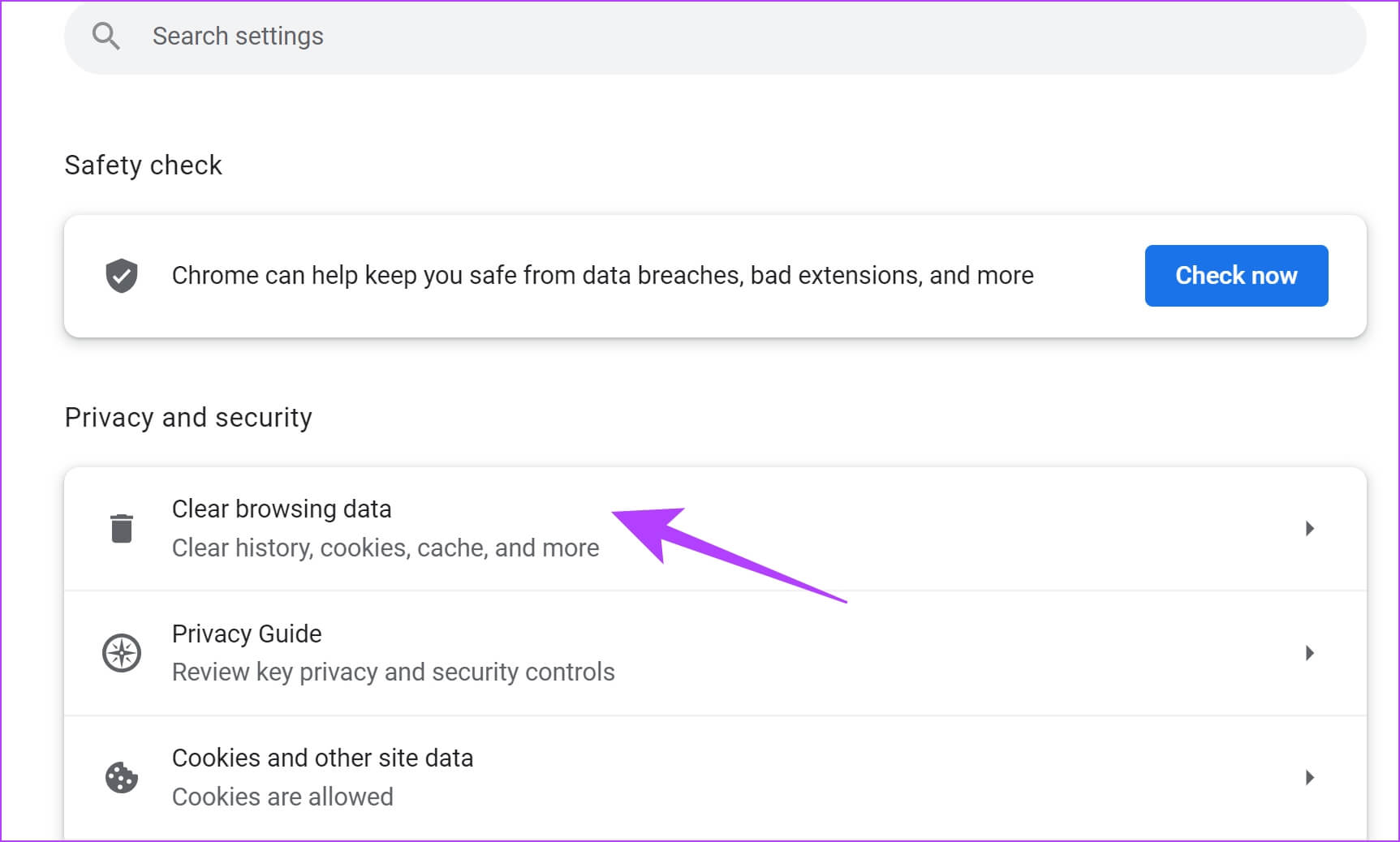
What is the “Body Stream Error” issue in ChatGPT?
You may think that the ChatGPT “Body Stream Error” issue is your fault, but there’s actually very little you did to cause it. Body stream errors typically occur when ChatGPT is unable to properly construct the text needed to answer a user’s query. This usually occurs when the request sent to the server is corrupted or invalid. The chatbot then throws an error in the body stream message, leaving the chat blank.
There are several reasons why this happens. This could be because OpenAI’s servers are under a higher than normal load. However, this error can also occur if you send multiple requests to ChatGPT in a short period of time, or if you have a bad connection. As a result, the AI may become confused and jump out. However, regardless of the reason, there are some solutions you can try to resolve this issue. Let’s discuss all of them below. 
Solutions to fix ChatGPT “Body stream error”

1. Check the status of ChatGPT server
Due to the popularity of ChatGPT, OpenAI’s servers are under almost constant stress. The first thing to do when you encounter this annoying error is to check the status of your company’s servers. It’s normal for ChatGPT to have a “body stream error” issue if the server is indeed overloaded.
You can easily check the status by visiting the OpenAI Server Status website and looking for the green bar under chat.openai.com . If the server is down, your best bet is to wait. However, if everything is fine and you are still receiving an error message, please continue reading.

2. Regenerate the response
Those who use ChatGPT regularly know that there is an option to regenerate responses. This exists to allow users to query the bot again. Prompt regeneration essentially asks the bot to respond again. There is a small chance of failure, but you can still try.
To do this quickly, click the ” Regenerate Response ” button at the bottom. This will prompt ChatGPT to try again and hopefully fix the body stream issue error. However, be careful not to spam your buttons. Otherwise, the error will continue to occur.
3. Restart your router
As mentioned earlier, one of the reasons why the “Body Stream Error” message appears is due to a poor internet connection. Further issues can corrupt the router’s cache and corrupt the loading of website data and services. This combination can cause problems with ChatGPT. However, it can be easily fixed.
Turn off your router and count to 10. Once done, turn it back on. This will flush the router’s cache and update the status. Then visit ChatGPT and try starting a new conversation. We hope this fixes the body stream issue error appearing in ChatGPT. If the error is resolved, you do not need to follow any other fixes. If not, keep reading.
4. Restart your PC
While your browser cache may not be overflowing, your PC stores its own data, and something can corrupt it. People who don’t restart their machines frequently can run into problems quickly. This could also be the reason why you are getting this horrible error. However, as before, it’s easy to fix.
Simply restarting your computer refreshes your short-term memory. This will erase corrupted data (if any) and any other errors as well. However, if you think you need a fresh start with your PC, you can do so. Although it’s a bit daring, you can always learn how to factory reset your Windows PC. However, be sure to back up your data before doing so.
5. Start a new chat
Sometimes the problem is so simple that it can be completely overlooked. There are moments when certain conversations in ChatGPT become buggy. The result is slow loading, broken responses, and worst of all, the infamous body stream issue.
However, there is a simple solution to this. When you visit the ChatGPT website, you will see a small button in the top right corner titled ” + New Chat “. Just click to open a new conversation in ChatGPT. This should resolve the error message along with any other issues you may be facing.
6. Clear your browser cache
Similar to routers, browsers store small amounts of data in the form of caches. This will make your website load a little faster, but it can also cause problems. Therefore, if you receive this error message, it is most likely due to a corrupted browser cache. Thankfully, this issue is easy to fix whether you’re using ChatGPT on Android or iOS. Let’s proceed to the browser settings in the same way.
Note : Settings may vary slightly depending on the browser you are using. Instructions are provided for Google Chrome on all platforms, but instructions may be similar for other browsers.
How to clear your PC’s browser cache
- In Chrome, click the ellipsis icon (three dots) in the top right corner and select Settings from the drop-down menu.
- Once there, click on “ Privacy & Security ” from the left sidebar.
- Under the menu that appears, click ” Clear browsing data ” and uncheck everything except cached images and files. Select a time range and click Clear Data .
This will clear all cached images and files in your browser. This will also clear up the ChatGPT “Body Stream Error” message and let you get back to work.
How to clear browser cache on iOS
- With the ChatGPT window open, tap the ellipsis icon (three dots) in Chrome on your iPhone. Tap the History option in the pop-up menu that appears.
- The history will now be displayed. Now, tap on ” Clear browsing data ” to open the clearing menu.
- Finally, the clear history menu will appear. Make sure only “Cached images and files” is checked . When you’re done, tap Clear Browsing Data , then tap it again at the confirmation message.
The browser cache on your iOS device is now cleared. Open a new chat and check if the ChatGPT error in body stream is gone.
How to clear browser cache on Android
- With the ChatGPT window open, tap the ellipsis icon (three dots) in the top right corner. Tap the History option in the drop-down menu.
- Your browsing history will open. Tap ” Clear browsing data ” to display a menu.
- As before, make sure that only cached images and files are checked. When you’re done, tap ” Clear Data ” and then tap ” Clear ” when a confirmation message appears. If you want to keep your data, you can choose to uncheck websites on the second screen.
In this way, the browser cache on your Android device has been cleared. Hopefully, the ChatGPT error in body stream issue should go away.
7. Try using ChatGPT on another device
Certain devices may refuse to cooperate. What works fine on your iPhone may not work properly on your PC. ChatGPT is not immune to such problems. Most people use ChatGPT on their PC, so this error most commonly occurs on that platform.
However, if you have a mobile device handy, it might be worth trying to open ChatGPT there. You don’t necessarily have to use only Android or iOS. Try one or the other and see what works for you. You can also use ChatGPT with Siri, WhatsApp, and Telegram on your iPhone. Although it is a basic solution, it can be an effective solution in some cases. So, open ChatGPT on your phone and try your luck there.
8. Switch to another browser
Similarly, the problem may actually be your browser. Browsers sometimes experience unique errors or outages that can affect functionality. So if you notice that ChatGPT only causes “body stream message error” when using a particular browser, it’s probably best not to use that browser for now.
Thankfully, there’s no shortage of capable browsers on the Internet. For lots of options, check out the best Windows browsers and install one. If the issue is related to your web browser, you should fix it now.
9. Contact OpenAI Support
After all, if nothing seems to be working and the “body stream error” issue continues to plague ChatGPT, it might be time to call support. Specifically, please contact OpenAI and list your specific issues and when they occurred. Additionally, be sure to add all information about your issue, including screenshots. OpenAI typically responds to queries within a few days, so you should get a solution quickly. To start the process, go to OpenAI’s Help Center and tap the “Chat” bubble.


![How to set up a Raspberry Pi web server in 2021 [Guide]](https://i0.wp.com/pcmanabu.com/wp-content/uploads/2019/10/web-server-02-309x198.png?w=1200&resize=1200,0&ssl=1)


