Xbox Game Bar is a great new addition to Windows 10, but it’s not for everyone. If you’re a gamer, you can instantly take high-quality screenshots, record your screen, and stream your gameplay online. Just recently, Microsoft also added a task manager to the Xbox Game Bar. However, for non-gamers, that doesn’t mean much. Additionally, Xbox services continue to run in the background, consuming significant system resources. So, if you have a low-end PC and want to disable Xbox games on Windows 10, follow the guide below.
Disable Xbox Game Bar on Windows 10
There are two simple steps to disabling Xbox Game Bar and Game DVR, available only from the Settings page. However, if you want to completely remove Xbox Game Bar from Windows 10, please refer to our advanced guide below. You can follow the tutorial if you want.
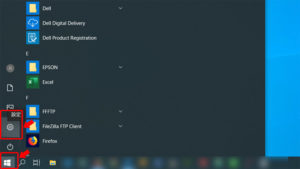
1. Press the Windows key once and type settings . Then open “Settings” from the search results.

2. Next, open Game and go to the Capture tab . Here, disable the toggle “Record in the background while playing games”. This will turn off video recording that is always running in the background, which will speed up your PC significantly.
3. Then switch to the “Xbox Game Bar” tab and turn off the toggle “Enable Xbox Game Bar for game recording and more…”. This will free up more resources and improve your PC’s performance. If you want Xbox Game Bar, just turn on the toggle.
4. If you want to completely remove Xbox Game from Windows 10, right-click the Start menu and select Windows PowerShell (Administrator). Please note that you need an administrator account to perform this operation.
5. Now copy and paste the following command and press Enter. From now on, PowerShell will start removing the Xbox Game Bar from scratch.
Get-AppxPackage Microsoft.XboxGamingOverlay | Remove-AppxPackage 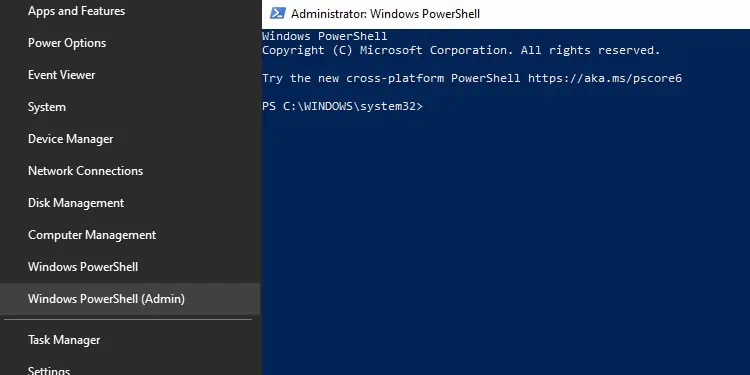
6. If you want to get Xbox Game Bar back , you can easily install it from Microsoft Store . that’s it.
Turn off Xbox Game Bar and Game DVR in Windows 10
That’s how to disable and completely remove Xbox Game Bar from Windows 10. This is a nifty trick to speed up your PC, and you should definitely use it if you don’t play games often. Apart from that, you can significantly improve your experience on your Windows PC by following our exhaustive list of Windows 10 tips and tricks. Anyway, that’s all from us. If you found this article helpful, please let us know by commenting below.


![How to set up a Raspberry Pi web server in 2021 [Guide]](https://i0.wp.com/pcmanabu.com/wp-content/uploads/2019/10/web-server-02-309x198.png?w=1200&resize=1200,0&ssl=1)


