The LED flash on your smartphone is not something you use often, but it can be useful in some situations. Now, if you recently got a new iPhone, you may have accidentally turned on the flashlight and turning it off can be confusing. So, keep reading to learn how to turn off the flashlight on your iPhone in three different ways. 
How to turn off flashlight from iPhone lock screen
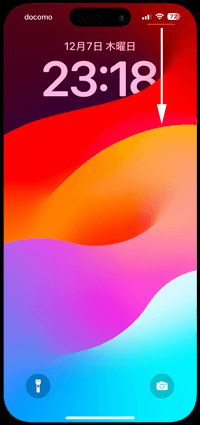
With the launch of iPhone X, Apple introduced the ability to access the camera and flashlight from the lock screen itself. You don’t even need to unlock your iPhone to turn the flashlight on or off. Here’s how:
1. Tap the iPhone screen to launch it.
2. Now tap and hold the flashlight icon in the bottom left corner until you feel a haptic vibration.
3. That’s it. Your iPhone’s flashlight should now turn off.
How to turn off iPhone flashlight from Control Center
With the introduction of Face ID, Apple has completely changed the way users access their iPhone’s Control Center. On iPhones with a Home button, you access Control Center by swiping up from the bottom of the screen, but on iPhones with Face ID, you have to swipe down from the top right. However, here’s how to turn off the flashlight using your iPhone’s Control Center.
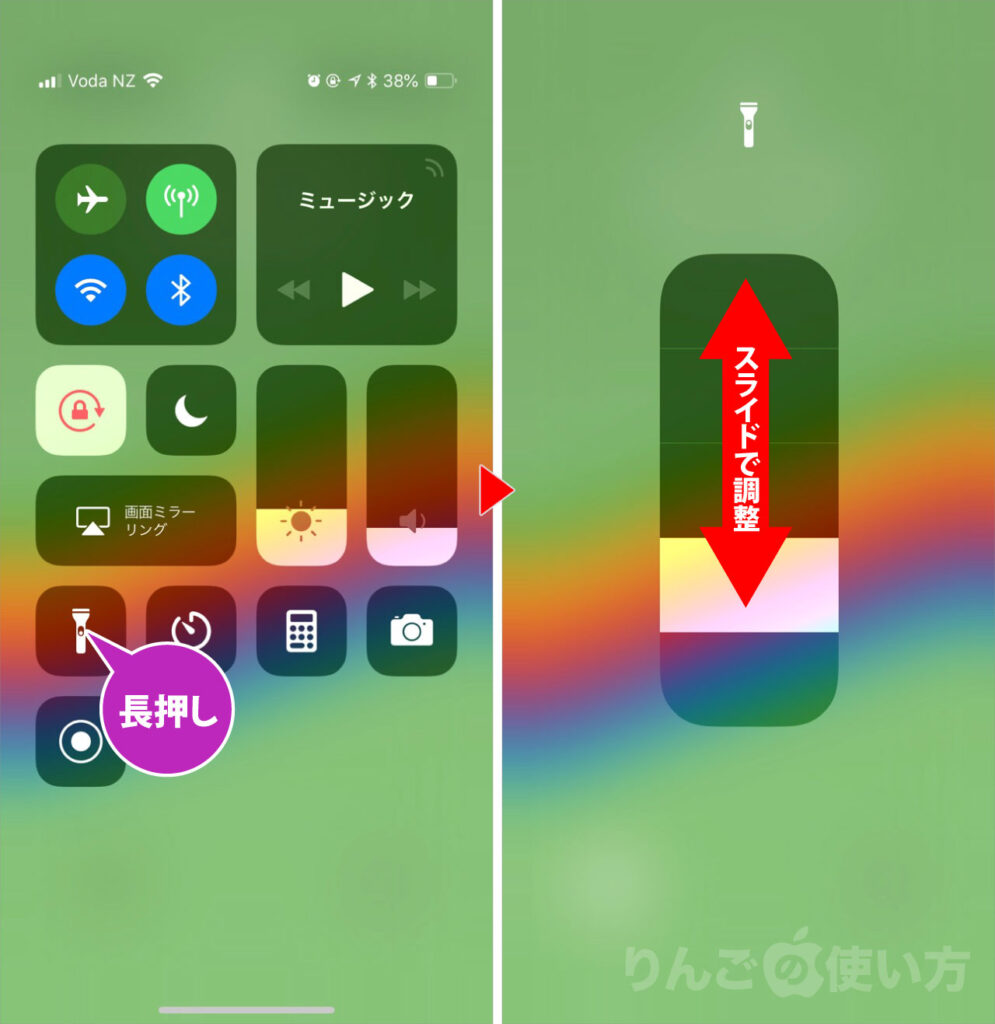
1. If you have a newer iPhone with Face ID and no home button, swipe down from the top-right corner of the display. If your iPhone has a Home button, such as the iPhone 8 or iPhone SE, swipe up from the bottom edge of the screen.
2. In Control Center, find and tap the Flashlight tile to turn off the flashlight. 
How to turn off your iPhone’s flashlight using Siri
If your iPhone’s screen isn’t responding, you can ask Siri to turn off your iPhone’s flashlight. Here’s how it works:
1. Activate Siri on your iPhone by pressing and holding the Power/Side button, then say “Turn off the flashlight.”
2. Siri turns off the flashlight and you see a screen prompt that says “Currently off.” 
How to add a flashlight to iPhone’s Control Center
The Flashlight tile is available by default in Control Center on iPhone, but it’s possible to accidentally delete it while editing the tile. If so, here’s how to add a flashlight tile to your iPhone’s Control Center.
1. First, access your iPhone’s Control Center settings.
2. Scroll down to find the “Torch” option and tap the “+” button for that option.
3. That’s it. You’ll see a flashlight option in Control Center.
While you’re learning the basics here, check out the new iOS 17 features coming to iPhone later this year. Also, if you’re new to iOS and AirDrop isn’t working, here are the best fixes.
You can use the flashlight icon on the lock screen or ask Siri to turn off the flashlight.
Yes, you can go to Settings -> Accessibility -> Touch -> Tap Back -> Torch.


![How to set up a Raspberry Pi web server in 2021 [Guide]](https://i0.wp.com/pcmanabu.com/wp-content/uploads/2019/10/web-server-02-309x198.png?w=1200&resize=1200,0&ssl=1)


