The COUNTIF function and data cleaning functions are two of the easiest ways to find duplicates in Google Sheets.
About Google Sheets
Google Sheets is a free cloud-based spreadsheet application provided by Google as part of its complete office suite that competes with Microsoft Office. Google Sheets lets you prepare data, perform calculations, and more.
Used to modify, organize, and store data. The Google Docs Productivity package includes this program, which consists of Google Drive, Google Sheets, and Google Slides.
However, one of the benefits of Google Sheets is that, unlike Excel, you can collaborate with others in real time.
Google Sheets has simplified database creation by providing a user-friendly interface and practical tools for organizing data.
Google Sheets can help you be more productive and save time. Since the framework is cloud-based, users no longer have to worry about losing important data or accidentally overwriting files.
One of the most widely used spreadsheet and database programs is Google Sheets, which is accessible on all popular desktop and mobile operating systems.
How does Google Sheets help you easily create a database?
Traditionally, creating a database has been a difficult and time-consuming task. However, recent advances in technology, particularly Google Sheets, have greatly simplified this step. This program also has many features, including the ability to add graphs, formulas, and images.
For real-time data management and storage, most companies rely on Google Sheets instead of other expensive databases such as PostgreSQL, MySQL, and SQL Server. Most small data sets prefer Google Sheets as an alternative.
Google Sheets is not a comprehensive database management system for companies. However, unlike other database management systems, it works wonders for small businesses and projects to effectively manage corporate financial operations.
Importantly, it has several advanced features that you can access for free, including the Google Sheets API, Apps script, Form Trigger, Timed Trigger, and ImportXML.
App Scripts includes JDBC services for connecting to MySQL, Microsoft SQL Server, and other databases, so users of App Scripts can connect to a variety of databases.
Companies can reduce their spending on various data management system products by leveraging all of their capabilities.
Now let’s discuss the effects of duplicate values in the database.
Effects of duplicate values in the database
Duplicate values in the database can negatively impact the data if it is used for analysis or reporting purposes.
In rare cases, duplicate values can skew the data and lead to inaccurate inferences from the data. In some cases, duplicate values can make the data more difficult to use and understand.
In either case, it is important to understand the potential effects of duplicate values in your database and take precautions to prevent or reduce such effects.
Highlight duplicates in Google Sheets in one column
This section alerts you to duplicate data in Google Sheets and explains how to eliminate it.
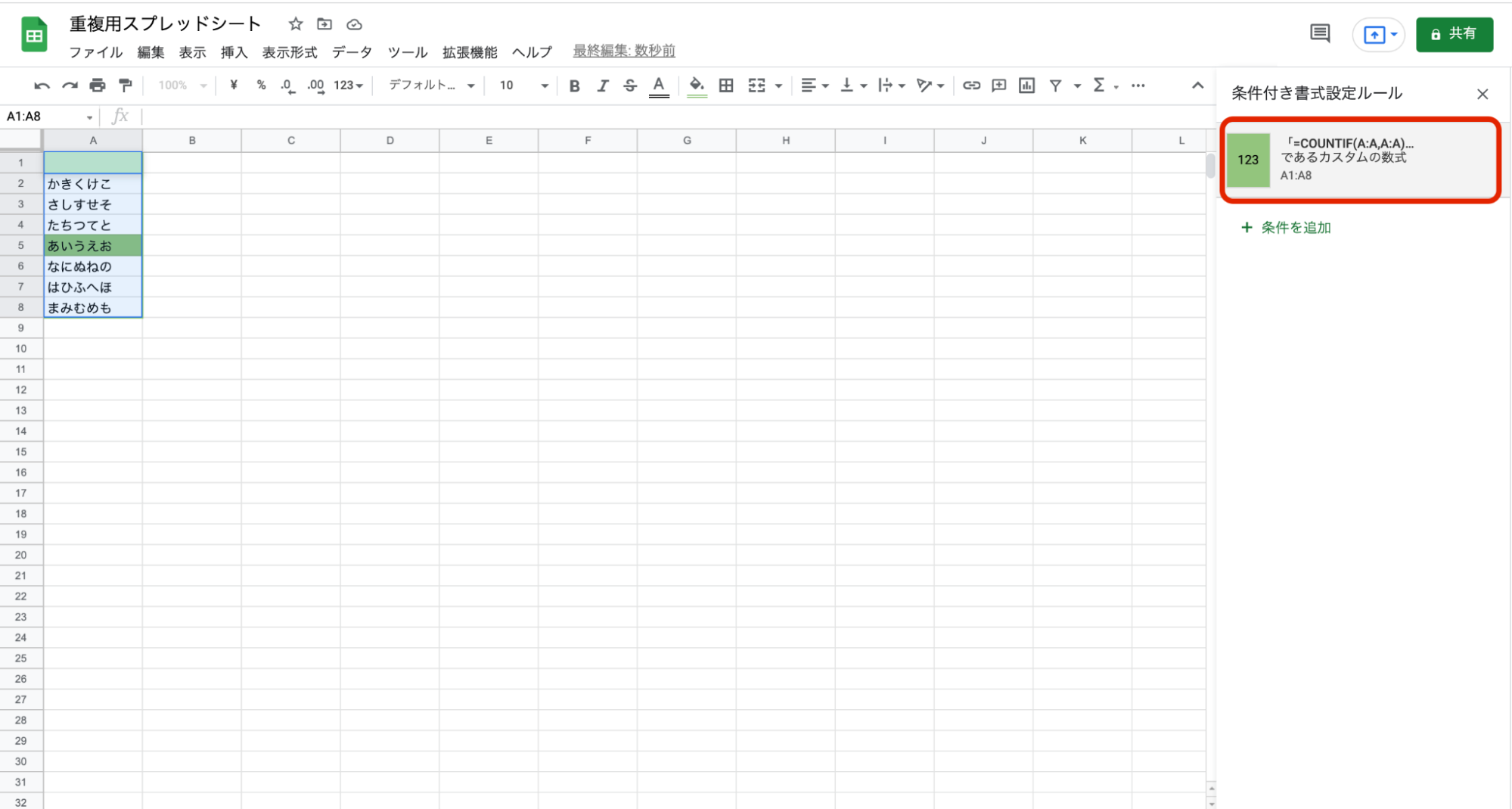
The common formula used to highlight duplicates is:
=COUNTIF(range, criterion)Here’s a step-by-step guide on how to use this formula in Google Sheets.
Go to the “Format” option in the top menu and scroll down to “Conditional Formatting” as shown below.
When you click the Conditional Formatting button, new conditional formatting options will appear on the right side, as shown below.
After you define the range of cells you want to highlight duplicates, scroll down to the Formatting Rules section and select the Custom formula option from the drop-down menu, as shown in the example above.
Enter the following expression in this field:
=COUNTIF($G$6:$G$14,G6)>1The G cell should be replaced with an appropriate column based on your need to highlight duplicates.
Once you click the Finish button, the duplicate columns will be highlighted as shown in the image above.

You can change the highlighting color and other formatting options through formatting style settings, as shown below.
In the example above, we demonstrated how to highlight duplicates from a single column.
The following section explains how to highlight duplicates in multiple columns.
Highlight duplicates in multiple columns in Google Sheets
All phases of this process will be the same as described above, except for the formula and cell range you defined to highlight duplicates.
To understand it better, let’s use one example.
Run the formula by going to the Conditional Formatting option from the Format navigation menu. The options will appear on the right as shown in the image below.
Specify the cell range in the Apply to Range section.
In the Formatting Rules section, the formula used to highlight duplicates in multiple columns is:
=COUNTIF($F$6:$I$8,F6)>1This is a very simple formula and easy to implement. The formula only includes the range of cells that need to identify duplicates.
When you run this formula, it will highlight the duplicates in the four columns, as shown in the example below.
In this image, the highlight color has also been changed to blue.
In the next section, we will consider how to highlight duplicate data from rows.
Highlight duplicates row by row in Google Sheets
In Google Sheets, identifying duplicate rows of data is a little different than highlighting duplicate columns.
Everything else is the same except for the formula, so we won’t repeat each step.
Let me give you an example.
The range of cells you want to highlight duplicates for is listed in the Apply to Range portion of the conditional formatting options, as shown in the image below.
The formula entered in the “Custom formula is” section is:
=COUNTIF(ARRAYFORMULA($A$3:$A$10&$B$3:$B$10&$C$3:$C$10),$A3&$B3&$C3)>1Although this formula looks complicated, keep in mind that it consists of the starting and ending cell numbers of the row that will highlight duplicates.
When you run this formula, you will see the result as shown below.
In this illustration, the highlighting colors have also been changed. This is possible in the same part of the formatting style menu as highlighting duplicate columns.
Highlight duplicates for specific conditions in Google Sheets
If you want to highlight duplicates based on a specific condition, you need to use the star operator (‘*’) to tell the COUNTIF function to link both defined ranges and display the results. there is.
The formula syntax to execute the above condition would be:
=(COUNTIF(Range,Criteria)>1) * (New Condition) )Let’s take an example to understand it.
Criteria: I want to highlight all duplicate rows in a database while leaving the first entry of duplicate rows alone.
Let’s see how to do it in Google Sheets. Except for the change in the formula, all the steps are the same as described above for other approaches, so let’s get into it directly.
The formula to perform the above criteria is:
=COUNTIF(ArrayFormula($A$3:$A3&$B$3:$B3&$C$3:$C3),$A3&$B3&$C3)>1A seemingly complex and long formula involves starting and ending cell numbers.
The Google Sheet below shows the first Apple and Orange entries skipped and the last entry highlighted.
So far, we’ve looked at how to highlight duplicate data by row, column, and specific criteria.
The following section briefly explains how to remove duplicate data using shortcuts.
Shortcut to remove duplicates
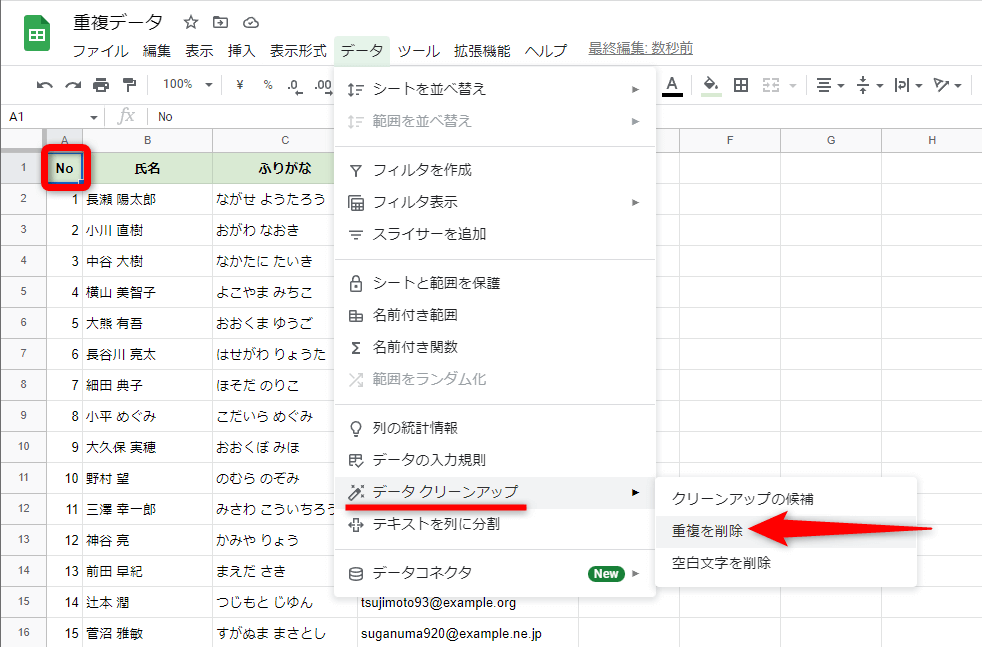
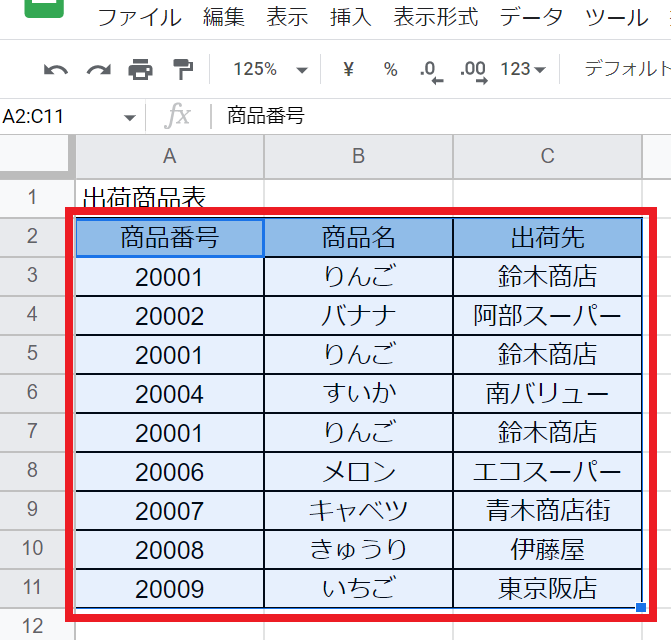
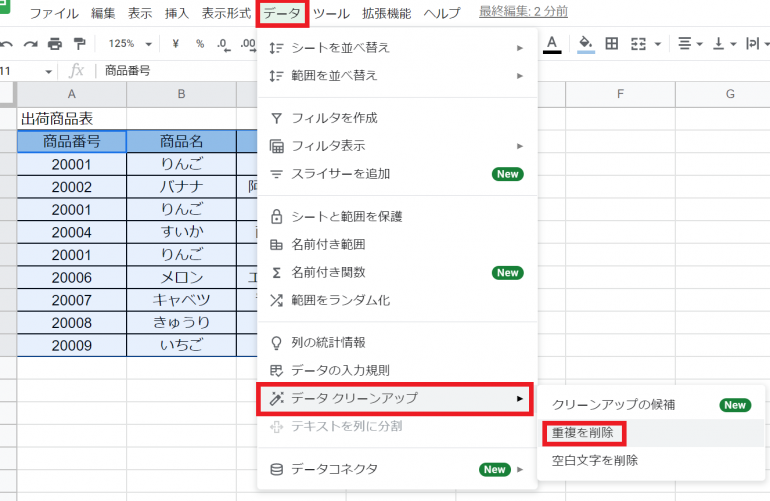
Select the database or column you want to remove duplicate records from, select Data Cleanup from the top menu, scroll down to Remove Duplicates, and click OK, as shown in the image below I will.
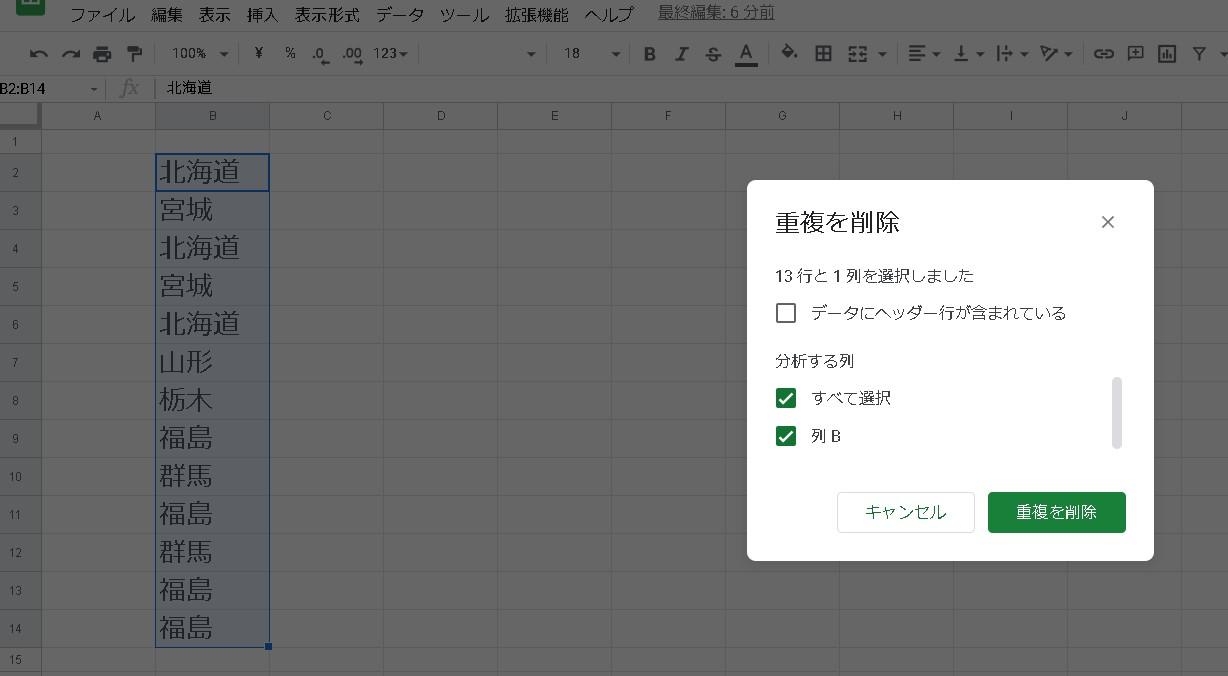
When you click Remove Duplicates, a pop-up box will appear for you to select an alternative and approve the removal of duplicates, as shown in the image below.
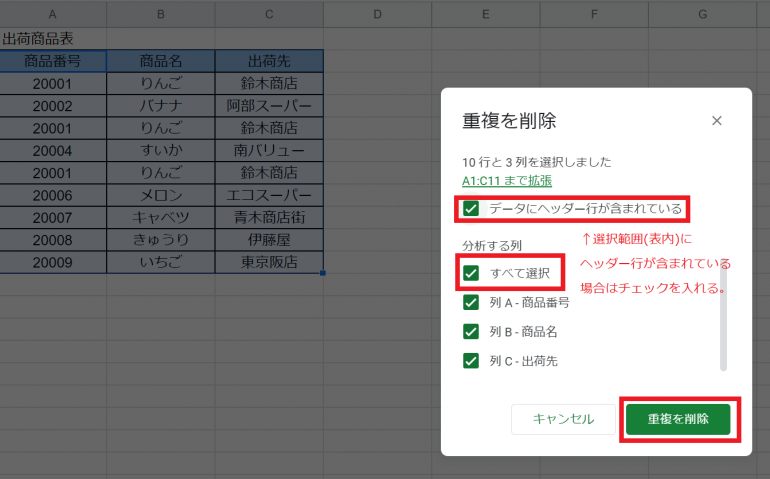
There is a selection for “Data as header row” as shown in the image below. If your sheet has a header row, select this checkbox to have Google Sheets ignore the header row when removing duplicates.
Confirm your selection and click the “Remove Duplicates” button to remove the duplicates and display the status below.
How do I create a unique list?
Let’s try to extract a distinct list from a database with many duplicates.
This formula is very easy to understand and apply.
To understand this, let’s take a look at the old Google Sheets.
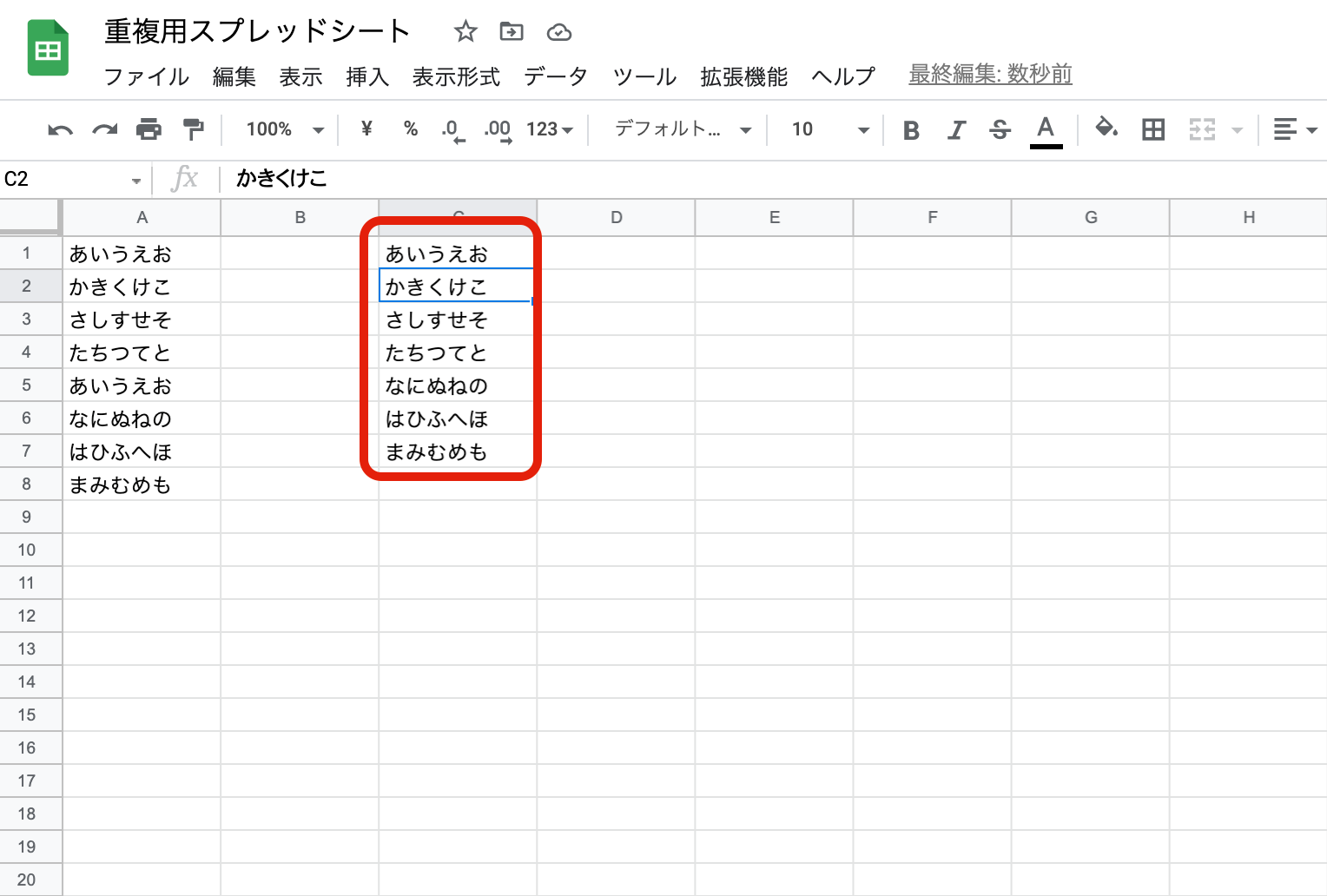
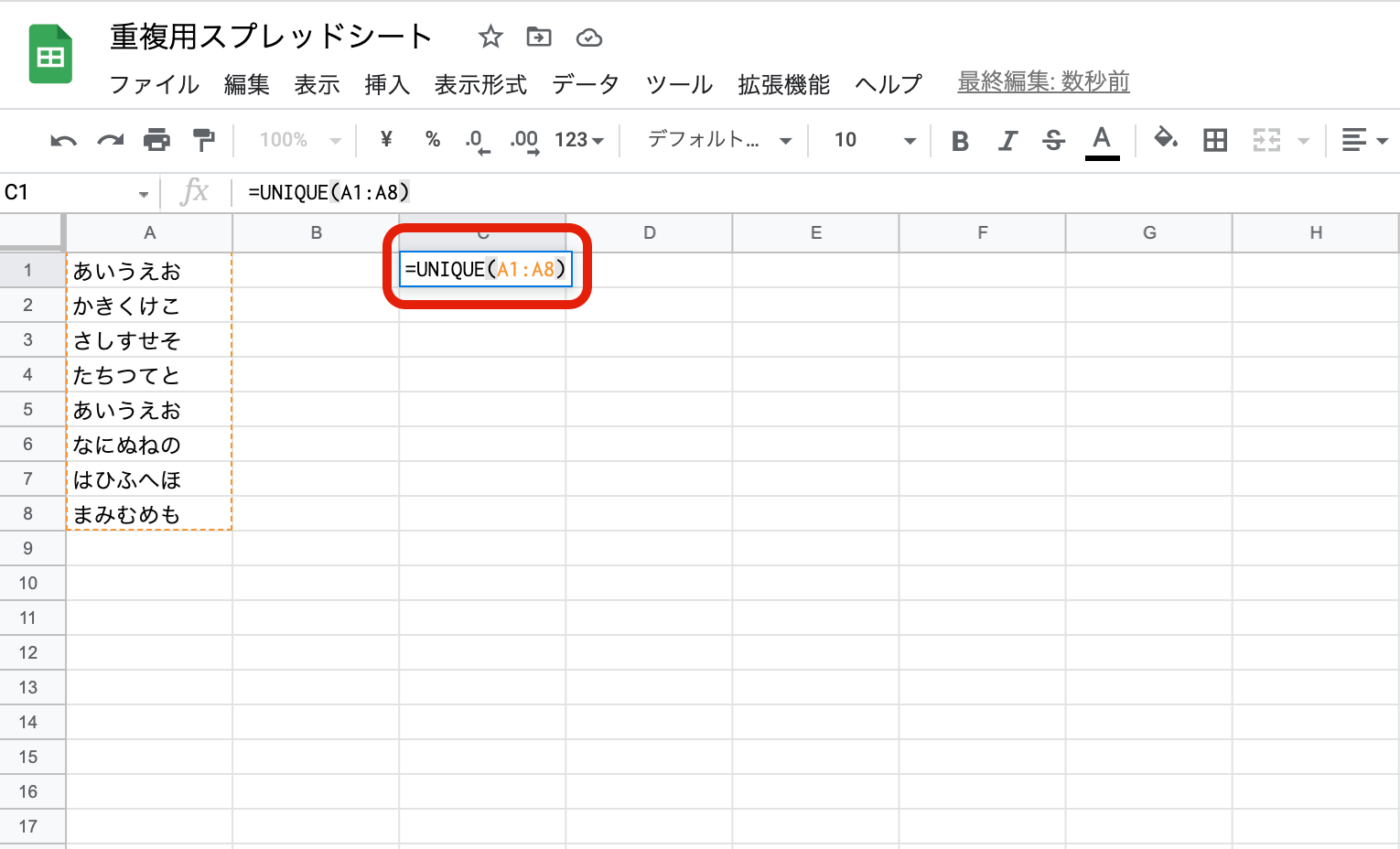
The syntax to create a unique list is:
=unique(range start: range end)As shown in the image below, the formula is set in column D, defines the range of cells to extract unique data, and the result after execution is displayed in column D.
How do I remove white space in Google Sheets?
When working with Google Sheets that contain text or numerical data, excess spaces within cells often become a nuisance.
In this part, we’ll look at how to remove these additional whitespaces.
Let’s use the Google Sheet below to remove extra white space.

Select a column or set of data that has additional white space, go to the Data Menu at the top, scroll down to Data Cleanup, and select Trim White Space, as shown below. Click.
Select ‘Trim Blank Space’ and you will see the result shown in the image below. As you can see, the column no longer has any extra white space.
last word
Duplicate data is not only an unnecessary waste of time, it can also lead to serious problems and costly errors.
If your Google Sheets are small, you can manually locate them, but if you have many sheets, this can be time-consuming and error-prone. The above techniques will help you identify duplicates in Google Docs and remove them all at once.
Then check out the ultimate FAQ cheatsheet for Google Sheets.


![How to set up a Raspberry Pi web server in 2021 [Guide]](https://i0.wp.com/pcmanabu.com/wp-content/uploads/2019/10/web-server-02-309x198.png?w=1200&resize=1200,0&ssl=1)


