This tutorial introduces Prometheus and Grafana. Learn how to install both on CentOS/RHEL and understand how to use Prometheus and Grafana to monitor Linux servers.
introduction
Grafana is the leading time series, open source platform for visualization and monitoring. This allows you to query, visualize, set alerts, and understand your metrics regardless of where they are stored. Create amazing dashboards with Grafana to visualize and monitor your metrics.
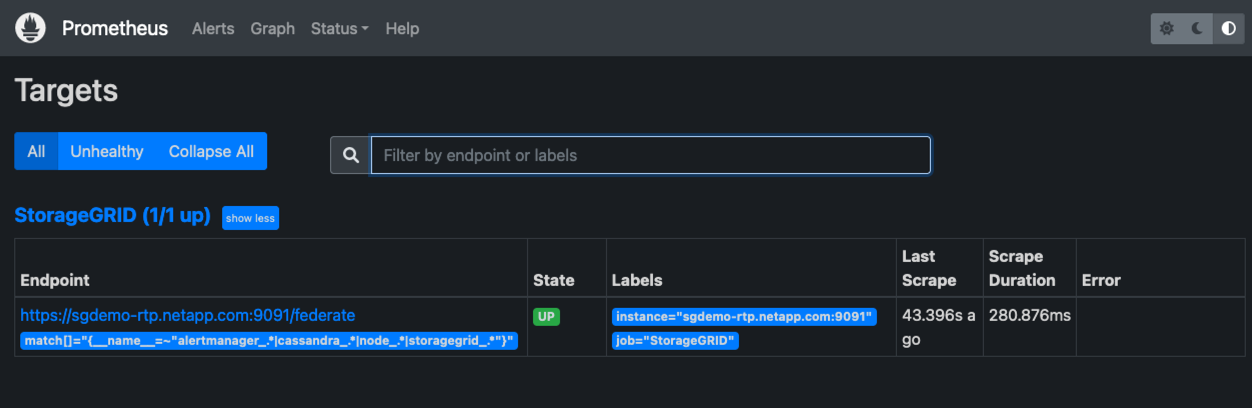
Prometheus is an open source time series monitoring system for machine-centric, highly dynamic, service-oriented architectures. You can literally monitor everything. Grafana also offers Prometheus as one of its data sources, so it integrates very smoothly with Grafana.
If you’re a beginner, we recommend checking out our introduction to Prometheus and Grafana article.
I will show you how to install it on CentOS. Requires at least 2GB of RAM. You can get a cloud server from DigitalOcean and try it out.
Installing Prometheus
Step 1: Download Prometheus
Download the latest Prometheus Linux package from the official page.
To get the latest releases, check out the official release page .
 [centos@ ~]$ wget https://github.com/prometheus/prometheus/releases/download/v2.18.1/prometheus-2.18.1.linux-amd64.tar.gz
--2020-05-20 10:06:22--
https://github.com/prometheus/prometheus/releases/download/v2.18.1/prometheus-2.18.1.linux-amd64.tar.gz
Resolving github.com (github.com)... 13.234.176.102
Connecting to github.com (github.com)|13.234.176.102|:443... connected.
HTTP request sent, awaiting response... 302 Found
Location: https://github-production-release-asset-2e65be.s3.amazonaws.com/6838921/2f454700-90ae-11ea-89e1-3aeb351fdfa5?X-Amz-Algorithm=AWS4-HMAC-SHA256&X-Amz-Credential=AKIAIWNJYAX4CSVEH53A%2F20200520%2Fus-east-1%2Fs3%2Faws4_request&X-Amz-Date=20200520T140622Z&X-Amz-Expires=300&X-Amz-Signature=53d5c6a02e8eeee82f380c4d1edf62a7adfb2b38f2b173059852040b14ddb19c&X-Amz-SignedHeaders=host&actor_id=0&repo_id=6838921&response-content-disposition=attachment%3B%20filename%3Dprometheus-2.18.1.linux-amd64.tar.gz&response-content-type=application%2Foctet-stream [following]
--2020-05-20 10:06:22--
https://github-production-release-asset-2e65be.s3.amazonaws.com/6838921/2f454700-90ae-11ea-89e1-3aeb351fdfa5?X-Amz-Algorithm=AWS4-HMAC-SHA256&X-Amz-Credential=AKIAIWNJYAX4CSVEH53A%2F20200520%2Fus-east-1%2Fs3%2Faws4_request&X-Amz-Date=20200520T140622Z&X-Amz-Expires=300&X-Amz-Signature=53d5c6a02e8eeee82f380c4d1edf62a7adfb2b38f2b173059852040b14ddb19c&X-Amz-SignedHeaders=host&actor_id=0&repo_id=6838921&response-content-disposition=attachment%3B%20filename%3Dprometheus-2.18.1.linux-amd64.tar.gz&response-content-type=application%2Foctet-stream
Resolving github-production-release-asset-2e65be.s3.amazonaws.com (github-production-release-asset-2e65be.s3.amazonaws.com)... 52.216.24.236
Connecting to github-production-release-asset-2e65be.s3.amazonaws.com (github-production-release-asset-2e65be.s3.amazonaws.com)|52.216.24.236|:443... connected.
HTTP request sent, awaiting response... 200 OK
Length: 63373350 (60M) [application/octet-stream]
Saving to: ‘prometheus-2.18.1.linux-amd64.tar.gz’

100%[============================================================================================================>] 63,373,350 2.09MB/s in 50s

2020-05-20 10:07:13 (1.21 MB/s) - ‘prometheus-2.18.1.linux-amd64.tar.gz’ saved [63373350/63373350]
Unzip the downloaded package.
 [centos@ ~]$ tar -xzf prometheus-2.18.1.linux-amd64.tar.gz
[centos@ ~]$ ls
Desktop
Documents Downloads Music
Pictures
prometheus-2.18.1.linux-amd64
prometheus-2.18.1.linux-amd64.tar.gz
Public Templates Videos
Step 2: Configure Prometheus
Create a new user Prometheus using the following command:
[centos@ ~]$ sudo useradd -s /sbin/false prometheusGive ownership of all Prometheus files to the Prometheus user. Make all files in the above path executable.
 [centos@ ~]$ sudo chmod 755 prometheus-2.18.1.linux-amd64 -R
[centos@ ~]$ sudo chown prometheus:prometheus prometheus-2.18.1.linux-amd64 -R
Now configure Prometheus as a service within systemd. Create a file prometheus.service , write the following lines in the file and save it.
 [centos@ ~]$ sudo gedit /etc/systemd/system/prometheus.service
[Unit]
Description=Prometheus Server
Wants=network-online.target
After=network-online.target

[Service]
User=prometheus
Group=prometheus
Type=simple
ExecStart= /home/centos/prometheus-2.18.1.linux-amd64/prometheus \
--config.file= /home/centos/prometheus-2.18.1.linux-amd64/prometheus.yml \
--storage.tsdb.path=/home/centos/prometheus-2.18.1.linux-amd64/ \
--web.console.templates= /home/centos/prometheus-2.18.1.linux-amd64/consoles \
--web.console.libraries= /home/centos/prometheus-2.18.1.linux-amd64/console_libraries

[Install]
WantedBy=multi-user.target
Step 3: Start Prometheus
Use systemctl to reload the systemd system and start the Prometheus service. If you followed all the steps correctly, the status should show that the service is running.
 [centos@ prometheus]$ sudo systemctl daemon-reload
[centos@ prometheus]$ sudo systemctl start prometheus.service
[centos@ prometheus]$ sudo systemctl enable prometheus.service
[centos@ prometheus]$ sudo systemctl status prometheus.service -l
● prometheus.service - Prometheus Server
Loaded: loaded (/etc/systemd/system/prometheus.service; enabled; vendor preset: disabled)
Active: active (running) since Wed 2020-05-20 14:18:47 EDT; 5s ago
Main PID: 23924 (prometheus)
CGroup: /system.slice/prometheus.service
└─23924 /home/centos/prometheus-2.18.1.linux-amd64/prometheus --config.file=/home/centos/prometheus-2.18.1.linux-amd64/prometheus.yml --storage.tsdb.path=/home/centos/prometheus-2.18.1.linux-amd64/ --web.console.templates=/home/centos/prometheus-2.18.1.linux-amd64/consoles --web.console.libraries=/home/centos/prometheus-2.18.1.linux-amd64/console_libraries

May 20 14:18:47 .linuxvmimages.com prometheus[23924]: level=info ts=2020-05-20T18:18:47.885Z caller=web.go:523 component=web msg="Start listening for connections" address=0.0.0.0:9090
May 20 14:18:47 .linuxvmimages.com prometheus[23924]: level=info ts=2020-05-20T18:18:47.888Z caller=head.go:624 component=tsdb msg="WAL segment loaded" segment=0 maxSegment=2
May 20 14:18:47 .linuxvmimages.com prometheus[23924]: level=info ts=2020-05-20T18:18:47.889Z caller=head.go:624 component=tsdb msg="WAL segment loaded" segment=1 maxSegment=2
May 20 14:18:47 .linuxvmimages.com prometheus[23924]: level=info ts=2020-05-20T18:18:47.889Z caller=head.go:624 component=tsdb msg="WAL segment loaded" segment=2 maxSegment=2
May 20 14:18:47 .linuxvmimages.com prometheus[23924]: level=info ts=2020-05-20T18:18:47.889Z caller=head.go:627 component=tsdb msg="WAL replay completed" duration=4.498147ms
May 20 14:18:47 .linuxvmimages.com prometheus[23924]: level=info ts=2020-05-20T18:18:47.909Z caller=main.go:694 fs_type=XFS_SUPER_MAGIC
May 20 14:18:47 .linuxvmimages.com prometheus[23924]: level=info ts=2020-05-20T18:18:47.909Z caller=main.go:695 msg="TSDB started"
May 20 14:18:47 .linuxvmimages.com prometheus[23924]: level=info ts=2020-05-20T18:18:47.909Z caller=main.go:799 msg="Loading configuration file" filename=/home/centos/prometheus-2.18.1.linux-amd64/prometheus.yml
May 20 14:18:47 .linuxvmimages.com prometheus[23924]: level=info ts=2020-05-20T18:18:47.936Z caller=main.go:827 msg="Completed loading of configuration file" filename=/home/centos/prometheus-2.18.1.linux-amd64/prometheus.yml
May 20 14:18:47 .linuxvmimages.com prometheus[23924]: level=info ts=2020-05-20T18:18:47.936Z caller=main.go:646 msg="Server is ready to receive web requests."
Step 4: Access the Prometheus Web UI
Open a browser and point to your server’s IP on port 9090 to access the Prometheus web interface.
Go to Status >> Targets to see what and where Prometheus is currently running.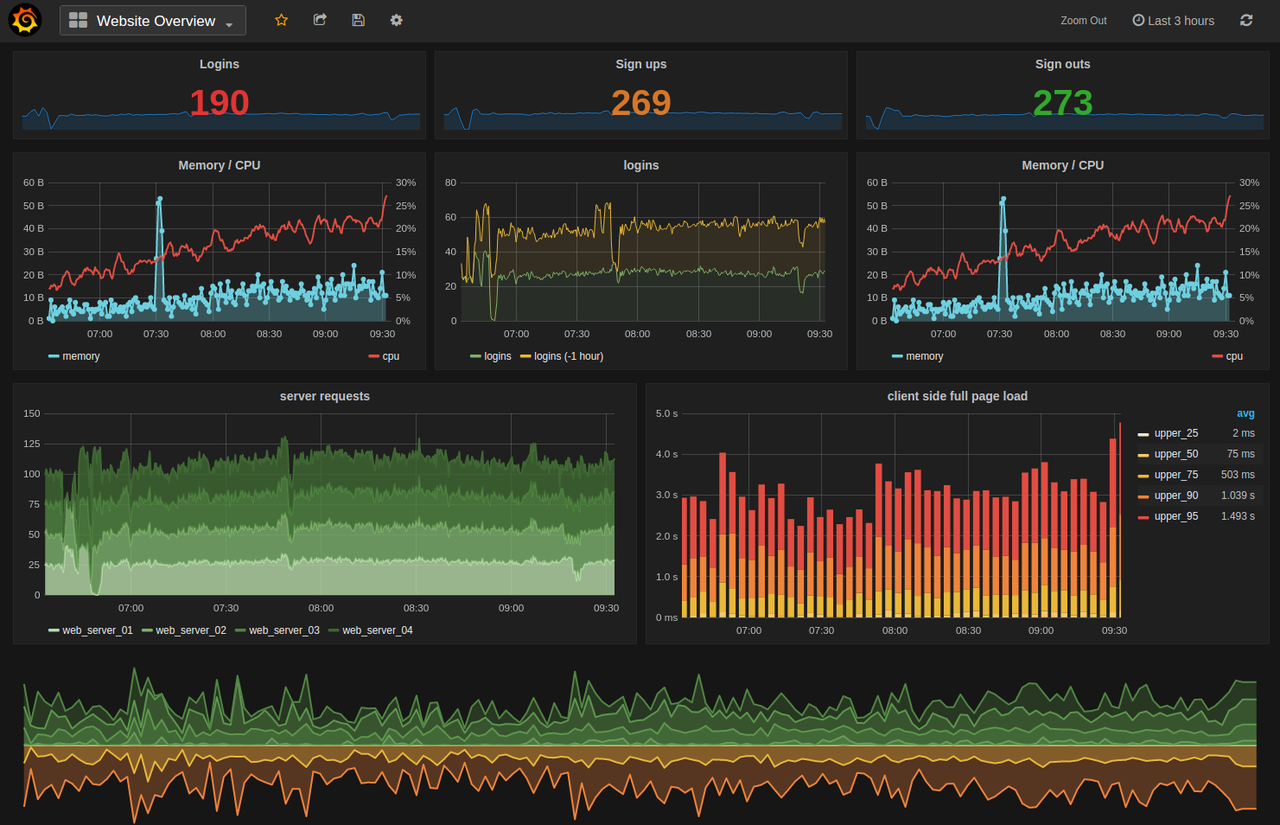
Installing Grafana
Step 1: Add the Grafana repository
By default, the Grafana repository is not present in the CentOS repository, so you need to add it. Create a file grafana.repo in /etc/yum.repos.d/ and add the following line:
 [centos@ ~]$ sudo gedit /etc/yum.repos.d/grafana.repo

[grafana]
name=grafana
baseurl=https://packages.grafana.com/oss/rpm
repo_gpgcheck=1
enabled=1
gpgcheck=1
gpgkey=https://packages.grafana.com/gpg.key
sslverify=1
sslcacert=/etc/pki/tls/certs/ca-bundle.crt
Step 2: Install Grafana
Update CentOS and install Grafana packages.
 [centos@ ~]$ sudo yum update -y

[centos@ ~]$ sudo yum install grafana
Loaded plugins: fastestmirror, langpacks
Loading mirror speeds from cached hostfile
* base: mirrors.piconets.webwerks.in
* extras: mirrors.piconets.webwerks.in
* updates: mirrors.piconets.webwerks.in
Resolving Dependencies
--> Running transaction check
---> Package grafana.x86_64 0:7.0.0-1 will be installed
--> Finished Dependency Resolution

Dependencies Resolved

======================================================================================================================================================
Package Arch Version Repository Size
======================================================================================================================================================
Installing:
grafana x86_64 7.0.0-1 grafana 46 M

Transaction Summary
======================================================================================================================================================
Install 1 Package

Total download size: 46 M
Installed size: 141 M
Is this ok [y/d/N]: y
Downloading packages:
No Presto metadata available for grafana
warning: /var/cache/yum/x86_64/7/grafana/packages/grafana-7.0.0-2.x86_64.rpm: Header V4 RSA/SHA512 Signature, key ID 24098cb6: NOKEY MB 00:00:00 ETA
Public key for grafana-7.0.0-2.x86_64.rpm is not installed
grafana-7.0.0-2.x86_64.rpm | 46 MB
00:00:07
Retrieving key from https://packages.grafana.com/gpg.key
Importing GPG key 0x24098CB6:
Userid : "Grafana <info@grafana.com>"
Fingerprint: 4e40 ddf6 d76e 284a 4a67 80e4 8c8c 34c5 2409 8cb6
From : https://packages.grafana.com/gpg.key
Is this ok [y/N]: y
Running transaction check
Running transaction test
Transaction test succeeded
Running transaction
Installing : grafana-7.0.0-1.x86_64 1/1
### NOT starting on installation, please execute the following statements to configure grafana to start automatically using systemd
sudo /bin/systemctl daemon-reload
sudo /bin/systemctl enable grafana-server.service
### You can start grafana-server by executing
sudo /bin/systemctl start grafana-server.service
POSTTRANS: Running script
Verifying : grafana-7.0.0-1.x86_64
1/1

Installed:
grafana.x86_64 0:7.0.0-1

Complete!
Step 3: Start Grafana
Start the grafana server and check the status to see if it is running.
 [centos@ ~]$ sudo systemctl start grafana-server
[centos@ ~]$ sudo systemctl status grafana-server
● grafana-server.service - Grafana instance
Loaded: loaded (/usr/lib/systemd/system/grafana-server.service; disabled; vendor preset: disabled)
Active: active (running) since Wed 2020-05-20 07:04:32 EDT; 6s ago
Docs: http://docs.grafana.org
Main PID: 7672 (grafana-server)
Tasks: 9
CGroup: /system.slice/grafana-server.service
└─7672 /usr/sbin/grafana-server --config=/etc/grafana/grafana.ini --pidfile=/var/run/grafana/grafana-server.pid --packaging=rpm cfg:defa...

May 20 07:04:32 .linuxvmimages.com grafana-server[7672]: t=2020-05-20T07:04:32-0400 lvl=info msg="Executing migration" logger=migrator...token"
May 20 07:04:32 .linuxvmimages.com grafana-server[7672]: t=2020-05-20T07:04:32-0400 lvl=info msg="Executing migration" logger=migrator...token"
May 20 07:04:32 .linuxvmimages.com grafana-server[7672]: t=2020-05-20T07:04:32-0400 lvl=info msg="Executing migration" logger=migrator...table"
May 20 07:04:32 .linuxvmimages.com grafana-server[7672]: t=2020-05-20T07:04:32-0400 lvl=info msg="Executing migration" logger=migrator...e_key"
May 20 07:04:32 .linuxvmimages.com grafana-server[7672]: t=2020-05-20T07:04:32-0400 lvl=info msg="Created default admin" logger=sqlsto...=admin
May 20 07:04:32 .linuxvmimages.com grafana-server[7672]: t=2020-05-20T07:04:32-0400 lvl=info msg="Starting plugin search" logger=plugins
May 20 07:04:32 .linuxvmimages.com grafana-server[7672]: t=2020-05-20T07:04:32-0400 lvl=info msg="Registering plugin" logger=plugins n...Input"
May 20 07:04:32 .linuxvmimages.com grafana-server[7672]: t=2020-05-20T07:04:32-0400 lvl=info msg="External plugins directory created" ...lugins
May 20 07:04:32 .linuxvmimages.com systemd[1]: Started Grafana instance.
May 20 07:04:32 .linuxvmimages.com grafana-server[7672]: t=2020-05-20T07:04:32-0400 lvl=info msg="HTTP Server Listen" logger=http.serv...ocket=
Hint: Some lines were ellipsized, use -l to show in full.
Step 4: Access the Grafana Web UI
Once the service is up and running, access the server’s IP on port 3000 to access Grafana’s web interface. For the first time, you have to use admin as your username and password which is cumbersome. You will then be asked to set your own password. 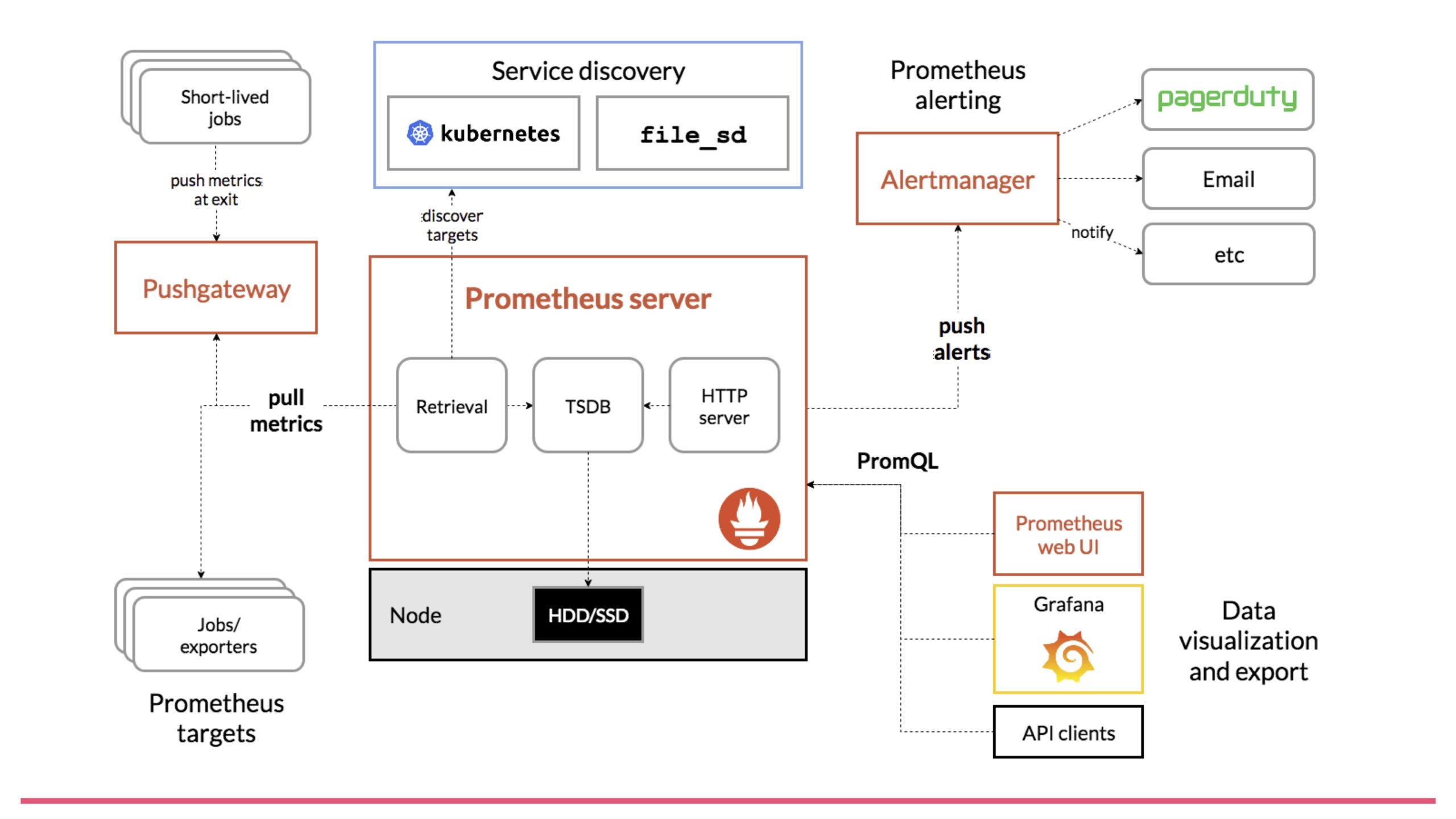
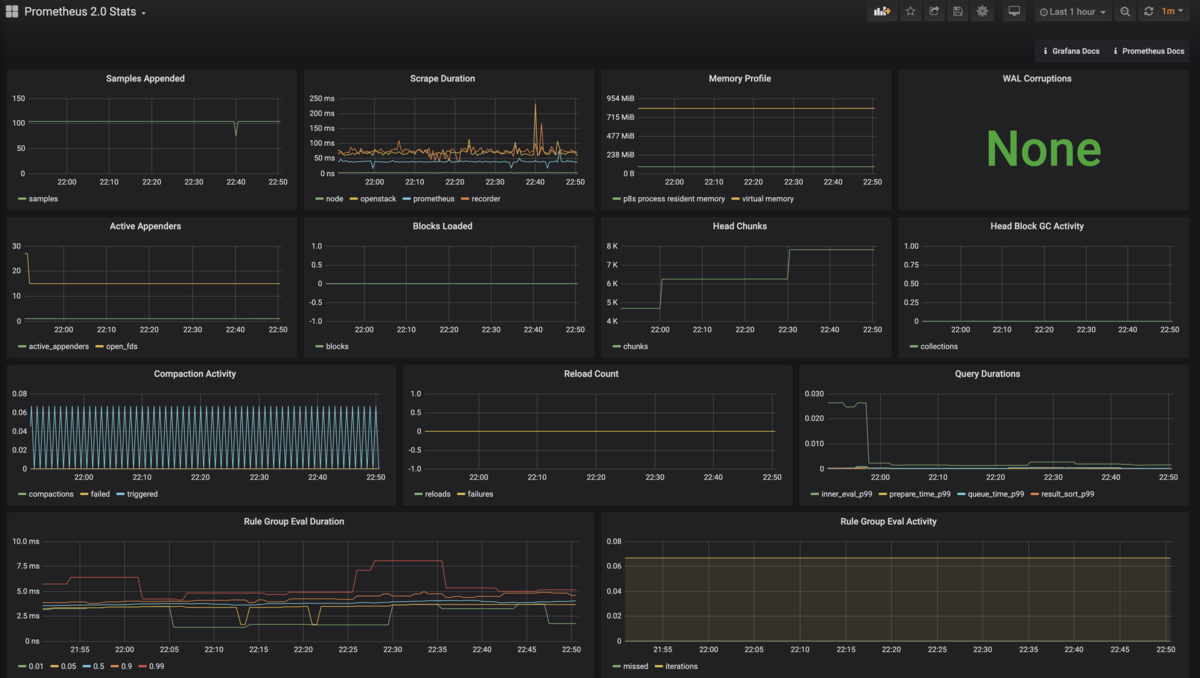
Grafana’s house looks like this.
Installing the node exporter
node_exporter is an official package that must be installed on the Linux server you want to monitor. We expose multiple hardware and OS metrics that are captured by Prometheus and ultimately visualized in Grafana.
Step 1: Download the node exporter
Download the node exporter package to your server using wget.
Check the release page to get the latest version
 [centos@ ~]$ wget https://github.com/prometheus/node_exporter/releases/download/v1.0.0-rc.1/node_exporter-1.0.0-rc.1.linux-amd64.tar.gz
--2020-05-20 15:56:13--
https://github.com/prometheus/node_exporter/releases/download/v1.0.0-rc.1/node_exporter-1.0.0-rc.1.linux-amd64.tar.gz
Resolving github.com (github.com)... 13.234.176.102
Connecting to github.com (github.com)|13.234.176.102|:443... connected.
HTTP request sent, awaiting response... 302 Found
Location: https://github-production-release-asset-2e65be.s3.amazonaws.com/9524057/b34b8180-960e-11ea-8df0-39a17445b82f?X-Amz-Algorithm=AWS4-HMAC-SHA256&X-Amz-Credential=AKIAIWNJYAX4CSVEH53A%2F20200520%2Fus-east-1%2Fs3%2Faws4_request&X-Amz-Date=20200520T195614Z&X-Amz-Expires=300&X-Amz-Signature=7f4d746946569dbe71bba5785fb4947348e5e0de1c2e8516b2390a2df2eda801&X-Amz-SignedHeaders=host&actor_id=0&repo_id=9524057&response-content-disposition=attachment%3B%20filename%3Dnode_exporter-1.0.0-rc.1.linux-amd64.tar.gz&response-content-type=application%2Foctet-stream [following]
--2020-05-20 15:56:14--
https://github-production-release-asset-2e65be.s3.amazonaws.com/9524057/b34b8180-960e-11ea-8df0-39a17445b82f?X-Amz-Algorithm=AWS4-HMAC-SHA256&X-Amz-Credential=AKIAIWNJYAX4CSVEH53A%2F20200520%2Fus-east-1%2Fs3%2Faws4_request&X-Amz-Date=20200520T195614Z&X-Amz-Expires=300&X-Amz-Signature=7f4d746946569dbe71bba5785fb4947348e5e0de1c2e8516b2390a2df2eda801&X-Amz-SignedHeaders=host&actor_id=0&repo_id=9524057&response-content-disposition=attachment%3B%20filename%3Dnode_exporter-1.0.0-rc.1.linux-amd64.tar.gz&response-content-type=application%2Foctet-stream
Resolving github-production-release-asset-2e65be.s3.amazonaws.com (github-production-release-asset-2e65be.s3.amazonaws.com)... 52.216.95.83
Connecting to github-production-release-asset-2e65be.s3.amazonaws.com (github-production-release-asset-2e65be.s3.amazonaws.com)|52.216.95.83|:443... connected.
HTTP request sent, awaiting response... 200 OK
Length: 8734373 (8.3M) [application/octet-stream]
Saving to: ‘node_exporter-1.0.0-rc.1.linux-amd64.tar.gz’

100%[============================================================================================================>] 8,734,373 755KB/s in 11s

2020-05-20 15:56:26 (769 KB/s) - ‘node_exporter-1.0.0-rc.1.linux-amd64.tar.gz’ saved [8734373/8734373]
Unzip the downloaded file.
[centos@ ~]$ tar -xzf node_exporter-1.0.0-rc.1.linux-amd64.tar.gzStep 2: Configure the node exporter
Configure Node Exporter as a service within systemd. Create a file node_exporter.service , write the following lines in the file and save it.
 [centos@ ~]$ sudo gedit /etc/systemd/system/node_exporter.service

[Unit]

Description=node_exporter
Wants=network-online.target
After=network-online.target

[Service]

User=prometheus
Group=prometheus
Type=simple
ExecStart=/home/centos/node_exporter-1.0.0-rc.1.linux-amd64/node_exporter

[Install]

WantedBy=multi-user.target
Step 3: Start the node exporter
 [centos@ ~]$ sudo systemctl daemon-reload
[centos@ ~]$ sudo systemctl start node_exporter
[centos@ ~]$ sudo systemctl status node_exporter
● node_exporter.service - node_exporter
   Loaded: loaded (/etc/systemd/system/node_exporter.service; enabled; vendor preset: disabled)
   Active: active (running) since Wed 2020-05-27 03:42:54 EDT; 2s ago
 Main PID: 9658 (node_exporter)
    Tasks: 3
   CGroup: /system.slice/node_exporter.service
           └─9658 /home/centos/node_exporter-1.0.0-rc.1.linux-amd64/node_exporter

May 27 03:42:54 .linuxvmimages.com node_exporter[9658]: level=info ts=2020-05-27T07:42:54.870Z caller=node_exporter.go:112 collector=t...l_zone
May 27 03:42:54 .linuxvmimages.com node_exporter[9658]: level=info ts=2020-05-27T07:42:54.870Z caller=node_exporter.go:112 collector=time
May 27 03:42:54 .linuxvmimages.com node_exporter[9658]: level=info ts=2020-05-27T07:42:54.870Z caller=node_exporter.go:112 collector=timex
May 27 03:42:54 .linuxvmimages.com node_exporter[9658]: level=info ts=2020-05-27T07:42:54.870Z caller=node_exporter.go:112 collector=udp_queues
May 27 03:42:54 .linuxvmimages.com node_exporter[9658]: level=info ts=2020-05-27T07:42:54.870Z caller=node_exporter.go:112 collector=uname
May 27 03:42:54 .linuxvmimages.com node_exporter[9658]: level=info ts=2020-05-27T07:42:54.870Z caller=node_exporter.go:112 collector=vmstat
May 27 03:42:54 .linuxvmimages.com node_exporter[9658]: level=info ts=2020-05-27T07:42:54.870Z caller=node_exporter.go:112 collector=xfs
May 27 03:42:54 .linuxvmimages.com node_exporter[9658]: level=info ts=2020-05-27T07:42:54.870Z caller=node_exporter.go:112 collector=zfs
May 27 03:42:54 .linuxvmimages.com node_exporter[9658]: level=info ts=2020-05-27T07:42:54.870Z caller=node_exporter.go:191 msg="Listen...=:9100
May 27 03:42:54 .linuxvmimages.com node_exporter[9658]: level=info ts=2020-05-27T07:42:54.870Z caller=tls_config.go:170 msg="TLS is di...=false
Adding servers to Prometheus
Step 1: Edit prometheus.yml
You need to add a new job to your prometheus.yml file. Open a new tab in Terminal and edit the file as below.
 [centos@ ~]$ sudo gedit prometheus.yml

- job_name: 'node_exporter'
static_configs:
- targets: ['localhost:9100']
Note: Above, we configured localhost on the target because we want to monitor the Prometheus server itself. You can change this to the IP of your actual Linux server. Port 9100 is the default port for node_exporter.
Step 2: Stop and start Prometheus
 [centos@]$ sudo systemctl stop prometheus.service
[centos@]$ sudo systemctl start prometheus.service
Step 3: Verify your target
Go to https://localhost:9090/targets. A running target is found. One of them is the node exporter.

Integrate Prometheus with Grafana
Grafana and Prometheus are now installed. Use it to monitor your server.
- Go to Grafana Home and click on the settings symbol on the left. Then click on “Data Source”.
- Click Add Data Source and select Prometheus.

- Set the URL as the IP of your Prometheus server on port 9090. In this example, we are running Prometheus and Grafana on the same server, so it would be http://localhost:9090.
- Click Save and Test. A success message is displayed indicating that the data source has been added.
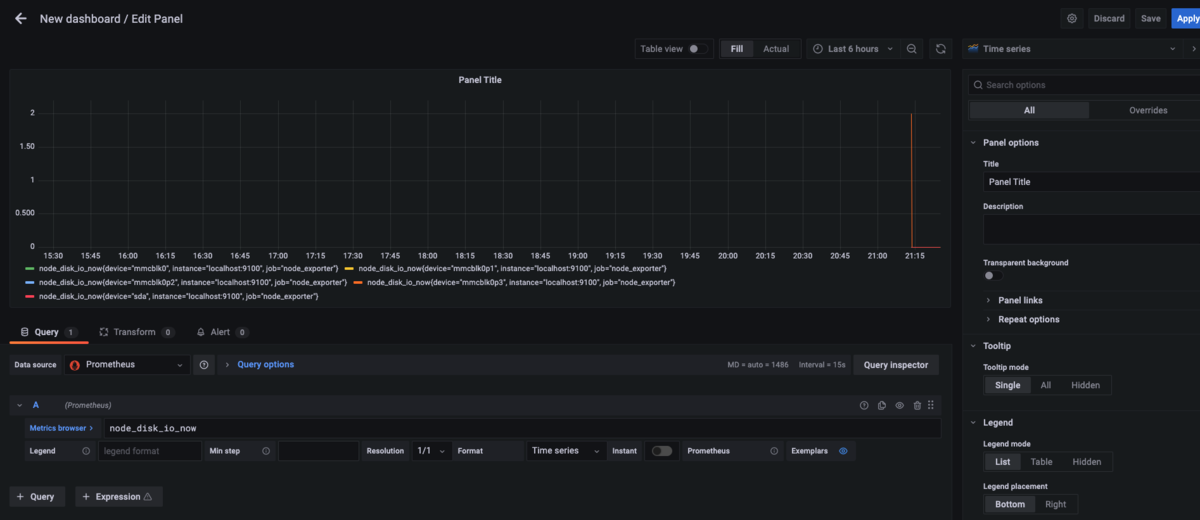
wonderful!
Grafana has successfully connected to Prometheus. Create a dashboard. For simplicity, we will use the existing node exporter dashboard on Grafana’s official website to monitor the metrics of our Linux servers.
- Go to your Grafana home dashboard, click the + sign, and click Import.
- Under Import via grafana.com, enter the dashboard ID 1860 and click Load.
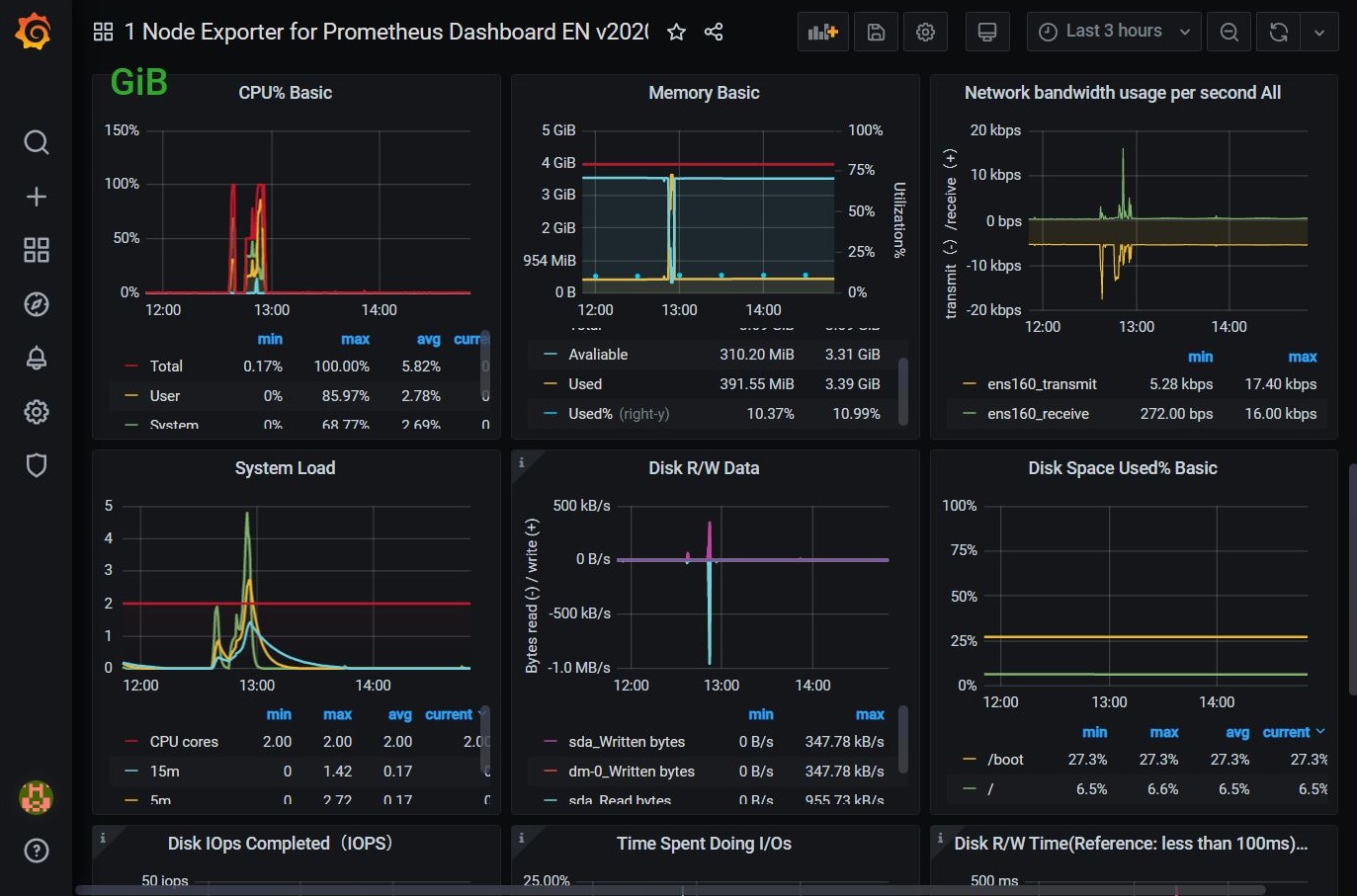
- Then select your Prometheus data source and click Import.

- The complete node exporter dashboard is imported. You can see that all the metrics like system load, used RAM, CPU busy etc are successfully monitored in Grafana.
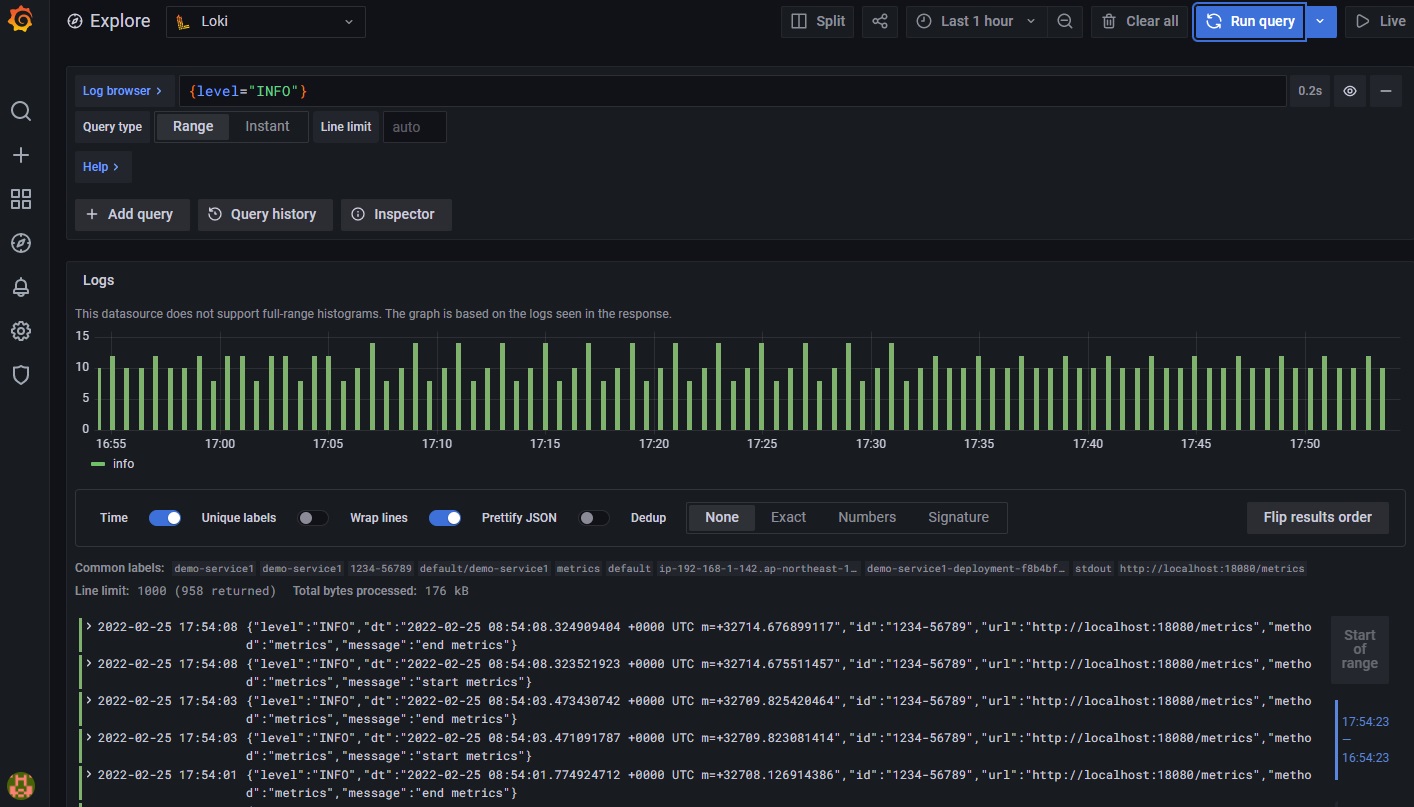
- If you scroll down, you’ll see that Grafana can visualize many metrics.
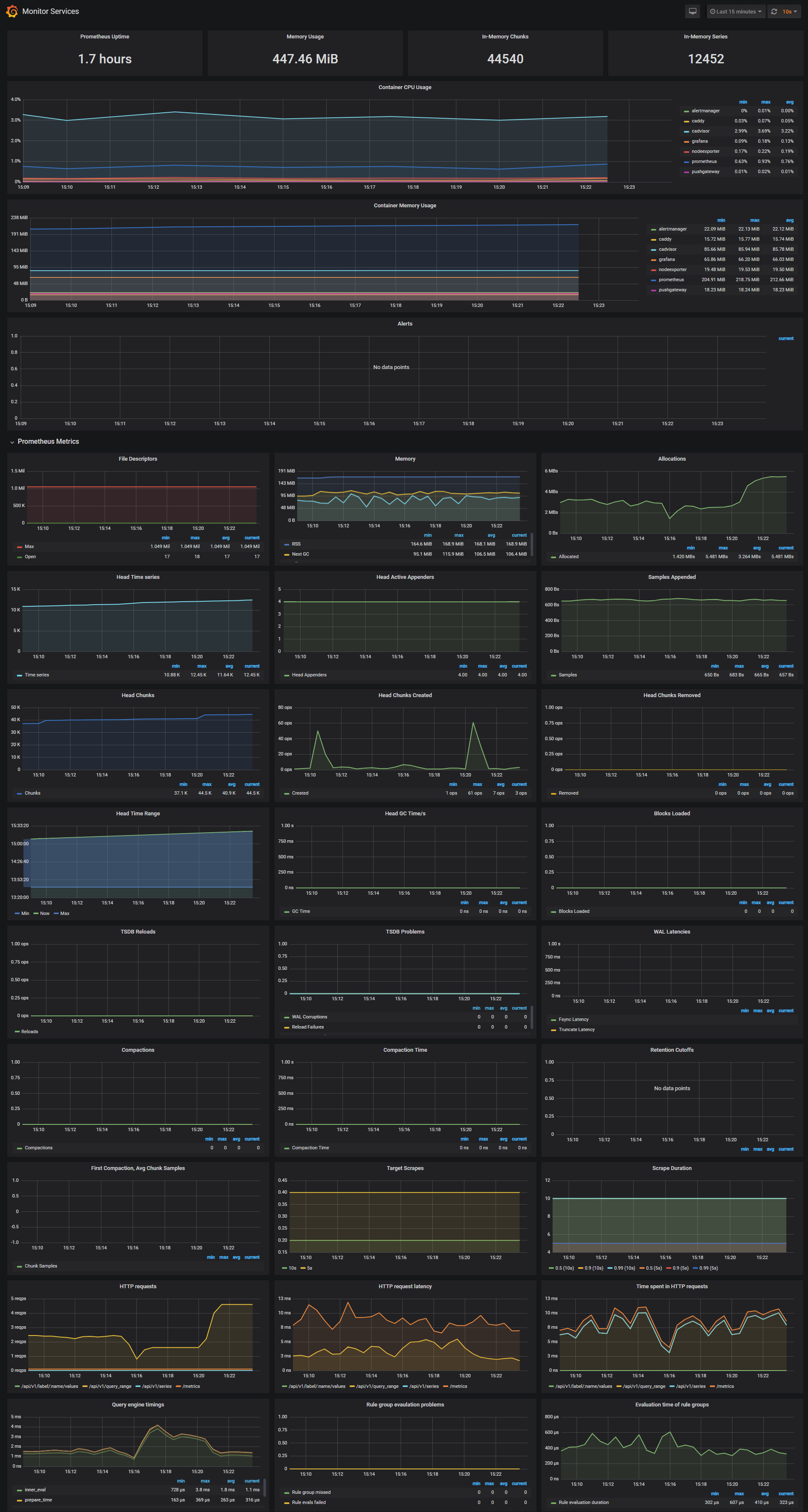
- If you want to get more information, you can click on a specific metric visualization to see more details. Here we are checking the network traffic with packet visualization for the last 30 minutes.
conclusion
I hope this helps you understand how to configure Grafana and Prometheus for server metrics. There are other ways to monitor your server. You can try cloud-based server monitoring or self-hosted lightweight software.
If you’re interested in learning Grafana, we recommend checking out this Udemy hands-on course.


![How to set up a Raspberry Pi web server in 2021 [Guide]](https://i0.wp.com/pcmanabu.com/wp-content/uploads/2019/10/web-server-02-309x198.png?w=1200&resize=1200,0&ssl=1)


