Are you ready for the always-important video interaction? Wait! Why not join a test Zoom meeting first to make sure everything is perfect?
Thanks to COVID-19, a remote or hybrid work culture has become the new normal among businesses. This shift gives employees more time to spend with their families, but it also saves resources for employers.
Still, cooperation is essential.
While email or Slack will work fine most of the time, video conferencing is a great alternative to a good old face-to-face conversation.
That’s where Zoom has established itself as a market leader. And that growth isn’t just due to the pandemic. As shown in Okta’s report , we had excellent results even before COVID-19.
But if you’re here, that means you’re already using Zoom. That’s why we help you perform at your best without any last-minute hiccups.
Zoom test on desktop
As the name suggests, the Zoom test allows you to check whether your hardware (camera, speakers, microphone) is fully functional.
I also check before attending a live meeting, but the Zoom test is more convenient and reliable.
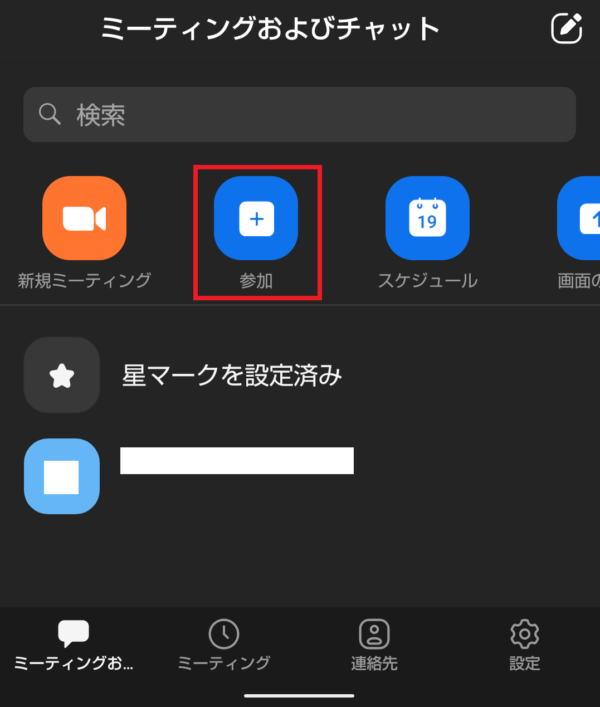
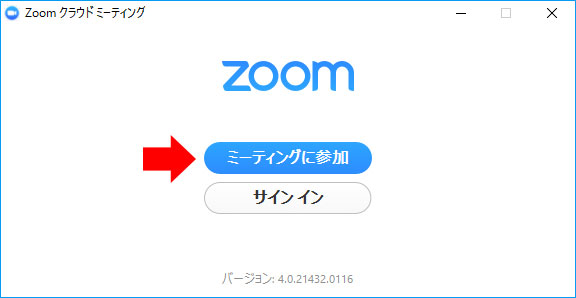
First, you need to open the Zoom test link in your web browser and click Join to start the meeting test.
Then click Launch Meeting to open the test in an installed application, or select Join from Browser .
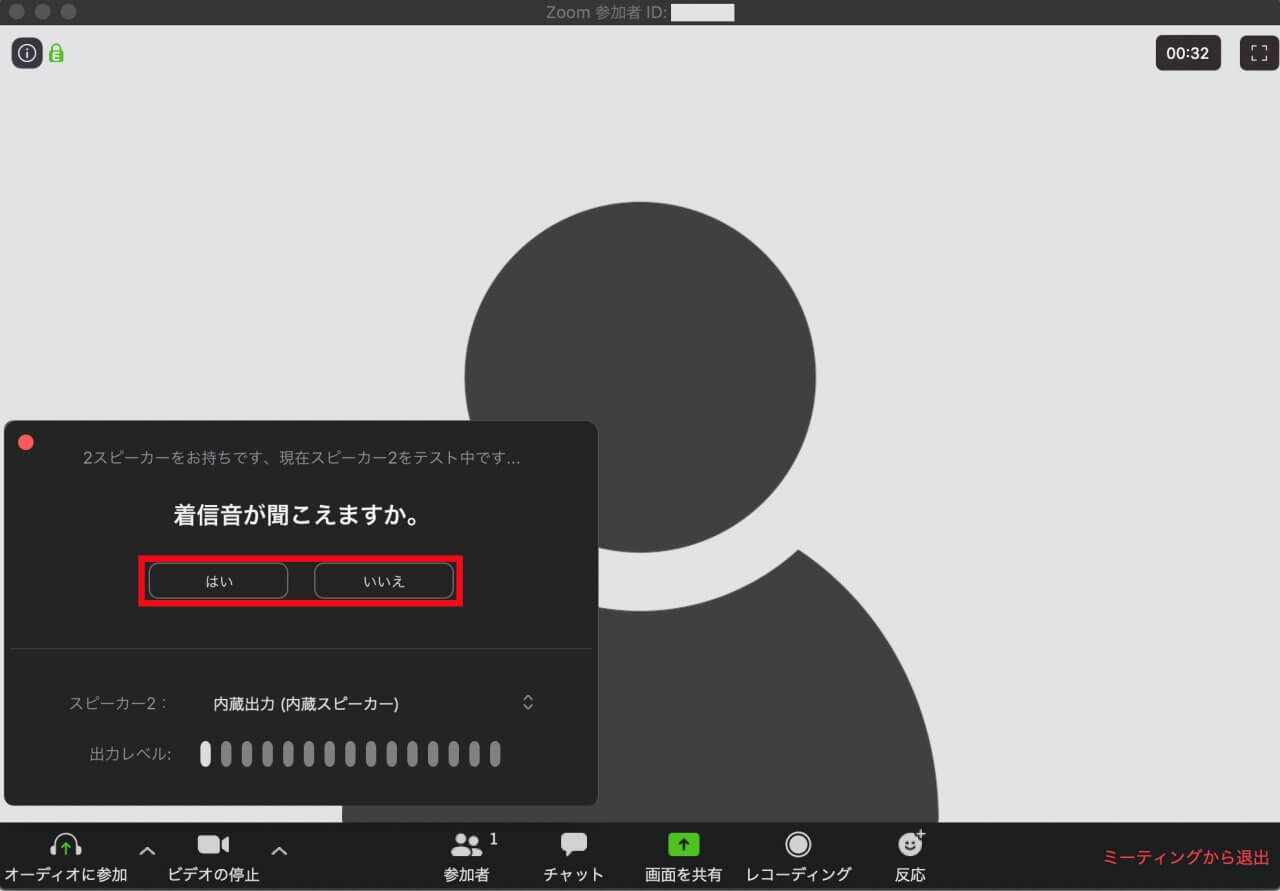
Since I was installing an application, I proceeded with the former.
Now let’s start with a quick test.
camera test
Now you will be asked to choose the one that works.
Click “No, try another camera” and the next available device will be automatically selected. Finally, click Yes when the Zoom application displays the photo and indicates that the selected camera is working properly.
speaker test
Then you will hear the sound if the selected speaker works as expected.
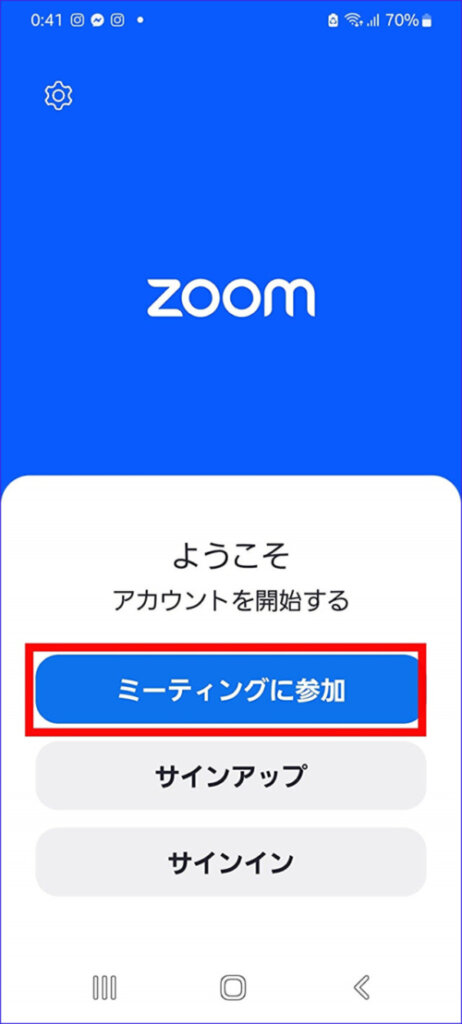
As with the previous test, you can try all connected speakers until you hear a ringing tone and then choose between them.
microphone test
This is more important to me because my camera doesn’t have a very good built-in microphone. Therefore, I purchased an additional one to function as a dedicated microphone.

Therefore, you need to choose the right one to provide the right hearing experience to others.
This test is also relatively easy. To hear a replay, just say something. As with any microphone, try out all available mics to see which one works best for you.
Once completed successfully you will get something like this.

Here you will see devices that passed the evaluation.
Finally, each time you use Zoom, you can take advantage of this tested hardware by clicking “End Test ” and selecting ” Join ” with your computer audio or by selecting the checkbox at the bottom. can.
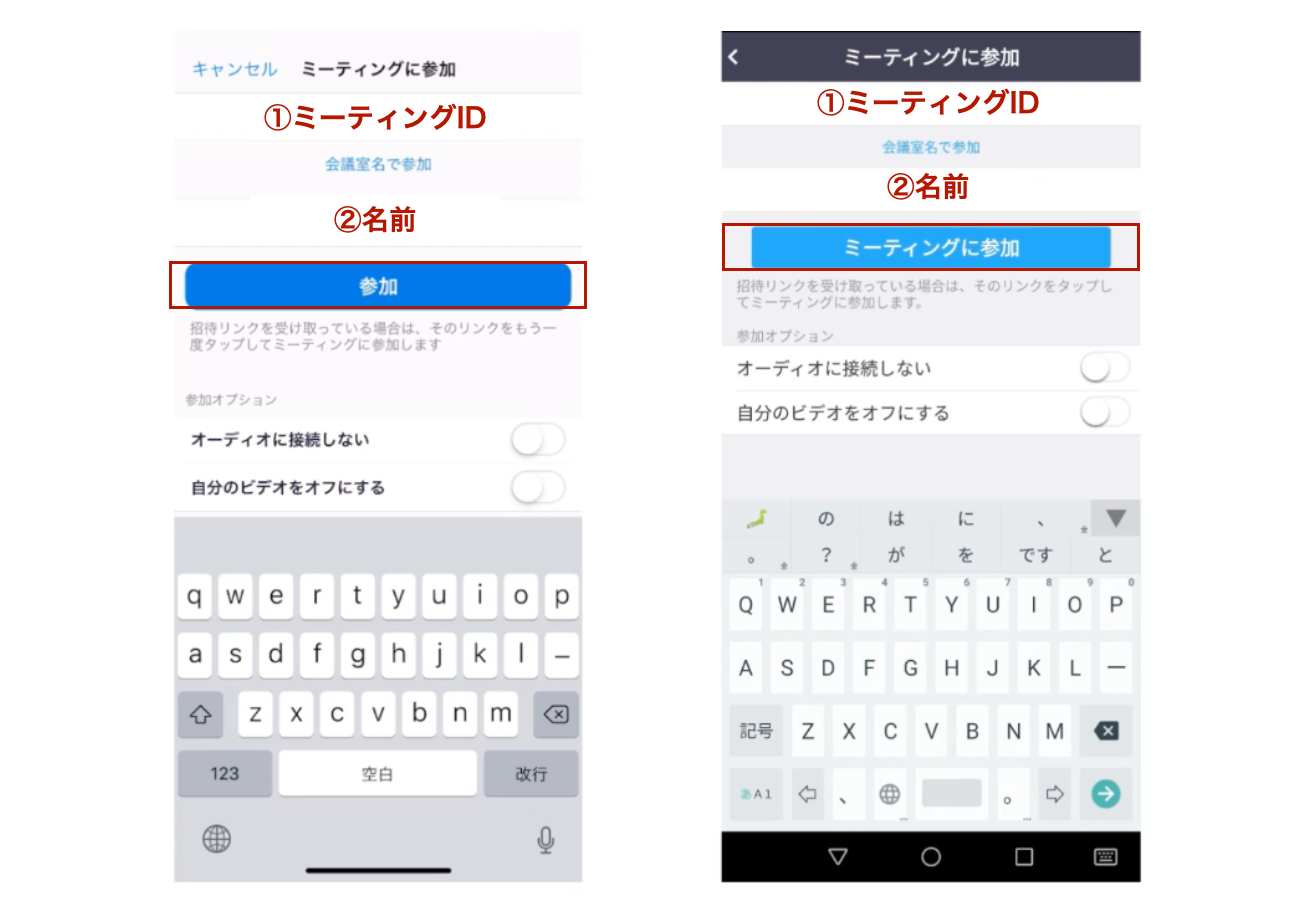
However, you can change these for each meeting to select the equipment you want or to run the test again.
Zoom testing on Android
Running the Zoom test is mostly automatic once you log on to the desired Zoom test URL (same as on your PC).
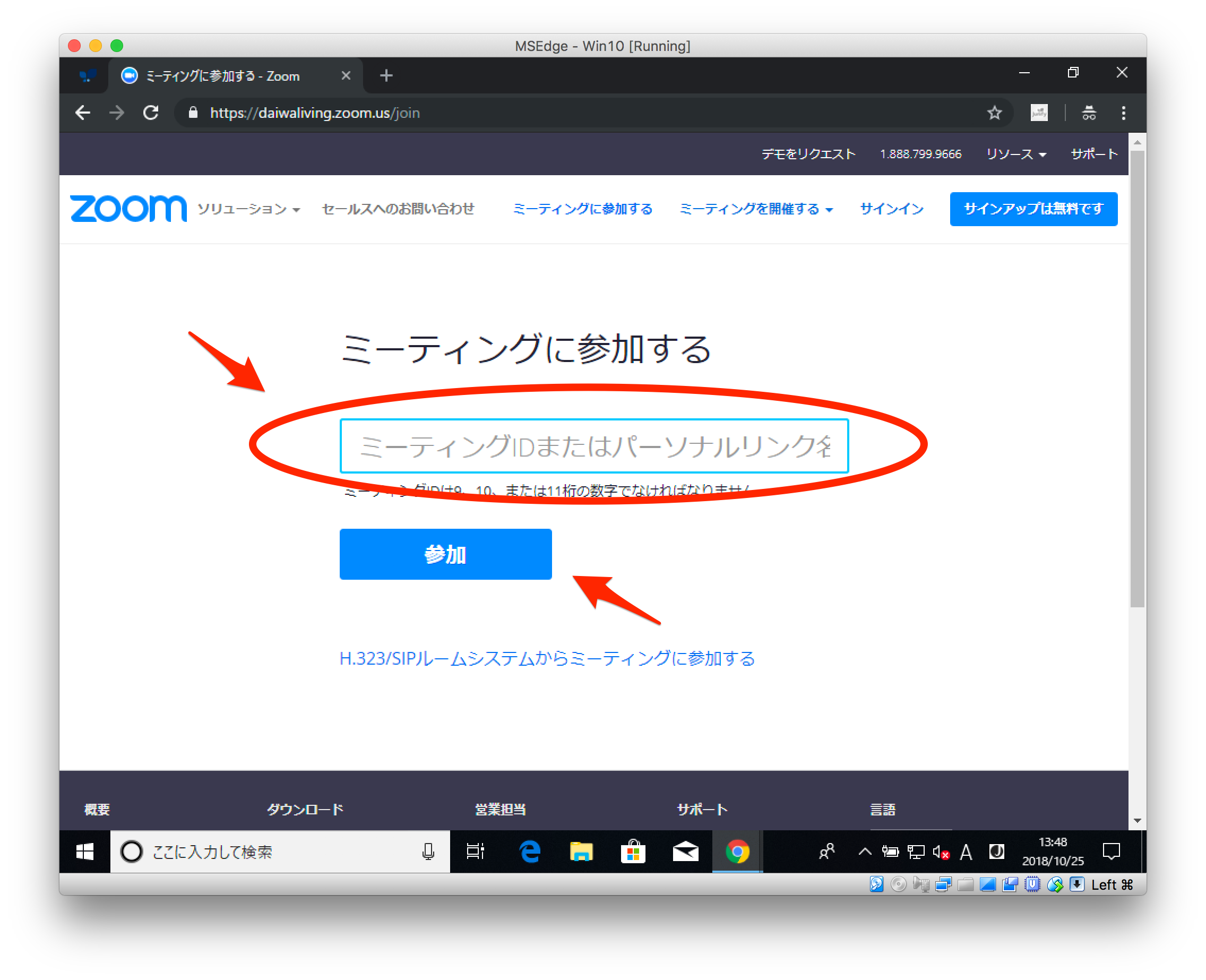
Within seconds, your device will be checked for suitability and the results will be displayed all at once, without any action required on your part.
conclusion
That’s how you can run the Zoom test to see which devices are best for video conferencing.
While you’re here, this list of some of the best web conferencing tools will come in handy.


![How to set up a Raspberry Pi web server in 2021 [Guide]](https://i0.wp.com/pcmanabu.com/wp-content/uploads/2019/10/web-server-02-309x198.png?w=1200&resize=1200,0&ssl=1)


