Canva is a useful app for photo editing. This is a quick tutorial on how to use Canva to make various edits to your photos.
With so many photo editing options, it can be easy to feel overwhelmed by what should be a simple task.
Unless you’re looking for an advanced level of editing, the process from choosing an editor to editing your photos should be pretty seamless. Editors like Canva like to keep things simple from the first step, so this article will show you how to use it to edit your photos.
This tool has always been one of our top choices for graphic design and photo editing, and it’s completely free to get started.
Before we move on, here are some reasons why you should edit your photos and how you can benefit from editing them.
look more professional
Photo editor allows you to edit your photos in a consistent and stylistic way. You can turn an ordinary image into something eye-catching at first glance. With the right editing options, you can make your photos look much more professional than a raw, unfiltered photo, no matter where you upload them.
Improve your social media presence
In the age of social networking, an engaging presence on social media can help improve things according to your goals. Editing your photos can help you make them stand out and get more interactions and engagement.
Fix specific functionality
If you want to correct some characteristics of a photo, especially for professional photo shoots, editing tools can help. Helps correct dark spots, dark circles, etc.
Resize photos for any purpose
These days, different platforms allow different photo sizes to be uploaded. Assuming you have social profiles on multiple platforms, a photo editor can help you easily resize images according to your requirements, saving you headaches. It is also useful for a variety of other purposes, such as uploading photos to online forms that accept specific pixel sizes.
Additionally, here are some other great features you can perform using Photo Editor:
- cut out part of a photo
- create a collage
- Add a caption
- Apply trending filters
- Blur sensitive areas
- Make blurry photos clearer
With that said, it’s time to learn some basic edits you can perform on your photos using Canva.
Adjust brightness
If you think your photo is too dark and you want to fix it, you can use Canva to adjust the brightness. Here’s how:
Step 1: Visit Canva.com.
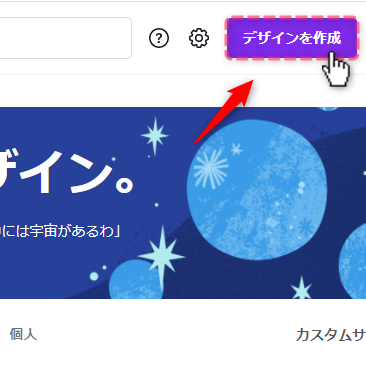
Step 2: Click “Create Design” in the top right corner.
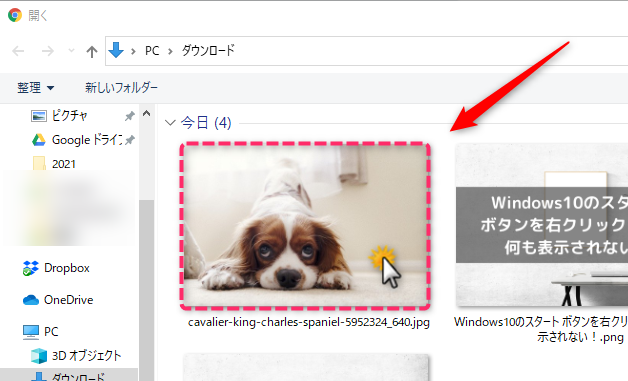
Step 3: Click “Edit Photo” and select and upload a photo from your computer.
Step 4: A screen similar to the following will appear.
Step 5: Click once on the photo to see additional options in the top bar.
Step 6: Click “Edit Image” and slide the brightness meter from the “Adjustments” panel to your desired number.
Step 7: Once you are satisfied, click “Download” in the top right corner, select your desired format and save it to your computer.
that’s it. Now you have a brighter photo than before.
Adjust contrast
If your photo is too bright and overexposed, you can fix it by adjusting the contrast. Here’s how:
Step 1: Click once on the photo and click Edit Image.
Step 2: From the Adjustment panel, slide the contrast meter to the desired value.
Step 3: Once you are satisfied, download the photo.

crop the photo
Canva makes it super easy to remove unwanted parts of your photos.
Please follow the steps below.
Step 1: Click once on the photo and click “Crop”.
Step 2: Adjust the borders as per your requirements and click “Finish”.
Step 3: Once you are satisfied, download the photos in your desired format.
Canva also allows you to remove backgrounds from images.

Resize photos
If you want to resize the image right away, there’s an option for that too. Just click on the top left where it says “Resize” and a small menu will open:
You can directly input and save the desired pixels. However, please note that you must be a Canva Pro member to take advantage of this feature. It has a variety of benefits and is highly recommended if you edit photos or design graphics on a regular basis.
Adjust photo size for different platforms
Similar to manually resizing photos, you also have the option to directly adjust images for specific platforms and purposes, such as Facebook posts, Instagram videos, infographics, posters, and more.
Click “Resize” in the top left and check the options you want. You can select one or multiple at once.
Again, this is a feature of Canva Pro, and you get access to it as a paid member.
Apply filter
Filters are a great way to enhance your photos, and almost everyone on social media uses them these days. Here’s how to take advantage of filters in Canva.
Step 1: Click once on the photo and click Edit Image.
Step 2: Scroll down until you see the “Filters” section.
Step 3: Click “Show All” and select the filter you want to apply.
Step 4: Once you are satisfied, download the photo.
make a collage
Collages are a fun way to showcase multiple photos on a single grid, and they’re super easy to create using Canva.
Step 1: Visit Canva.com and type “Photo Collage” in the search bar.
Step 2: Select any layout from the 1,000+ options given.
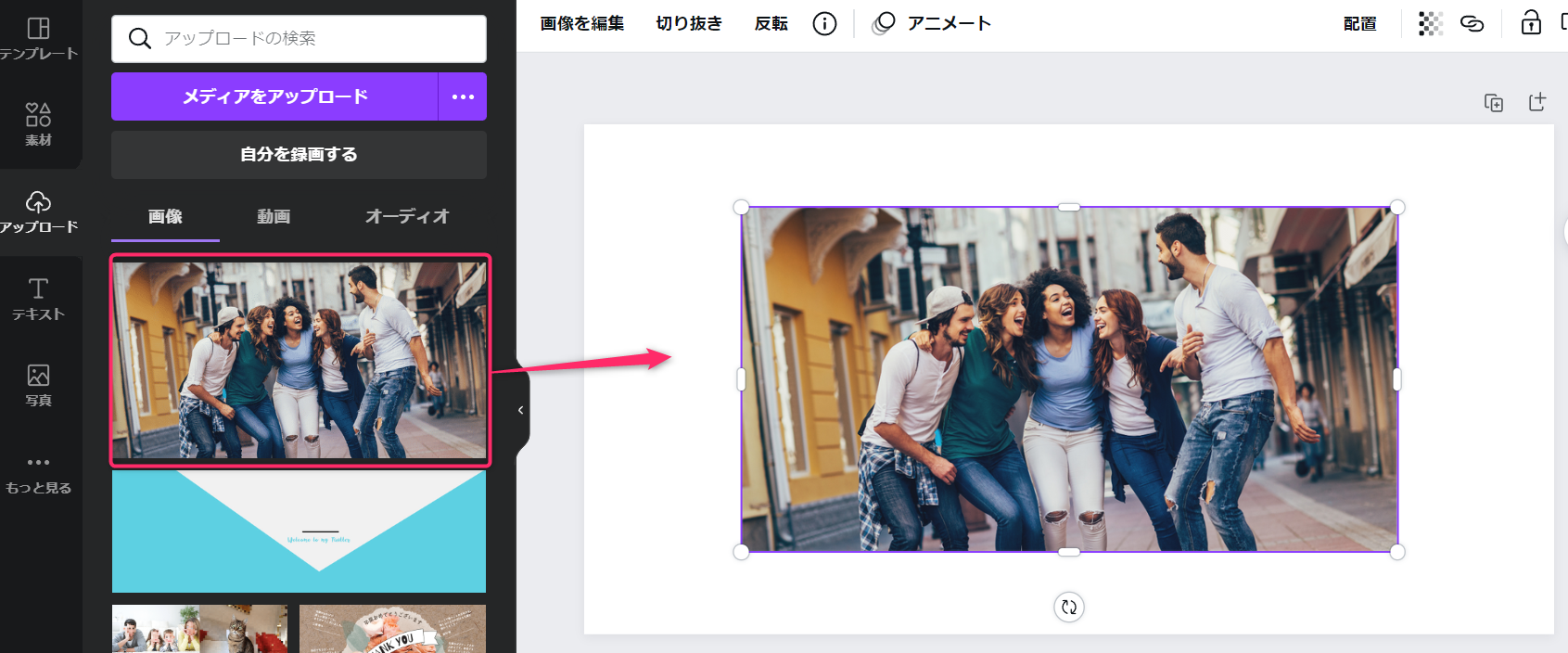
Step 3: Once the template is loaded in the editor, you can replace the default photo by going to Upload > Upload Media.
Once the upload is complete, drag the new photo onto the old photo and you’re done. Additionally, you can customize the elements to give it the funky look you desire.
Conclusion 😎
Canva is my favorite editor that I’ve used for many years for a variety of purposes. It’s very flexible and has almost everything you need to transform your photos and create cool designs. We hope the above tutorial helped you to quickly edit your photos using this amazing tool.
Canva can also be used by teams as well as individuals. With the Pro plan , you can collaborate with your team, access premium images, icons, and graphics, and create branded kits.
Then, to make your life even easier, check out these free editing tools that can be used for a variety of purposes.


![How to set up a Raspberry Pi web server in 2021 [Guide]](https://i0.wp.com/pcmanabu.com/wp-content/uploads/2019/10/web-server-02-309x198.png?w=1200&resize=1200,0&ssl=1)


