Remote work is the future of work. Connect to your PC over the Internet from anywhere with Chrome Remote Desktop.
Let’s take a look at tools that are safe for organizations when it comes to sharing desktops, information, and resources.

What is Chrome Remote Desktop?
Many organizations and startups are offering their employees the ability to work remotely. In line with this trend, Google has provided an easy and quick tool to access your system from anywhere. All you need to have a remote system on your PC is the Internet and Chrome Desktop .
Easily access files and data remotely from another device. Works on any type of desktop or mobile and on any type of operating system (Windows, Linux, macOS, or Chrome OS).
Bottom line – As long as you have the Internet, you can access your computer from anywhere in the world.
Chrome Remote Desktop is suitable for personal use. However, for business needs, consider commercially available remote desktop software.
Why Chrome Remote Desktop?
- It’s free!
- It’s light and fast.
- It’s user friendly.
- Not only can you help your own computer, but you can also help your friends and family remotely.
Take a closer look with this friendly tool…
Get started with Chrome Remote Desktop
Get started with Chrome Remote Desktop in four easy steps.
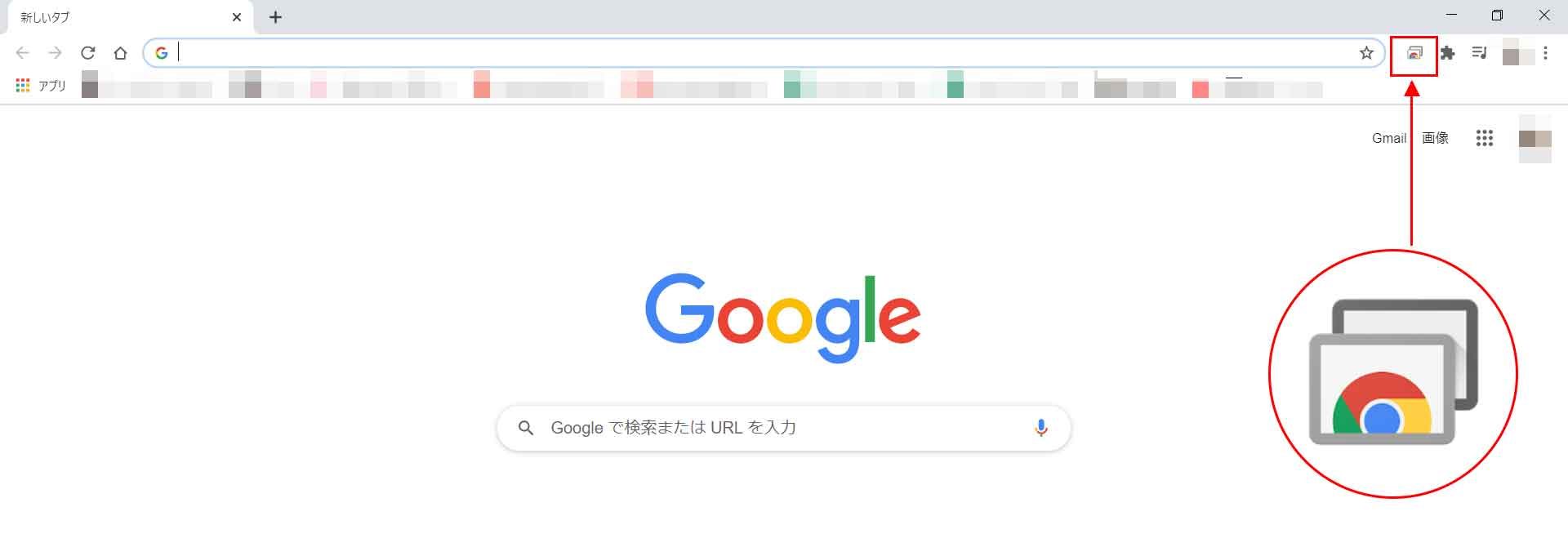
To get started with Chrome Desktop, you need to download and install Chrome on your system or mobile device so you can access it from anywhere.
1. Download Chrome Remote Desktop
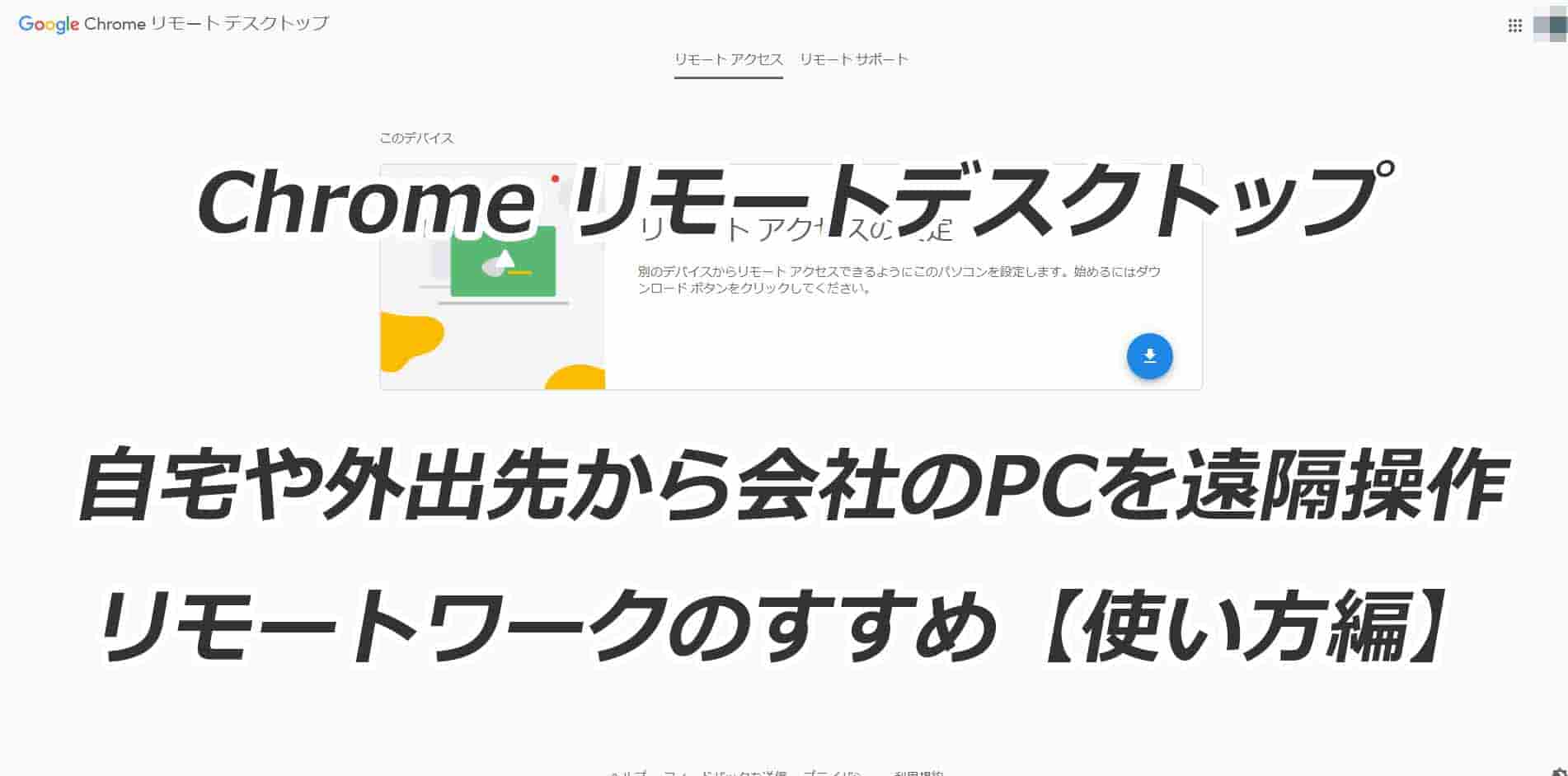
Access the Chrome Remote Desktop web page in your Chrome browser. Go to the download page. At the bottom right there is a blue arrow option to download the plugin. Click the button to start the download.
2. Install Chrome Remote Desktop
Once the download is complete, a button will appear on the same page to accept the terms and begin the installation. Click the button to proceed.
3. Select your device name and password
After clicking the install button, you will need to enter the device name that will be displayed to remote users while accessing the host device.
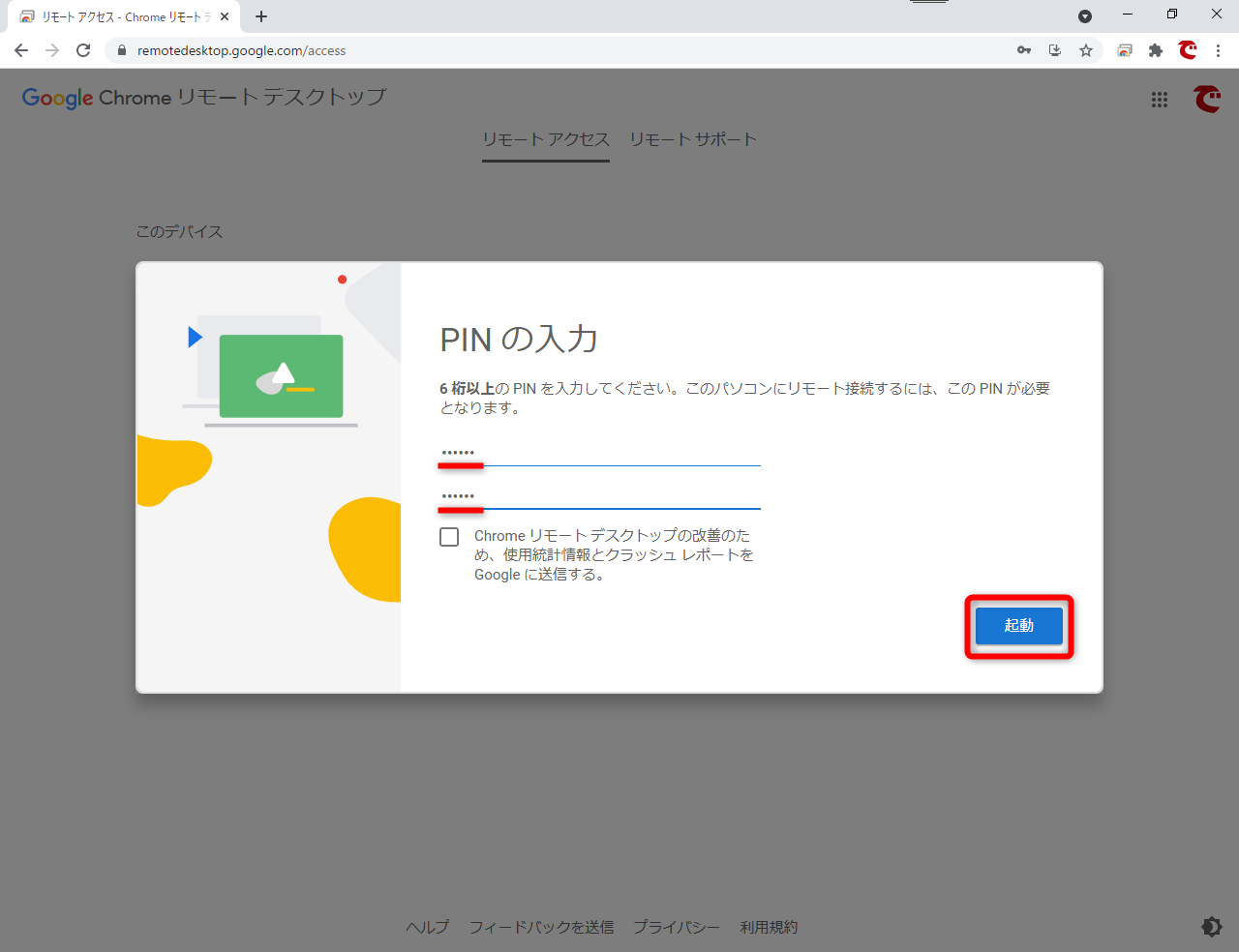
After entering the device name, you will need to enter a 6-digit PIN to make remote access more secure and prevent unauthorized access to others.
4. Launch the application
After you click the Start button, your host device is ready to establish or accept remote connections.
Next, you may be wondering how to connect the above systems remotely.
please..
Using remote support
Google offers features that you can use without installing Google Remote Desktop. On the same page, click Remote Support . A screen will appear with two options:
get support
This makes it easy for users to request one-time support from known or unknown users. The Get Support option is only available if Google Remote Desktop is installed on your system.
- Click the Generate Code button for assistance. A one-time password is generated to share with remote users.
- Click on the rectangular box to copy the one-time code. This code is valid for 5 minutes. A new code will be generated upon cancellation.
- Remote users access your client system using the one-time code you provide.
give support
This helps remote users access other people’s machines and provide remote support. To provide support, remote users require a one-time access code generated on the client’s machine.
- The client user must generate an access code (step 2 above) and share it with the remote user so that the remote user can work on the client’s machine.
- After obtaining the access code from the client host, the remote host must go to the Google Chrome Remote Desktop web page to access remote support .
- The remote user must enter the provided access code into the Give Support text bar and click the Connect button.
- When you click the connect button on the remote side, you will be asked for confirmation.
- Once the remote user accepts the share and clicks on it, they will be able to access and control the client machine.
Remote access using mobile (Android/iOS)
Google offers the ability to access remote PCs through your mobile device. Install iOS or Android . Once installed, users can use their mobile devices to control remote PCs.
Please note that before using the mobile app, the user’s email ID used on the phone must be registered with Chrome Remote Desktop. Otherwise, the app will display the message ” There is nothing to connect. You must first set up your computer for remote access .”
Steps to connect from mobile to PC
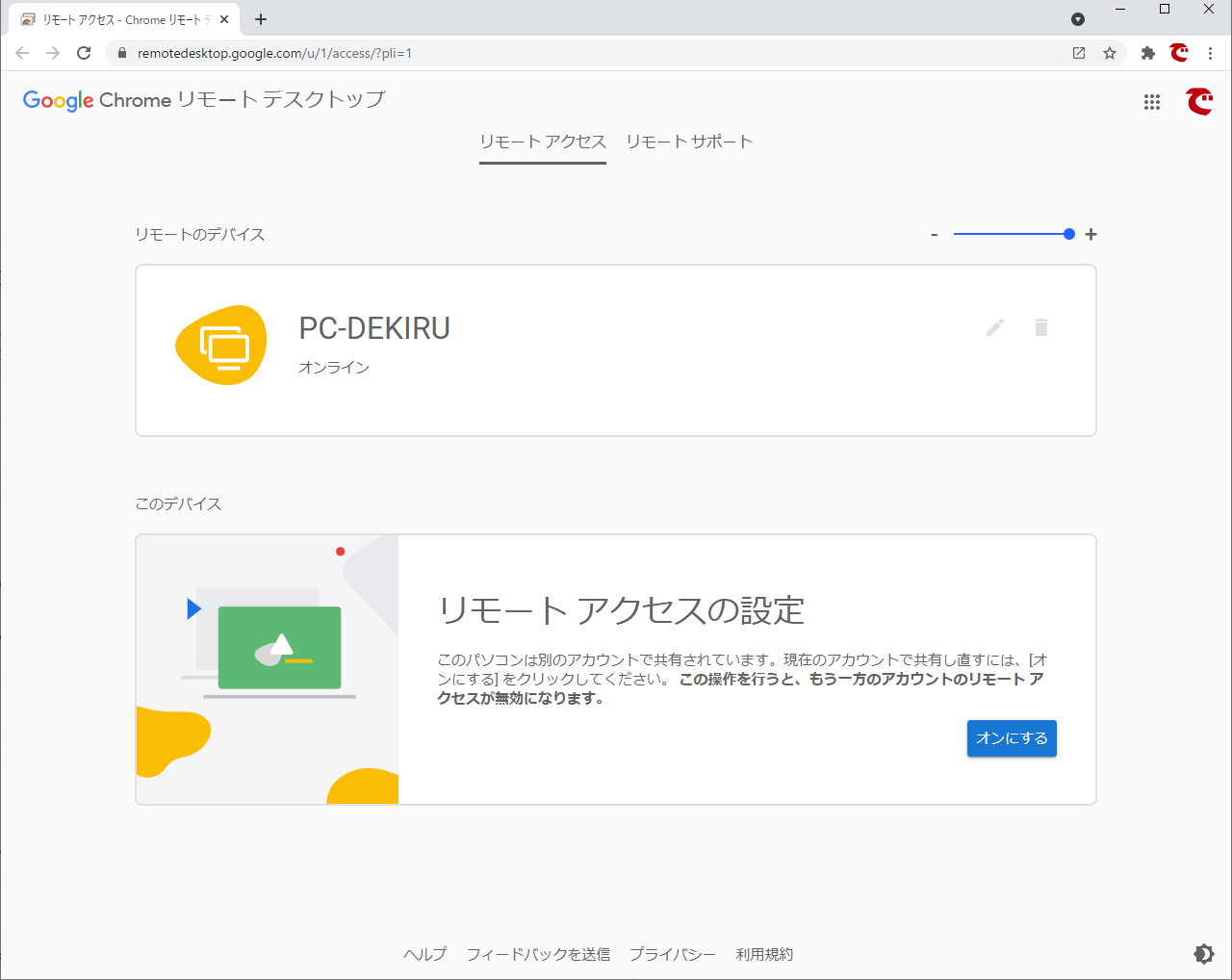
After you set up your computer for remote access, a list of connected computers appears on your screen.
Click on a listed computer and it will say ” Connecting to a remote computer “.
When you enroll your system to Chrome Remote Desktop, you will be asked for the PIN that is set on the remote system. After entering the PIN, the user can access their system remotely through the phone.
While accessing a remote system, a blue button will appear in the bottom right corner. When clicked, the button displays options to operate on the remote machine.
- Show keyboard : Helps the user write something on the remote system.
- Trackpad/touchpad mode : Selecting trackpad mode limits the user to viewing the page only. In contrast, touchpad mode helps you perform any action by clicking on the remote system.
- Disconnect : Click to disconnect remote system access.
- Settings : Provides options to resize the screen to fit your screen and other options to customize.
- Dock Left : Move the blue button to the bottom left or bottom right.
What am I missing?
- No (drag-and-drop) support for sharing files remotely is provided.
- There is no functionality to chat or exchange messages along with the sharing system. The user must connect using a separate device and explain this to the controller user.
- Does not provide multi-monitor sharing functionality. If you try the same thing, the entire desktop will be packed inside the display and the user won’t be able to move between windows.
- There is no ability to maintain and reference multiple connections. Users can connect to one system at a time.
conclusion
Hey, come on. It’s free, so stop complaining and take advantage of it. Imagine your home or office computer being on mobile.
Find more tools to help you work at home or on the beach.


![How to set up a Raspberry Pi web server in 2021 [Guide]](https://i0.wp.com/pcmanabu.com/wp-content/uploads/2019/10/web-server-02-309x198.png?w=1200&resize=1200,0&ssl=1)


