The success of single-board computers (such as the Raspberry Pi) is a clear sign that on-the-go computing is here to stay. But while devices like the Raspberry Pi are aimed at enthusiasts and tinkerers, “stick PCs” are designed to be more friendly to everyday users. Essentially, a stick PC is a device that’s slightly larger than a USB flash drive that packs important computer hardware (e.g., a low-power CPU, a small amount of RAM, and integrated Wi-Fi/Bluetooth). Of these, the 1st generation Intel Compute Stick ( announced at last year’s CES) is undoubtedly the most popular. If you have one of your own, you’re probably wondering how you can get it up and running.
Only a few minutes left, everyone! That’s all you need. But before you know how to configure and set up an Intel Compute Stick , let’s take a look at the basics it requires. 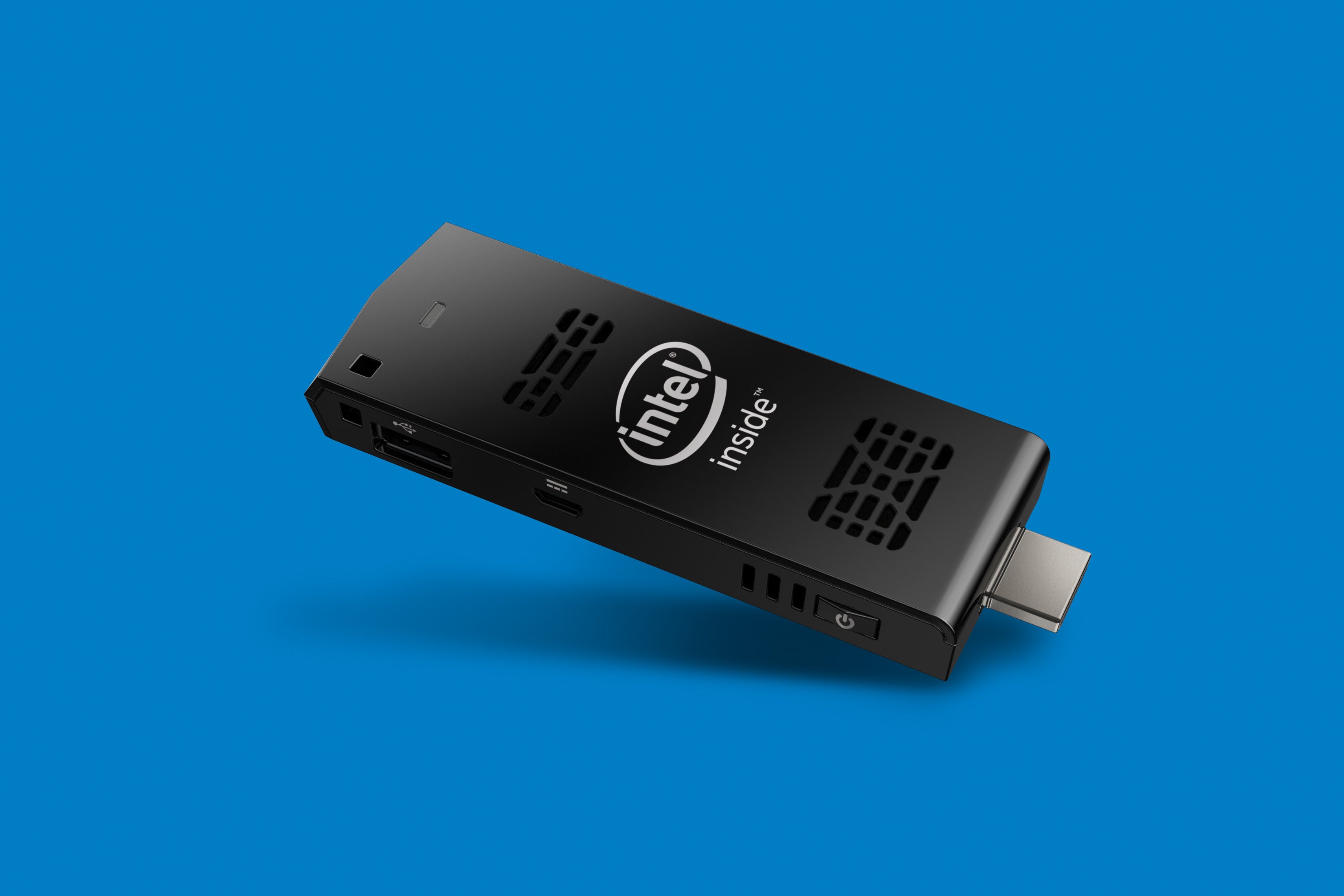
What you need in advance:
- A television (or computer monitor) with an HDMI port.
- Wireless internet connection.
- USB hubs (check out some of the best USB hubs available).
- Mouse and keyboard, both preferably USB (You can use a Bluetooth keyboard and mouse with the Intel Compute Stick, but it complicates the setup process and requires a single onboard chip used for both Bluetooth and Wi-Fi connectivity. ).
- A wall socket to power your Intel Compute Stick (if your display device doesn’t have a USB port to do the same).

How do I set up my Intel Compute Stick?
Getting the Intel Compute Stick up and running is easy and essentially a two-step process. Connect your hardware, configure your software, and you’re ready to go. In either case, here are the steps you need to follow:
Hardware setup
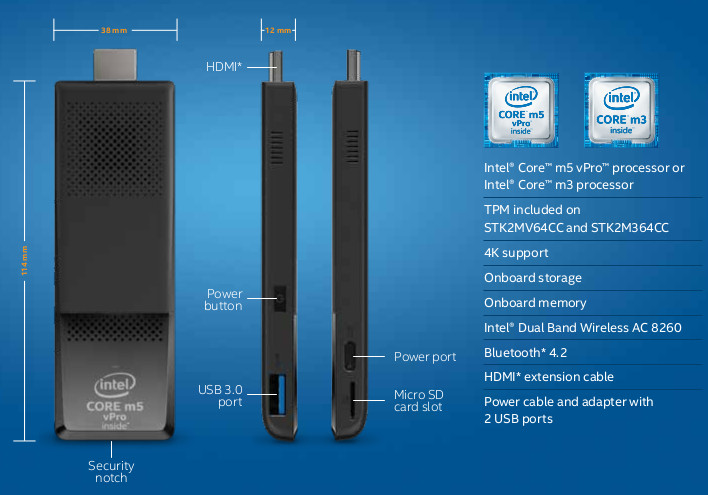
Please use the image embedded below as a reference and read the subsequent steps.

Step 1: Connect your mouse and keyboard to your USB hub.
Step 2: Connect the hub to the single USB port on the Compute Stick.
Step 3: Connect the Compute Stick’s power port to the TV’s USB port (for power) using the included micro USB cable.
Step 4: Finally, connect the Compute Stick to your TV’s HDMI port via an HDMI extension cable (optional).
Next, turn on your TV and select HDMI as the source in the settings (obviously these will vary depending on the make and model of your TV or computer monitor). Once this is complete, move on to the software configuration part, as described below.
Software configuration
Step 3: Intel Compute Stick comes with Windows 8.1 (powered by Bing) edition. When you start it up for the first time, you’ll need to go through the same OOBE (Out-of-box experience) process you would use to set up Windows 8.1 on a regular PC. This includes connecting to a Wi-Fi network, setting it up, setting time and language, and more.
Note: During setup, Windows 8.1 will prompt you to upgrade to Windows 10. However, this is not required and can be upgraded later if needed.
Step 4: You are now ready. When all is said and done, you’ll be able to run a full Windows 8.1 from your Intel Compute Stick using your TV as a monitor. See the screenshot below.

You can browse the web, play games, edit documents, and more. Once you’re done, just shut down your Intel Compute Stick like you would a regular computer. How insane is that?
See also: Intel Compute Stick review: Good but not perfect
Enabling your computer to connect to an HDMI-enabled display
The Intel Compute Stick provides an affordable and (fairly) reliable way to compute on the go. Admittedly, it requires additional hardware and setup to work, but once it works, it works very well. Give it a try and let us know what you think in the comments section below.


![How to set up a Raspberry Pi web server in 2021 [Guide]](https://i0.wp.com/pcmanabu.com/wp-content/uploads/2019/10/web-server-02-309x198.png?w=1200&resize=1200,0&ssl=1)


