Having a cheat sheet for Google Sheets can be helpful, especially if you’re making the switch from the expensive Microsoft Excel.
Google Suite is slowly but surely finding new users. It’s free for personal use, making it even easier to implement.
And without a doubt, Google Sheets is one of the most important products in Google Suite.
So we thought why not put together this resource to help Google Sheets users get their work done faster?
So, this is a compilation of the most frequently asked Google Sheets how-tos.
Let’s get started.
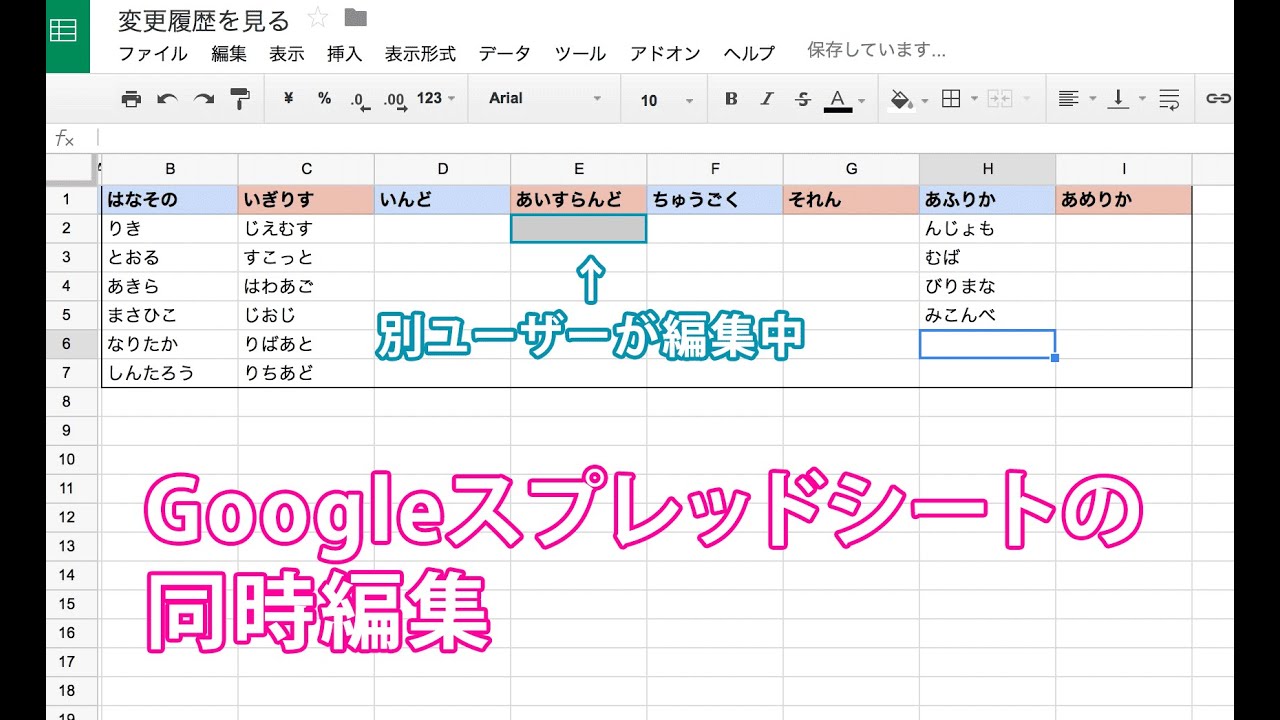
Combine cells in Google Sheets
Google Sheets allows you to merge cells vertically or horizontally. Additionally, the third option to combine everything leaves the value in the top left cell.
In this process, select the target cells and select Merge accordingly.
horizontal direction
vertical direction
combine all
Sort alphabetically in Google Sheets
First, let’s look at a standard vertical sort . For this, you can create a filter that sorts the values accordingly.
However, horizontal sorting is a little more complicated.
There are no default filters here. So use sort and transpose in combination to get the desired output.
Consider the simple case of one column.
The formula used is:
=transpose(sort(TRANSPOSE(A4:H4),1,TRUE))
Let’s go back to understand this.
First, the cells are transposed ( TRANSPOSE(A4:H4) ), resulting in one unsorted column.
I then applied this to the first column using 1 in the formula. The following shows True to sort in ascending order.
And finally, a final Transpose returns values sequentially. In particular, the transpose function is both invisible and applied to use sort function, which is not available horizontally.
Similarly, you can sort two or more columns. In these cases, the selected data will be sorted based on the single column you are filtering on.
Search in Google Sheets
Search becomes essential when you get stuck in a huge database trying to find a single word. Doing it by hand can be a lot like finding a needle in a haystack.
However, the search provides instant results within seconds without any effort.
An easy way is to press ctrl+f (Windows) or command-f (Mac). This opens a dialog box where you can type your search term and press Enter to find it within your spreadsheet.
However, there are more powerful versions that allow you to match uppercase and lowercase letters and search between different sheets.
This can be found under Edit > Find and Replace .
This can be used to replace the desired value or simply search for it.
Create a graph in Google Sheets
Graphs are great representations that provide insights not found in other tools. And it makes more sense if you’re a data engineer or need to do some serious analysis.
Fortunately, creating a chart is a process that only takes a few clicks in Google Sheets.
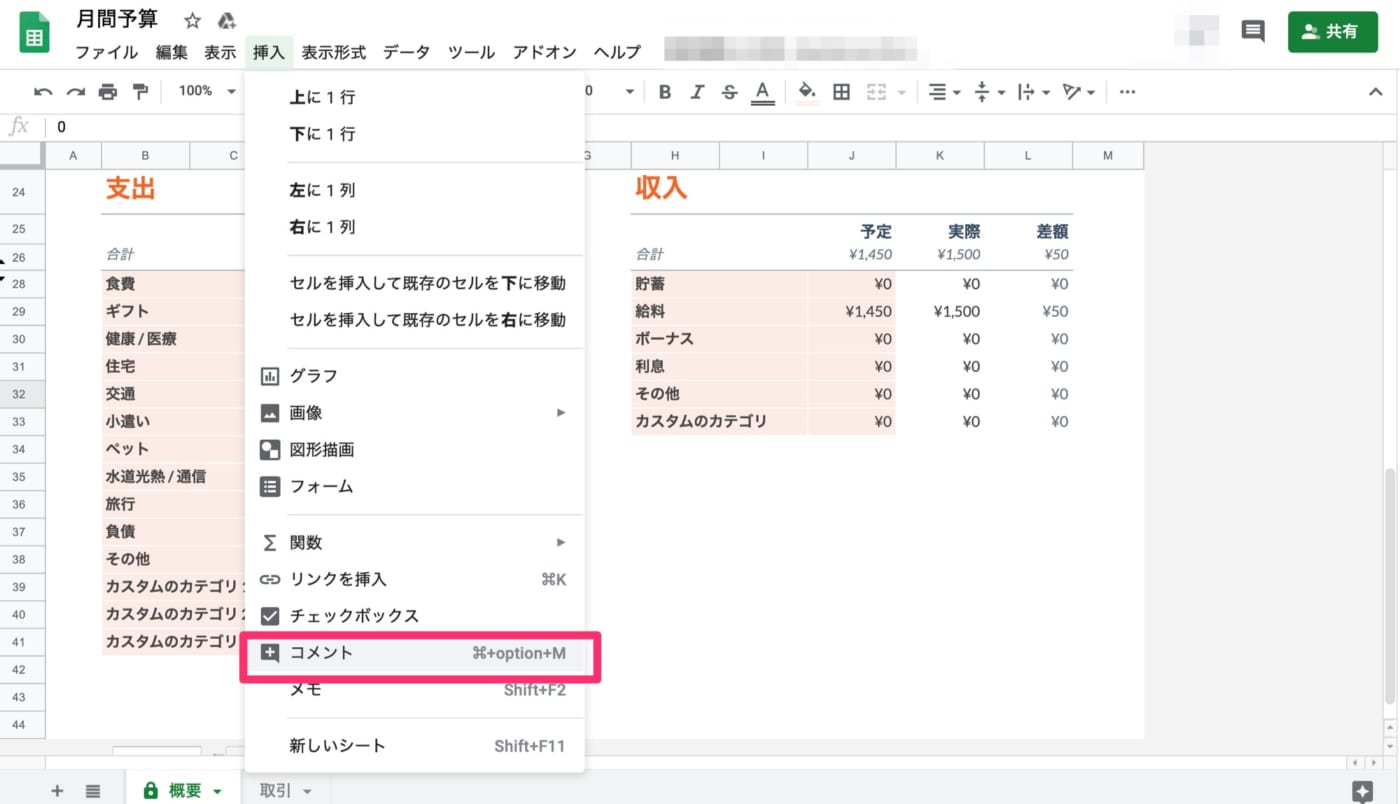
Select your data, go to Insert > Graph , and choose from a wide range of styles. Get pie, bar, scatter plots, maps, timelines, and more to display your data the way you want.
Wrap text in Google Sheets
Text wrapping is useful when a cell cannot natively accommodate complete information. There are three ways to wrap text:
- Overflow : Spills excess data into adjacent empty cells.
- Wrap : Adjusts the cell size to fill everything inside.
- Clip : Displays a portion of the entire text while keeping the cell size the same.
Overflow and clip work the same way if the immediate next cell is occupied.
Add a dropdown to Google Sheets
Dropdowns are added with Google Sheets data validation.
Its primary use is to maintain data consistency and ensure that users enter acceptable input.
Consider the example of someone entering preferences (pizza or hamburgers) to throw a small party. So how can I apply this to columns in Google Sheets and avoid the third option?
This is a small example of data validation, limiting entries to two (pizza and hamburger) and rejecting anything else (e.g. sandwich).
Lock cells in Google Sheets
This is an important feature that limits your team from accidentally changing important data. Additionally, you can also display a warning before proceeding.
Let’s take the previous example again. Assuming the choices are recorded, now you want to display a warning to anyone who changes them.
Freeze columns/rows in Google Sheets
Freezing may be a misleading word. It actually freezes the rows and columns so they stay visible even when scrolling.
This is useful for large databases where you want to float headings relative to values.
You can freeze rows or columns by placing your cursor in a cell and going to View > Freeze .
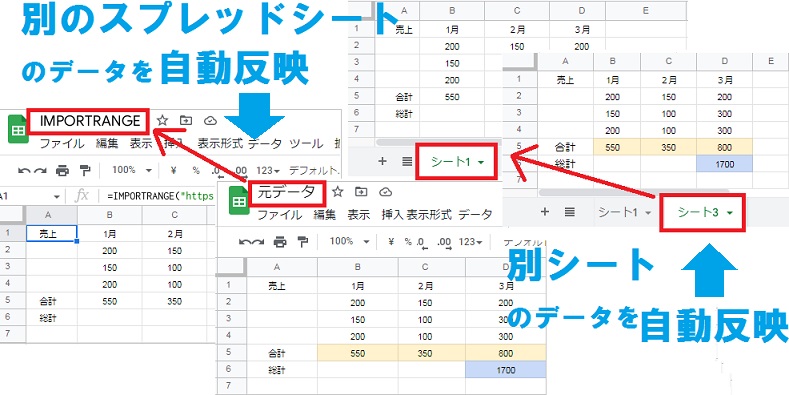
You can then choose to freeze the rows or columns up to that active cell.
Highlight duplicates in Google Sheets
Duplicates can corrupt your entire Google Sheets database. Still, it’s hard to avoid them completely in a huge game.
So what we can do is apply conditional formatting to highlight repeats.
First, go to Format and select Conditional Formatting .
Then select a range and use a formula (Countif) to identify duplicates.
The formula used here is =countif(H:H,H1)>1 .
Therefore, this is applied to a particular column (H) to highlight terms that appear more than once.
However, duplicate highlighting is not limited to this. So let’s look at some more cases.
Here I have multiple columns and I am trying to find duplicate entries in all columns at once.
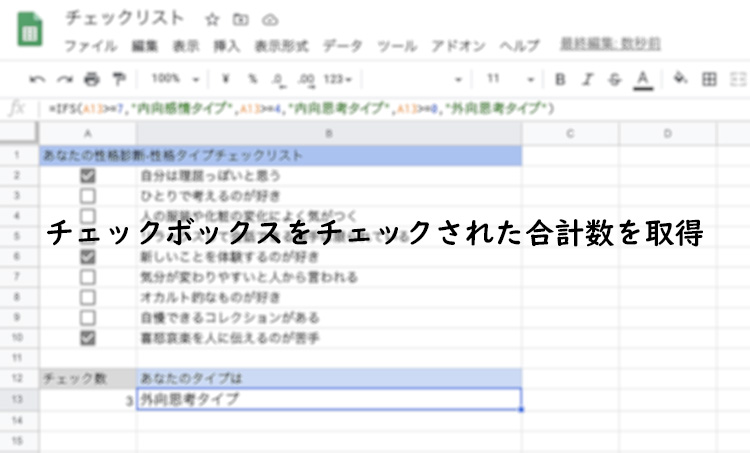
Here we need to change the range to A1:C21. Alternatively, you can enter 1:1000 to select almost the entire spreadsheet.
Then the formula required for this is =countif($A$1:$C$21,A1)>1 .
Before we close this, let’s take a look at the iteration one more time. For example, if you want to highlight entire duplicate rows instead of individual cells, how do you change the formula?

Here we only highlight the first instance, not all of the duplicates. =countifs($A1:$A,$A1,$B1:$B,$B1,$C1:$C,$C1)>1
Note the function countifs (not countif ), which supports multiple criteria.
There are many other cases of this, but I’ll stop here and move on.
Remove duplicates in Google Sheets
Now remove all duplicates at once.
First, select your data and go to Data > Data Cleanup > Remove Duplicates .
However, this is based on rows, not columns.
For example, if you have a 3*3 table with duplicates distributed so that all rows remain unique, nothing will be removed. In such cases, you can use it by selecting individual columns and applying the cleanup.
conclusion
This was a short cheat sheet to get you started using Google Sheets.
Playing around with formulas can be fun, but it’s not for everyone. These users can search for extensions ( Extensions > Add-ons > Get Add-ons ) to make their work easier.
PS: Google Sheets works great, but you can try these online spreadsheet solutions instead.


![How to set up a Raspberry Pi web server in 2021 [Guide]](https://i0.wp.com/pcmanabu.com/wp-content/uploads/2019/10/web-server-02-309x198.png?w=1200&resize=1200,0&ssl=1)


