If you use Google’s Photos app to view your photos, you might want to try these cool hacks to make your life easier.
Google Photos is a great app that does more than just display your photos. First, it makes it much easier to share photos with friends and family.
You can also find photos with great accuracy without having to scroll through your entire library. If these perks sound interesting, wait until you hear about everything you can do with Google Photos.
So let’s check out some of the best Google Photos hacks you should try.
Share multiple photos using the link sharing feature
How do you want to share your photos with your friends and family? Probably on WhatsApp or Telegram! But we know how these apps can bring excruciating pain to sharing photos, especially when there are a large number of them.
WhatsApp’s 30-photo limit can quickly make you frustrated with the whole photo-sharing task.
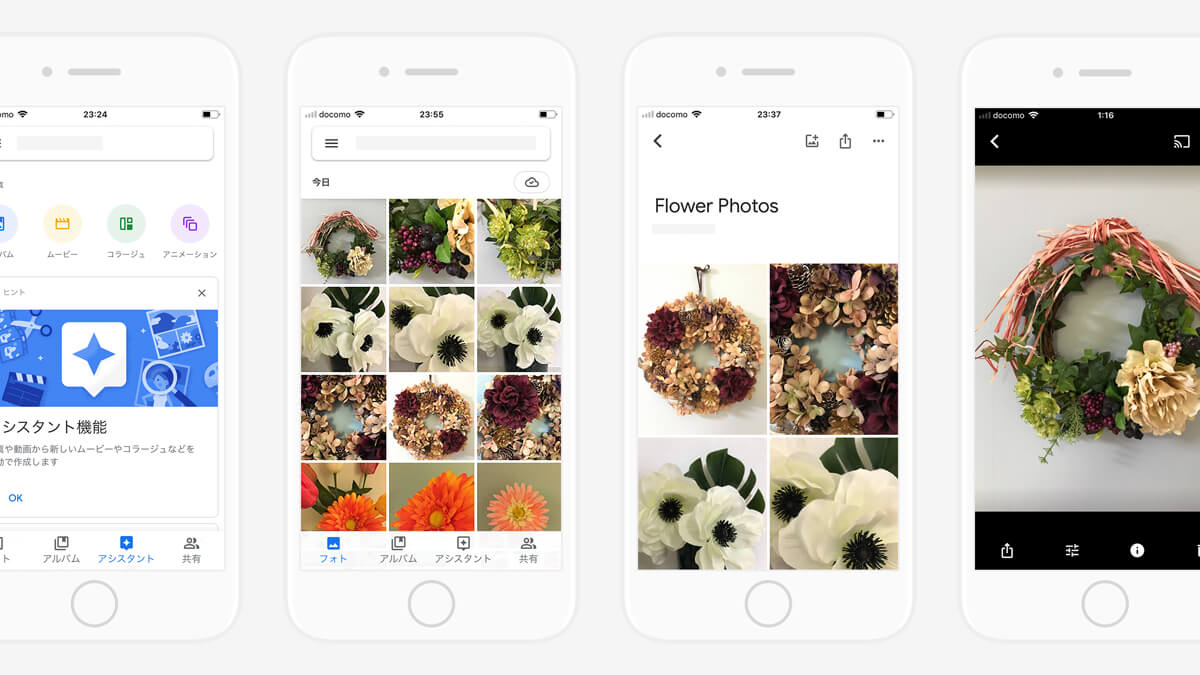
Did you know you can share images using Google Photos? To do this, select all the photos you want to share from the Photos app and click the share button.
You’ll see different options for sharing your photos that you can use. However, we will focus on the “Create link” option in the share menu.
Click the Create Link option and your photo will create a shareable link to the image. You can now share this link via WhatsApp, Telegram or directly to the recipient’s email.

The best part about this hack is that you can see the entire album shared by the recipient. If the sender checks the download permission while sharing images, recipients can download photos from this shared album.
You can share this link with all recipients without having to share the photo with everyone individually.
Search images with Photo’s built-in AI
Sometimes you want to find a photo from your library, but manually scrolling through your entire image stock is tedious. The situation becomes more complicated if you have many photos in your gallery.
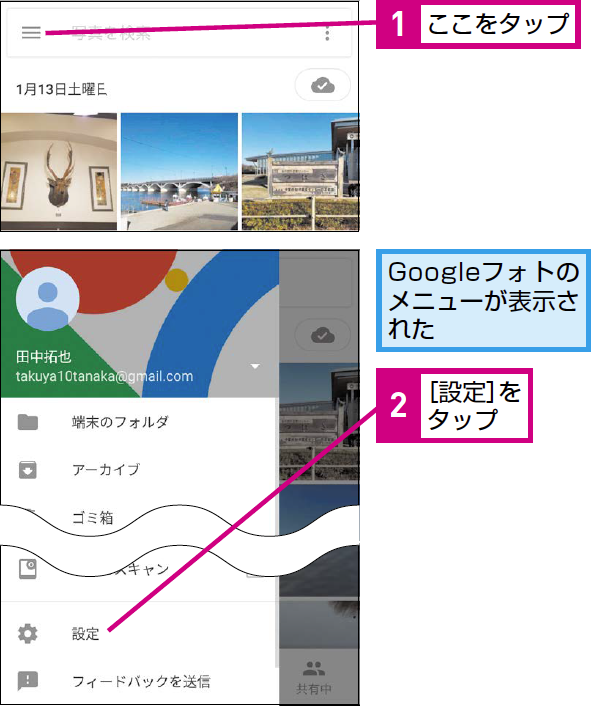
What if we told you that Google Photos can help? Google Photos is packed with Google’s intelligent AI features, making it much smarter than any other photo app.
To find a photo, click the search button and enter everything you remember about the photo you’re looking for. This could be where you clicked on the image or the name of the person in the image. You can also include the date the image was clicked.
Google Photos filters results based on your query and displays all potentially related images. Just scroll through these images and you’ll find the photo you’re looking for.
Sync photos between devices
If you use different devices such as smartphones, laptops, and tablets, this hack is for you. How do I share photos between devices?Using a pen drive, SD card, hard disk, or wireless transfer is common, but usually requires a lot of effort.
Google Photos lets you sync your photos across devices by uploading them to Drive storage. The best part about this is that you can easily access these backed up photos from all your devices using the same Google account.
Additionally, Google Photos allows you to download and share all your backed up photos and view them from different devices.
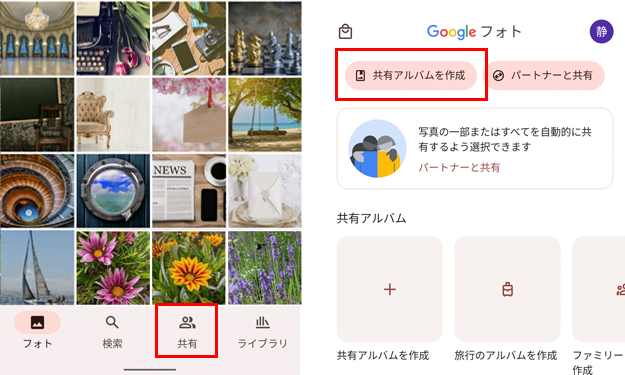
If you tend to forget to back up your photos manually, you can also use Google Photos to automatically back up your recent photos over Wi-Fi, mobile data, or both.
You can also select specific folders that you want to back up and avoid using data to back up less useful folders, such as WhatsApp GIFs and screenshots.
Train Google to recognize you and those close to you
Google’s AI-based image recognition software is a great tool for reverse image searches, but it’s much more than that. Google is also integrating powerful image recognition software into Google Photos, opening up a world of new possibilities.
You can now train Google to recognize faces in images. It could be your face, the face of someone close to you, or the face of a stranger. But what can you achieve by training Google’s facial recognition?
First, Google Photos recognizes people in photos as soon as you click on them. Additionally, the app creates a separate section with photos of specific individuals.
When you select multiple individuals at once, Google Photos scans your gallery and displays photos that include all of the individuals you selected. You can also search all the photos of that person in your gallery using that person’s name.
Perform reverse image search directly using the Lens feature
Google Lens is an intelligent application that performs reverse image searches. However, there is no need to download and use a separate Lens app for reverse image searches. You can find all information about your images directly from the Google Photos application.
To do this, open any image in the Photos app and click the “Lens” option at the bottom of the screen. Clicking on the Lens option allows you to toggle between different options such as text, shopping, location, translation, etc.

Each option has powerful features in its own right. Translate option automatically recognizes text from images and translates it into the language of your choice.
The text option allows you to select any text from the image and copy it to the clipboard. The best part is that the copied text retains the original formatting of the source image.
The shopping feature searches for all items available for shopping by image. The app then displays all the links to various e-commerce websites that sell similar products.
The location feature allows you to identify the location shown in an image. Imagine seeing a beautiful Instagram image of a valley or beach and wanting to know more about that place.
Simply click on the screenshot to access the Google Photos app. Click the lens icon and then click “Location” to see all the information about your original destination.
Hide personal photos using locked folders
The general photo gallery displays all the images in your phone’s storage. This includes photos you don’t want others to see while scrolling through your gallery.
Images containing sensitive information or memories can attract unwanted attention. That’s why Google Photos includes a “Locked Folder” feature.
“Locked Folder” is a digital locker where you can add photos. The app won’t display these photos while you scroll through your photo library. You can also add a passcode to locked folders for added security.

However, there are some conditions when using this locked folder. First, you can only view this folder and add or remove photos from your primary device.
This folder can’t be accessed from other devices using the same Google Account. Since this is a locally managed folder, you may lose your photos if you reset your device.
To add photos to a locked folder, select the photos you want to lock. Then click on the “Move to Locked Folder” option at the bottom of the screen. Locked folders can be accessed from the Utilities section of the Photos app.
Recover lost photos using Trash feature
We’ve all experienced the minor heart attack of accidentally deleting an important photo. However, Google Photos’ Trash feature can save the day.
All deleted photos will remain in the Trash section of the Photos app for 30 days before being permanently deleted. If you accidentally delete a photo, you can choose to restore the deleted photo.
Conversely, if you want to get your photos off your device immediately or clean up your storage, you can also delete them before the 30-day standby period ends.
Quickly select multiple photos with swipe gestures
Have you ever selected multiple images at once to share or delete? If yes, you probably know how tedious it is to manually select each photo by clicking on them. However, you can now select multiple photos at the same time using a swipe gesture in the Google Photos app.
To do this, first click and hold on the image you want to select. Then drag your finger to the bottom or top of the screen to select other photos. When you’ve finished selecting images, lift your finger to confirm your selection. You can now easily share or delete selected photos at once.
Edit photos directly in the Google Photos app
Google’s Snapseed and Adobe’s Lightroom are some of the best photo editing software, but Google Photos makes it easy.
In addition to the usual crop, resize, and rotate features, the Photos app lets you adjust your photos. You can try filters like Vivid, Playa, and Honey.
You can also adjust various image parameters such as brightness, contrast, white point, and highlights.

One of the best editing features is the auto-enhance option in the Photos app. Click the Enhance button and the app will do the rest. The final image after AI-based enhancement looks much more vivid and bright than the original image.
The photo app also integrates well with popular editing apps like Snapseed, Lightroom, and Inshot. These apps allow you to edit your photos directly through Snapseed.
Create beautiful animations and collages instantly
If you’re like most smartphone users, you might be using a variety of apps to create slideshows, animations, and collages. However, if you use Google Photos, you don’t need these.
Google Photos makes it easy to create beautiful animations and collages without ads. Honestly, most existing collage-making applications don’t even come close to the editing capabilities and versatility of Google Photos.
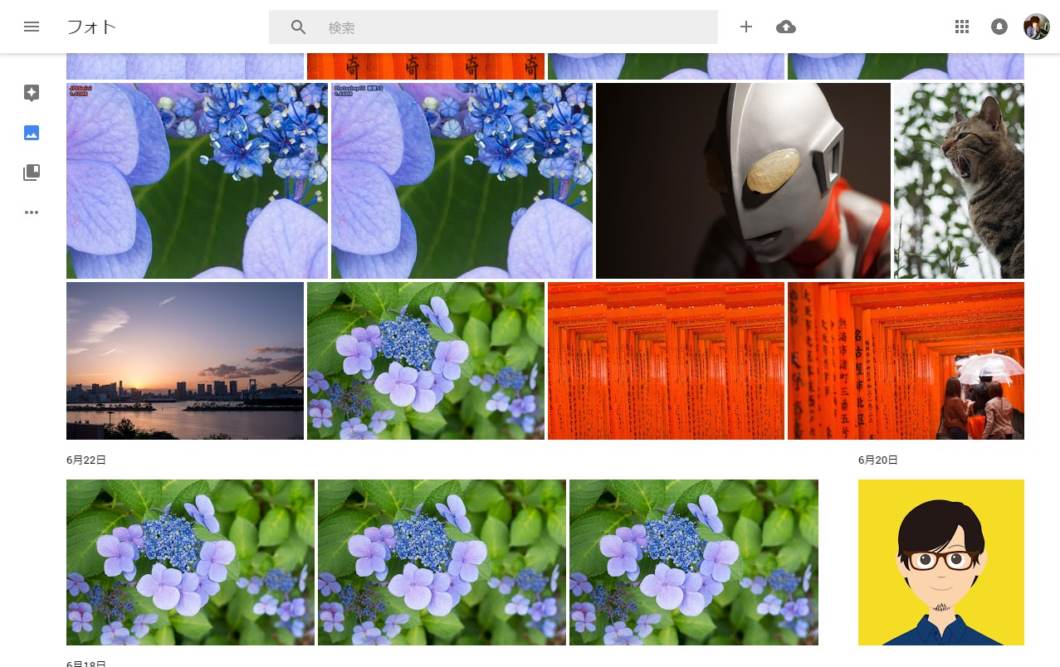
If you want to create a simple animation or collage of your favorite photos, just go to the Photos app and select all the images you want to include in the final result. Then click on the “Add to” option and select “Movie”, “Animation” or “Collage” depending on your requirement.
For those who don’t know, the “Movie” option is similar to creating a video or photo slideshow. The movie feature allows you to add a soundtrack and edit the slideshow speed.
Animated features, on the other hand, are GIF-like collections of quickly displayed images. A typical animation with 5-7 images may last only a few seconds. Animation is perfect for creating a quick slideshow for a trip to an adventure park or a movie date.
A collage is a collection of still images arranged in tiles within a single image. You can switch between different collage presets within the app and customize your images to create the perfect collage.
Edit videos and upload directly to YouTube via the Photos app
We’ve already talked about the amazing photo editing features of the Photos app, but there’s even more. You can also edit videos through the application using features such as cropping, resizing, and adjusting.
Honestly, these are very basic features and are only useful for the most basic editing. Google Photos is no longer a replacement for full-fledged editing apps, but these features are built into the application, making it more versatile.
Similar to photo editing, you can edit a video by selecting it and clicking the “Edit” option.
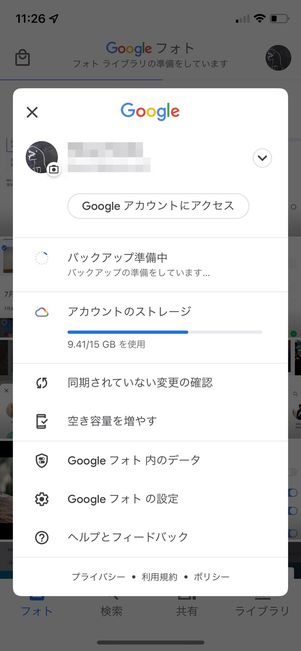
Once you’re done editing, you can also share these videos directly to YouTube. To do this, click on the “Share” button and select “Other”. Then select the YouTube option to share the video on your YouTube channel.
Back up photos directly from Canon DSLR to Google Photos
DSLR images are very sharp, but they definitely consume a lot of disk space. Canon DSLR cameras with Wi-Fi capabilities can take your Google Photos experience to the next level.
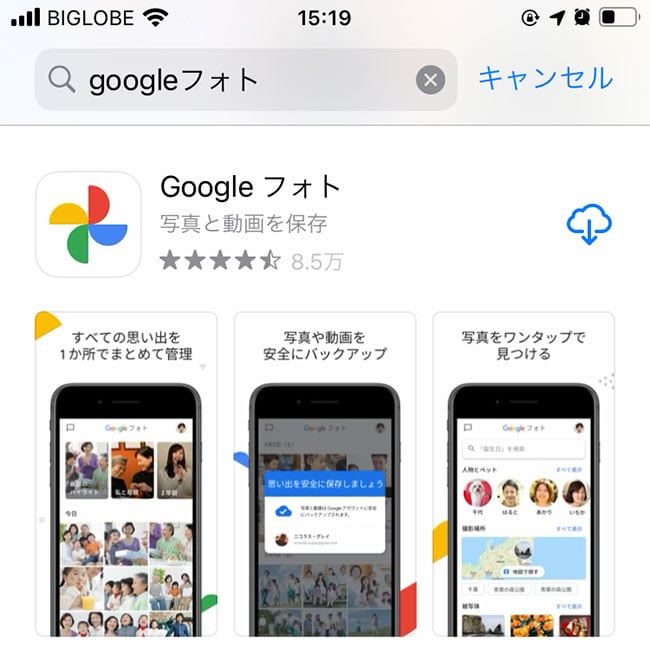
Canon has teamed up with Google to enable you to automatically back up your high-quality DSLR images in their original quality to your Google account.
This requires Canon’s image.canon application to communicate with the camera. You can sign in with your Google Account and back up your images directly to Google Photos.
That’s not it! Google lets you try out a Google One membership for a month, with perks like 100GB of free cloud storage space.
Features that make Google Photos special
Apart from these Google Photo hacks, here are some features that make Google Photos stand out in the photo gallery segment.
#1.Memory function
Google Photos automatically creates animations and collages using your images. These memories are a great way to relive past events and walk down memory lane.
Save these memories to your gallery or share them to your social media accounts. The app uses AI-based image recognition to understand more about your photos and uses the best of your photos to create these animations.
#2.Auto -correct image lighting
Photos often look grainy and dull, especially when clicked in low light. Also, strong lighting distorts image details and makes them appear overly bright.
Google Photos automatically identifies photos with poor lighting and lets you fix the lighting in your images with the click of a button. When you open an image with poor lighting, you should see an option to Fix Image Lighting.
Once you’ve fixed the lighting, you can save the latest version of the image or revert your changes if you like the previous version better.
#3.Space release function
Backing up your photos takes up space on both your device and cloud storage. You can delete locally stored images to free up disk space. However, Google Photos has a “free up space” feature so you don’t have to manually select every image.
This feature allows you to delete images backed up to cloud storage. This feature can be accessed from the Utilities section of the Photos app.
last word
Google Photos is a great app that offers a variety of applications on your smartphone, including collage creation, photo editing, file sharing applications, and more.
This powerful app from Google is packed with even more features. Try out these photo app hacks and features to improve your photo viewing experience.
You can read about the best image repair software to recover corrupted photos here.


![How to set up a Raspberry Pi web server in 2021 [Guide]](https://i0.wp.com/pcmanabu.com/wp-content/uploads/2019/10/web-server-02-309x198.png?w=1200&resize=1200,0&ssl=1)


