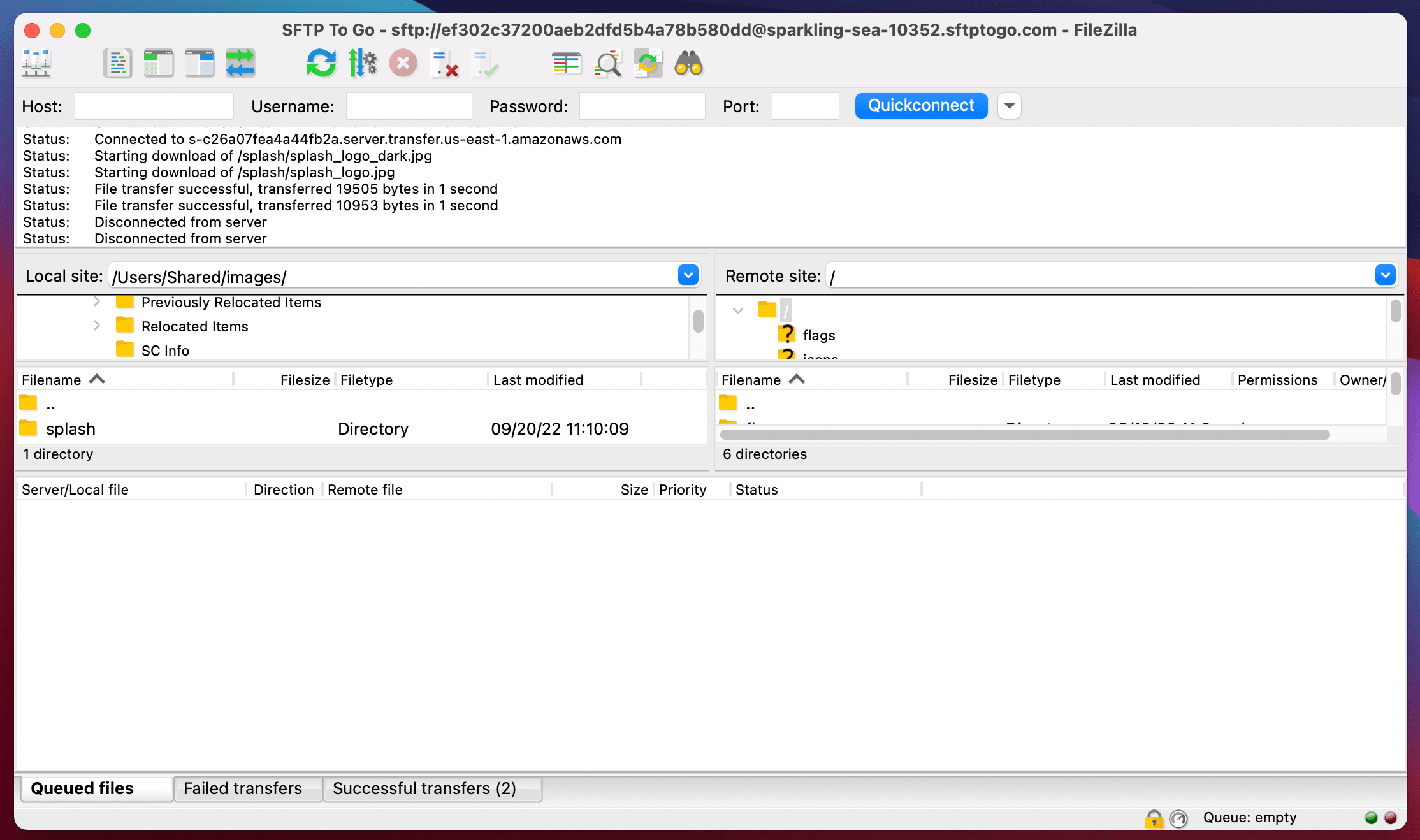
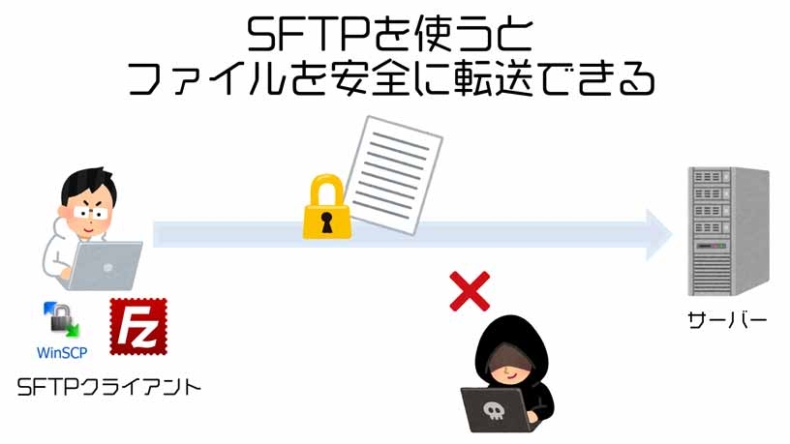
File Transfer Protocol (FTP) and Secure File Transfer Protocol (SFTP) are two of the most widely used protocols for transferring files between local devices and remote servers. There are many FTP clients available, as they are frequently used by web developers to push changes to servers. However, Macs also include fairly powerful tools that allow users to connect with remote servers using the FTP and SFTP protocols.
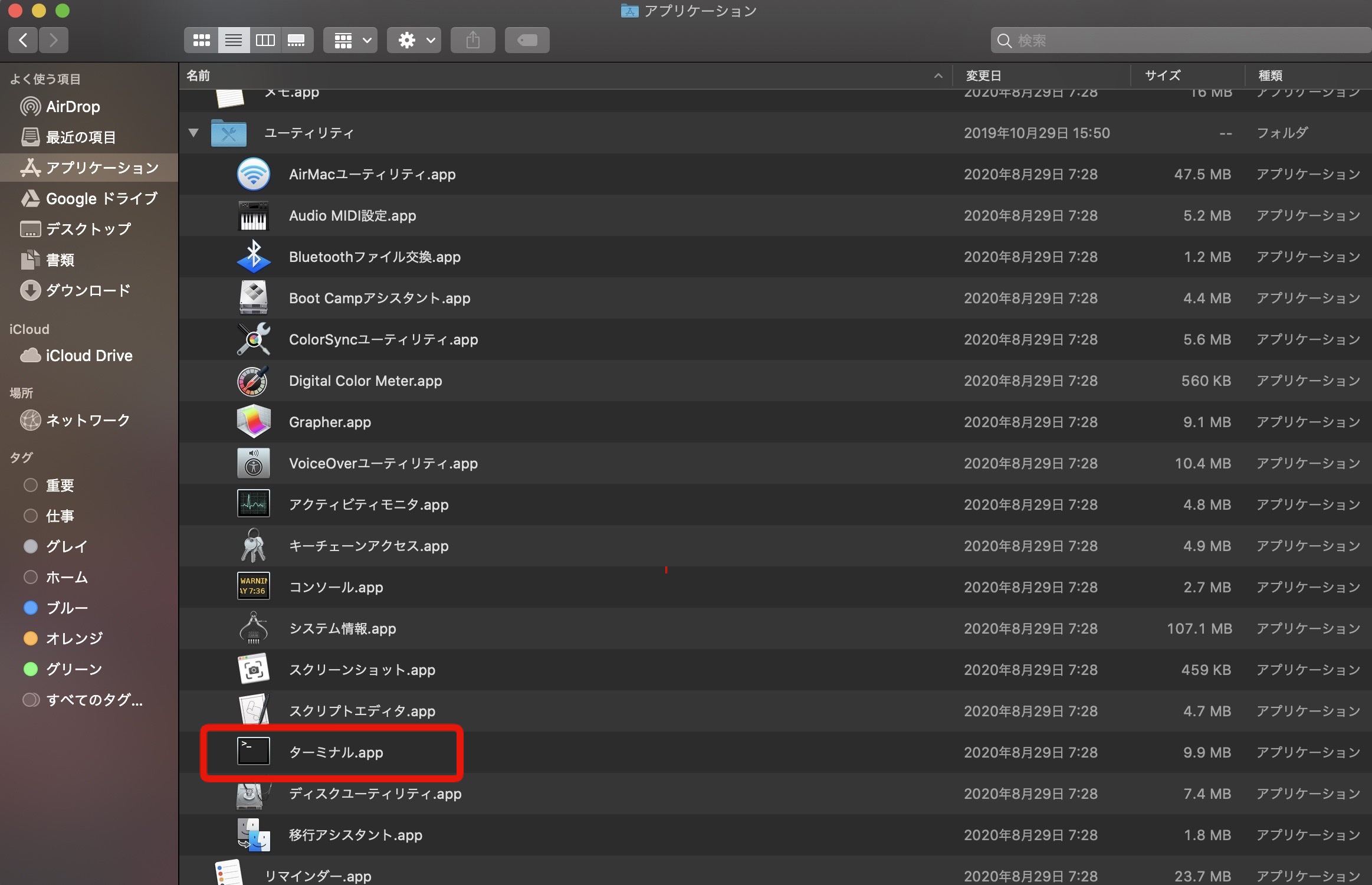
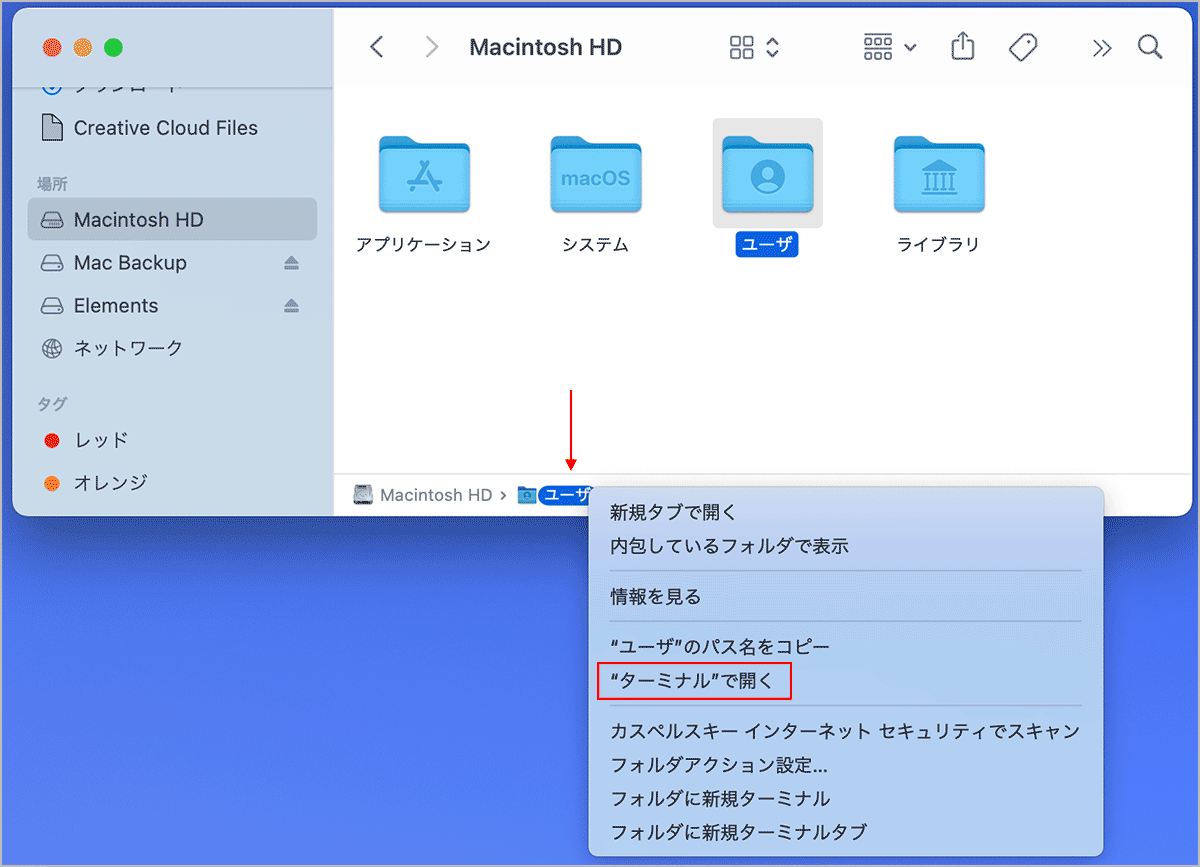
This article details how to use Terminal (Mac) as an FTP or SFTP client to perform various tasks on a remote server. For purposes of illustration, we use a test server with Linux, Apache, MySQL, and PHP installed and SSH access enabled. Learn how to use macOS Terminal instead of a third-party FTP client to perform basic FTP/SFTP tasks such as uploading/downloading, renaming, moving, and deleting files.
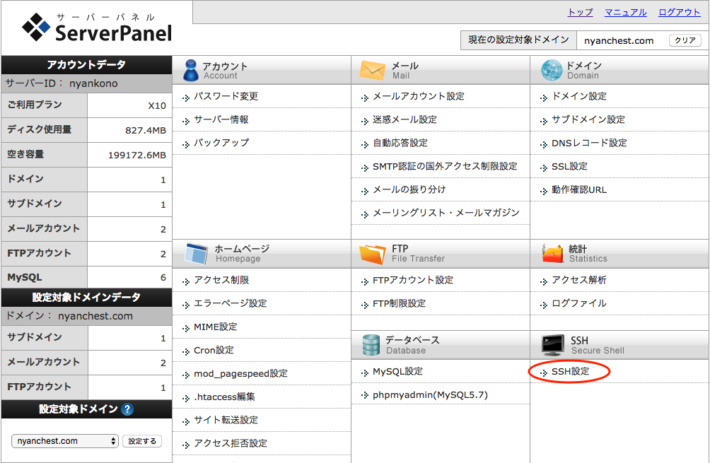
Note : To use SFTP, you must enable SSH access on your server. If you don’t have SSH access, you can contact your hosting provider or use FTP. However, FTP is not generally considered secure and should be used with caution.
Login to the server
Logging into a remote server is very easy. An FTP/SFTP username and password are required to log into the server. Although FTP allows anonymous login, we recommend that you authenticate using a username and password.
Using FTP
The command to log in to a remote server using FTP is:
ftp server_ip
You will be asked to enter your username, so enter it and press Enter. The terminal will then ask you for your password, so you can enter it and press Enter to log in.
Using SFTP
The command to log in to a remote server using SFTP is:
sftp username@server_ip
Next, you will be asked to enter your password. Type it and press Enter to log in.
1. File upload and download
One of the basic functions of an FTP/SFTP client is the ability to upload files from the local host to and download files from remote servers.
Using FTP or SFTP
- Upload the file
The command to upload a file to a remote server is:
put path_to_local_file remote_file
For example, if you want to upload a file called index.txt, your command would be:
put /Users/akshaygangwar/index.txt index.txt
This command places a file called “index.html” from your home directory to the remote server’s working directory.
Note : You can use the “pwd” command to check your working directory.
- Download the file
The command to download a file from a remote server is:
get path_to_remote_file local_file
For example, if you want to download a file called newfile.txt, your command would be:
get newfile.txt newfile.txt
This command downloads a file called “newfile.txt” from the remote server’s working directory to your Mac’s working directory.
2. Create a new folder
Creating folders (directories) on remote servers is another important task performed by FTP clients.
Using FTP or SFTP
Creating a new folder using Terminal is easy. This is the same command for both FTP and SFTP protocols.
mkdir directory_name
For example, if you want to create a folder named “,” the command would be:
mkdir
This creates a folder named “” in the remote server’s working directory.
3. Rename files on the server
Renaming files on a remote server is easy by using Terminal as a client.
Using FTP or SFTP
The command to rename a file on a remote server using Terminal as an FTP/SFTP client can be run with the following command:
rename old_name new_name
For example, if you want to rename “newfile.txt” to “mainlog.txt”, the command would be:
rename newfile.txt mainlog.txt
This renames the file from “newfile.txt” to “mainlog.txt”.
4. Delete files
Terminal also allows you to delete files from a remote server. The commands in this case are different for FTP and SFTP, so we will discuss both separately.
Using FTP
The command to delete files from a remote server using FTP is:
delete file_name
For example, if you want to delete a file called “old.txt”, the command would be:
delete old.txt
This will delete the file “old.txt” from the remote server.
Using SFTP
The command to delete files from a remote server using SFTP is:
rm file_name
For example, if you want to delete a file called “old.txt” using SFTP, the command would be:
rm old.txt

This will delete the file “old.txt” from the remote server.
5. Moving files within a remote server
Using Terminal as an FTP client, you can also move files within the remote server itself in exactly the same way as you would with a third-party FTP client.
Using FTP or SFTP
The commands to move files within the server using both FTP and SFTP are:
rename file_name path_to_new_file/file_name
For example, if you want to move a file called “testresults.txt” from the “test” directory to the “results” directory, the command would be:
rename testresults.txt results/testresults.txt
This will move the file “testresults.txt” to the subfolder “results”.
6. Check “Last updated date”
Checking the “last modified” date of a file or folder is useful when you need to know which files or folders were updated and when. This can also be achieved in Terminal.
Using FTP or SFTP
The command to check the last modified date of a file is:
ls -l file_name
This command displays some information in a table format. Columns containing date and time values correspond to the “Last Modified” value.
For example, if you want to see the date when “testresults.txt” was last modified, the command would be:
ls -l testresults.txt
7. Check and change permissions
Setting appropriate permissions on files is very important. In some cases, incorrect permissions can prevent your web app from loading.
Using FTP or SFTP
- Check permissions
It’s very easy to check and change permissions using Terminal as a client, the command is:
ls -l file_name
This command displays some information in a table format. The first column displays file permissions.
For example, if you want to check the permissions of the file “testresults.txt”, use the following command:
ls -l testresults.txt
- Change permissions
If you find a file with the wrong permissions, or just want to experiment with permissions, you can change the file permissions using Terminal. The command is:
chmod permissions_value file_name
For example, if you want to give full read, write, and execute permissions to the file “testresults.txt”, the command would be:
chmod 777 testresults.txt
This command grants read, write, and execute permissions on the file ‘testresults.txt’.
8. Create a new file
Creating new files on the server is a task that cannot be easily performed in the terminal. However, that doesn’t mean it’s impossible. The problem with creating a new file is that I need a copy of the file on my laptop before I can upload it to the server.
Using FTP or SFTP
The command to create the file on the remote server is:
!touch file_name
put file_name file_name
For example, if you want to create a file “newtest.txt” on your server, the command would be:
!touch newtest.txt
put newtest.txt newtest.txt
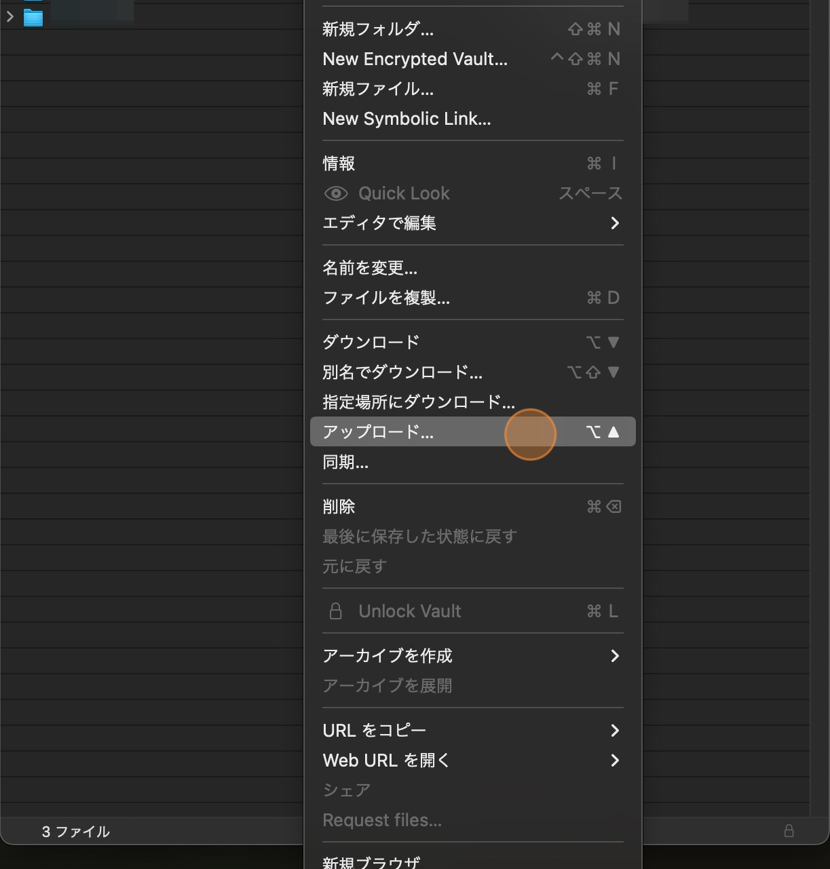
This will create a new file called “newtest.txt” and upload it to the server.
9. Edit existing files
Editing existing files is also an important feature. You can edit files in the terminal itself using programs like nano, emacs, etc. that are already built into the terminal. This example uses Nano because it is easier to understand.
Using FTP or SFTP
The command to edit an existing file on a remote server is:
get file_name file_name
!nano file_name
put file_name file_name
For example, if you want to edit the file “newtest.txt”, the command would be:
get newtest.txt newtest.txt
!nano newtest.txt
put newtest.txt newtest.txt
These commands edit the file “newtest.txt” and upload it back to the server.
10. Creating duplicate copies of files
When editing files on a remote server, it’s a good idea to have a copy of the original file in case something goes wrong.
Using FTP or SFTP
To create a duplicate copy of a file on a remote server, use the following command:
get file_name file_name
!mv file_name new_file_name
put new_file_name new_file_name
For example, if you want to create a duplicate copy of “newtest.txt”, “newtest_copy.txt”, the command would be:
get newtest.txt newtest.txt
!mv newtest.txt newtest_copy.txt
put newtest_copy.txt newtest_copy.txt
See also: 8 useful FFmpeg commands to use on Mac
Harness the power of Mac Terminal using FTP or SFTP
Now that you know how to use Terminal as an FTP or SFTP client, you can use it to FTP or SFTP to your development server without worrying about third-party applications installing bloatware or securing your traffic. If you have any problems using FTP or SFTP from Terminal, or if you think we’ve missed something, let us know in the comments section below.


![How to set up a Raspberry Pi web server in 2021 [Guide]](https://i0.wp.com/pcmanabu.com/wp-content/uploads/2019/10/web-server-02-309x198.png?w=1200&resize=1200,0&ssl=1)


