Your YouTube channel banner will be one of the first things new viewers see when they first visit your channel page. This is why it’s important to have a killer channel banner that grabs the attention of new viewers.
When creating a YouTube banner, you need to make sure it looks good and is the right size. So, if you recently created a YouTube channel and want to create a banner for it, or update your existing channel, you are in the right place. Here we will explain how to easily create a YouTube banner.
What is a YouTube banner?
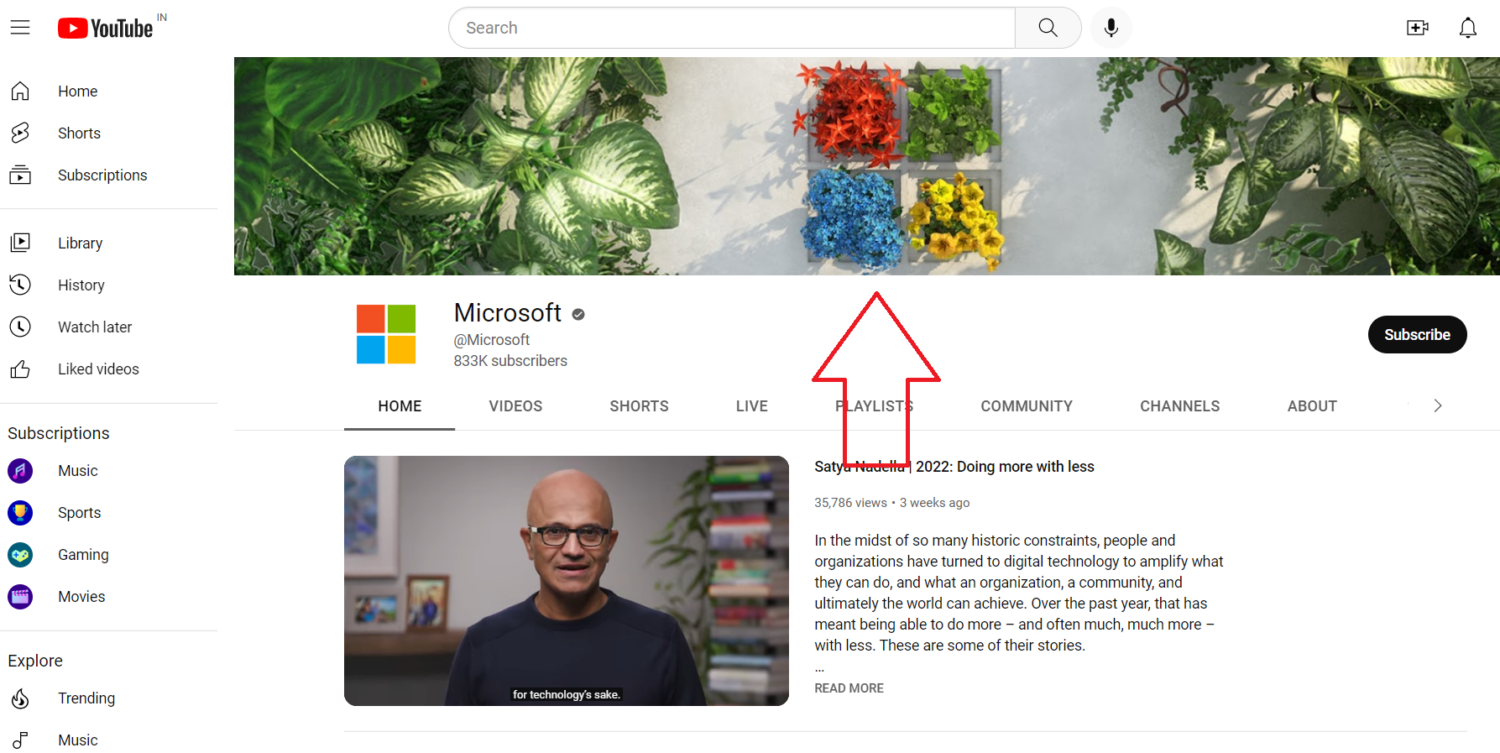
Before we get into creating a banner, let’s first quickly understand what a YouTube banner is. A YouTube banner is a horizontal header image that appears at the top of your YouTube channel page. Think of it like a cover photo for Facebook or Twitter.
For example, the image that appears at the top of Microsoft’s YouTube channel is a banner.
Why should you use banners on your YouTube channel?
Let’s briefly discuss the benefits of having a YouTube channel.
- You can use YouTube banners to let your viewers know what to expect from you.
- Let’s say you’re planning new content for your channel. You can use banners to inform your visitors about upcoming content.
- YouTube banners are just as useful for branding as your channel logo. It creates your own identity.
Examples of great YouTube banners
Now you know why you should use banners on your YouTube channel. So let’s take a look at some examples of great YouTube banners I’ve found. These examples will give you an idea of how exactly to proceed when creating a YouTube banner.
#1.Marques Brownlee

The first YouTube banner example is Marques Brownlee . If you follow Tech, you probably already know about Marques. He is a very well-known technology commentator with over 16 million subscribers. YouTube banners are simple but attractive. It primarily focuses on his abbreviation MKBHD, followed by his channel’s tagline, “Quality Tech Videos.”
He wisely targeted both existing and new viewers returning to the channel. Those who already know him from seeing his abbreviation on a YouTube banner will understand right away. When new viewers arrive on his channel with access to high-quality technical videos, they can easily tell that it is a technical channel. 👨💻
#2.Ryan Shirley

The second example for you is Ryan Shirley’s channel banner . He is a famous travel vlogger. His channel art uses mountain landscape photos. He is standing on the top of a mountain. This gives new users a clear idea that it’s a travel channel. ✈️🧳
If you still don’t know, you can find out in the travel text in the center of the banner. You can also take an idea from Ryan’s YouTube banner and use images and text that describe your field.
#3.Ali Abdal

Perhaps the best example of a YouTube banner is Ali Abdaal’s channel . He is a doctor turned YouTuber with nearly 3.8 million subscribers. His channel mainly talks about time management, productivity, books, and making money online. If you look at his channel art, there are two elements.
The right side features three small photos of himself posing as a former doctor, a YouTuber, and a podcaster. The right side of the YouTube banner explains what he discusses on his channel. I don’t think there’s a better YouTube banner out there because he makes great use of the little space he has. 😃
YouTube banner creation tool
We’re sure you’ll understand how you should plan your YouTube banner design. Create a YouTube banner for your channel.
The easiest way to create a YouTube banner is to use an online tool. There are many tools available online. We have used them and selected some of the best that you can use to create YouTube banners.
Kamba

If you’ve ever tried to create graphics online, you’ve probably heard of Canva. The most popular online graphic design tool for designers. Canva’s simple and intuitive user experience makes it very popular among beginners.
When you log into your Canva account, the first question you’ll see is “What would you like to design today?” Below that, you will see a search box type YouTube banner. You’ll find over 2,800 different YouTube banner templates in the results. You can choose one of these templates or choose the “Create a blank YouTube banner” option.
If you’re new to YouTube banner design, we highly recommend using one of our pre-designed templates. It will be much easier to work with and will give you the desired result in the end. As you review the templates, you may notice that not all of them are free.
That’s because Canva offers a premium subscription that gives you access to the entire library. If you don’t plan on paying for a Canva Premium subscription, you can start with the free plan and choose one of the free templates.
pick maker
Picmaker is an online tool that you can access from any device. Like Canva, the Picmaker interface is very user-friendly and suitable for both beginners and professional designers.
When you log into your Pickmaker dashboard, you will see a search box in the center. Search for “YouTube Banner” in the search bar. As a result, you’ll find tons of pre-designed YouTube banners. On the same page, Picmaker lists several categories. You can choose from categories according to your preference.
With Canva, you may notice that some templates are marked with a star as well. These are premium versions and require a Picmaker subscription. There’s nothing wrong with starting with something free.
photograph

Fotor is very convenient because you don’t need to register as a member. You can start creating YouTube banners right from the home page. You can design your banner with your own images and text.
However, if you want to use pre-built templates, you will need to log into your Fotor account. In my usage, I’ve found that most YouTube banner templates are part of a Fotor Pro subscription. So, if you don’t plan on paying for a YouTube banner, Fotor may not be the right choice for you.
Visme
In my experience, I found the Visme dashboard to be very professional. As soon as you log into your Visme account, you’ll see a Create a new project button. Tap on it and you’ll be taken to the All Templates page. In your case, you want to create a YouTube banner, so tap on Social Media, scroll to the right, find YouTube Banner, and select it.
Visme displays tons of different YouTube banner templates. You’ll also see a blank template option if you want to start with a blank canvas. However, we recommend using templates for your comfort. Once you choose a template, customize it to your liking and download the final result.
playsuit

Placeit is a tool provided by Envato, a popular theme and plugin marketplace company. When using Placeit, you will see a number of options in the menu bar. From there, select Design > Social Media. Under Social media, select the YouTube Banner option. A list of templates available in Placeit will be displayed. You can choose your favorite banner.
The next screen will be the editing screen. From there, you can start customizing the banner according to your requirements. To download designs, Placeit requires a monthly subscription of $1.95 per month, or $2.95 if you only want one design. It’s only worth paying the premium if you like Placeit’s design. Otherwise, there are some great tools mentioned on the list.
Best practices for creating YouTube banners
Using the tools above, you can easily create professional-looking YouTube banners. But before you start creating a banner for your channel, here are some best practices you can follow to create an attractive and impactful banner.
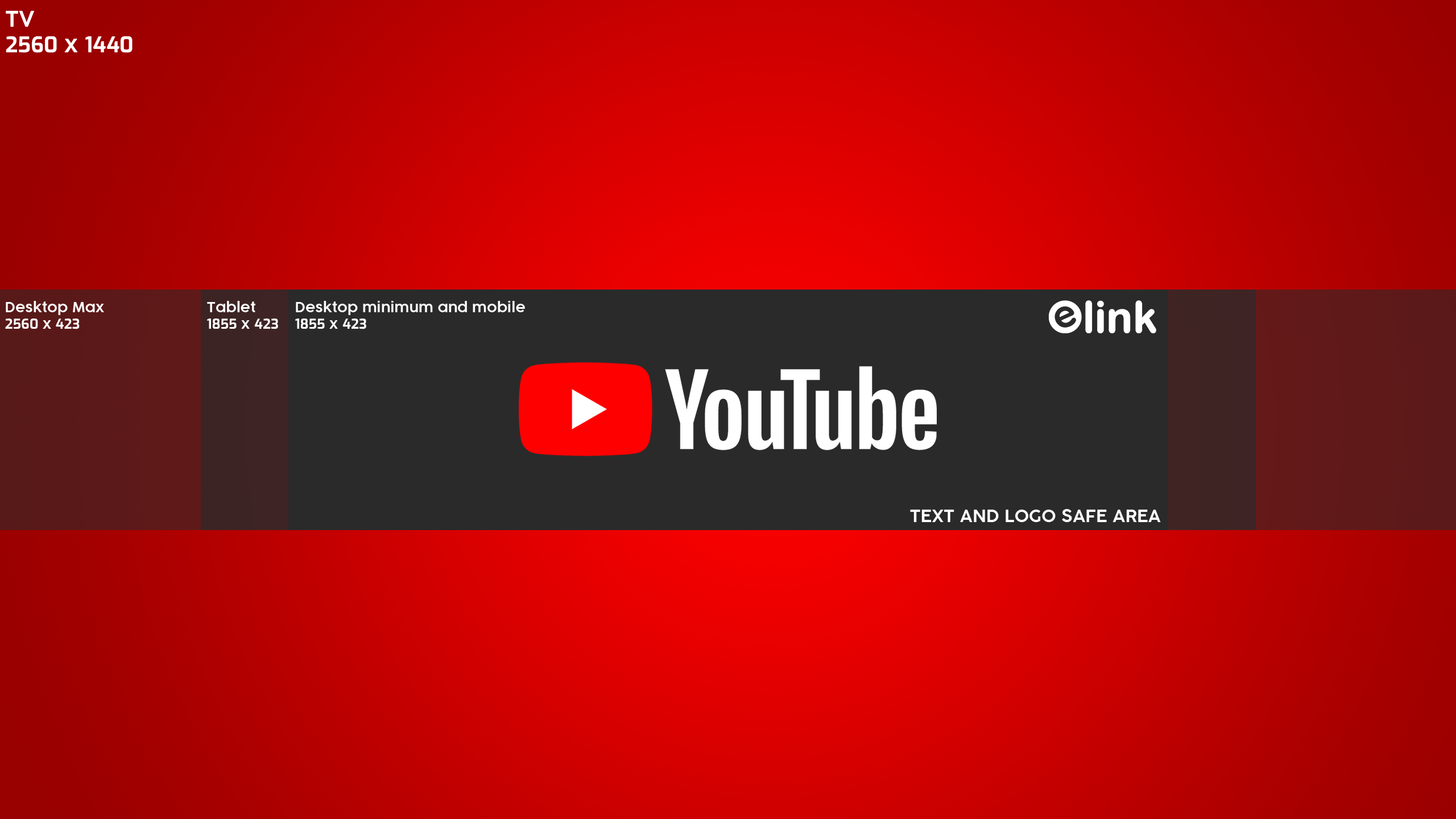
- Make sure your channel banner is the right size. YouTube recommends a banner size of 2560×1440 pixels. This is to ensure that the banner looks equally good on different devices. The size of your banner doesn’t matter if you use the tool or the template it provides.
- One common issue many users face with YouTube banners is that some parts of them get cut off on some devices. This happens because text or logo content is placed on the left or right side of the banner. YouTube recommends placing text and logos in the center of the area, as they are considered safe. So keep that in mind when creating your banner.
- Many users complain that their channel banners are blurry. This is mainly due to the poor quality of the graphics. To create a banner that looks great and leaves an impact on new viewers, you should always use high-quality images.
- If your brand uses a specific color code, using the same color code as your banner background can give your audience a sense of connection.
- Last but not least, keep your banners as simple as possible. Avoid using too many unnecessary elements here and there. The simpler your channel banner, the more impact it will have on your viewers.
How do I upload a banner to YouTube?
Once you’ve created a YouTube banner using one of the tools above, the next thing to do is to upload it to YouTube for the world to see and admire. To upload a banner to YouTuber, follow these steps:
1. First, open your favorite browser and access YouTube.
2. Click on the channel logo in the top right corner of the screen.

3. From the context menu, select the Channel option. Go to your channel page.

4. From there, tap on the “Customize Channel ” button. This will take you to the Customize your channel section in YouTube Creator Studio .
5. By default, the Layout tab is displayed. Switch to the Branding tab.
6. The second option is a banner image with an upload button, tap on it.
Note: If your channel already has a banner, you will see two options instead of an Upload button: Change and Delete . Tap Change to upload your newly created banner.
7. Next, select the YouTube banner you just created.

8. In the bottom right corner, there is an option called “DONE” . Tap on it.

8. Then click the Publish button in the top right corner to save your changes.
That’s it; your banner has been successfully uploaded to YouTube. Don’t worry if you don’t see it right away. It may take several minutes for changes to be reflected on various pages.
FAQ
YouTube banners may be blurry due to low resolution. Make sure your YouTube banner is well-crafted and not blurry.
In my experience, the best tool for creating your own YouTube banners is Canva. When it comes to a seamless user experience, Canva is far superior to its competitors.
conclusion
YouTube banners are a great way to give viewers a clear idea of your content when they visit your channel. For beginners, creating a YouTube banner may seem like a daunting task, but trust me, it’s a difficult task. it’s not. The guide above will walk you through creating a YouTube banner and uploading it to your channel.
You can also refer to these versatile design tools to create your banner.


![How to set up a Raspberry Pi web server in 2021 [Guide]](https://i0.wp.com/pcmanabu.com/wp-content/uploads/2019/10/web-server-02-309x198.png?w=1200&resize=1200,0&ssl=1)


