Years ago, when on-premises Unix servers with large file systems were all the rage, companies developed extensive folder management rules and strategies to manage access rights to different folders for different users. was building.
Typically, an organization’s platform serves different user groups with completely different interests, sensitivity level restrictions, or content definitions. For global organizations, this may mean segregating content based on location, essentially segregating content between users belonging to different countries.

More typical examples include:
- Separation of data between development, test, and production environments
- Sales content that is not accessible to a wide audience
- Country-specific legal content that cannot be viewed or accessed from within another region
- Project-related content that provides “leadership data” only to a limited number of people.
The list of such examples could be endless. Importantly, there will always be some need to coordinate access rights to files and data across all users that a platform provides access to.
With on-premises solutions, this was a routine task. File system administrators simply set up a few rules and use the tools of their choice, and users are mapped to user groups, which in turn are mapped to a list of folders or mount points that user groups can access. In the process, the level of access was defined as read-only or read and write access.
If you look at the AWS cloud platform, it’s clear that people have similar requirements for content access restrictions. But the solution to this problem would be different. Files are stored in the cloud rather than on Unix servers (where they can potentially be accessed from across the organization or even around the world), and content is stored in S3 buckets rather than folders.

Below we describe alternatives to address this issue. It is built on real-life experiences I had while designing such solutions for concrete projects.
A simple but extensive manual approach
One way to solve this problem without automation is relatively straightforward and simple.
- Create new buckets for each separate group of people.
- Assign permissions to the bucket so that only this specific group can access the S3 bucket.
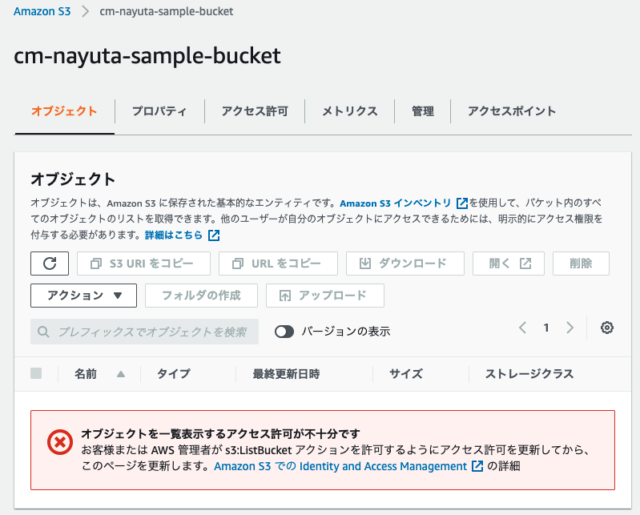
This is certainly possible if your requirements require a very simple and quick solution. However, there are some limitations to be aware of.
By default, an AWS account can create up to 100 S3 buckets. This limit can be increased to 1000 by submitting a service limit increase to your AWS ticket. If these limitations are not an issue for your particular implementation case, you can allow each separate domain user to operate with a separate S3 bucket and call it a day.
Problems can arise when you have groups with cross-functional responsibilities, or when you have people who need to access content from more domains at the same time. for example:
- Data analysts evaluate data content in several different areas, regions, etc.
- The test team shared services that served different development teams.
- Report users who need to build dashboard analytics based on different countries within the same region.
As you can imagine, this list can grow as much as you can imagine, and your organization’s needs can generate all sorts of use cases.
The more complex this list is, the more complex permission orchestration will be required to give all the different groups different access to the different S3 buckets in your organization. Additional tools may be required, and possibly dedicated resources (administrators) may need to maintain the permission list and update it whenever changes are requested (especially if the organization is large). is done very often).
So how can we accomplish the same thing in a more organized and automated way?
Introducing bucket tags
If the per-domain buckets approach doesn’t work, other solutions involve sharing buckets across larger groups of users. In such cases, you need to build the entire logic to assign access rights to some areas that are easy to change or update dynamically.
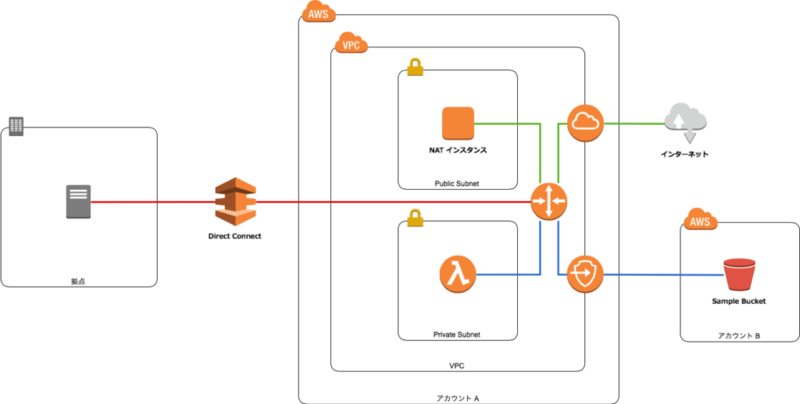
One way to accomplish this is to use tags on your S3 bucket. We recommend using tags in all cases (if for no other reason than to facilitate claim classification). However, tags can be changed for any bucket at any time in the future.
If your entire logic is built around the bucket’s tags, and the rest is configuration dependent on the tag values, you can redefine the bucket’s purpose by simply updating the tag values, thus ensuring dynamic properties.
What tags should I use to make this work?
This depends on your specific use case. for example:
- You may want to separate buckets by environment type. So in that case, one of the tag names would be something like “ENV” and the values could be “DEV”, “TEST”, “PROD”, etc.
- You may want to separate your teams based on country. In this case, the other tag would be “COUNTRY” and its value would be some country name.
- Or, you may want to separate users based on the functional department they belong to, such as business analysts, data warehouse users, or data scientists. So, create a tag with the name “USER_TYPE” and the respective value.
- Another option is to explicitly define a fixed folder structure that specific user groups should use (so that user groups can create their own folders and not lose them over time). ). You can do this again using tags and specify several working directories such as “data/import”, “data/processed”, “data/error”, etc.
Ideally, you should define your tags so that they can be logically combined to form the entire folder structure on your bucket.
For example, you can combine the following tags from the example above to build a specialized folder structure for different types of users in different countries, with predefined import folders that users are expected to use. Masu.
- /<ENV>/<USER_TYPE>/<country>/<upload>
You can redefine a tag’s purpose (whether it’s assigned to a test environment ecosystem, development, production, etc.) by simply changing the <ENV> value.
This allows many different users to use the same bucket. Buckets do not explicitly support folders, but they do support “labels”. These labels ultimately act like subfolders because users must pass through a series of labels to access the data (just like subfolders do).
Create a dynamic policy and map bucket tags inside
Once you have defined the tag in a usable format, the next step is to build an S3 bucket policy that uses the tag.
If your policy uses tag names, you are creating what is known as a “dynamic policy.” This essentially means that the policy behaves differently for buckets with different tag values that the policy references in forms or placeholders.
This step obviously involves custom coding a dynamic policy, but you can use the Amazon AWS Policy Editor tool to simplify this step. This tool will guide you through the process.
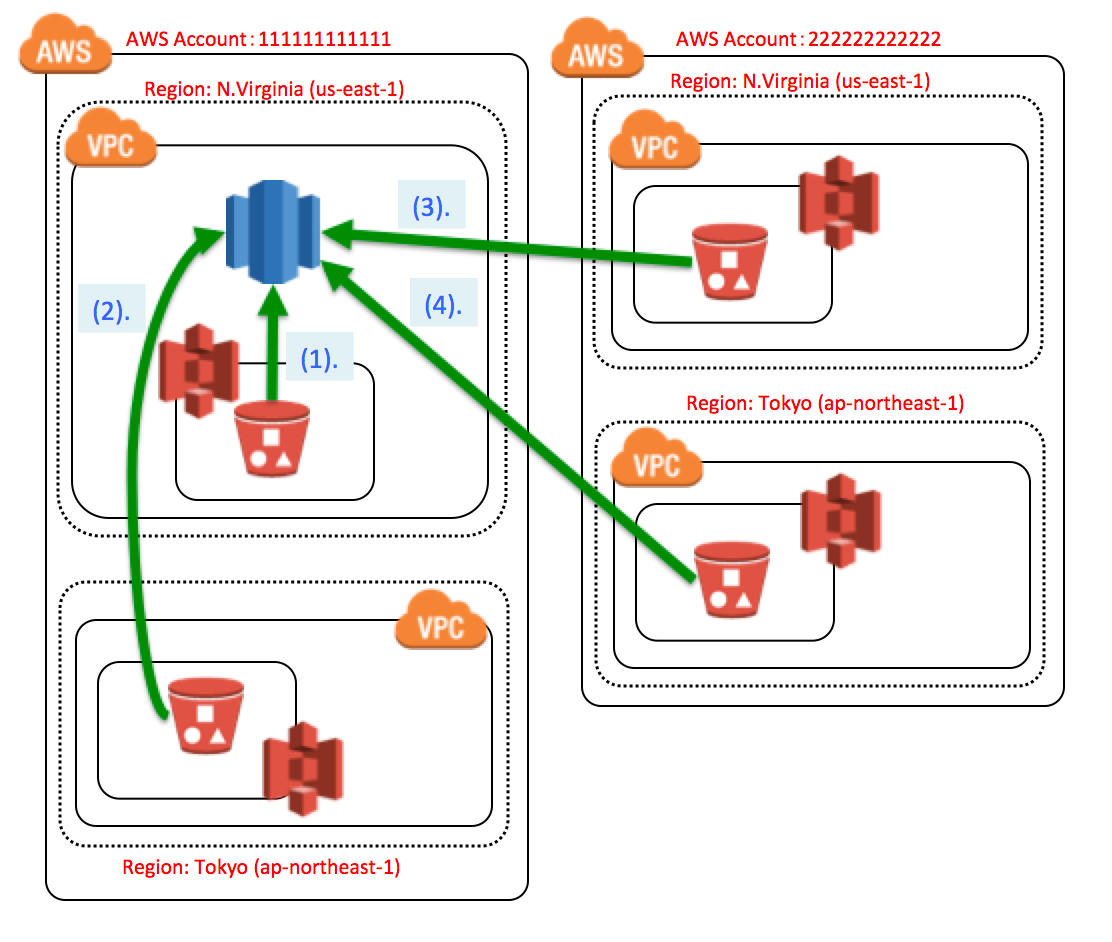
The policy itself must encode the specific permissions that apply to the bucket and the access level (read, write) for those permissions. The logic reads the bucket’s tags and builds a folder structure on the bucket (creating labels based on the tags). Subfolders are created based on the specific value of the tag and the required permissions are assigned accordingly.
The great thing about such dynamic policies is that you can create just one dynamic policy and assign the same dynamic policy to many buckets. This policy behaves differently for buckets with different tag values, but as expected for buckets with such tag values.
This is a very effective way to manage access rights assignments for a large number of buckets in an organized and centralized manner. It is expected that all buckets follow a pre-agreed template structure used by internal users. The entire organization.
Automate onboarding of new entities
After you define a dynamic policy and assign it to an existing bucket, users no longer have access to content (stored in the same bucket) that is under a folder structure that they do not have. You can start using the same bucket without any risk. access.
Also, for some groups of users with broader access, data is all stored in the same bucket, making it easier to access the data.
The final step is to make onboarding new users, new buckets, and even new tags as easy as possible. This requires another piece of custom coding, but it doesn’t have to be overly complex (at least , this way the process has some logic and doesn’t run in an overly chaotic manner).
This is as simple as creating a script that can be run with AWS CLI commands with the necessary parameters to successfully onboard a new entity to the platform. For example, it could be a series of CLI scripts that can be run in a specific order, such as:
- create_new_bucket(<ENV>,<ENV_VALUE>,<COUNTRY>,<COUNTRY_VALUE>, ..)
- create_new_tag(<bucket_id>,<tag name>,<tag_value>)
- update_existing_tag(<bucket_id>,<tag name>,<tag_value>)
- create_user_group(<user type>,<country>,<environment>)
- etc.
You get the point. 😃
Pro Tips 👨💻
There is one pro tip that you can easily apply in addition to the above if needed.
In addition to assigning access to folder locations, dynamic policies can also be used to automatically assign service privileges to buckets and user groups.
All you need to do is expand the bucket’s list of tags and add dynamic policy permissions to use specific services for specific groups of users.
For example, you may have a group of users who also need access to a particular database cluster server. This can definitely be achieved with dynamic policies leveraging bucket tasks. This is even more likely if access to services is driven by a role-based approach. Simply add a piece to your dynamic policy code that handles the tags about your database cluster specification and assigns policy permissions directly to that specific DB cluster and user group.
In this way, onboarding of new user groups is possible with just this single dynamic policy. Additionally, because it is dynamic, the same policy can be reused to onboard many different user groups (hopefully following the same template, but not necessarily the same service).
Also see these AWS S3 commands for managing buckets and data.


![How to set up a Raspberry Pi web server in 2021 [Guide]](https://i0.wp.com/pcmanabu.com/wp-content/uploads/2019/10/web-server-02-309x198.png?w=1200&resize=1200,0&ssl=1)


