If you look inside your laptop’s applications folder, you’ll probably find applications that specialize in converting video files, ripping audio from video files, and more. What if I told you that you don’t really need all of this, neither on your computer nor as a website saved in your bookmarks for instant access to video conversion tools? An alternative exists and it’s called FFmpeg. Before we get into all the cool things you can do on your Mac using the FFmpeg command, you first need to know what the FFmpeg command is and how to install it on your macOS computer. So it would look like this:
What is FFmpeg?
FFmpeg is a command line/com utility with many powerful libraries, and its various commands allow users to convert video files from one format to another, edit the aspect ratio of video files, etc. or extract audio. However, Terminal (Windows’ Command Prompt) isn’t everyone’s cup of tea. Some people may find it simply too scary or complicated. That’s why I’m writing this article detailing the steps required to easily use various FFmpeg commands on your Mac (sorry Windows users!). Read on and get ready to discover the true power of the command line and FFmpeg commands.
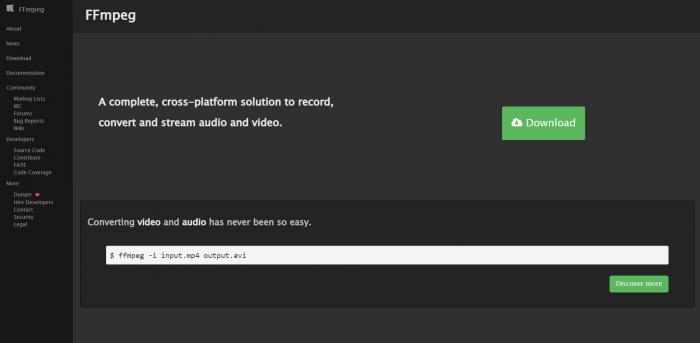
To install it on your Mac, simply download FFmpeg from our website (it’s free!) and install it on your Mac. It’s very simple. Once you’re set up on your Mac, here are eight useful FFmpeg commands for Mac.
We’ll start with the simplest tasks you can perform with the FFmpeg command and work your way up one step at a time to some of the more specialized tasks you can perform using the utility.
FFmpeg commands useful for working with audio and video
1. Convert video format
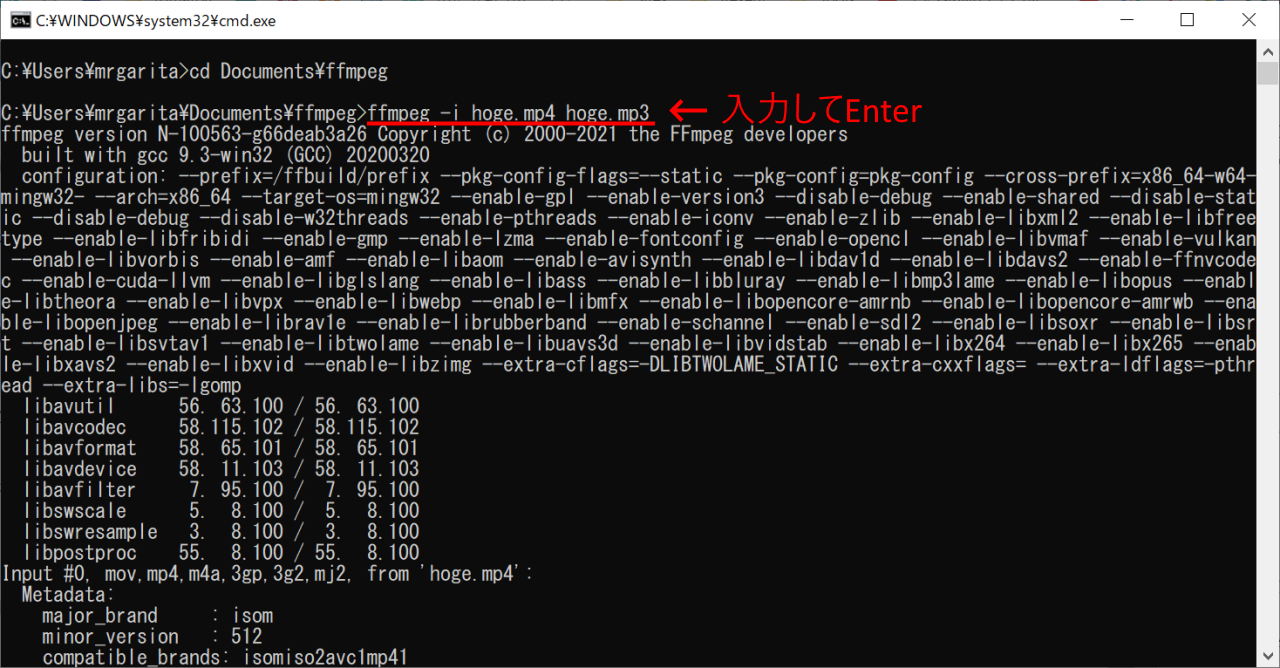
FFmpeg can convert videos to various formats with just one simple command. The commands required to achieve this are:
ffmpeg -i input file.extension output file.extension
Obviously you’ll need to replace the filename and extension depending on the file you have. For example, if you convert an mp4 file called “abc.mp4” to an avi movie called “convertedabc.avi”, the command would be:
ffmpeg -i ~/Desktop/Scripts/abc.mp4 ~/Desktop/Scripts/convertedabc.avi
That’s it. FFmpeg will print out a lot of information on the terminal, but unless you get an error (which is fairly rare) you don’t need to worry about it. You can also find the converted video files in Finder.

2. Rip audio from video files
FFmpeg also allows you to rip audio from video files. This basically uses the same command as above, but requires you to specify the audio file format on the output. The command to do this is:
ffmpeg -i input file.extension output file.extension
I used the following command to rip the audio from “abc.mp4” to the audio file “rippedaudio.mp3”.
ffmpeg -i ~/Desktop/Scripts/abc.mp4 ~/Desktop/Scripts/rippedaudio.mp3
3. Convert x264 encoded video files to x265
H.265 is a new encoding technology that can significantly reduce the file size of videos of the same quality. No exaggeration, when you look at video files that can be downloaded over the Internet, the file sizes of the same file in x264 and x265 encoding can vary dramatically. The FFmpeg command to achieve this is:
ffmpeg -i input file -strict -2 -c:v libx265 output file
For example, I used the following command to convert the “abc.mp4” file from x264 to x265.
ffmpeg -i ~/Desktop/Scripts/abc.mp4 -strict -2 -c:v libx265 ~/Desktop/Scripts/abc265.mp4

Here are screenshots of both file sizes. 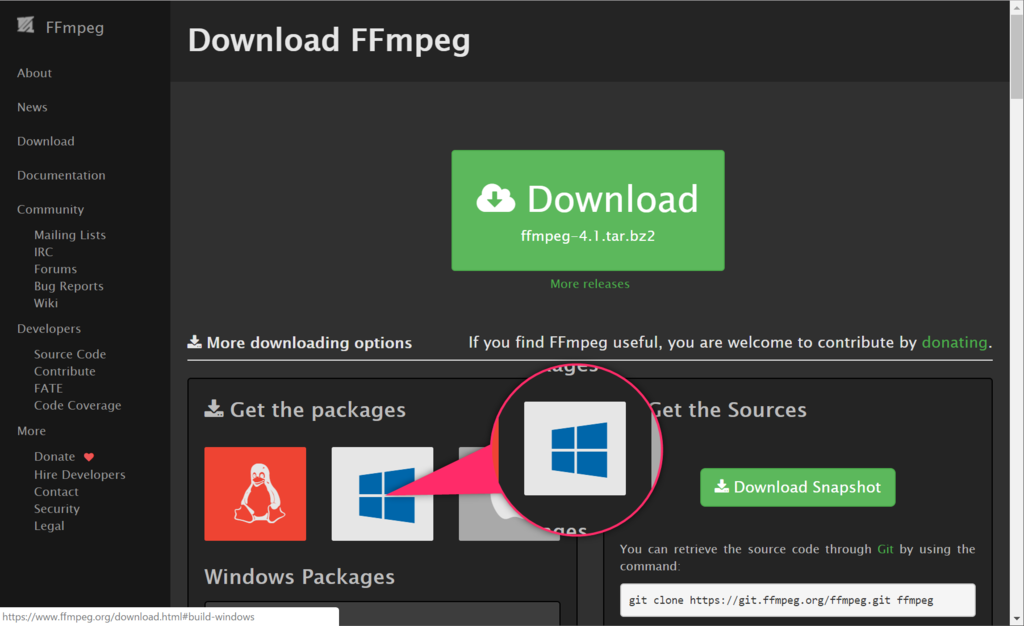
While this is clearly a better way to encode video files, older computers may not be able to play H.265 encoded video files.
4. Change frame rate of video files
FFmpeg also has the ability to edit the frame rate of video files. This may not be a useful feature for normal use, but it’s a feature you may need in special situations, so it’s worth a try, even if it’s just for fun. You can change the frame rate of the video to 1FPS to see how it plays. The best part is that you can also increase the frame rate. FFmpeg increases the frame rate by simply duplicating existing frames, while the video time remains the same. The command to accomplish this is:
ffmpeg -i input file -strict -2 -r frame rate output file
I used the following command to change the frame rate of “abc.mp4” to 1FPS and saved it as “abcfps.mp4”.
ffmpeg -i ~/Desktop/Scripts/abc.mp4 -strict -2 -r 1 ~/Desktop/Scripts/abcps.mp4

5. Edit video file aspect ratio
Another cool thing you can do with FFmpeg is change the aspect ratio of your video. Therefore, you can change the video aspect ratio to 4:3, 16:9, 1:1, or any other aspect ratio you want. The command to do this using FFmpeg is:
ffmpeg -i input file -strict -2 -aspect aspect ratio output file
I used the following command to change the aspect ratio of “abc.mp4” to 1:1 and save it as “abcaspect.mp4”.
ffmpeg -i ~/Desktop/Scripts/abc.mp4 -strict -2 -aspect 1:1 ~/Desktop/Scripts/abcaspect.mp4
6. Extract images from videos
FFmpeg also allows users to automatically take snapshots from videos at their desired speed. FFmpeg also allows you to take snapshots every second from your video and specify the size of the image you want to capture. FFmpeg can save these snapshots in any folder and automatically append sequential filenames to the images, so you know the order in which the snapshots were taken. The command to accomplish this is:
ffmpeg -i input file -an -r number of images per second -y -s image size filename_%d.jpg
Note : “%d” is a placeholder that FFmpeg uses to add a number. In this case, numbers such as 1, 2, 3, etc. will be added to the image.
I used the following command to take snapshots every second from ‘abc.mp4’.
ffmpeg -i ~/Desktop/Scripts/abc.mp4 -an -r 1 -y -s 400×400 abc_%d.jpg
Additionally, if you need to take a snapshot of, say, only the first 3 seconds of a video, the “-t” option will tell FFmpeg to take a snapshot only up to that point in the video. To use the -t option, you need to edit the command in the following way:
ffmpeg -i ~/Desktop/Scripts/abc.mp4 – t 3 -an -r 1 -y -s 400×400 abc_%d.jpg

Of course, you can replace “3” with whatever time you want in seconds.
What if you need to take a 3 second snapshot starting from a specific time in the video? Well, FFmpeg can do that too. The ‘-ss’ option allows the user to specify the start time for the snapshot process. Suppose you want to take a 2 second snapshot (in mm:ss format) starting at time 00:03 from ‘abc.mp4’. Use the command as follows:
ffmpeg -i ~/Desktop/Scripts/abc.mp4 -ss 3 -t 2 -an -r 1 -y -s 400×400 abc_%d.jpg

7. Create videos from images
Another great thing you can do with FFmpeg commands is that you can use multiple images to create a slideshow-like video. However, it’s not exactly the same as a slide show. I found this feature useful when I needed to edit every frame of a video and convert it back to a video with new images. Obviously doing this manually turned out to be very difficult, but FFmpeg made this very easy and I was able to walk around aimlessly while drinking coffee. Talk about goals.
The command to do this in FFmpeg is:
ffmpeg -r framerate -f image2 -i image name.extension output video.extension
Why not try recreating abc.mp4 using the image created in the last example? To do this, use the command as follows:
ffmpeg -r 1 -f image2 -i ~/Desktop/Scripts/abc_%d.jpg ~/Desktop/Scripts/recreatedabc.mp4
8. Add metadata entries to video files
Although this is a feature that the average user would never expect to use, this FFmpeg command is very useful for users who need to edit the metadata of video files. The command is not that complicated.
ffmpeg -i input file -strict -2 -metadata tag name=“tag value” output file
For example, if you want to add the metadata entry “Title” and the value “Akshay” to “abc.mp4”, use the command as follows:
ffmpeg -i ~/Desktop/Scripts/abc.mp4 -strict -2 -metadata Title=“Akshay” ~/Desktop/Scripts/metaaddedabc.mp4
The screenshot below shows the metadata fields added to a new video file.
Related Article: 15 Cool Mac Keyboard Shortcuts You Should Know
FFmpeg: A super powerful video manipulation utility
The eight FFmpeg commands discussed in this article only scratch the surface of FFmpeg’s true capabilities. This tool is incredibly powerful and extremely flexible. You can combine multiple options to get highly customized features from FFmpeg. I highly recommend reading the FFmpeg documentation . This document is very detailed and includes many features that were not covered in this topic for clarity.
As always, we’d love to hear your experiences using FFmpeg commands, and your thoughts and comments about the best ones. Please share your thoughts and opinions in the comments section below.


![How to set up a Raspberry Pi web server in 2021 [Guide]](https://i0.wp.com/pcmanabu.com/wp-content/uploads/2019/10/web-server-02-309x198.png?w=1200&resize=1200,0&ssl=1)


