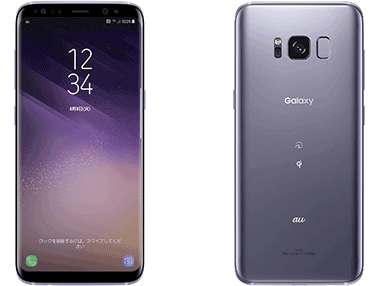
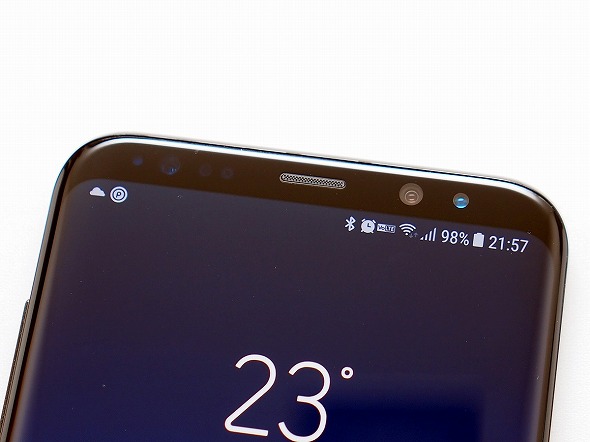
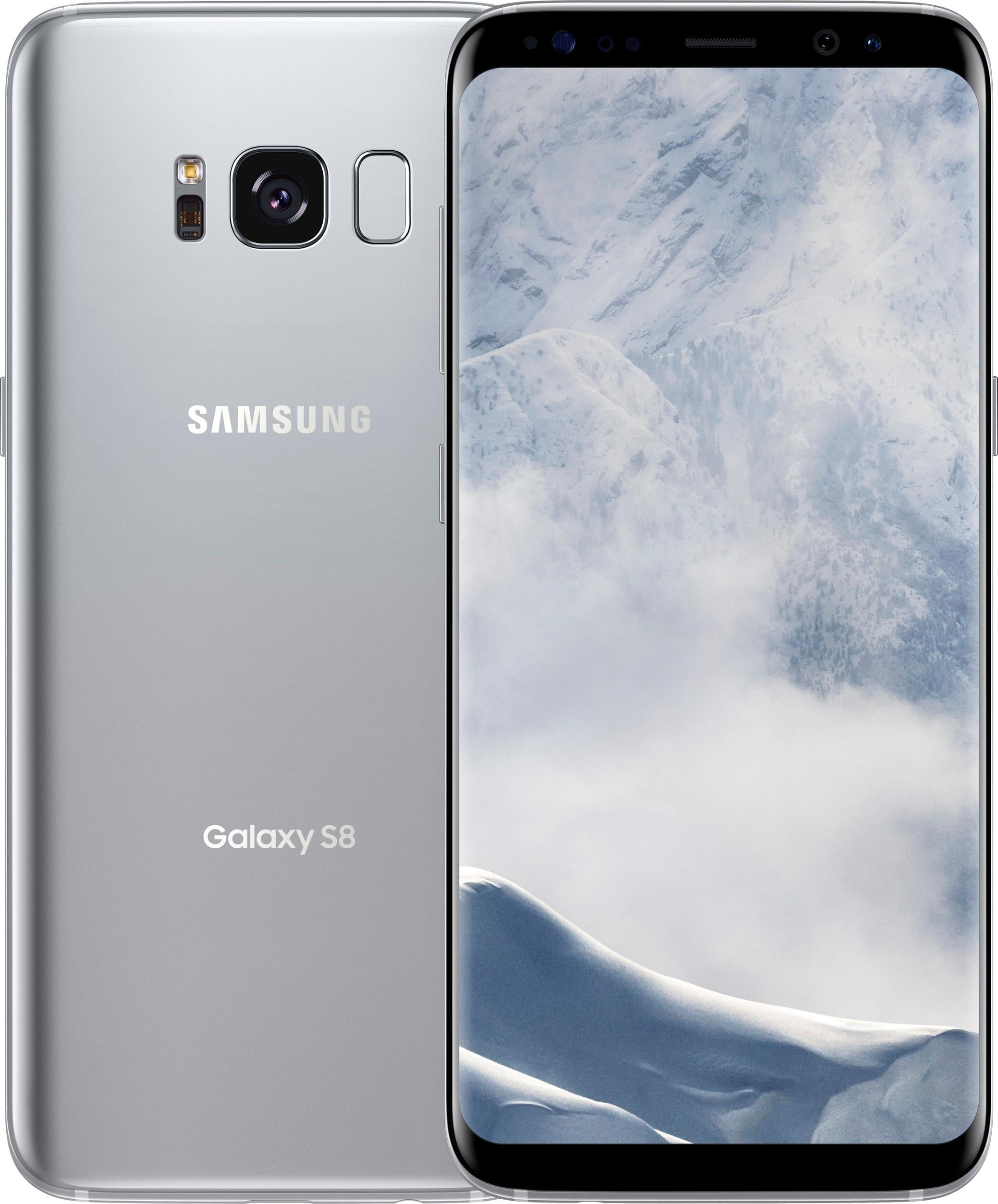
Samsung’s new flagship smartphones, the Galaxy S8 and S8 Plus, are garnering a lot of attention, with pre-orders and sales surging, and almost everyone giving them very positive reviews. Smartphones have a lot of great features, many of which are pretty obvious, but there are also some hidden features and tricks that aren’t so obvious. So, if you’ve bought (or are planning to buy) a Galaxy S8 or S8 Plus and want to know about the cool hidden features they offer, check out 15 Galaxy S8 Tricks and Hidden Features You Should Know. The features are listed below.
1. Remapping the Bixby button
Galaxy S8 and S8 Plus come with Samsung’s exclusive AI assistant designed to make your life easier. However, as it stands now, Bixby isn’t very useful, and the dedicated hardware buttons don’t make much sense. Luckily, an app called BixBye ( free ) lets you easily remap the Bixby button to launch whatever you want . You can read more about BixBye and learn how to use it from our article on remapping the Bixby button on Galaxy S8 and S8 Plus.

2. Use separate app sounds
If you like listening to loud music on your Bluetooth speaker, you probably don’t want your Bluetooth speaker to play the sounds of incoming calls or text messages at high volume. But that’s always been the case…until now. On the S8 and S8 Plus, Samsung offers what it calls “Independent App Sounds.” This feature allows your smartphone to play sounds from certain apps only on a certain output , while all other sounds are played through the device.
- To find and enable this feature, go to Settings -> Sounds & vibrations , select App individual sounds .

- Here you can choose which apps play sound through which audio outputs by simply enabling a toggle .

3. Pin everything to your always-on display
Always on Display on the Galaxy S8 and S8 Plus is really great, and while I wish notifications weren’t just little circular icons, there’s something really great about Always on Display. One such feature allows users to pin almost anything they want to their display at all times. This could be an image or a note saved to something like Google Keep. You can also pin YouTube videos to always-on view, but they will only appear as URLs. For example, to pin a note to always-on view, simply follow these steps:
- Launch Google Keep and select the note you want to pin . Next, tap the three-dot menu button in the top right corner, then tap Send .
- Select ” Always on display ” on the screen that slides up, then tap ” Pin to always on display “.
Notes are pinned to always-on display on your S8 or S8 Plus, and accessible with a quick double-tap. This is very convenient because you can access your reminders and shopping list without unlocking your phone.
4. Enable download booster to speed up your download speed
If you’ve ever used Speedify (which is a great feature), you know how useful it is to combine the bandwidth of multiple networks to improve download speeds. Samsung has included a Download Booster feature on the S8 and S8 Plus, which does virtually the same thing, except it uses your WiFi and LTE connections at the same time to increase download speeds . To enable Download Booster, follow these steps:
Note : Using LTE for downloads can quickly add up to high data bills, so make sure you’re on an unlimited plan if you use this feature frequently.
- Go to Settings -> Connections -> Other connection settings .
- Here, just switch the toggle next to “ Download Booster ” from the “Off” position to “On”.

Once you enable Download Booster, you will notice a noticeable increase in the download speed on your phone compared to when it is disabled.
5. Enable dual audio on your Bluetooth device
The S8 and S8 Plus are the first smartphones on the market to support Bluetooth 5.0. Among its various great features, one that really stands out is the fact that the S8 and S8 Plus can stream music to two Bluetooth devices using Bluetooth 5.0. at the same time. This is really great! There may be a slight delay between the two devices, but the important thing is that two people can enjoy wireless music via Bluetooth at the same time.
- To enable dual audio for Bluetooth devices on S8 and S8 Plus, go to Settings -> Connections -> Bluetooth .
- Make sure Bluetooth is turned on and tap the three-dot menu button . Now tap ” Dual Audio “. You can then enable dual audio to enjoy music on two Bluetooth devices at the same time.

6. Hide apps
The ability to hide apps isn’t something everyone uses, but it’s nice to have in case you need it. Luckily, with the S8 and S8 Plus, you no longer have to rely on third-party app lockers that can be a little shady or unreliable. To hide apps on your S8 or S8 Plus smartphone, follow the steps below.
- Swipe up from the home screen to open the app drawer and tap the three-dot menu button in the top right. Now tap “Settings”
- Now tap ” Hide app “. Just select the apps you want to hide and tap Apply.
7. Capture a snippet or GIF
Another great feature that comes with the S8 and S8 Plus is the Edge panel smart selection tool. These tools allow you to capture rectangular or oval parts of your screen. That’s all great, but what’s really cool is the animation tools. If you’re watching a video on your S8 and there’s a scene you want to create a GIF of, just swipe into the Smart Select Edge panel and tap the Animation tool.
You can then place it on top of the playing video and record it. S8 can convert recordings into GIFs that you can share with friends or send as tweets.
8. Delete icon frame
Both the S8 and S8 Plus use squirrel icons throughout their user interfaces. This means that apps without Squirtle icons will have their icons resized to match the theme of the rest of your phone and fit within the white Squirtle. This looks uniform, but tends to make the icons look worse. So if you want to ignore the squiggle icon on your phone and use all the regular icons instead.

- To do this, just go to Settings -> Display -> Icon Frames.
- Here, select ” Icon only ” and tap “Done”. The S8 switches from using squiggle icons with white borders to regular app icons.
9. Safe folder
Secure Folder is a new feature that Samsung has added to the S8 and S8 Plus. Secure Folder lets you safely store personal data from compatible apps in a secure folder that can only be accessed by entering a PIN, scanning a fingerprint, or using an iris scanner. This is great. You can essentially create two separate spaces for the same app. One is visible to anyone with access to your phone, and the other is in a secure folder. So if you take a photo using the camera app inside a secure folder, the photo will be saved to your gallery, but it won’t be visible outside of the secure folder.
Also, if you have any photos in the gallery that you want to secure, you can move them from the regular gallery to the gallery in a secure folder to effectively protect them from unauthorized access.
10. Edit and add edge panels
The Galaxy S8 and S8 Plus come with curved screens, leaving no flat screen option left. So even if you don’t like the curved screen design or aren’t an Edge panel user, now is the time to start embracing it. Edge panels can actually be very useful if configured correctly. To edit edge panels and add more panels, follow these steps:
- Go to Settings -> Display -> Edge Screen . Here, tap ” Edge Panel “.
- The screen that opens allows you to easily enable or disable the preloaded Edge panel that comes with the S8 and S8 Plus. And if you want to find even more cool Edge panels, just tap the ” Download ” button in the top right to get them.
Once you set up the Edge panel on your S8 or S8 Plus, you’ll find that it’s actually quite useful and actually makes it easier to perform various operations on your smartphone.
11. Adapt apps and videos to 18.5:9 aspect ratio screens
The Galaxy S8 and S8 Plus have an 18.5:9 aspect ratio, which means the screen is taller than it is wide, making the phone much more compact and easier to hold with one hand. However, this also creates the problem that most apps and videos are intended to be displayed on smartphones with a 16:9 aspect ratio. So when you launch a third-party app or view a YouTube video on the S8 and S8 Plus, it appears black. side bar.
Fortunately, Samsung offers easy fixes for these issues. If you’re using an app that has black bars at the top and bottom, just press the Recents button and an icon will appear on the app’s card to scale the app to take up the entire 18.5:9 screen on your S8 or S8. . S8 plus. Just tap this icon and the app will automatically resize to fit perfectly on your S8’s display.
Similarly, for videos, you’ll see a button in the video player that you can tap to quickly crop the video to fit your device’s screen, greatly improving the experience on the gorgeous S8 display.
12. Use a blue light filter
Recent studies have shown that the blue light emitted by smartphone and laptop displays can disrupt human sleep cycles and actually prevent users from getting proper sleep. To solve this problem, Samsung has included a blue light filter in the Galaxy S8 and S8 Plus. When enabled, your S8 filters blue light from the screen, making it easier on your eyes at night and preventing disruption to your sleep cycle.
To enable Blue Light Filter on your S8 and S8 Plus, go to Settings -> Display and toggle the toggle next to ‘ Blue Light Filter ‘ to ‘ On ‘. You can also tap Blue Light Filter and adjust the settings for the best fit. The Galaxy S8 and S8 Plus also support scheduled blue light filtering, so the device automatically turns the blue light filter on and off depending on the sunrise and sunset in your location.
13. Create a custom battery saving profile
Galaxy S8 and S8 Plus have average battery life. Luckily, Samsung includes some pretty decent battery management tools with the S8 and S8 Plus. Just go to Settings → Device Maintenance and tap Battery.
Here you can see the preset battery saver modes that Samsung bundles with the S8. These modes will extend your smartphone’s battery life by simply adjusting a few settings and turning off some additional features . However, you can also create custom battery saving profiles on your smartphone. Please follow the steps below.
- Just tap one of the preset battery saving profiles and tap Customize.
Here you can adjust all the settings that the profile itself was adjusting. You can adjust how profiles fine-tune the settings on your Galaxy S8 or S8 Plus to suit your needs while maximizing your device’s battery life.
14. Game Launcher Setup
There’s no doubt that the S8 and S8 Plus are perfectly capable of handling even the most demanding games, but it’s always nice to see even higher frame rates in games, right? Plus, wouldn’t you want to avoid getting annoying notifications in the aftermath of a fight when you’re about to make a terrible move that will make your opponent cry? With Game Launcher, you can do all that and more. can. To enable Game Launcher, follow these steps:
- Go to Settings -> Advanced Features -> Games .
- Now, switch the toggle next to “Game Launcher” to ON.
It consolidates all your games in one place and adds a “game launcher” shortcut to your home screen. We also offer other options to further improve your gaming experience on your S8 or S8 Plus.
15. Color code folder
Another customization you can do on your Galaxy S8 or S8 Plus is color-coding your folders. This kind of customization also helps you quickly identify folders once you get into the habit of which color corresponds to which folder. To color code folders, tap any folder to open it, then tap the Palette icon in the top right. Here you can choose the color you want to use for your folders and easily color code your folders according to your personal preferences.
SEE ALSO: 15 Best Samsung Galaxy S8 and S8+ Accessories You Can Buy
Ready to try out some Galaxy S8 tricks and hidden features?
These tricks and hidden features will help you use your new smartphone better and do all sorts of cool things with it. Play games in a more immersive environment with better frame rates, set different sounds to play from different outputs, and listen to music on two Bluetooth devices at the same time . The S8 and S8 Plus have a lot to offer, and these 15 tricks and hidden features are just the ones I felt were worth sharing. However, if you know of any Galaxy S8 and S8 Plus tricks that you think should be included in this article, please let us know in the comments section below.


![How to set up a Raspberry Pi web server in 2021 [Guide]](https://i0.wp.com/pcmanabu.com/wp-content/uploads/2019/10/web-server-02-309x198.png?w=1200&resize=1200,0&ssl=1)


