Surround sound headsets are rapidly growing and are all the rage among gamers around the world. Renowned manufacturers such as Razer, Logitech, and Steelseries have launched numerous surround sound headsets to meet the demand. These headsets are targeted at audiences who expect directional audio while playing their favorite games. This is essential for pinpointing the location of all your opponents and gaining an advantage over them, allowing you to shoot before they can even blink. Most of these headsets available today utilize surround sound visualization with the help of software. If you recently purchased a Logitech surround sound gaming headset, you’re in luck because we can help you enable and properly configure the surround sound features on your new headset. So without further ado, let’s take a look at how to enable surround sound on your Logitech gaming headset.
Enabling surround sound on your Logitech gaming headset using Logitech gaming software
All Logitech gaming headsets available today utilize the company’s Logitech gaming software to enable surround sound on the headset. If you do not have this software or are running an operating system that does not support the software, your headset will not have surround sound functionality. So, just follow the steps below and you can complete this within minutes.
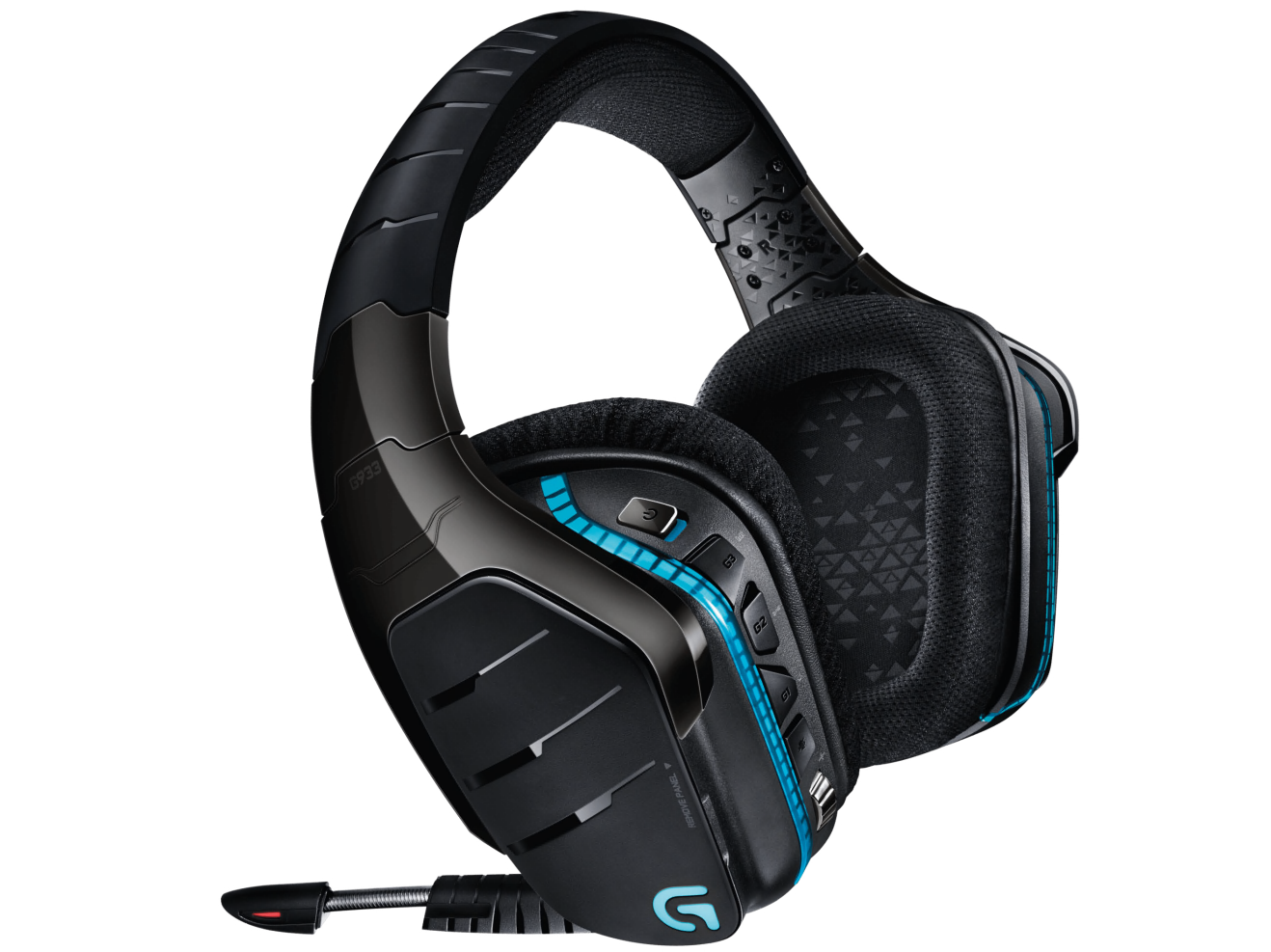
Note : If you have a Logitech headset that does not support surround sound, the following steps will not work. We tested the Logitech G933 Wireless Surround Sound Gaming Headset with surround sound functionality enabled using Logitech Gaming Software on Windows 10. So if you have a compatible headset and operating system, you should be able to make this work.
- First, you need to download and install the Logitech Gaming Software from the company’s support website . The software is available for both Windows and Mac devices, so if you’re running an unsupported operating system like Linux, you’re out of luck.
- Once you open the software, go to the headset section by clicking on the arrow icon at the bottom of the window.
- Next, go to the surround sound section by clicking on the 7.1 icon at the bottom of the window. Once done, click the power icon right next to Surround Sound to enable the feature.
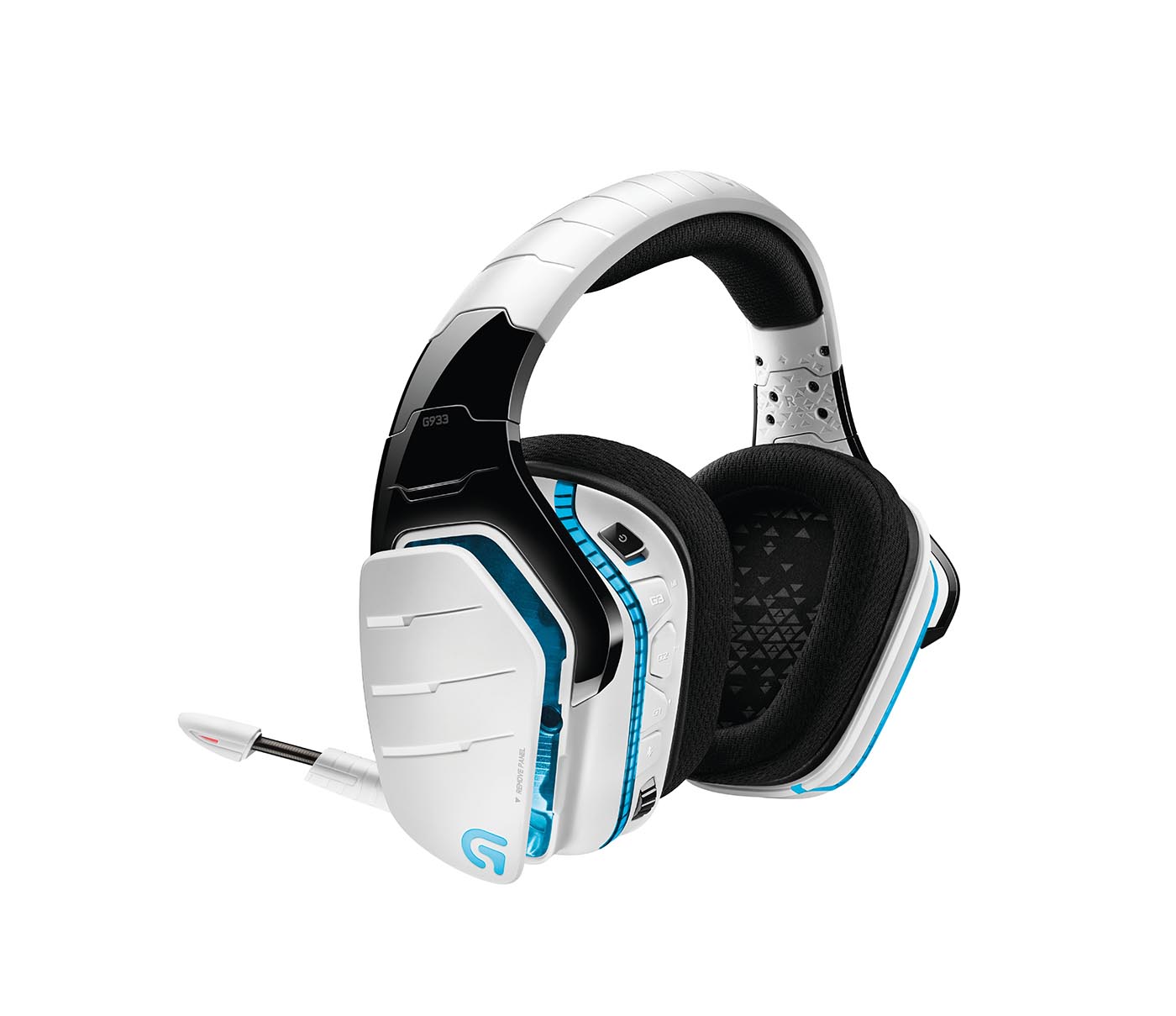
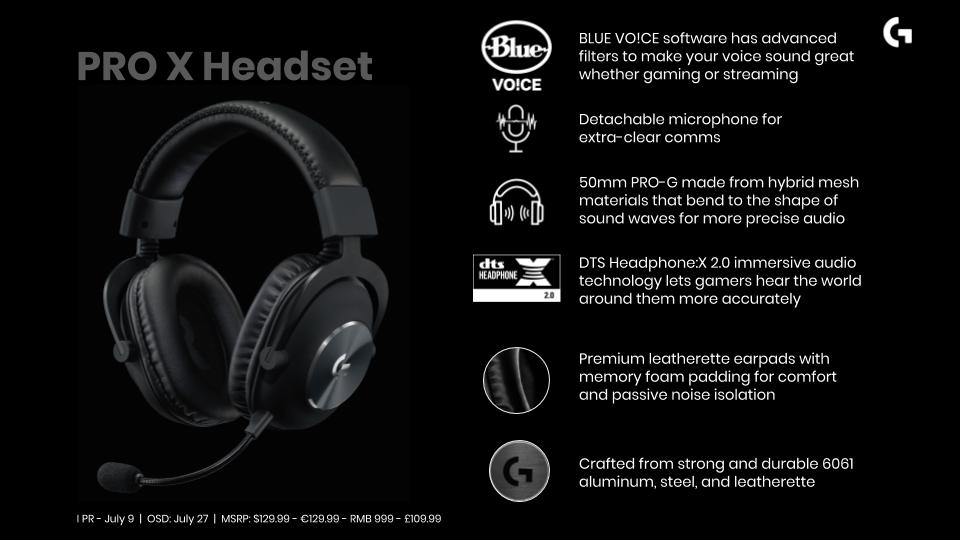
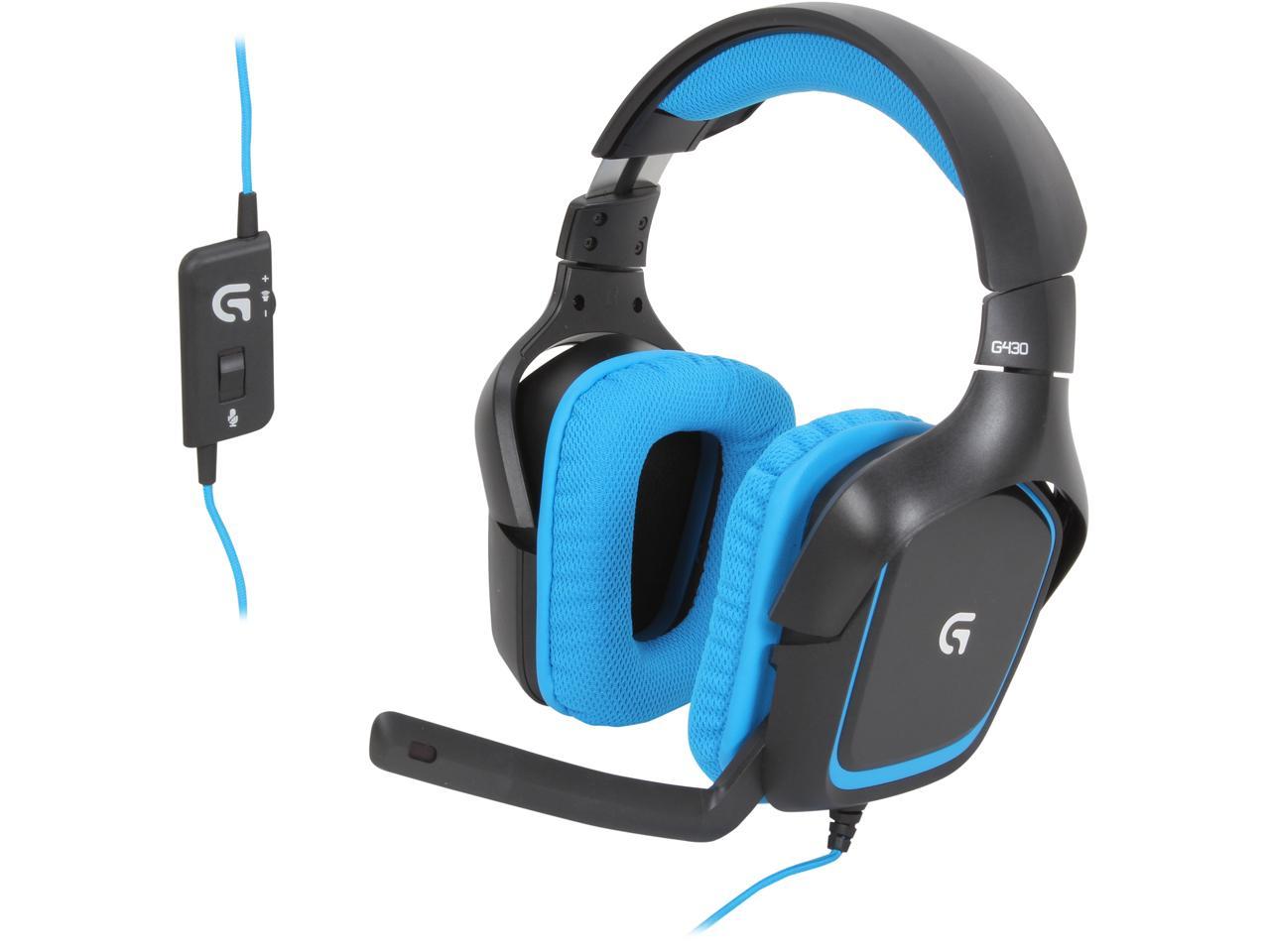
- If you have a Logitech G430, G633, or G933 surround sound headset, you can switch between Dolby 7.1 surround sound and DTS Headphone X profiles . However, if you have a newer headset such as the G433 or G533, you won’t be able to switch as it only supports the DTS Headphone X profile. Additionally, the DTS profile allows you to switch between Super Stereo Front mode and Wide mode .

- Once done, you may want to check if the surround sound feature is working properly. To do this, simply click Experience Surround Sound and listen to the directional audio clip to ensure that all virtual surround sound channels are working properly. Here you can also adjust the volume of each of these surround channels individually according to your preference.
- Logitech gaming software is packed with multiple surround sound profiles for many popular games. To check if profiles are available for your game, click on the lock icon at the bottom of the window and go to the “Profiles” section. In the Profile section, you’ll see a scan icon just below the search bar. Click on it and wait for the software to scan and download the latest available game profiles. All supported game profiles are displayed in the Profiles section.
- Once done, return to the surround sound section of the software and check the “Enable surround sound per profile” checkbox. You will now see a list of all supported game profiles. Simply click on the game you want to enable the surround profile for that game.
SEE ALSO: 10 Best 7.1 Surround Sound Headsets You Can Buy
Get the most out of your Logitech surround sound headset
Now that you have enabled and properly configured your Logitech gaming headset, you can use directional audio to your advantage to gain an edge over your opponents thanks to the presence of a virtual surround channel. Ability to pinpoint enemy location. Thanks to Logitech gaming software, adjusting surround sound profiles for each game individually is no longer a hassle. So, what do you think about the surround sound features and profiles offered by Logitech? Let us know by leaving your valuable feedback in the comments section below.


![How to set up a Raspberry Pi web server in 2021 [Guide]](https://i0.wp.com/pcmanabu.com/wp-content/uploads/2019/10/web-server-02-309x198.png?w=1200&resize=1200,0&ssl=1)


