If there’s one thing that makes almost everyone nervous when using a smartphone, it’s the screen rotation. While things are better than in the old days when there was no way to turn off screen rotation, it’s still not as flexible as we would like. Do you want to use certain apps in landscape mode and others only in portrait mode? Unfortunately, there’s no native way to do that. However, the good news is that there is a way.
There are several apps that let you force screen orientation mode across the interface, but we like Ultimate Rotation Control the best because it lets you predefine screen orientation for specific apps. So, if you want to control screen rotation in various apps on Android, you can do it in the following ways.
Enabling the Ultimate Rotation Control app
- First, you need to install the Ultimate Rotation Control app from the Play Store. The app is available as a 7-day free trial, after which you must purchase a license key ( $2.99 ).
- You must allow access in your accessibility settings when you open the app for the first time.

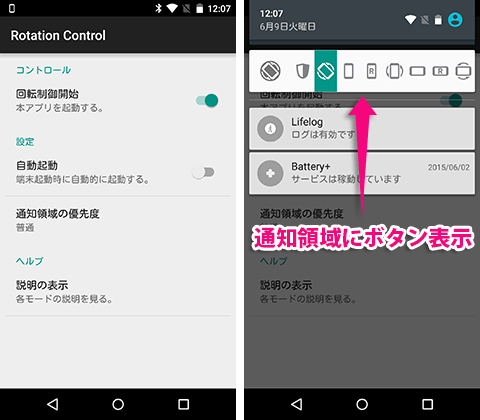
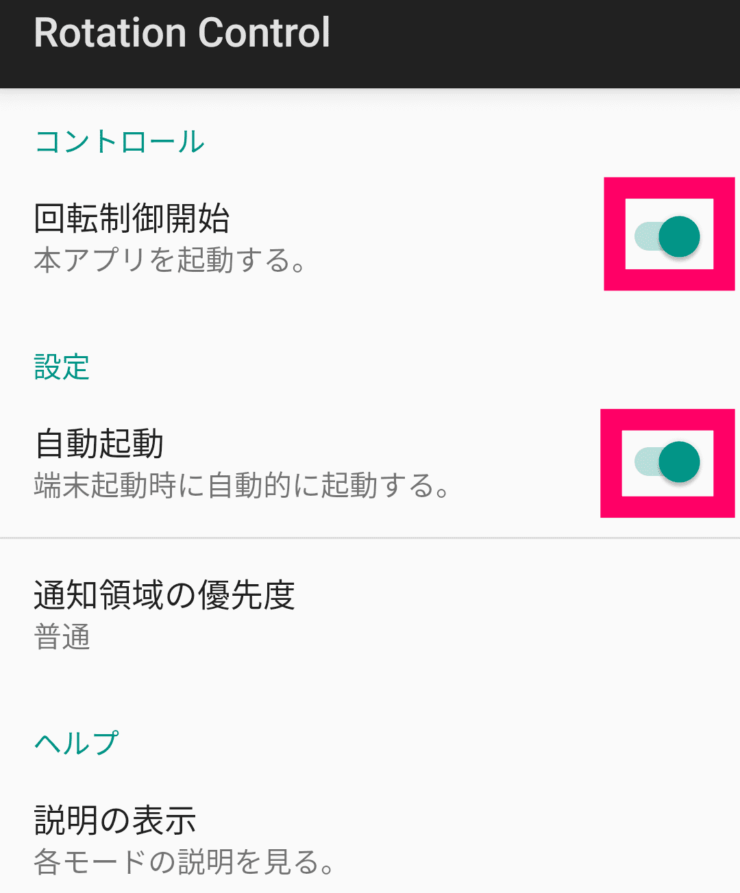
- Once complete, the app will open with a number of options. To turn on rotation settings for the app, toggle the switch in the top right.
Set direction globally
The first option in the app is “Global Rotation”, which allows you to set screen orientation across the entire interface. The different screen orientation options available in the app are:
- Auto : Normal screen rotation options according to Android settings.
- Force automatic : Enable automatic mode globally, forcing other apps to follow automatic mode even if they have their own settings.
- Forced 3/4 Auto : Auto mode only for portrait, landscape, and reverse landscape modes (smartphone only)
- Lock Current : As the name suggests, it locks the screen in its current orientation.
- Auto Portrait : Automatically switches from portrait to reverse portrait.
- Portrait : Fixed to portrait mode.
- Reverse Portrait : Lock the screen in reverse portrait mode.
- Auto Landscape : Automatically switch between landscape and reverse landscape.
- Reverse Landscape : Lock the screen in reverse landscape orientation.
Set screen orientation for specific apps
As mentioned earlier, Ultimate Rotation Control allows you to set different screen orientations for different apps. The app has a per-app section , where you can tap on “Per-app settings” to see a list of all installed apps. Next, tap on the app and choose your screen orientation from the aforementioned choices . Once this is done, the app will always open in the selected screen orientation.
Setting rotation for special cases
The app adjusts the screen orientation for the lock screen and other situations such as when the device is docked, when a keyboard is connected, when headphones are connected, and when the device is charging. You can choose the orientation .
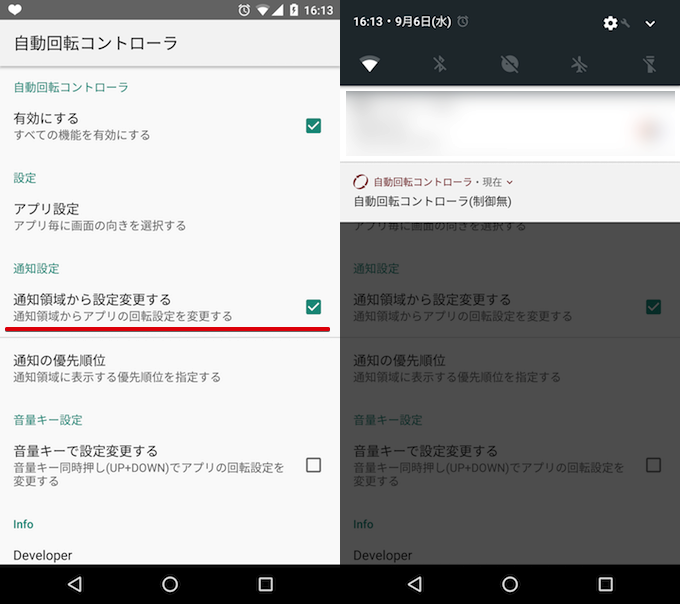
Other than that, you can also choose to display a notification menu where you can change screen rotation settings on the go. You can also choose to display a toast message when the app’s screen orientation changes. Additionally, this app also has widgets that can be controlled from the home screen.

See also: How to set custom volume for individual apps on Android
Control screen rotation according to your selection
As you may have noticed, the Universal Rotation Control app is very simple and very easy to use. In our usage, this app worked like a charm. However, if you’re looking for a free alternative, check out other rotation control apps like Rotation – Orientation Manager , Rotation Control , and Rotation Manager .
But according to us, Universal Rotation Control is the best and worth your money. Thankfully, you can check out the 7-day free trial and decide. Try the app and let us know what you think. Sound off in the comments section below.


![How to set up a Raspberry Pi web server in 2021 [Guide]](https://i0.wp.com/pcmanabu.com/wp-content/uploads/2019/10/web-server-02-309x198.png?w=1200&resize=1200,0&ssl=1)


