If you use multiple social media platforms, you know that adapting to different image requirements can be difficult.
While Facebook supports posts of almost any dimension, Instagram has some limitations. This means you can’t always upload the same post to both of these platforms.
If you are a business and value consistency in your brand image and social activity, uploading images of different sizes for each social media platform is not a good idea.
Instead, you can pre-crop your images to a universal size and upload the same file to all sites. Sounds convenient, right?
This article introduces some of the best image cropping tools to prepare your images for all social media platforms.
Advantages of cropping images
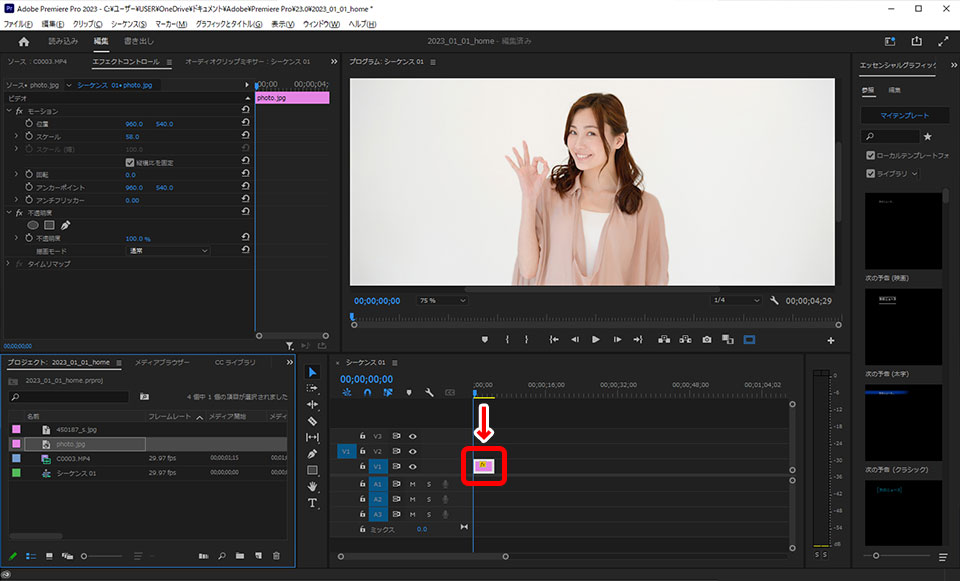
In addition to the fact that cropping images to specific dimensions makes it easier to manage your social media posts, there are many overlooked benefits as well. Here we will introduce some of them.
- eliminate unnecessary elements
- Helps you focus on the main subject
- remove unused space
- Compact display on all devices
However, you should be careful not to crop your images too much, as this can reduce the quality. As long as you only do what’s necessary, you’ll be fine.
Also read: Tools to unblur images and improve photo quality
How to manually crop and resize images in Windows
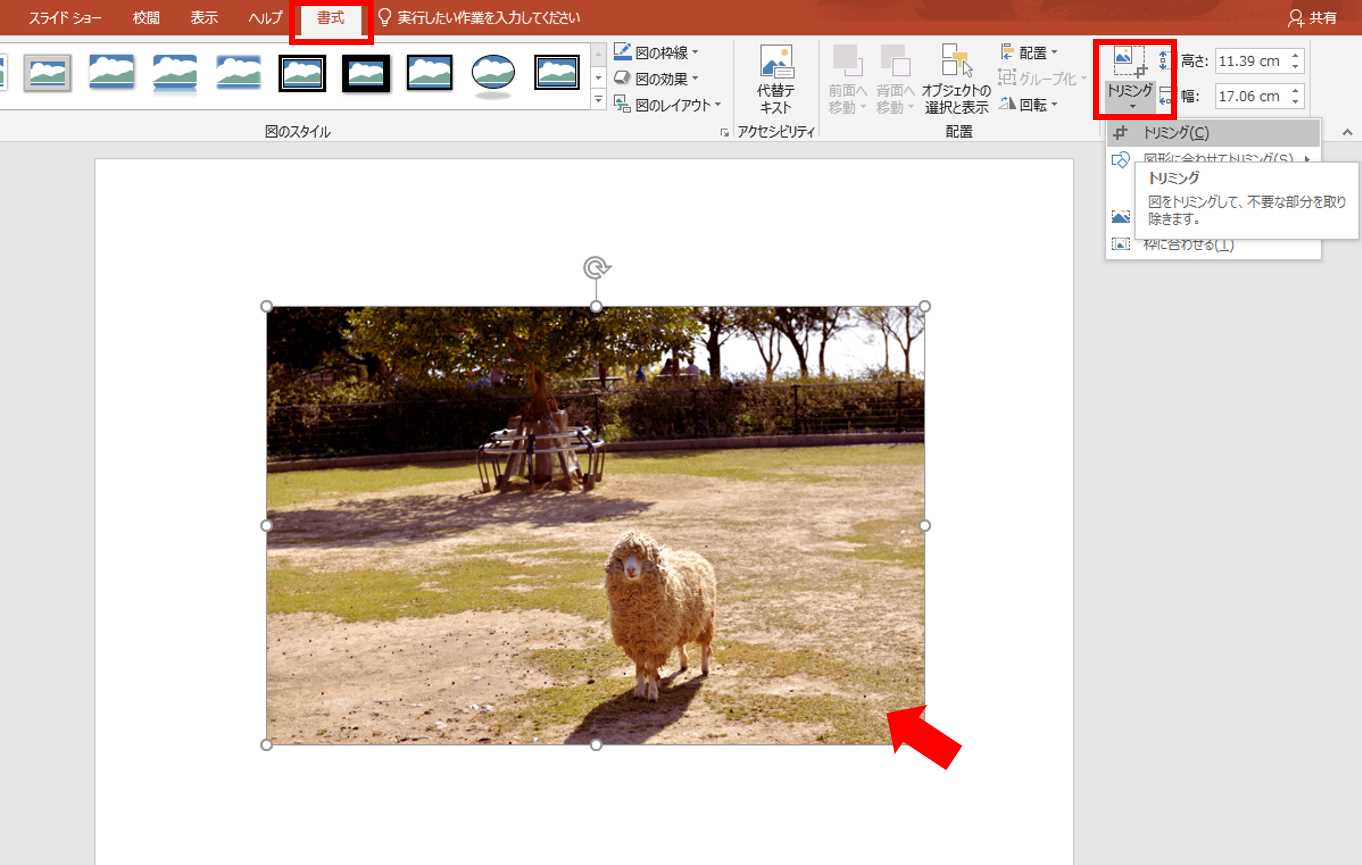
Windows computers have built-in features that allow you to seamlessly crop images. Here are the steps:
Step 1: Find the image and right-click it.
Step 2: Select Open with > Photos .
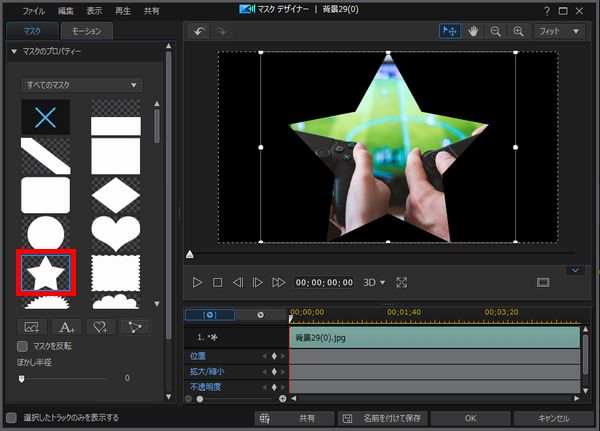
Step 3: Next, you need to click on the Edit Image icon.
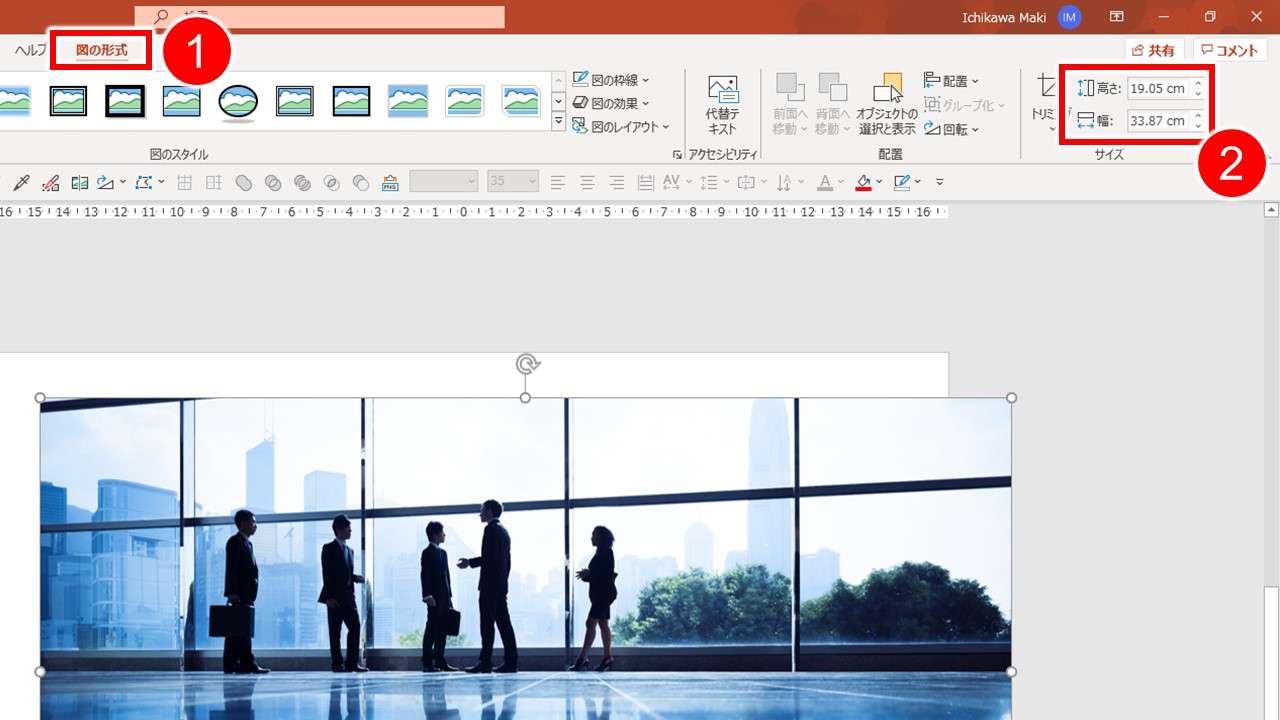
Step 4: Click the Crop and Rotate icon.

Once the crop tool opens, drag to select the area you want to crop from the image, then click Save Copy or Save from the drop-down menu.
Alternatively, instead of clicking the Edit Image icon, you can click the three dots to resize the image.

Select Resize Image .

Click Define Custom Dimension .
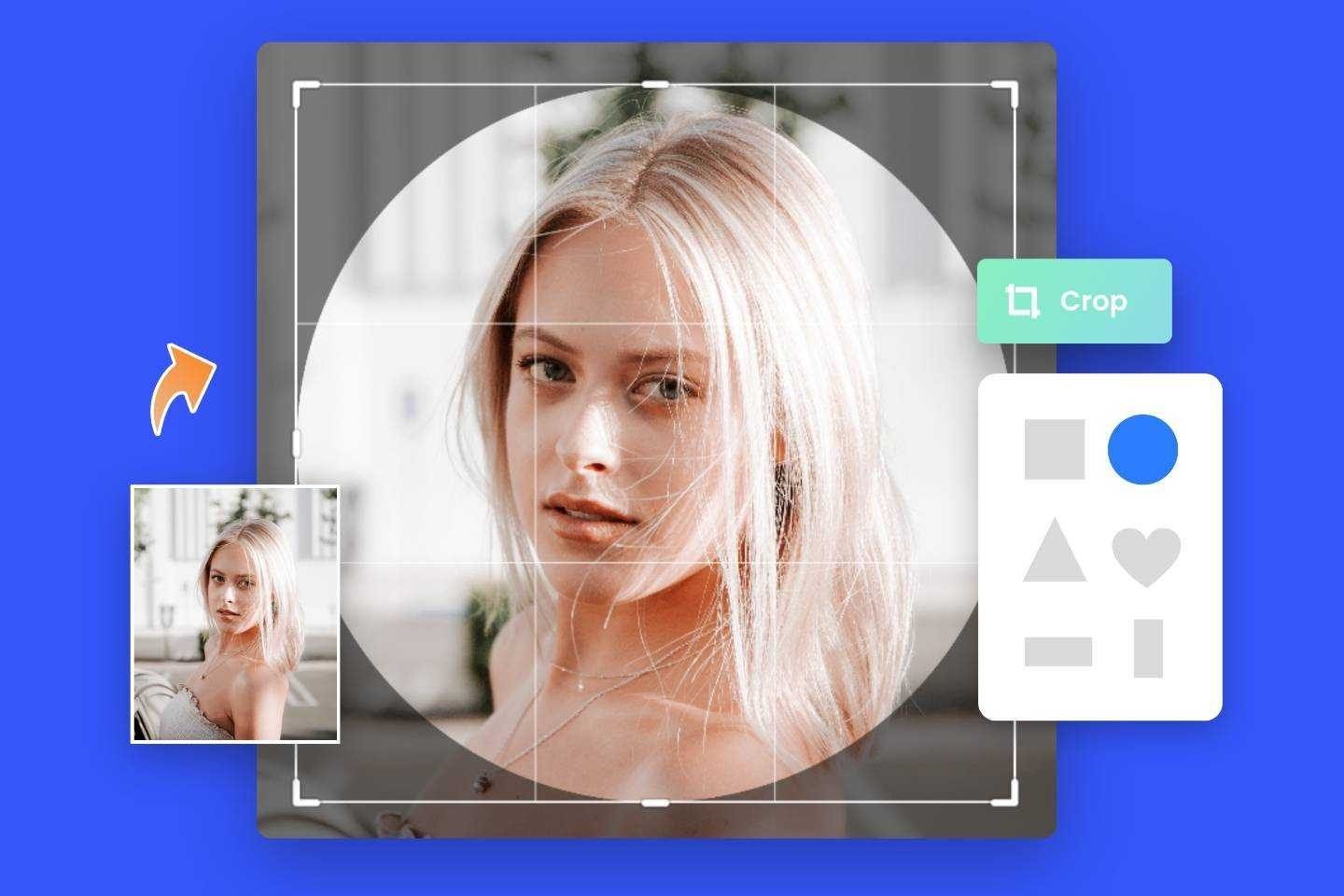
You can now choose the height and width.
When you’re satisfied, click Save Resized Copy and you’re done.
How to manually crop and resize images on Mac
Cropping and resizing on Mac is very easy. Please follow the steps below.
Step 1: Find the image and double-click it.
Step 2: Click the Markup toolbar icon.
Step 3: Click the Selection Tool icon and use your cursor to drag and select the area you want to crop.
Step 4: Once you are satisfied with your selection, click the crop icon.
Alternatively, you can resize the image by clicking the Adjust Size icon.
Please enter your desired dimensions.
When you’re done, click OK and you’re done.
Now that you know how to manually crop and resize on your computer, let’s take a look at tools that can make the job easier.
photograph
Whether you crop a single image or batch multiple images, it only takes a few seconds for Fotor to crop your images to any size and shape you want.
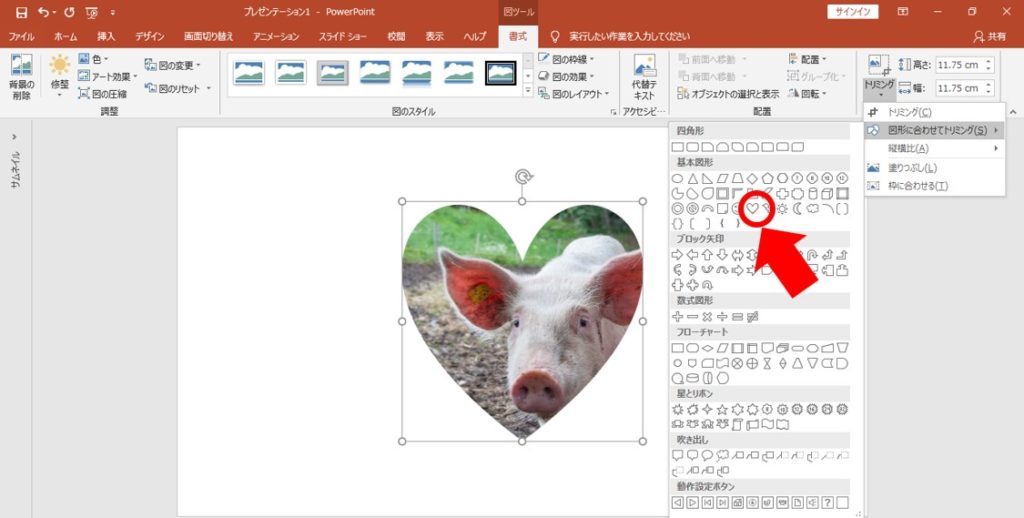
One of the best features of this tool is the ability to use pre-created dimensions for cropping. For example, there are various options for social media posts, such as Facebook covers and YouTube thumbnails. You can also crop images into shapes such as hearts, stars, and squares.
Fotor supports all major image formats. The tool is free to use.
Kamba
Canva has been my favorite tool for a long time and I have no doubt it will continue to be so. It’s incredibly versatile and has almost everything you need to create your designs.
Trimming is just the tip of the iceberg, but it does a great job. You can crop your photos to different shapes and sizes and export them to different formats.
This tool also makes it easy to get the final result and use the design tools to further customize it to your liking.
This amazing tool is completely free to use.
iLoveIMG
A very useful website that provides all image-related solutions, iLoveIMG is your one-stop shop if your main concern is about images. In addition to features like converting, resizing, compressing, and editing, you can also crop images to perfection.

The job will take a few seconds to complete. Get started by dragging and dropping images or uploading from a file.
There’s also an option to import images from Dropbox or Google Drive. Everything is cloud-based, so you can access this tool from any device.
iLoveIMG is free to use.
adobe express
Convert the image to the desired size using Adobe Express . This is a very useful tool with many design features besides cropping. You can apply filters, remove backgrounds, add GIFs and animations, and more.
There are many ways to make your images pop using this tool. You can also share the image with your friends and on social media platforms.
Plus, if you don’t want to start from scratch, you can get a head start on your design with one of our many templates.
Adobe Express is free to use and works seamlessly online.
Be Funky
BeFunky makes cropping very easy, allowing you to remove extra pixels rather than resizing. A collection of crop presets will help you achieve the perfect composition. You can also take advantage of the Golden Ratio preset for a classic crop you can’t go wrong with.
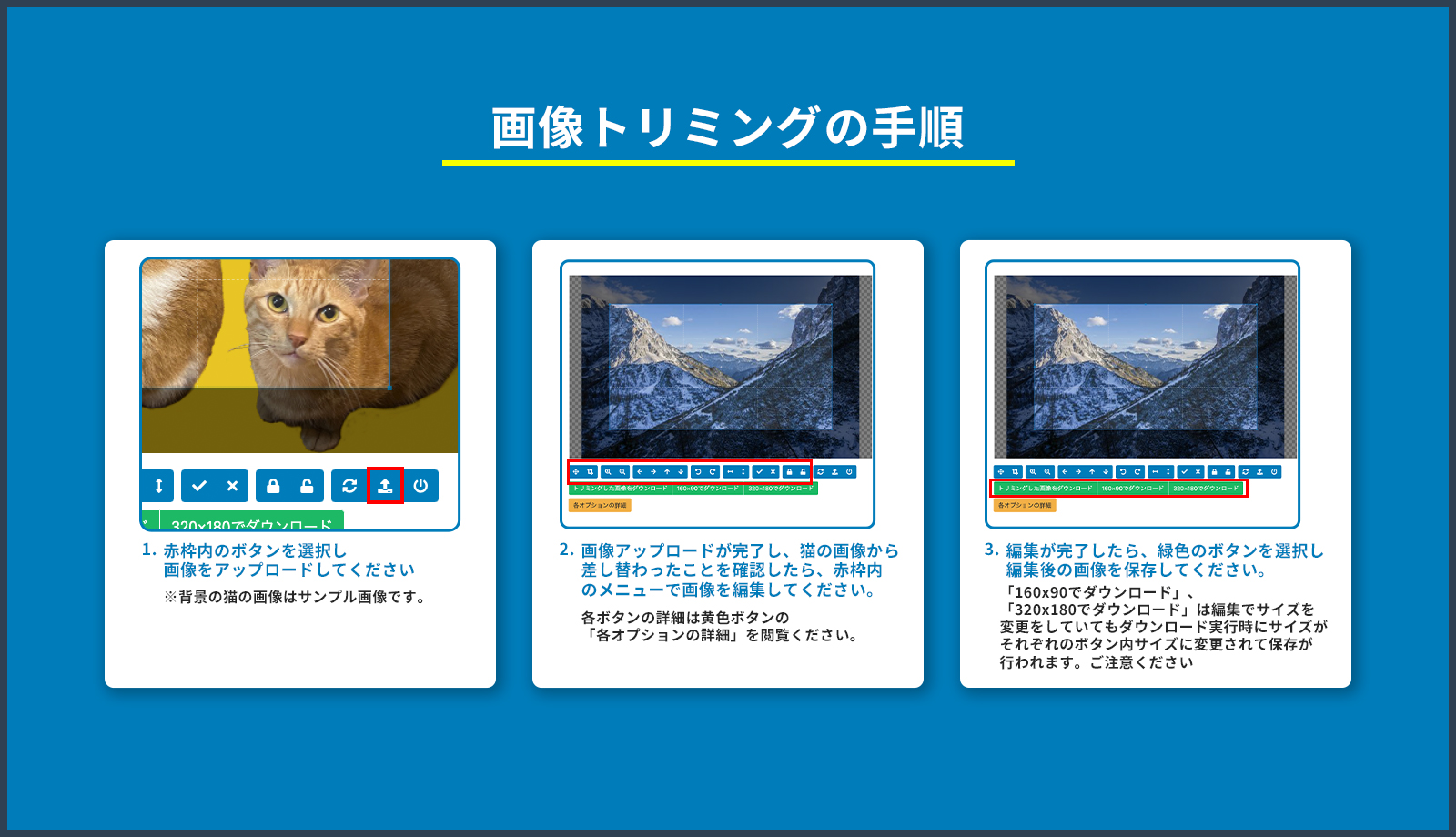
There are several ways to crop images using this tool, so as a user you have many options to choose from.
There are also cropping options specifically for social media, allowing you to crop images according to different size requirements, making it easier to manage your posting schedule.
like a watermark
Watermarkly crops images properly and requires no registration or installation. This tool can be used from your browser or any device.
Adjust your own ratios or take advantage of predefined aspect ratios to crop within boundaries. You can drop a single image or multiple images to save time in the process.
Watermarkly also has a social media dimension that you can use to instantly crop images into social media-ready posts.
Other possibilities include rotating images and adding watermarks.
vista create
VistaCreate lets you apply filters, adjust color settings, and precisely crop images.
Includes crop presets for all social media platforms and their purposes, including:
- instagram stories
- youtube thumbnail
- facebook cover
- graphical post
You can also cut based on different shapes of your choice. It accepts multiple image uploads and the entire process can be done from your browser.
VistaCreate has multiple export format options including PNG, JPG, and PDF. We’re almost certain you’ll love this free tool.
pixart
Picsart is a useful editor that has pretty much everything you need, so I have it installed on multiple devices. I only recently discovered that there are also online tools for trimming, and I couldn’t be happier.

This tool allows you to perform cropping without losing quality. It also takes just a few seconds and is completely free to use.
Once you’ve finished cropping, you can take the image into a photo editor and further enhance it as needed to make it visually stunning.
Picsart is a tool featured on sites like Forbes, BuzzFeed, and Mashable.
red ketchup
Simple yet effective, RedKetchup has many customizable options for cropping, resizing, and exporting. This allows you to maintain your preferences without compromise.
Features include:
- Choose from various aspect ratio settings
- rotate image
- Set crop dimensions
- Set coordinates
- Resize dimensions
- scale dimensions
- Adjust color intensity
You will see options to export images in various formats such as PNG, JPG, WEBP, and GIF.
last word
If you’ve been using social media for a while, you know the hard work behind the scenes to make sure your posts fit exactly into size requirements. Thankfully, the solution isn’t rocket science. The above cropping tools will solve your problem and simplify your work.
Next, check out the most common photo editing tasks that can be easily accomplished using these online tools. If you share a large number of images, consider these image hosting platforms to help manage the media sharing process.


![How to set up a Raspberry Pi web server in 2021 [Guide]](https://i0.wp.com/pcmanabu.com/wp-content/uploads/2019/10/web-server-02-309x198.png?w=1200&resize=1200,0&ssl=1)


