If you frequently open multiple programs and neglect to close running background windows, or if you run resource-intensive tasks at the same time, you are more likely to encounter an “out of memory” error. Masu.
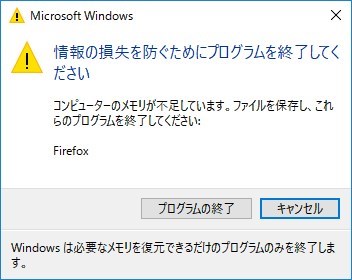
Generally, the system displays an “out of memory” error when memory is already distributed among running processes and the OS does not have any memory left to handle future tasks.
The good news is that in many cases you can fix it yourself.
Here we provide detailed step-by-step solutions to resolve Windows “out of memory” errors. However, knowing the cause behind the error is only half the way to the solution.
First, let’s review some of the main causes of concern, and then move on to fixes.
Common causes of “out of memory” errors
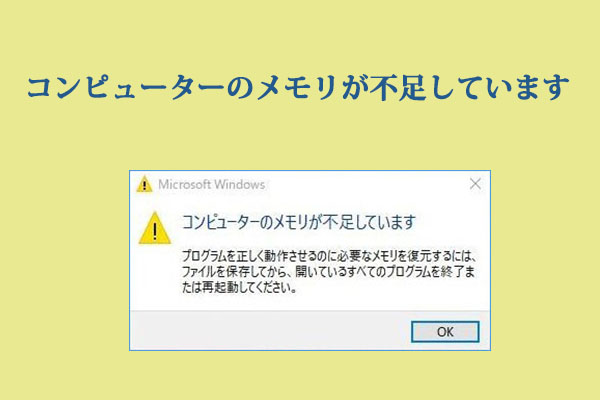
Insufficient RAM: If your machine doesn’t have enough RAM left to handle the applications you want to run, the programs you want to run, or the files you want to access, your system will display an “out of memory” error. .
Startup programs: Restarting or freshly starting your system is associated with certain tasks or applications that automatically run in the background when your system starts. These processes are commonly called startup programs.
If these programs consume a large portion of system resources, such as RAM, they can cause “out of memory” errors in Windows.
Outdated Hardware: Are you still using a computer you bought in the 90s or earlier and haven’t upgraded your hardware to this day? It’s surprising to see an “out of memory” error on this machine. Not. This is because older systems typically have resource constraints such as less RAM or slower processors.
As a result, these specifications were unable to keep up with today’s data and processing demands and resulted in many errors, including storage issues such as “out of memory” errors.
Heavy tasks: Playing heavy PC games, creating 3D models, and editing high-quality videos consume large amounts of computational resources. As a result, errors occur when the system is unable to supply memory.
Malware: Malicious software running in the background can consume system memory, leaving no room for desired applications. This can cause an “out of memory” error.
Memory leaks: Some applications in the system do not release used memory and accumulate blocked memory chunks that cannot be reused by other apps, which can cause “out of memory” errors in Windows 10 or 11. there is.
Try these simple solutions before diving into comprehensive solutions.
- Check background processes and close unnecessary running applications.
- Sometimes a simple reboot can do the magic. Try restarting Windows and see if the error goes away.
Increase virtual memory
RAM corruption, unreachability, or insufficient memory is the main purpose behind all the causes mentioned above. So the first thing you have to do is expand your RAM in some way.
When RAM is full, the OS borrows space from the SSD to act as RAM (usually called virtual memory). You can extend this virtual memory limit to avoid “out of memory” issues.
Here’s how:
Step 1: Search for “About your PC” in the Windows search bar.
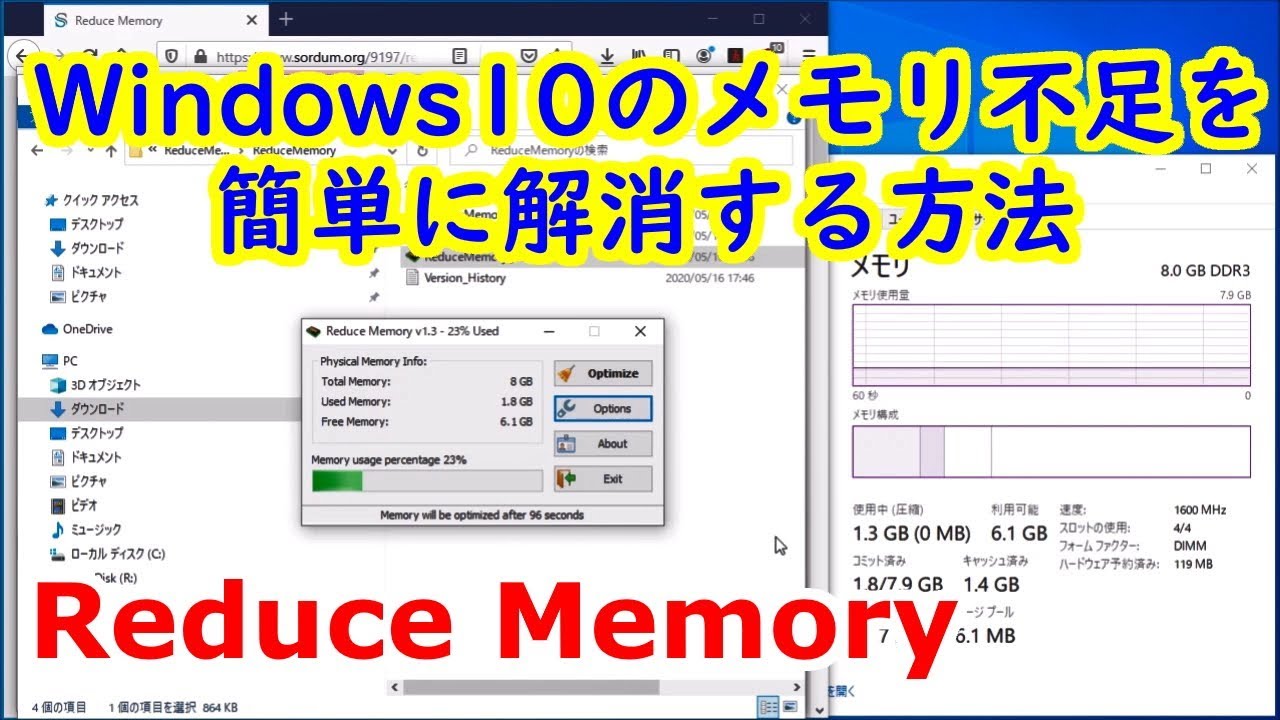
Step 2: Click Advanced system settings on the right pane.

Step 3: Make sure the Advanced tab is visible.
Step 4: Open Settings in the Performance section.
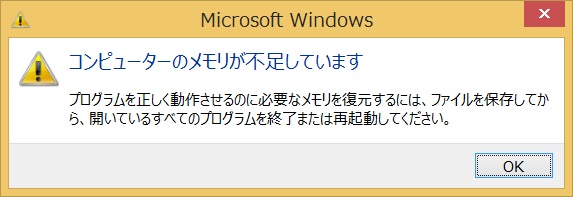
Step 5: Again, switch to the Advanced tab in the new window.
Step 6: Now you need to click on the “Change” button under “Virtual Memory”.
Step 7: Uncheck the Automatically manage paging file size for all drivers option. This will allow you to click on the custom size in the same window.
Step 8: Next, enter the virtual memory preferred limit in the input field marked in the image below.
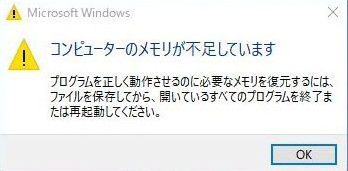
This memory only acts as RAM, not actual RAM, so adding too much memory does not necessarily improve performance. Expanding up to 1.5 times the current amount of RAM will improve the balance.
Disable startup programs
I remember talking about startup programs causing errors. Therefore, free up space by disabling resource-demanding startup programs to fix “out of memory” errors and keep important applications running smoothly.
Steps to disable high-impact startup programs
Step 1: Launch Task Manager . You can do this by searching in the Windows search bar or by pressing Ctrl + Shift + Esc directly.
Step 2: Switch to the Startup tab to identify heavy tasks and disable high-impact tasks.

Step 3: Select the program you want to turn off and click the “Disable” button at the bottom right corner of the window.
Run a virus check
A common troubleshooter for many machine problems is to check for malware. Windows has built-in functionality to do this. However, you can also use third-party antivirus software such as McAfee or Norton to find hidden viruses in your system.
Here’s how to take advantage of Windows’ built-in features to perform a malware scan.
Step 1: Open the Windows Security app by typing “Windows Security” in the Windows search bar.
Step 2: Choose virus and threat protection

Step 3: Click Scan Options .

Step 3: Scroll down and select “Full Scan” to check the entire system and click on “Scan Now” button.

This comprehensive scan will show you any potential risks to your system. Follow the on-screen instructions to remove the detected malware.
Update software
Outdated software can cause potential memory errors such as “out of memory”. Did you suddenly get an “out of memory” error while running a particular application? Next, update or reinstall the application you are currently using.
As a general rule of thumb, make sure the usual applications you use in Windows, such as browsers, editing apps, and media players, are up to date.
Restart Windows Explorer
Another solution to the out of memory error is to restart Windows Explorer if you encounter this error while accessing or using files in File Manager.
Step 1: Search for “Task Manager” in the search bar and open it.
Step 2: Right-click Windows Explorer and select Restart from the drop-down menu.
Add physical RAM
This is the last physical fix you can try if all the above methods fail.
If the above fixes give you temporary results and you still frequently encounter memory errors such as “out of memory”, it’s time to upgrade your hardware, especially your RAM.
Many PCs come with a slot where you can insert several gigabytes of RAM yourself. Otherwise, you can expand your PC’s physical memory with the help of a technician.
This fix can cost a few pennies, but if you want to speed up your machine with error-free memory, it’s worth expanding your RAM.
How can I prevent “out of memory” errors?
Optimize memory usage. Track application memory usage and regularly free up system storage by removing unnecessary or inefficient applications.
Limit startup programs. You can disable high-impact startup programs yourself in Task Manager, or you can use third-party software to manage startup programs.
Keep your software up to date. Outdated software in your machine can lead to poor memory management capabilities and errors. Therefore, update your machine’s OS, browser, and applications timely.
Please use a 64-bit OS. Older 32-bit operating systems have some problems making full use of a computer’s memory. Why not take advantage of a 64-bit Windows OS that can theoretically support trillions of RAM?
last word
Memory issues can cause serious problems and affect overall system performance. If you leave this aside, you won’t even be able to work on the machine.
Therefore, you need to deal with the error and that’s why you came to this page. We hope this article can serve as a perfect way to resolve the “out of memory” error.
In addition to fixing errors, the aforementioned methods also address other RAM issues and improve your overall computing experience.
Also read how to fix “Unexpected Store Exception” Windows 10 error.


![How to set up a Raspberry Pi web server in 2021 [Guide]](https://i0.wp.com/pcmanabu.com/wp-content/uploads/2019/10/web-server-02-309x198.png?w=1200&resize=1200,0&ssl=1)


