If you’re new to Kodi or just want the best add-ons and extensions for Kodi, different Kodi builds are the way to go. However, Kodi builds can cause a variety of issues, including slow performance on modest devices like sticks and TV boxes, and outdated or disabled add-ons. Unfortunately, there is no native way to start Kodi fresh or remove the build to get Kodi. Returns to default state. I was hoping for a reset option on Kodi v17 Krypton, but that didn’t happen. That being said, there is a very easy way to remove your Kodi build and start Kodi fresh.
Note : This process uses Kodi v17 Krypton on a Windows 10 PC, but should be the same on most devices running Kodi.
This process uses the Fusion repository. If you are adding it as a source for Kodi, you can skip the first four steps.
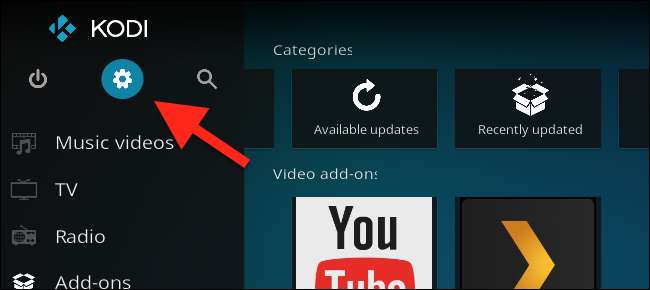
1. First, open Kodi and click the Settings icon on the main page.

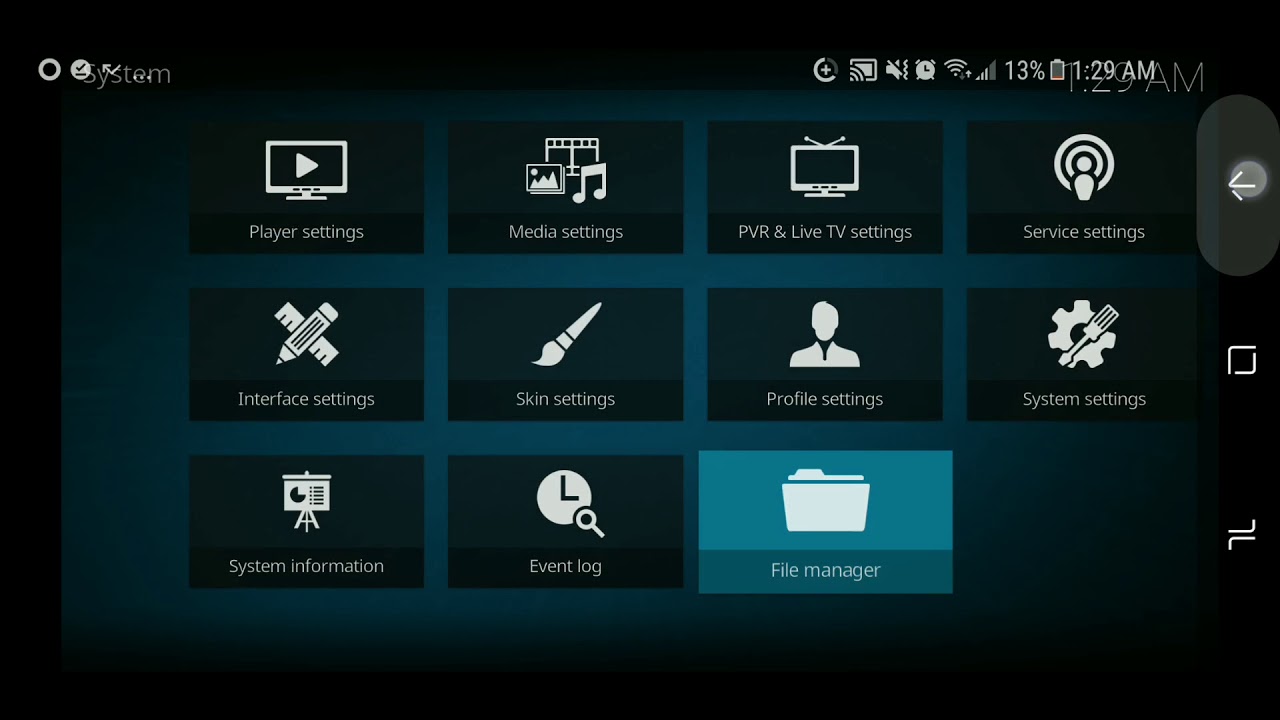
2.Next, click “ File Manager ” on the Kodi settings page.
3. In the Kodi file manager, double-click Add Source .

4. On the Add File Source page, click None for Path and change the path to http://fusion.tvaddons.ag/. Then name the source ” Fusion ” or whatever you want.

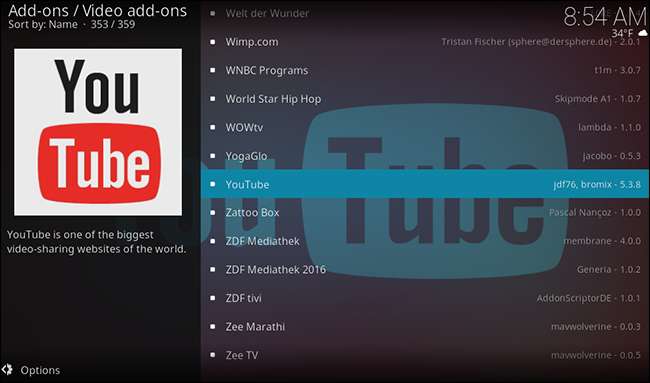
5. Once the Fusion source is added, go to the Kodi home page and click Add-ons . On the Add-ons page, click the Add-ons Browser icon .
7. Then click Install from zip file .
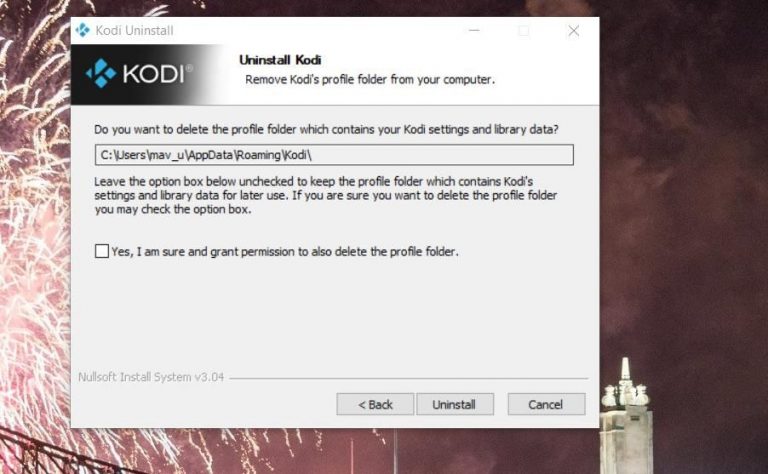
8. Then click on “ Fusion ” from the available sources. Then open the “ begin-here ” folder. Now, install the Fresh Start add-on by double-clicking the “ plugin.video.freshstart-1.0.5.zip ” file. You will then see a message informing you that the add-on has been activated.
11. Next, go to the Add-ons page again and click on Program Add -ons. Here we will run the “Fresh Start” add-on .
12.You will then be prompted to confirm that you want to restore the Kodi configuration to its default settings. Select ” Yes “.
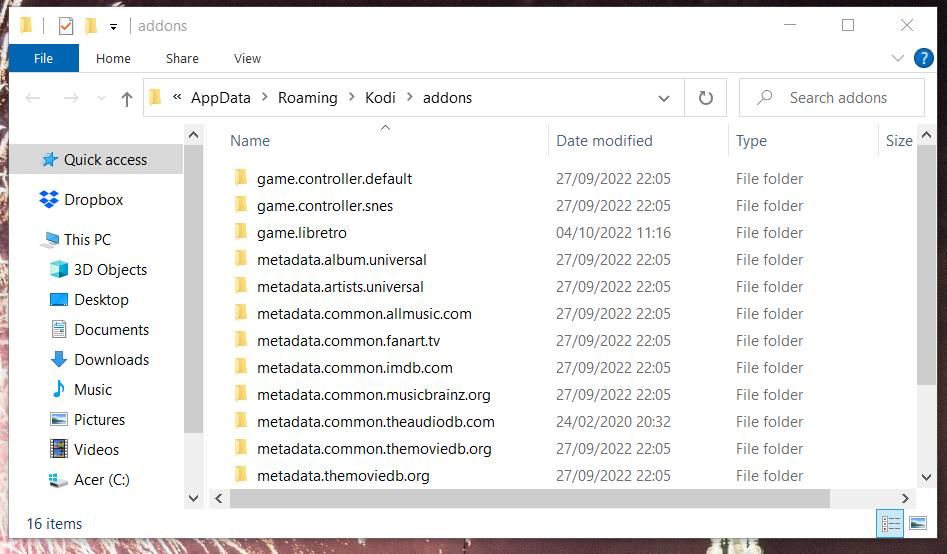
Once completed, your Kodi configuration will be reset and any Kodi builds you installed will be removed. You will need to restart your system or restart Kodi for the changes to take effect.
See also: How to set up Kodi on PC or Mac: Complete guide
Starting afresh with Kodi v17 “Krypton” to remove Kodi builds
Well, it’s a shame that the almighty Kodi doesn’t have a built-in option to reset settings. Thankfully, you can easily do that using the methods mentioned above. Sure, there are a lot of steps, but once you do it, it’s very easy. So, if you want to remove your Kodi build or simply reset Kodi, you can do it by starting Kodi afresh. If you have any doubts or know a better way to start Kodi afresh, let us know in the comments section below.


![How to set up a Raspberry Pi web server in 2021 [Guide]](https://i0.wp.com/pcmanabu.com/wp-content/uploads/2019/10/web-server-02-309x198.png?w=1200&resize=1200,0&ssl=1)


