It’s scary when your website has a lot of traffic and a common error can bring your site down for hours.
Even if there are errors, your site will eventually go down. If this happens repeatedly, your search engine rankings will drop and all your SEO efforts can go to waste.
In this blog, we’ll discuss the most common website errors that affect SEO, how to fix website errors, and more.
Broken link: Please take action immediately
A study conducted by Siteimprove revealed the total number of broken links for 135 fortune-telling websites. Here are the results:
Clicking on a broken link does not take the user to the desired web page.
What kind of negative impact does it have on SEO?
When the Google web crawler or Google Bot indexes a web page, it visits these links and collects data.
If you visit a broken link, it is a sign that your SEO is suffering. This means that unless you fix this broken link, you won’t rank higher in search engines.
Solve broken link problems
To fix a broken link, you first need to find the link. Google doesn’t show up in your dreams and tell you which links are broken, right? 😜
The best way to check your website for errors and broken links is to use Google Analytics or an SEO tool like Ahrefs or Semrush.
Create a list of all broken links you find. Now is the time to take action against these links.
Here’s how to fix broken links:
- Replace broken links with live links: This is a great option if your website does not have some broken links.
- Remove all broken links: If you think your links are quite old (4-5 years ago), remove them.
- Contact the linking site: If your backlink is broken, contact the linking site and ask them to fix the link.
- Redirect: If an internal link breaks, 301 redirect the link to a live link.
TLS certificate error: critical error
TLS is a digital certificate issued by a Certificate Authority (CA). This indicates that the owner owns the particular domain and that it is safe.
Simply put, if you don’t have a TLS certificate, your site’s URL will start with HTTP instead of HTTPS.
HTTP (Hypertext Transfer Protocol) is an old technology that ignores how data is transferred online from one device to another.
HTTPS (Hypertext Transfer Protocol Secure ) encrypts your data and protects your transmitted data from any hacking.
In 2014, Google announced that it would rank websites with HTTPS URLs higher than HTTP.
If your website encounters an invalid TLS certificate error, it could be for a variety of reasons, including:
- Certificate misconfiguration: Manually installing a certificate can cause this error if you do not follow all the steps correctly.
- Domain mismatch: If the domain name you purchased and the domain name you issued the TLS certificate for don’t match, an error will occur.
- Identity verification issues: If the certificate authority cannot verify your identity, you will not be able to install your certificate.
- Incorrect date and time on the desktop: TLS certificates are issued in a timely manner, so if the date and time on the desktop are incorrect, the certificate cannot be issued.
- Outdated certificate: If your certificate utilizes Secure Hash Algorithm 1 (SHA-1), it may be flagged as invalid because SHA-1 is outdated.
Resolving TLS certificate issues
- Check the date and time on your desktop
- Check for configuration errors and vulnerabilities using online SSL tools
- Check for domain mismatch
- Obtain a certificate from a trusted and established CA
Website loading speed: Don’t keep your visitors waiting
When run through Google Page Speed Insight, do you get the following results?

If yes, you may want to change all red to green.
According to Think With Google, just a 2 second increase in load time can increase bounce rate by 32%.
Google has also revealed that page loading speed is one of the key ranking factors it uses to rank web pages.
You can use some of these tools to test the speed of your website.
If your website is loading slowly, there can be a variety of reasons, including:
- unoptimized images
- JavaScript issues
- Excessive HTTP requests
- Your website does not utilize caching tools
- Lack of gZIP compression
- too many ads
- Lack of CDN service
- bad hosting
How can I reduce page load speed to improve SEO?
- Choose performance-oriented hosting
- Compress and optimize all website images
- Try reducing redirects
- Enable browser caching
- Minify CSS, JavaScript, and HTML files
- Remove unnecessary plugins and keep everything up to date
Check out these hacks to make your website load faster.
Mobile compatibility: Don’t miss out
It’s no secret that websites that aren’t properly optimized for mobile won’t rank well on Google. In 2013, Google announced that it would penalize websites with poor mobile experiences.
So, when launching your website, make sure it has mobile optimization in place.
How do I do it?
Here are some tips:
- Test your website using the Google page speed analysis tool to see what’s wrong
- If WordPress powers your site, use a mobile-friendly theme
- Redesign popups for mobile devices
Duplicate content: It’s time to review your content plan
Duplicate content doesn’t have a big impact on SEO, but it will lower your search engine rankings.
When you have a lot of similar content across your website, it’s called canonicalization.
Duplicate content poses three major problems for Google crawlers and bots.
- Bots get confused about which pages to include or exclude from the index.
- Bots don’t know whether link metrics should be sent to one page or kept on another page.
- Confused about which version to rank for your target keywords
Possible reasons why a website may unknowingly generate duplicate content include:
- Variations of URLs on the same page
- There are different versions of the site www.site.com and site.com
- Write almost the same content and aim for the same keywords over and over again
Solving duplicate content issues as a webmaster
- 301 redirects are the best way to remove duplicate content
- Use Rel= canonical to hint to search engine bots to treat the page as a copy of the specified URL.
- Use the code <meta name=”robots” content=”noindex,follow”> to tell search engine bots not to crawl your page.
Harmful backlinks: Remove immediately
Backlinks are a key part of your website’s SEO strategy. This will help improve your website’s DA and PA and help you rank for targeted keywords in the long run.
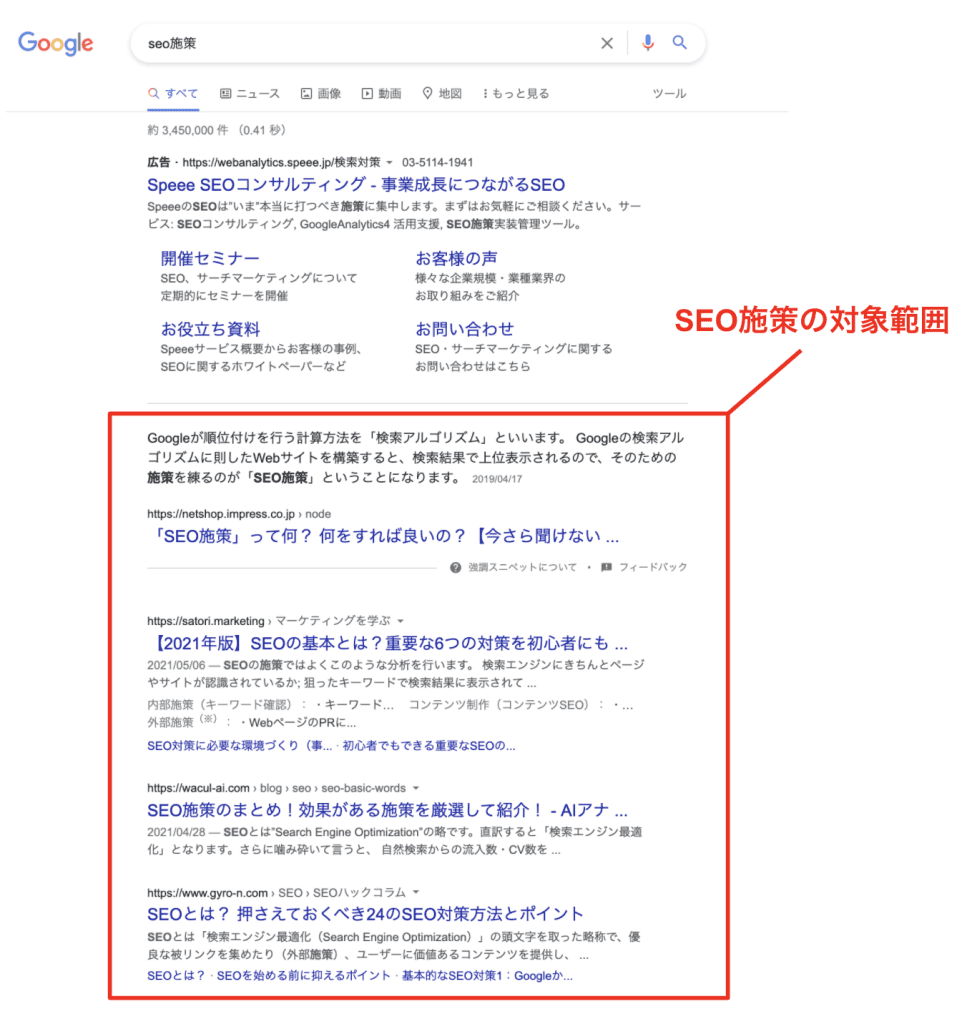
Simply put, toxic backlinks are low-quality spam links. These types of backlinks can negatively impact your page rank.
A backlink is considered harmful if:
- This is from a site set up for linking purposes only
- This website is not affiliated with you
- Backlinks are from websites that are not indexed by Google
- Backlinks are hidden in the footer or comments section of your website
- Backlinks exist on every page of your website
Toxic backlinks can negatively impact your SEO. Let’s take a look at some of the results.
Google teams can take manual actions
If someone on Google’s webspam team reviews your website and finds spam backlinks, you can manually file a complaint.
Although it is less common to take manual action these days, you may still want to take action.
Such complaints may be filed in the following cases:
- One of our competitors has filed a spam report
- You are in a niche known for excessive backlink spam
- I am repeatedly practicing buying and selling cheap and high-quality backlinks.
Your website may be affected by algorithmic filters
If your site has harmful backlinks and Google rolls out an algorithm update, your site could lose a lot of traffic.
The worst part about this is that you won’t even receive a notification from Google as to why your site lost its ranking in the search engine.
Therefore, if you do not take proper steps to remove harmful backlinks, it can become a nightmare for your business.
Pro tip: The best way to recognize toxic links on your website is to run a backlink audit report in popular SEO tools like Semrush and Ahrefs. You can also use Google Search Console.
How to get rid of harmful backlinks
- Ask your website’s webmaster where the backlinks come from and tell them to remove them.
- See which pages your backlinks are linking to. If the quality is low, please delete the page.
- You can manually remove links using Google’s disavow tool
Website error codes that can impact SEO
Although website error codes don’t directly impact your SEO, these errors can cause you to lose traffic. Let’s discuss some of the common errors you may come across as a webmaster.
404 The page you were looking for could not be found
Approximately 73% of visitors who reach a 404 error page will leave your website and never return. 404 errors are not difficult to fix, but they are sometimes ignored.
A 404 error is a standard HTTP status code. Appears when a user attempts to access a URL that does not exist. It may also pop up if the server cannot find the requested resource at the time.
Are you wondering how to find 404 errors on your website? The best way is to use Google Search Console. Another way to do this is to use a website error checker tool like Screaming Frog .
400 Bad Request
400 Bad Request error pops up when the request made by the client is wrong, broken, or the server cannot understand it.
Please note that this is a client-side error. So there’s not much you can do about it.
This error can occur for the following reasons:
- The URL is incorrect or contains unrecognized characters
- Invalid or expired cookies
- You tried to upload a file that is too large to the website
To fix the 400 Bad Request error:
- Clear your browser cache and cookies
- Flush DNS
- Please restart your device and try again
500 Internal Server Error
If you see a 500 error page, it means that your web server is experiencing a problem, but you cannot determine the root cause of the error.
This error can be caused by:
- Broken .htaccess file
- some permission error
- Broken third-party theme or plugin
- You may have exceeded PHP’s memory limit
To deal with this error:
- try refreshing the page
- Please wait a moment and come back
- Check if a website is down for you or everyone by leveraging tools to see if it’s down for everyone or just me
- Delete browser cookies
403 Forbidden
If someone tries to access a web page that they are not authorized to access, they will receive a 403 error.

There are only two possible reasons why your visitors might see this error.
- You, as a webmaster, have decided to set the appropriate permissions and keep your website private.
- You set your permissions incorrectly, and your visitors are being denied when they shouldn’t be.
As a webmaster, you have only one option to overcome this error. Make sure you haven’t accidentally enabled permissions on a web page.
503 Service unavailable
If the web server is unable to process the request at the moment, you will receive a 503 error.

There are five ways to fix this error:
- You can restart the server to relieve server chain congestion.
- Check if your web server is undergoing maintenance
- Check your firewall settings to see if it’s down. Please try to fix it.
- Check application logs and server logs
- Check your website code for bugs
conclusion
Fixing website errors can be difficult for beginners and experienced users alike.
You may face new technical problems that may be difficult to deal with.
But once you know how to fix website errors that can hurt your website’s SEO, you’ll know your SEO side is done. Therefore, be patient and deal with these errors appropriately.
You may also be interested in exploring backlink SEO tools.
Learn how to make your JavaScript website SEO-friendly.


![How to set up a Raspberry Pi web server in 2021 [Guide]](https://i0.wp.com/pcmanabu.com/wp-content/uploads/2019/10/web-server-02-309x198.png?w=1200&resize=1200,0&ssl=1)


