Logitech is one of the most famous peripheral companies in the computer world. This creates computer peripherals for almost every category imaginable. Logitech also has a line of gaming accessories ranging from the low end of the gaming market to the high end. To be honest, Logitech devices work very well and most of Logitech’s gaming peripherals come with additional features that will definitely help you while gaming. These could be macro keys on your keyboard, or multiple buttons on your mouse. However, if you want to configure these settings for Logitech accessories, you must use Logitech Gaming Software (LGS). This app is easy enough to use once you get the hang of it. So if you just bought a new Logitech gaming keyboard or mouse, here’s how to set up your gaming peripherals using Logitech gaming software.
Note : I use Logitech gaming software to configure a Logitech G402 Hyperion Fury gaming mouse and a Logitech G213 gaming keyboard with RGB zone backlighting. This process is the same for all Logitech gaming peripherals, but the number of options varies from model to model depending on available features.
Logitech gaming software download
Before you start customizing your new gaming peripheral, you need to download the Logitech gaming software from the official website. Visit the Logitech support website and download the app from there . This app is available for Windows and macOS.

Note : If the website cannot recognize your operating system on its own, you may need to select your operating system from the drop-down menu on the left.
Configuring a Logitech Gaming Mouse with Logitech Gaming Software
If you enjoy playing FPS games, you obviously know the importance of a good mouse that’s tailored to your personal preferences. For example, the Logitech G402 has 5 levels of DPI (adjustable from 240 DPI to 4000 DPI), 8 programmable buttons, and a polling rate of up to 1000. It also comes with fixed color blue lighting that supports quite a few colors. of effect.
Note : I configured my mouse in CS:GO to suit my personal preferences. However, you can choose the action you want for each mouse button.
1. Customize the Logitech G402 onboard memory profile
Logitech G402 also has onboard memory. That means you just set your mouse, and it remembers your settings even when Logitech Gaming Software isn’t running. This is useful if you use the same mouse on multiple devices and don’t want to install LGS on every device you own.
Customize buttons
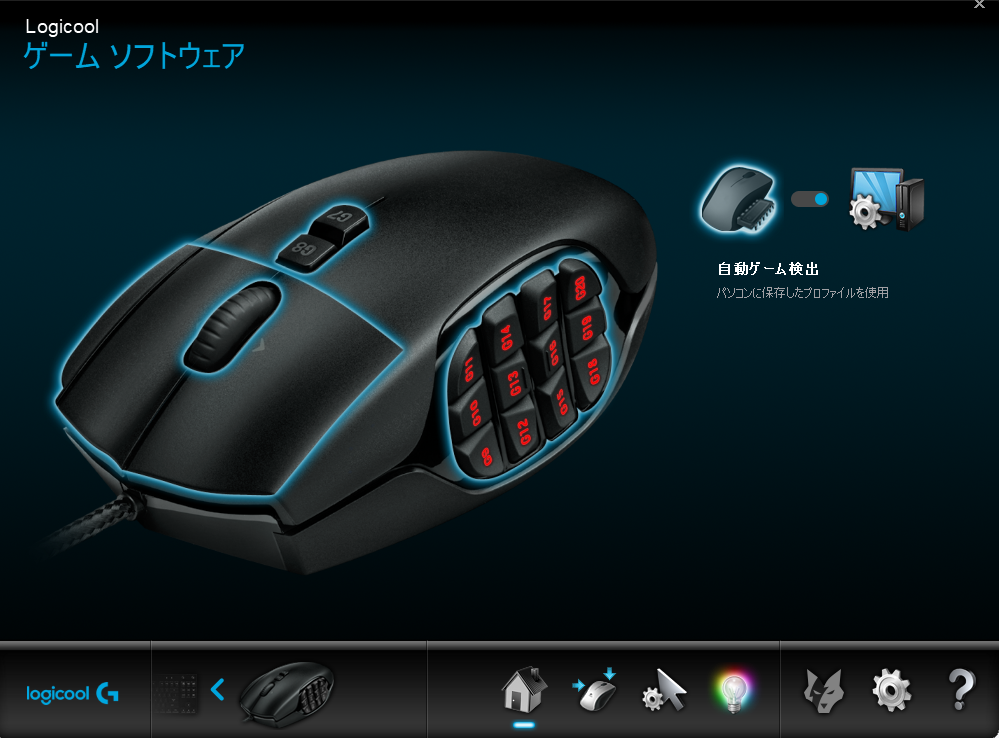
- Connect your mouse to your computer and launch Logitech Gaming Software . An image of the mouse will appear and the configurable buttons will glow blue.
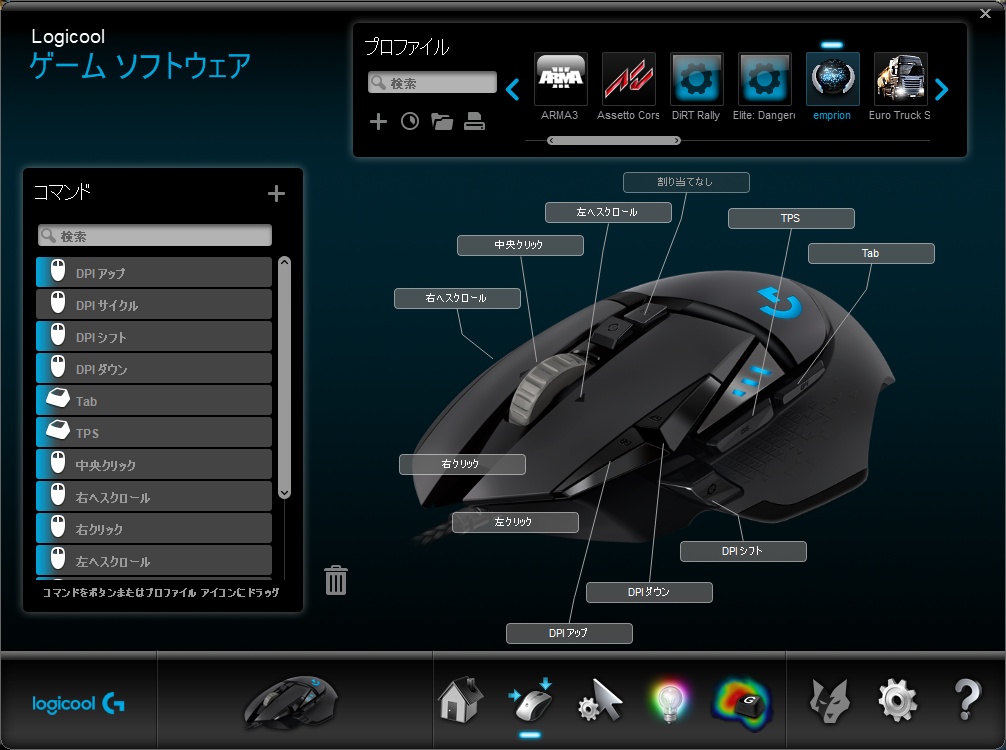
- Just click any button on the mouse image or click the ” Customize Onboard Profile ” button. You will be taken to the next screen where you will see all the functions assigned to your mouse.
- Here you can configure almost everything about your gaming mouse. Just click the little arrow on the button you want to configure and click Edit.
- A drop-down menu will appear allowing you to select the action that the button will perform. If no action exists, you can assign a hotkey to the button instead.
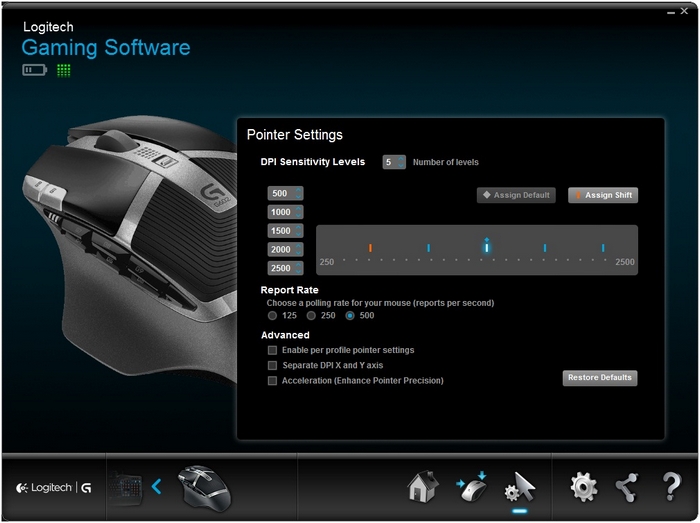
This screen also allows you to adjust the DPI level of your mouse. The mouse ships with four DPI levels, but you can increase it to five for even more control over your mouse.
customizing lights
- Connect your mouse to your computer and launch Logitech Gaming Software. Click the ” Lighting Settings ” button here.
- There are only a few options to choose from, so setting up your mouse’s lighting doesn’t take long. This screen allows you to adjust the brightness of your lights , whether to turn on the mouse “breathing effect,” DPI lighting settings , and more.
Personally, I set the brightness to just over 50%, the breathing effect to “off”, and the DPI lighting to “always on”. This works best for me because I can easily see the DPI of my mouse and adjust it on the fly. I don’t think the breathing effect looks very cool in fixed blue light.
2. Customize Logitech G402 automatic game detection profile
If you play a variety of games and need different configurations for each game, know that you can easily create multiple profiles that automatically switch between them depending on the game you’re running. So you can have a separate profile for CS:GO, another profile for LoL, and another profile for Google Chrome. LGS will automatically switch between them depending on which apps are running.
Create a profile and customize buttons
- Connect your mouse to your computer and start LGS. Click the toggle on the main screen to switch to “Automatic Game Detection”.
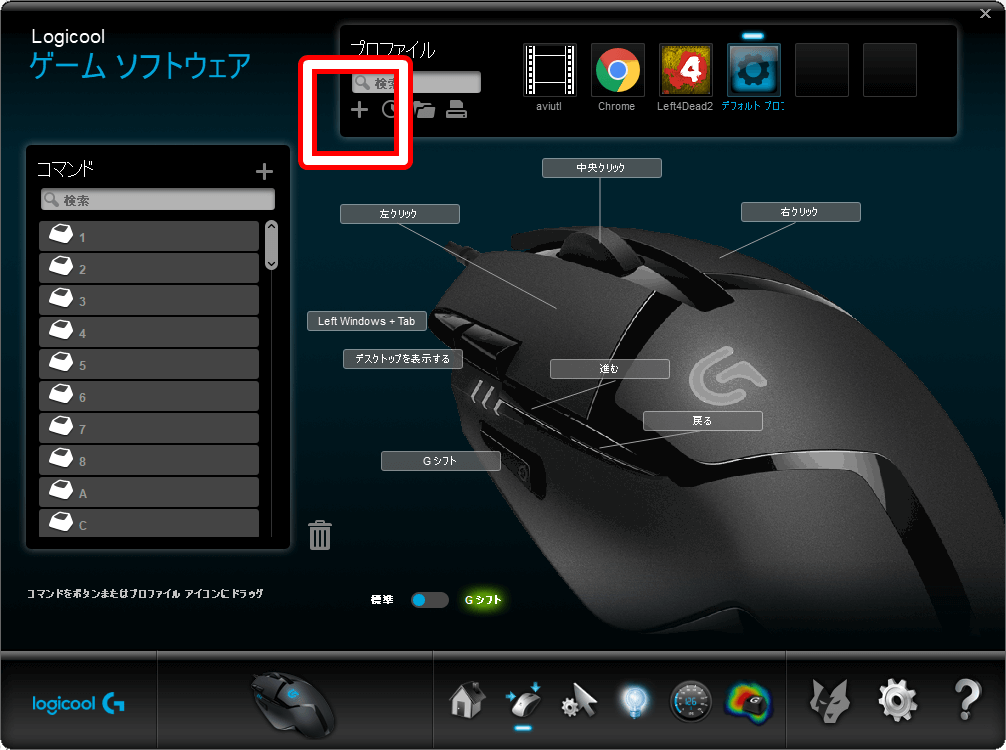
- Click the Customize Button icon at the bottom of the screen. Here you can edit the default profile or create a new profile for a specific app. To create a new profile, simply click on the blank profile square.
- Give your profile a name and an optional description. You will also need to add an app to enable the profile. When finished, click OK.

- Configure how the button behaves when the profile is active.
customizing lights
The process to customize the lights is the same for “Auto Game Detection” and “Onboard Memory” modes. You cannot use multiple lighting settings for different profiles.
Configuring a Logitech Gaming Keyboard with Logitech Gaming Software
A great gaming experience is a collection of setups that work well together. Even if you’re not looking for a mechanical gaming keyboard for your gaming setup, having a dedicated gaming keyboard can be helpful. The Logitech G213 Gaming Keyboard is my keyboard of choice as an entry-level (non-mechanical) gaming keyboard. The keyboard is well-built, has a good amount of weight, and has great keys that are surprisingly easy to navigate. Additionally, membrane keyboards are designed to be “mechanical”, which means the keys have a better feel than most other keyboards. The keyboard features configurable function keys and customizable RGB backlighting. To set up any of these, you will need to use Logitech Gaming Software.
1. Logitech G213 Auto Profile Customization
The Logitech G213 is a great keyboard, but unfortunately it doesn’t have onboard memory to save configurations. This means that LGS must be running on your computer for the keyboard to work as configured.
Customize function keys
- Connect your keyboard to your computer and start LGS. Proceed to ” Customize function keys .”
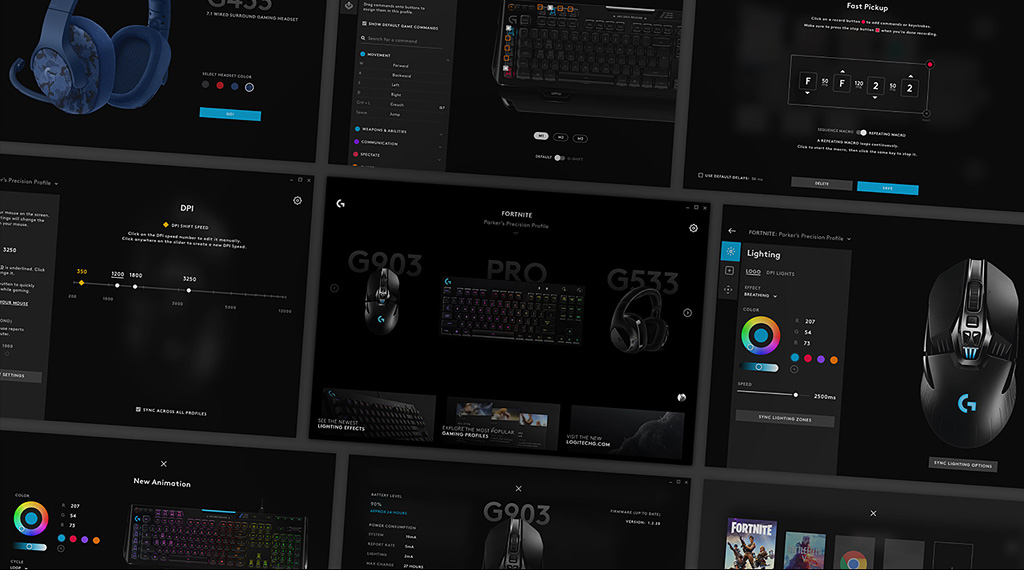
- Click the blank square to create a new profile or edit your keyboard’s default profile.

- Now hover your mouse over the function key you want to configure and click the small arrow that appears on the key. You can then assign any custom commands you want the keys to perform.
- As an example, I assigned the F1 key to perform the ” ctrl + shift + R ” keystroke and set it up in an Alfred workflow to save a URL as a reminder.
Customize game mode keys
Game mode is a built-in mode on the G213 that aims to disable certain keys that can be pressed accidentally and cause unwanted responses. For example, the Windows key is notorious for causing games to stop or minimize if pressed too often. Game mode allows you to disable keys that are not needed for gaming. Keys can be disabled by profile, allowing multiple game modes depending on the game you’re playing.
- Connect your G213 to your computer and launch LGS. Now click on the Game Mode Settings icon at the bottom of the window.
- You can select the profile you want to edit. Then just click on the key you want to disable in game mode. Invalid keys turn gray and valid keys appear blue .
2. Customizing the Logitech G213 lights
- Connect your Logitech G213 to your computer and launch LGS. Here, click the ” Lighting Settings ” icon at the bottom of the screen.
- There are two lighting modes available: Freestyle and Effects. Freestyle mode divides the keyboard into five color zones and allows you to assign a color to each of the five zones. Effects, on the other hand, lets you choose from a number of effects that apply to the entire keyboard, including effects like Color Cycle and Color Wave .
- Once you have selected your desired mode, you can adjust the keyboard color to your liking . To make your keyboard stand out, we recommend using the ” Color Wave ” effect, which looks really cool.
See also: 10 best gaming mice you can buy
Easily set up Logitech gaming accessories using Logitech Gaming Software
Logitech Gaming Software may look a little difficult when you first launch it, but it’s actually very easy to use. Gaming peripherals with onboard memory, such as the G402 gaming mouse, can be set up once and never display LGS again, while other peripherals, such as the G213 gaming keyboard, behave appropriately depending on the environment. depends on the Logitech gaming software being run. Selected profile. Either way, configuring your gaming peripherals to your personal preferences is critical to a good gaming experience, and Logitech Gaming Software is an extremely easy-to-use way to do this with Logitech’s gaming accessory series. It’s a tool.
As always, let us know what you think about the Logitech G402 gaming mouse, Logitech G213 gaming keyboard, and Logitech’s gaming peripheral products in general. Also, if you think we missed something while explaining LGS, feel free to ask us in the comments section below.


![How to set up a Raspberry Pi web server in 2021 [Guide]](https://i0.wp.com/pcmanabu.com/wp-content/uploads/2019/10/web-server-02-309x198.png?w=1200&resize=1200,0&ssl=1)


