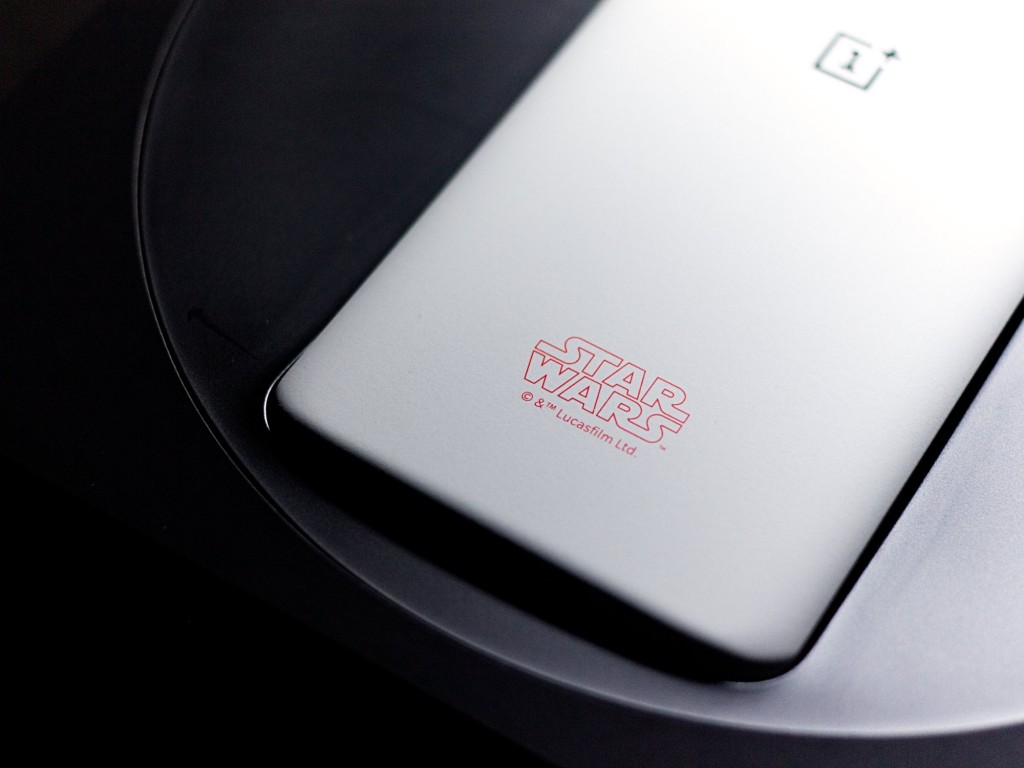
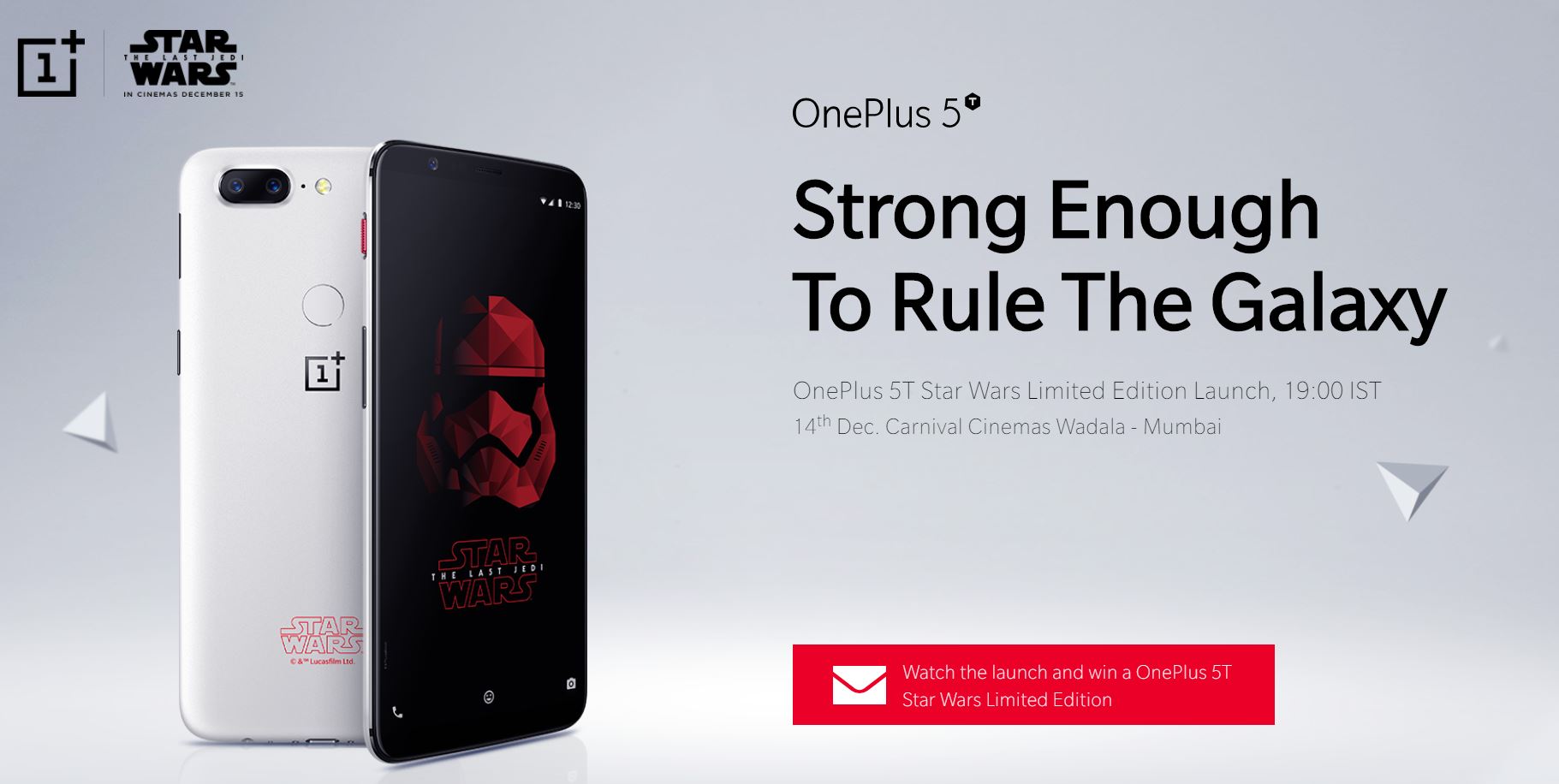
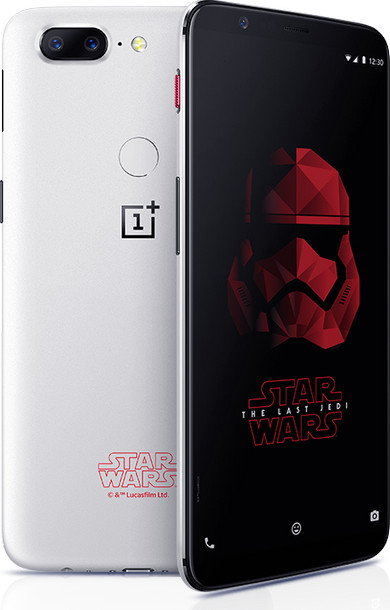
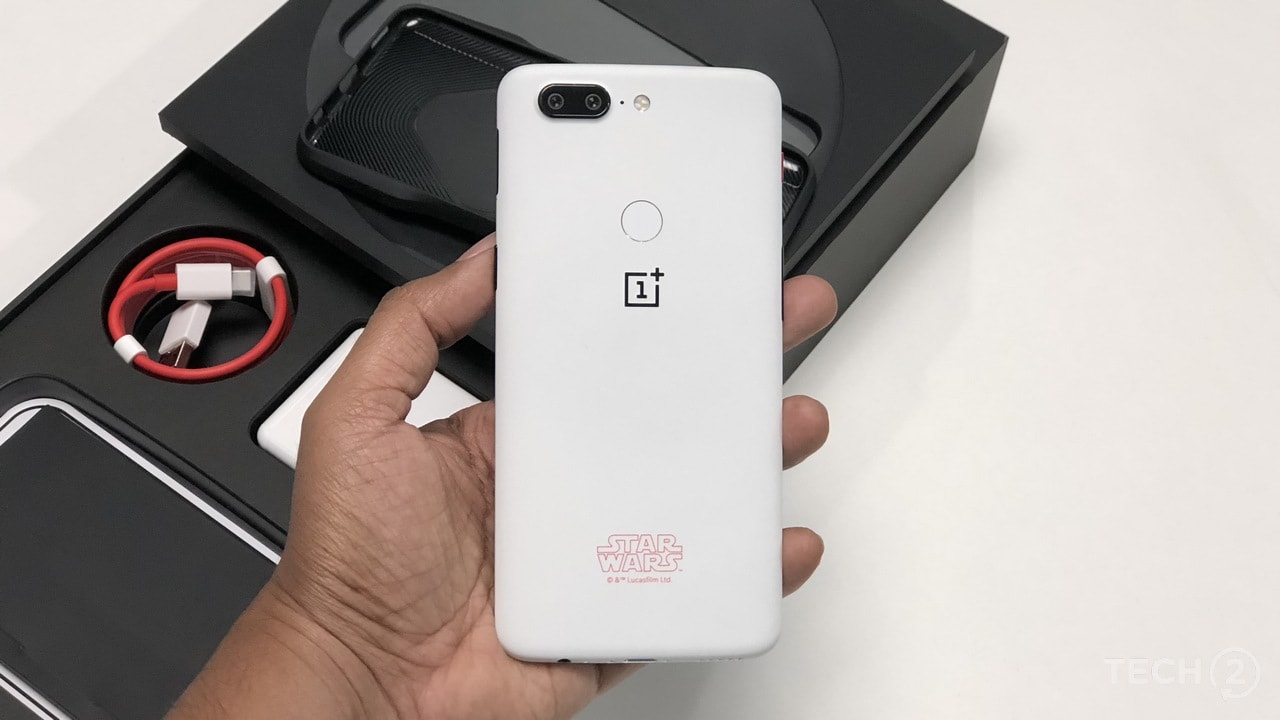
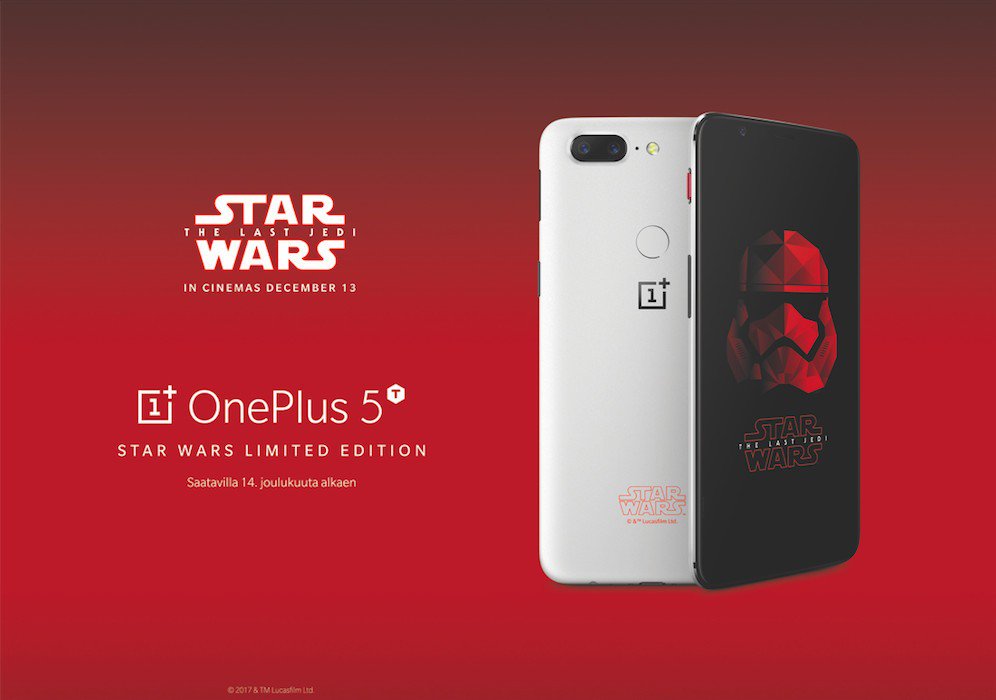
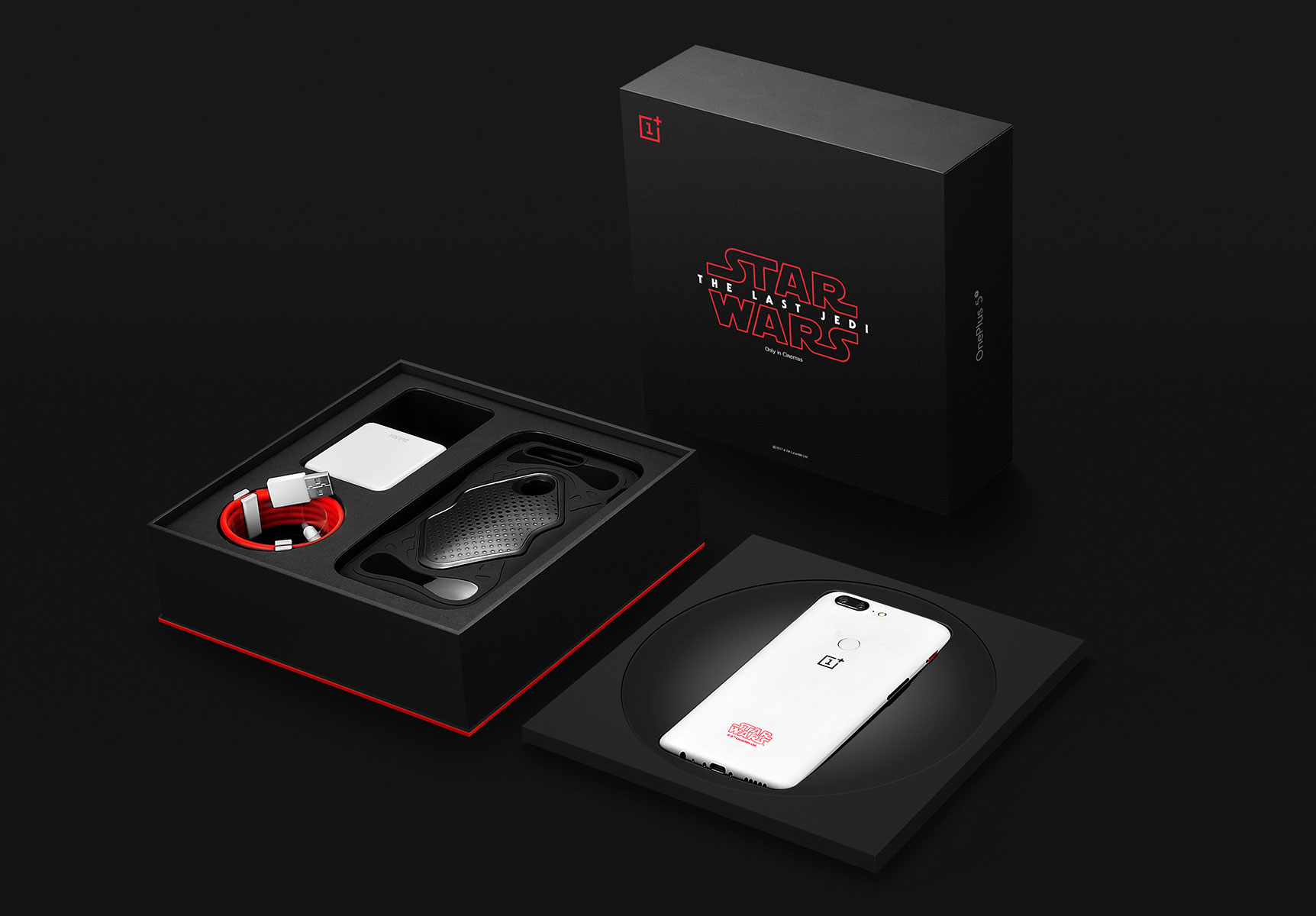
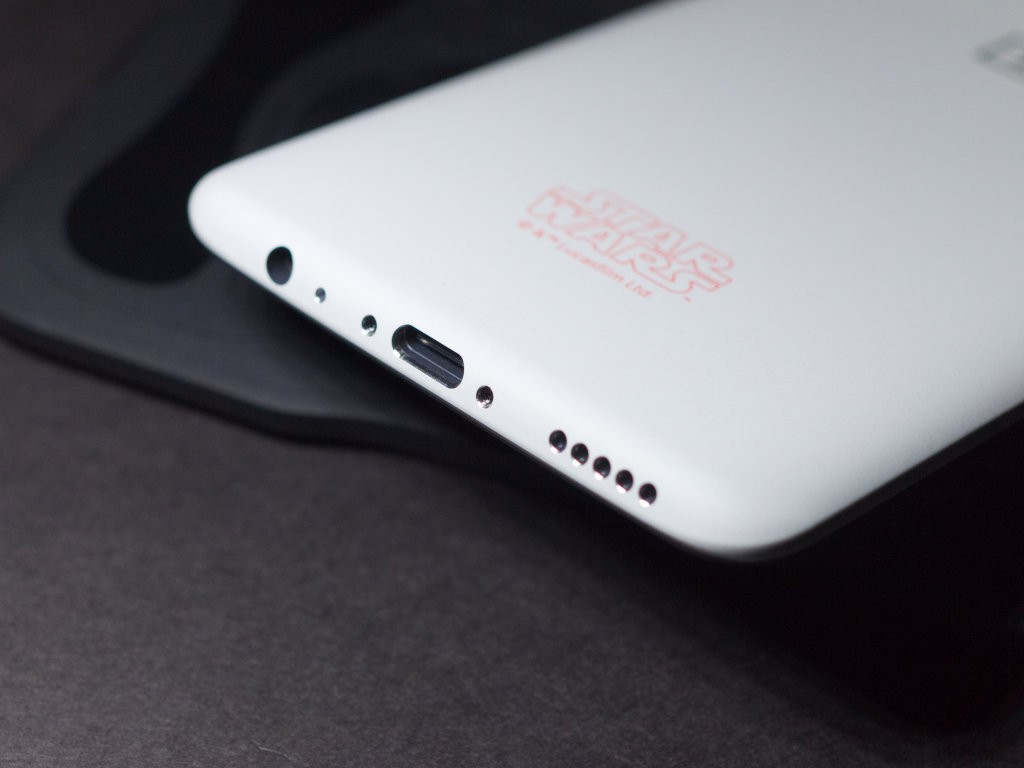
OnePlus recently launched OnePlus 5T, the successor to OnePlus 5. While the device itself is great, the company is launching the OnePlus 5T: Star Wars Edition to celebrate its fourth anniversary and the release of The Last Jedi in India. The device brings an all-new look to the standard OnePlus 5T along with other new features. Since I used this device personally, I wanted to achieve the same look on my own personal device. Well, I finally found a solution and would like to share it with you all. So, without wasting any more time, let’s get straight to the point.
OnePlus 5T: Star Wars Edition wallpapers
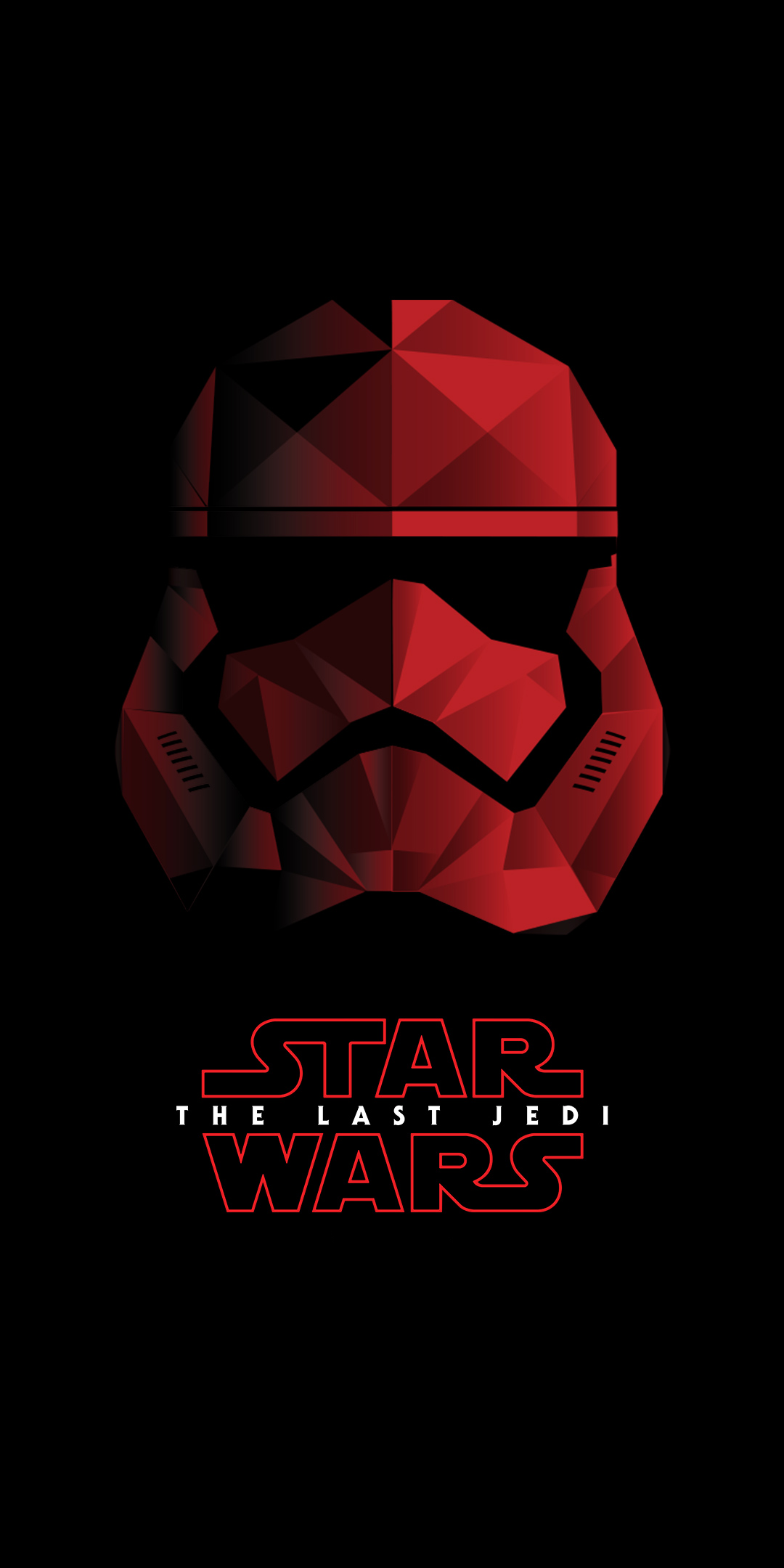
One of the most unique things about OnePlus 5T: Star Wars Edition is its collection of wallpapers. If you watched the unboxing video of the device, you must have noticed that it comes with a beautiful Star Wars themed wallpaper. Luckily, there’s a way to get all these great wallpapers on your Android device too. Download all Star Wars: The Last Jedi wallpapers here.
OnePlus 5T: Star Wars Edition Ringtones
OnePlus 5T: Star Wars Edition also uses OnePlus’ own custom ringtones. Or, you guessed it, we created our own Star Wars ringtones based on the Star Wars theme song. So, if you want to add any of these ringtones to your device, follow the steps below.
- Download OnePlus 5T ringtones from here or Star Wars theme song ringtones from here to your device.
- Download and install Solid Explorer ( free trial ) or any other file manager of your choice.
- Then go to Settings -> Sound , scroll down and tap Phone ringtone .
- Now, select “Solid Explorer” or any file manager and navigate to and select the downloaded ringtone file .
- that’s it. Your new Star Wars ringtone should now be applied .
OnePlus 5T: Star Wars Edition Theme
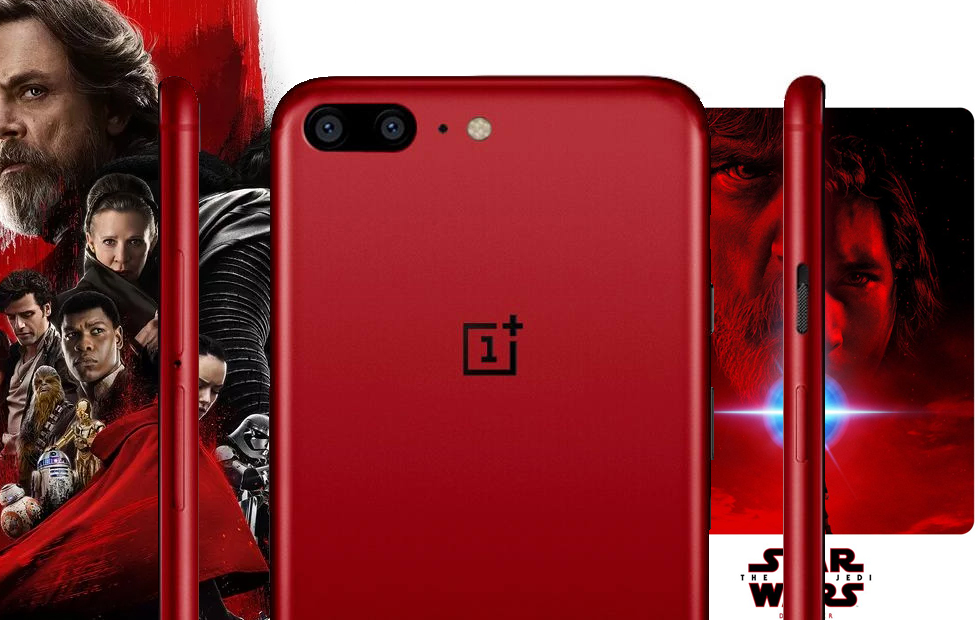
Let’s admit it, the Star Wars Red/Black theme on the OnePlus 5T looks really great. There’s no official Star Wars theme for Android, but there is a next best theme.
Note : The following method requires Substratum to be installed on your device. This can be done by following the tutorial. Alternatively, you can use LibreSubstratum for this step. Also, if you’re trying this out on a non-rooted Android Oreo device, be sure to check out Andromeda’s guide. This will allow you to use Substratum in a better way on Android Oreo devices without root.
- Download and install the Swift Black Substratum theme ( $1.99 ) on your Android device.
- Next, open the Substratum app and tap on the Swift Black theme you just installed .
- On the next screen, tap the drop-down menu and select your Android version.

- In the “Android System” section, set the value of the first drop-down menu to “Red” and the other two drop-down menus to “System Accent”, as shown in the image below.

- Next, check the toggles next to “Android System ,” “Settings,” and “System UI.”
- After that, just tap the overlay icon in the bottom right corner and tap Build & Enable.
- That’s it. The Star Wars based red/black theme should now be active .
Bonus: OnePlus 5T: Star Wars Edition navigation bar
This isn’t available on the OnePlus 5T: Star Wars Edition, but it’s a nice little addition that looks great in your navigation bar. To display the Star Wars navigation bar on your device, follow these steps:
Note : The following method requires Substratum to be installed on your device. This can be done by following the tutorial. Additionally, your device must have a navigation bar enabled. To do this, modify your build.prop file using this guide. Additionally, changes to the build.prop file normally require root access, but you can use the tutorial to make changes without root.
- Download and install Navigate theme ( free ) on your Android device
- Next, open the Substratum app and tap on the Navigate theme you just installed.

- Scroll down to the System UI Status Bar Icons section. Tap the drop-down menu “Choose the Navbar…” and choose from starwars, starwars2, or starwars3 .

- Then check the box next to System UI Status Bar Icon .
- After that, just tap the overlay icon in the bottom right corner and tap Build & Enable.
- That’s it. The Star Wars navigation bar theme should now be active . See below to see what the three different Star Wars themes look like.
SEE ALSO: OnePlus 5T review: OnePlus 5 was exactly what it was supposed to be
Show off the look of OnePlus 5T: Star Wars Edition on your Android device
The OnePlus 5T is certainly one of the most beautiful devices this year, and a lot of credit should be given to the device’s red/black Star Wars theme. Fortunately, using the methods above, you can emulate the same look on your device. I especially like the main theme along with the Star Wars navigation bar. But what about you? What’s your favorite part of the overall Star Wars look? Let us know in the comments below.


![How to set up a Raspberry Pi web server in 2021 [Guide]](https://i0.wp.com/pcmanabu.com/wp-content/uploads/2019/10/web-server-02-309x198.png?w=1200&resize=1200,0&ssl=1)


