Are you working in Photoshop and tired of using the same fonts? Are there fonts you’d like to add to Photoshop for the project at hand? Thankfully, with our step-by-step guide to font integration Then adding fonts to Photoshop becomes very easy.
Adobe Photoshop comes with a lot of great fonts, but it’s natural to want to take things a step further and add your own custom fonts. Moreover, Adobe Photoshop enjoys nearly 50% market presence due to its one-click conversion and innovative tools. So if you’re a designer, you’ll probably be using this a lot. Make your life easier by adding your favorite fonts to Photoshop in 4 easy steps.
But before we jump directly to the steps, let’s start by reviewing how to use fonts and their various file types.
The importance of fonts in design
Can people read what you’re writing? Can you get their attention through the font you’re using? Does it match the undertone of your graphic’s message? Regarding fonts These are frequently asked questions. Fonts aren’t just about aesthetics. they are helpful. It helps you set the tone, convey a playful, witty, professional, etc. vibe, and foster interest.
Let’s take a quick look at some facts about fonts.
- Create an overall aesthetic and brand voice
- Fonts bring out emotions and feelings
- Using too many fonts can make them confusing or unreadable
- Using conflicting fonts defeats the purpose and can lead to inconsistency
- Using very similar fonts may not attract attention
- Using all caps may be unnecessary and inappropriate
- Treat fonts as artistic elements and give them breathing space
- Create a visual hierarchy so you can see what’s most important first
Font file types you should know about
There are many types of font files, and not knowing the differences can be a huge hurdle for designers. First, we need to start with the difference between fonts and font families or typefaces. A font is an individual font, whereas a font family or typeface is a group/collection of similar fonts.
#1. TrueType fonts (TTF)
TrueType fonts (TTF), developed by Apple in the 1980s, have a .ttf extension and are recognizable as such. This font type is ideal for use on Windows and Mac due to its excellent support. It also supports smooth scaling. Bold and italic styles are available, but ligatures and other complex features are not available.
However, all TTF fonts contain digital and printer data in one file. This means you can get all your data for print and digital products in the same place. Photoshop is compatible with TTF fonts.
#2. OpenType fonts (OTF)
OpenType (OTF) fonts, developed by Microsoft and succeeded by Adobe, are cross-platform. In fact, unlike TTF fonts, a single file can hold thousands of glyphs.
This font has unlimited style variations and supports Photoshop, making it very attractive to designers. The rich typography and unlimited resizing are attractive.
#3. Embedded open type (EOT)
Embedded Open Type (EOT), developed by Microsoft, attempts to solve copyright issues that can arise with TTF and OTF fonts used for web publishing. Font files will also be smaller.
If it weren’t for the incompatibility, copyright protection and additional encryption would make EOT promising. Works only with Internet Explorer. Internet Explorer is no longer a search medium.
#4. Web Open Font Format (WOFF)
Developed in 2009, Web Open Font Format (WOFF) loads faster than OTF or TTF and is more compatible across all platforms. Of course, WOFF is compatible with Photoshop.
However, you cannot download WOFF fonts to your PC. You can load WOFF type fonts on your own website or using a host such as Google Fonts.
With the release of WOFF2, designers can also expect compression algorithms, more metadata, and more efficient data storage.
#5. Scalable Vector Graphics Font (SVG)
Although SVG was originally used on the web, it is not actually a font type. It is a vector-based graphical format or mathematical formula that can be used to form 2D images.
This allows you to use SVG fonts with different colors and opacity. Additionally, some can be animated. SVG fonts are very popular among designers. Photoshop supports open type SVG fonts.
Although many font types exist, Adobe Photoshop only supports TTF or OTF fonts.
How to add fonts to Photoshop
The process for adding fonts to Photoshop is the same on Windows and Mac. You just end up using another application to download and install the fonts on your device. Follow the steps below:
#1. find font
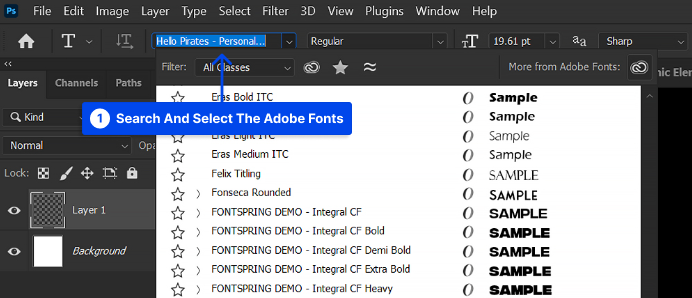
If you don’t see the font you want to add to Photoshop, start searching. A simple Google search will help you find the font you’re looking for. There are many online libraries with free, attractive fonts that you can use in a variety of projects, from printing to web publishing.
You can also download fonts from other sources such as Microsoft Store and Google Fonts . Finding fonts on the web is simple and easy, but you need to look for a reliable site. Not choosing a trusted site can compromise your security and put your design project at risk.
#2. Download the font
Click Download to begin downloading the selected font or font family. Once completed, it will be saved as a .zip file.
#3. Find and install fonts
Once the font is downloaded to your device, install the font. Go to Downloads and find the compressed file. If you can’t find the file there, click Download in your browser and select Show file location to see where it’s saved.
For Mac

- You can unzip the .zip file by right-clicking on it.
- There is an OTF or TTF file inside.
- Double click on the one you want to install
- Once you download and install it, you’ll be taken to a screen that displays all the available fonts you’ve downloaded to your Mac as My Fonts.
- If you have multiple fonts downloaded, you can search for fonts by name
For Windows
- Double-click the file to find your TTF or OTF file.
- When you click on the file, you will see two options: Print or Install.
- When I press “Install” that option appears blurred. This means it has already been downloaded
Right-click a font and install it to make it available to all applications on your PC.
#4. Choose fonts in Photoshop
Fonts are available on your PC and can be selected in Photoshop. Now, where should I go to look for it?
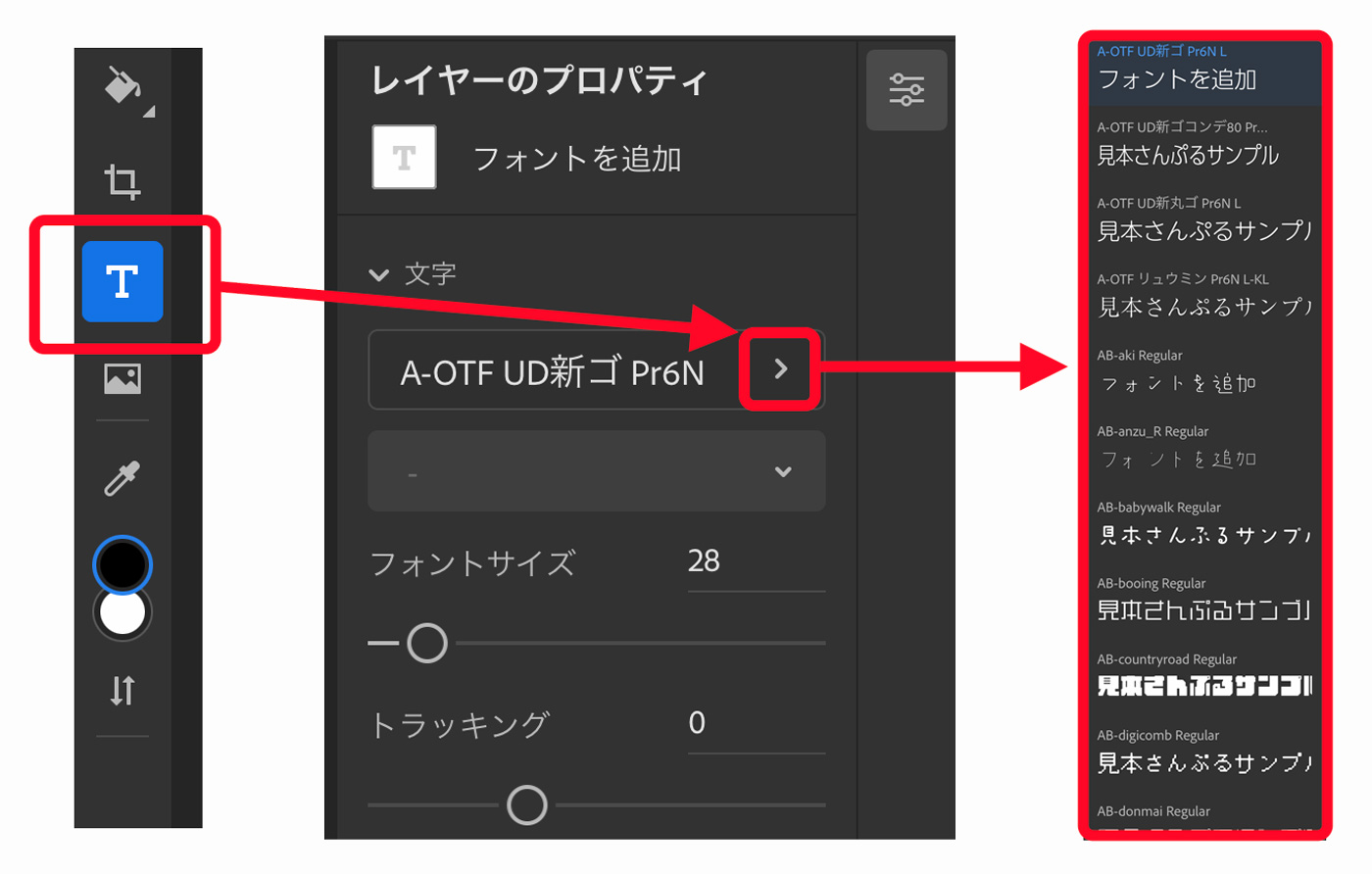
- Open the Adobe Photoshop application
- Click on the left menu bar and look for a capital T. T stands for horizontal type tool
- If you right-click, you can also select the vertical writing tool, vertical writing mask tool, and horizontal writing mask tool.
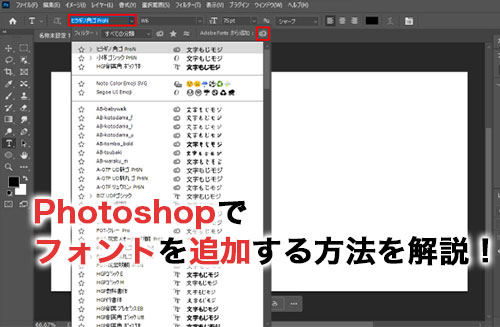
- For this purpose, you can choose the horizontal writing tool or the vertical writing tool, depending on whether you want to write from left to right or from top to bottom.
- Click on the area where you want to add text
- A pop-up bar will appear on the screen
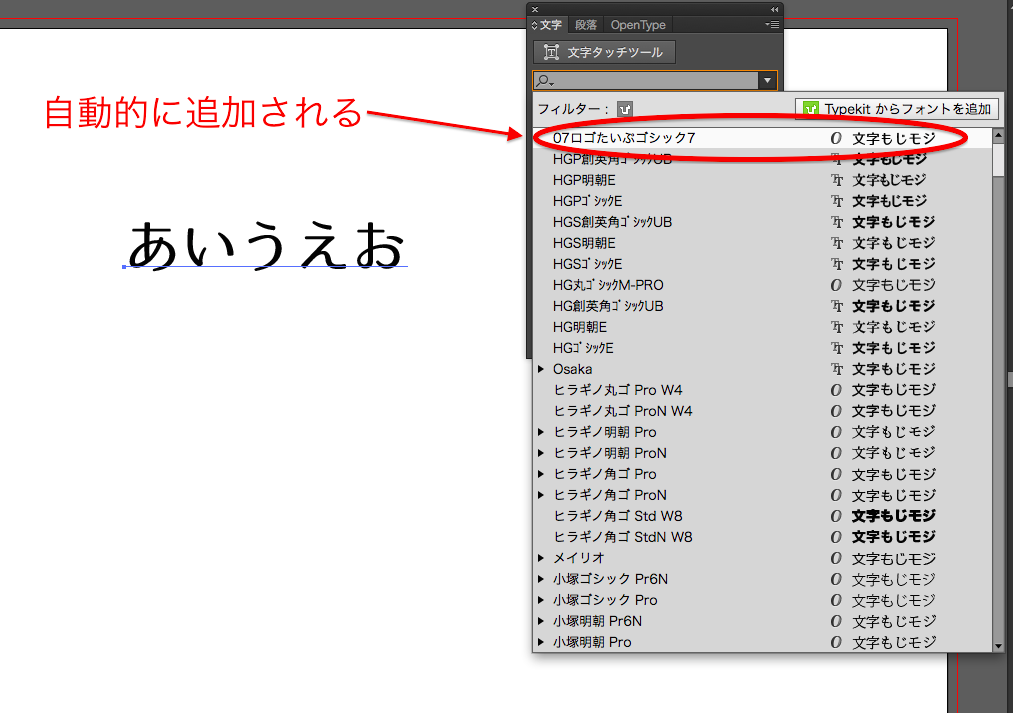
- Search and select the downloaded font name
- Once selected, you can also choose the size and font color
- When you start typing, the text will appear in the font you downloaded and installed.
How to add Adobe Fonts to Photoshop
If you have trouble accessing or adding Adobe fonts to Photoshop, follow these steps. Don’t miss out on over 20,000 Adobe fonts perfect for personal and commercial use.
#1. Download Adobe fonts
Even if you have activated Adobe fonts, you can download additional Adobe fonts from the Adobe Library . To do this, you must have the Creative Cloud app installed on your Windows or Mac device.
#2. Go to Adobe Font Library

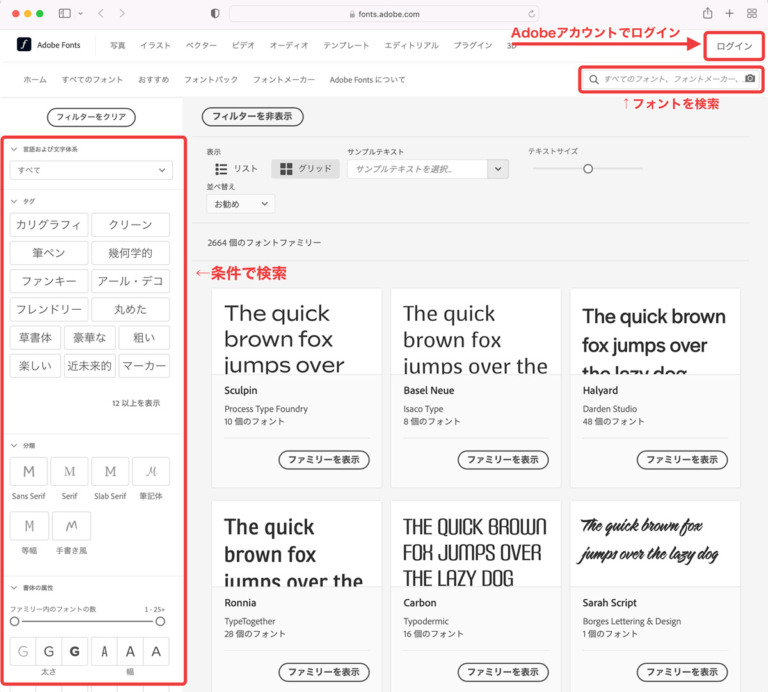
Next, go to your browser and access the Adobe Font Library .
You can find a font that suits your writing style. Search for fonts by text size, language and writing system, tags, classification, and other properties. You can also check the box to see other fonts available in Creative Cloud.
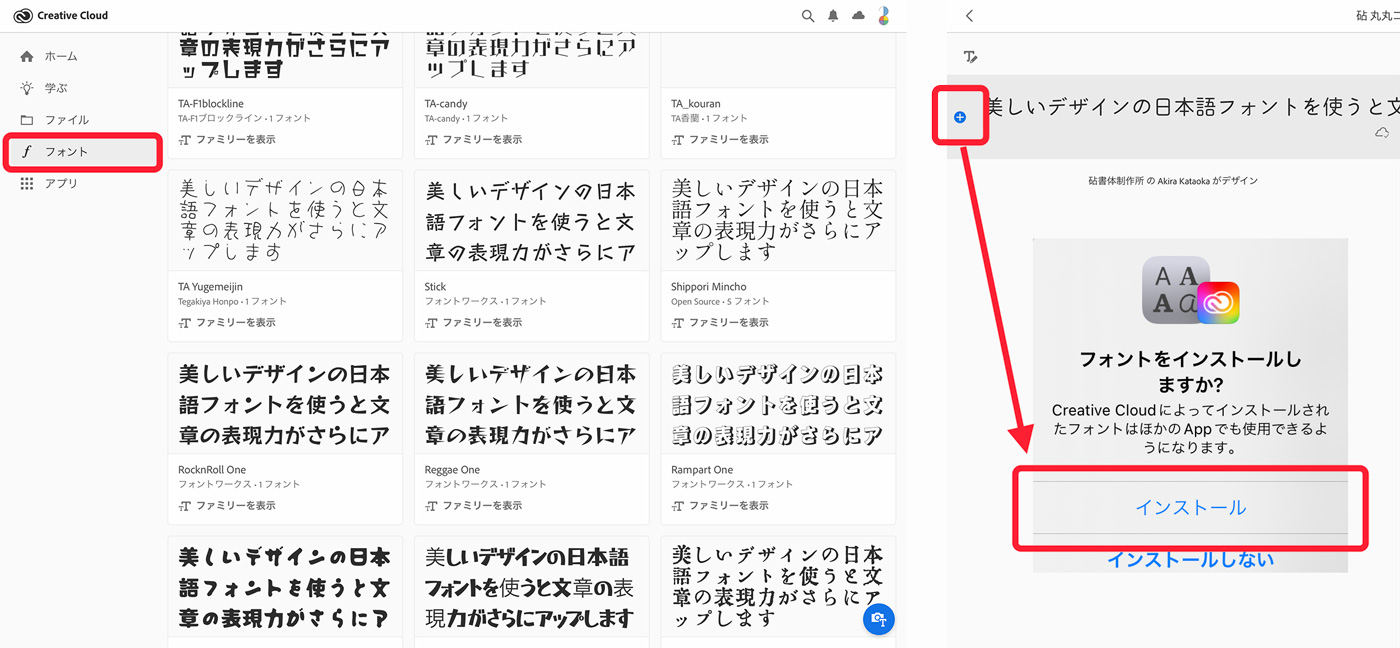
These fonts can also be opened and managed in Creative Cloud for use in web projects. Downloading is very easy. Just click Add Family.
You can also heart react to each font you like, and create a list of favorites that you can access from Manage Fonts on the right.
#3. Activate font
Click on a font to see the font’s appearance and licensing details. Primarily, the license details tell you whether the font is suitable for personal or commercial use, what types of projects the font can be used in, and how to purchase additional licenses.
If you have Creative Cloud, you can also activate font families in bulk by clicking Add Family. If you do not want to add the entire family, click Add Font.
Activated fonts are automatically downloaded and available across Adobe applications. You can also delete fonts later. These can be easily managed within Creative Cloud.
Considerations when using fonts in Adobe Photoshop
Downloading a font from the vast abyss of the Internet may be easy, but using that font in various unauthorized projects can cause problems. Avoid trouble by considering these important guidelines:
#1. Check license
Trying to download a font? Read the license. Check whether it is suitable for commercial use. To use fonts legally as a designer, you need fonts that are allowed for commercial use.
Additionally, certain fonts are only available for use in the current project, such as PDF or web publishing. If you want to use it in other printing projects, you may need to purchase additional licenses. Therefore, be careful of these and avoid legal troubles.
#2. Find the ReadMe file
If you don’t have clear license details, we recommend looking for a “readme file”. Certain font download websites allow you to download fonts. But only as a demo. Do not mistake these for permissions.
Be sure to check the “readme” file for permissions. If you can’t find the details, it’s better to skip the font than use a pirated font and get into copyright trouble.
#3. Rely only on reliable sources
When I see a good font, I can’t help but fall in love with it. Even if a website isn’t well-known or mainstream, you might want to download it right away. Please stop.
Besides legal and copyright issues, downloading fonts from spam websites can result in corruption. Most free fonts contain Trojan horse viruses. They may be downloaded as legitimate or useful apps and attempt to access personal or confidential information. It can damage your system and put it at risk.
#4. Please contact the author for copyright issues
If you really like the font, but are unsure about license, permission, and copyright details, try this last resort. Try contacting the author.
Some font websites list the author’s name or provide a hyperlink to the website. Leave them an email and hope for the best. To take it a step further, you should search for the author on Reddit, Facebook groups, or Quora.
If you can’t find the author, there’s a good chance someone in the design community can provide you with the author’s details and permissions.
#5. Check the terms of use also with Adobe Font
For example, you cannot use Adobe fonts in the mobile application you are building. These are permitted for use with PDF or video content edited using Adobe After Effects or Premiere Pro.
Note that if you cancel your Creative Cloud subscription, your fonts will no longer appear. The font appears as missing and must be registered with Creative Cloud to replace and reactivate the font.
Also read: Adobe Creative Cloud – Is it worth it?
Be careful when using downloaded fonts
Adding novelty items like unusual fonts to your design projects is great, but you should use them with great care. Even if you’re using free sites or Adobe Fonts, which are typically allowed in commercial projects, check the license and enforce the terms of use.
Some fonts are only allowed in some projects and require separate print and digital licenses. If it is not readily available, you can also find the author and ask for permission to use it commercially. If you can’t find help, reach out to our community of designers to help you make important decisions.
Be very careful when downloading free fonts from small or illegal sites, as you may damage your PC and lose sensitive data.
Then you can also consider some of the best Photoshop plugins to take your design skills to the next level.


![How to set up a Raspberry Pi web server in 2021 [Guide]](https://i0.wp.com/pcmanabu.com/wp-content/uploads/2019/10/web-server-02-309x198.png?w=1200&resize=1200,0&ssl=1)


