In this article, you will learn how to check the size of a file or folder in Python.
Python is one of the most versatile programming languages. It allows you to build everything from small CLI (command line interface) programs to complex web applications.
However, one of the most underrated capabilities is the ability to interact with operational systems. Using Python to manage OS operations can save you a lot of time when creating automated processes.
Let’s take a look at how Python interacts with the OS.
How does Python interact with the OS?
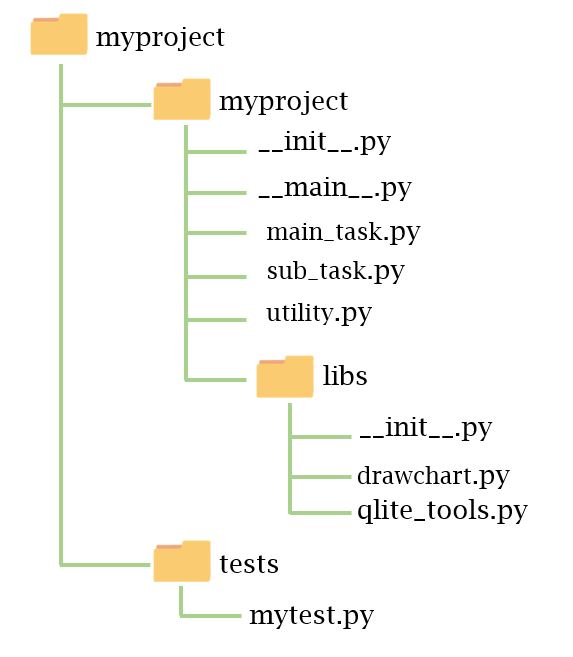
No one can live isolated from the environment. This also applies to Python. Python is often based on interacting with operational systems to get work done.
Python has several modules that allow you to interact with the OS. The most commonly used are os, sys, pathlib, and subprocess.
These are built-in modules, so you don’t need to install them using PIP. You can import them all using the following statement:
 import os
import sys
import pathlib
import subprocess
The list below shows the main features of each of these imports.
- Os: A portable way to use system-specific (OS-dependent) functionality. This is the correct choice in most cases unless you require more advanced features.
- Sys: System-specific parameters and functions. This module provides access to interpreter variables and functions. The os module interacts with the production system, and sys interacts with the Python interpreter.
- Pathlib: Advanced path usage. File systems can be represented as objects using semantics appropriate to each OS.
- Subprocesses: Execution and subprocess management directly from Python. This includes manipulating
stdin,stdout, and return codes. For more information, see the Python Subprocess Guide.
There are higher level libraries with more specific functionality depending on your needs. However, in most cases it is fine to use the above modules.
Note: Most of the functions provided by these modules have different outputs depending on the OS. Note that the best matches are usually UNIX and Python.
Now that we have a quick understanding of how Python interacts with the OS, let’s move on to how to check file and folder sizes. All of the following solutions are available in Python GitHub repository file and folder sizes .
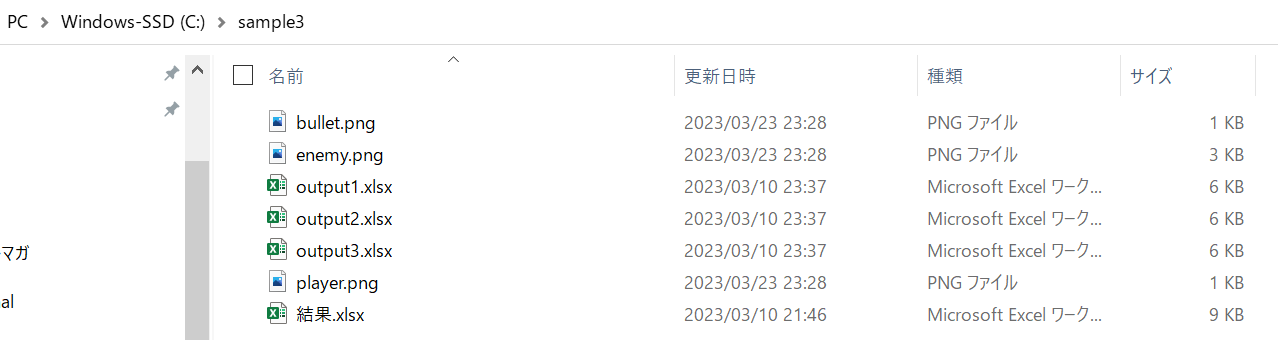
Using os.stat().st_size
This method uses the os module’s stat() function. Returns a lot of information about a particular path.
Note: The os.path.getsize() function also gets the job done. Advantages of using os.stat(). st_size does not follow simlink.
Before continuing, let’s create a test file named lorem.txt . Paste your dumb text into this file. You can access a Lorem Ipsum text generator and paste the text into your lorem.txt file.
In the same directory, create a file named method1.py and paste the code below.
 import os
size = os.stat('lorem.txt').st_size
print(size)
Let’s take a closer look at what this code does.
- In the first line we are importing the os module
- The size variable contains the size of the file lorem.txt .
- The os.stat() function returns a set of information related to a file.
- st_size attribute represents the size of the file
- prints the size variable
Let’s run the Python script. You will get different results depending on the contents of the lorem.txt file.
output:
20064Output is expressed in bytes. This is completely unreadable, so let’s try to humanize it so you can get a more accurate idea of the file size.
First, install the humanize package by running the following command in your shell:
pip install humanizeThen use the naturalsize() function to convert the value in bytes to a readable file size (KB, MB, GB, TB, etc.).
 import os
from humanize import naturalsize

size = os.stat('lorem.txt').st_size

print(size)
print(naturalsize(size))
First, the above code prints the size of the file in bytes, then prints the result in a readable size.
output:
 20064
20.1 kB 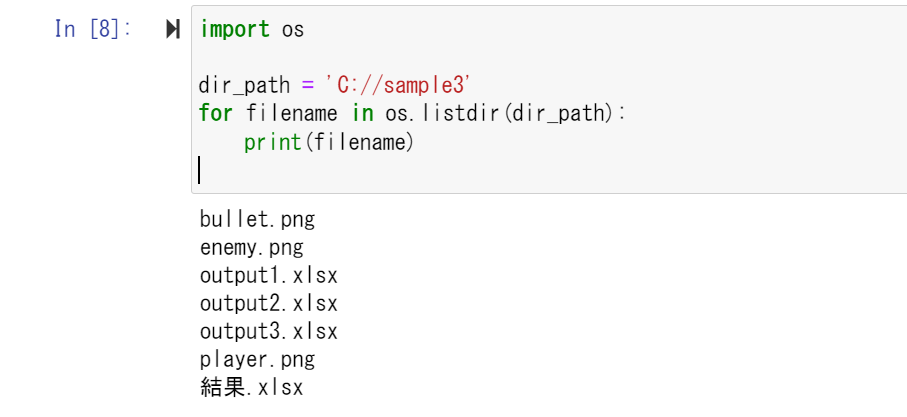
Using pass ribs
Although pathlib is designed to manipulate only paths, it includes some useful functions from other modules as methods on Path objects (instances of the Path class).
Create a file method2.py and import the Path class .
from pathlib import PathNext, create a Path object passing the path to the lorem.txt file as an argument.
file_ = Path('lorem.txt')Now you can access the stat() method of the Path class. This works similarly to the os.stat() function, so it can print the size of the file.
print(file_.stat().st_size)output:
20064As you can see, I got the same results as the first method I used. The above result is also output in byte format, so you can use the humanize module to make it readable.
 from pathlib import Path
from humanize import naturalsize

size = Path('lorem.txt').stat().st_size

print(naturalsize(size))
This code produces the following output:
20.1 kB 
Using Unix commands in subprocesses:
The subprocess module allows you to invoke and manage subprocesses from Python. Therefore, you can run any command and process its output directly in Python.
Note: This method only works if you are running a Unix OS (Linux, Mac).
Open the file method3.py and paste the code below.
 from subprocess import run

process = run(['du', 'lorem.txt'], capture_output=True, text=True)

print(process.stdout)
If you take a closer look at this part of the code, you’ll see the following:
- Import the run function from the subprocess module.
- The variable process contains the result of running the command du lorem.txt .
- du is a Linux utility that allows you to obtain disk space for files.
- Capture_output allows you to access standout attributes.
- text means save the output as a string instead of bytes
- Prints the standard output of the process.
Running the above code will give you the following output:
20 lorem.txtAs you can see, the file size and name are displayed. If you only want to get the size of the file, you need to split the output (remember it’s a string) and print the first element.
 from subprocess import run

process = run(['du', 'lorem.txt'], capture_output=True, text=True)

size = process.stdout.split()[0]

print(size)
output:
20This output is completely unreadable. I can guess that the unit of measurement used is KB (because of the previous method), but no one else was able to guess the size of the file.
To resolve this issue, use the -h (human readable) flag.
Note: You can get documentation for this command by running man du or du –help .
 from subprocess import run

process = run(['du', '-h', 'lorem.txt'], capture_output=True, text=True)

size = process.stdout.split()[0]

print(size)
The output of this script is now much more readable.
20KIf you want to learn more about the subprocess module and its possible applications, see the Python subprocess guide.
Get folder size recursively
If you want to get the size of a folder, you need to iterate through each file present in the directory and its subdirectories. You can do it in two ways:
- Iterate through paths using pathlib
- Using the du command with subprocesses
The following code uses the path to the test directory in your home folder. You need to replace the path of the file in the directory whose size you want to get.
Iterate through paths using pathlib
Let’s see how to iterate over the file sizes and get the directory size.
 from pathlib import Path
from humanize import naturalsize

def get_size(path = '.'):
    size = 0

    for file_ in Path(path).rglob('*'):

        size += file_.stat().st_size

    return naturalsize(size)

test_path = Path.home() / 'Documents/tests/'

print(get_size(test_path))
This code seems a little scary. Let’s take a closer look at what each part does.
- Import the Path class and naturalsize() function.
- Define get_size() function with parameter path . This parameter points to the current directory by default.
- The size variable is just a placeholder to add the size of each file.
- Iterate through each file in the path.
- The rglob() method recursively returns files that match a pattern.
- rglob(‘*’) means you are getting all files in the directory
- Get the size of each file and add it to the size variable.
- Returns the size variable in a human-readable way.
Of course I’m testing the functionality using a directory that is only available on my machine. Don’t forget to change the path to the folder that exists on your computer.
In my case I get the following output:
403.4 MBUsing the du command with subprocesses
This approach has several advantages.
- The result is a little more accurate
- it’s much faster
 from subprocess import run
from pathlib import Path

test_path = Path.home() / 'Documents/tests/'

process = run(['du', '-sh', test_path], capture_output=True, text=True)

size = process.stdout.split()[0]

print(size)
We use the same approach as method 3, but this time we get the size of the directory instead of the file.
output:
481MAs you can see from these two methods of getting the size of a folder, return slightly different results. The larger the directory, the greater the difference.
The choice between the pathlib approach and the subprocess approach is up to you. If you know that you will be using Linux every time you use subprocess , you can use the pathlib solution.
sum up
Python is very useful when interacting with the OS. Using Python you can automate the process and save a lot of time. The main modules that interact with the OS are os, sys, path, and subprocess.
In this tutorial you learned:
- How Python interacts with the OS
- Using built-in modules to perform OS operations
- How to print in human readable format using humanize module
- How to calculate file size in three ways
- To calculate the size of a directory recursively or using the du command


![How to set up a Raspberry Pi web server in 2021 [Guide]](https://i0.wp.com/pcmanabu.com/wp-content/uploads/2019/10/web-server-02-309x198.png?w=1200&resize=1200,0&ssl=1)


