Google today released the first beta version of Android Q. This includes a number of changes, both large and small. Well, we’ve been using the Android Q beta on the Pixel 3 XL and Pixel 2, and we’ve noticed a lot of changes here. If you’re wondering what the latest flavor of Android will be like, here’s everything that’s changed in Android Q.
1. Dark mode toggle is gone, but dark mode is here
In the first beta of Android Q, Google removed the Dark Mode toggle from Settings, but you can still enable Dark Mode in Android Q. Still, it’s not as simple as Android Pie. Certainly this is only a temporary situation. Google should bring back the toggle in a future beta.
2. Revamped share menu
With Android Q, Google has revamped the sharing menu. Not only is it much more convenient in terms of design and the way apps and shortcuts are arranged, it’s also much faster than before . This is unlike previous versions of Android, which required each app to be polled individually to figure out what actions the share menu might support, Android Q uses a push-based solution. , as the result is a very noticeable speedup. 
There’s also a copy shortcut at the top, so you can quickly copy a link without having to search for the Copy link option in the share sheet. This is definitely a welcome addition.
3. WiFi sharing via QR code
Android Q allows you to quickly share your WiFi network with other devices using QR codes without having to share your password. You’ll now see a new “QR Code” option in your WiFi settings, along with an option to “forget” your network. Just tap this and a QR code will appear that other devices can scan to connect directly to your WiFi network without having to enter a password or anything.
For some reason, Google Lens was unable to scan this QR code and join the network, but some third-party apps such as CoReader ( free ) can do this.
4. QR scanner for WiFi settings
If you’re trying to connect to a WiFi network through a QR code on your Android Q device, you don’t need a third-party app. When you go to WiFi settings, you will see a new QR scanner option at the bottom that you can open to scan the WiFi QR code to connect directly.

5. Notch now appears in screenshots
Remember how taking a screenshot on a phone with a notch would produce a normal looking screenshot? Well, no more. With Android Q, if you take a screenshot on a phone with a notch (so far that means the Pixel 3 XL), the screenshot will also show the notch along with the rounded corners of the phone’s display .

I don’t know exactly why this was done, and I personally don’t really like it, but it is what it is now.
6. Theme options
Android Q also now offers theme options for your phone. So you don’t have to rely on third-party apps to theme your phone like you do with Android Pie. Currently, Android Q’s theme options are at the end of developer options and only allow you to change things like accent colors, icon shapes, and fonts (of which there are only two), but we’d love to see Google add more options. Let’s hope for it. More theme system choices for Android Q coming soon.

7. Allow detailed location information
Unlike Android Pie, Android Q is focused on privacy , and one of the big changes in that regard is giving you more control over location permissions. Unlike Android Pie , where you could allow or deny location access to apps, Android Q allows you to always allow location access, deny access, or only allow location access while an app is in use. Optional support is provided to enable access. This is very similar to how iOS handles location permissions for apps that choose to support them, and is definitely better from a privacy perspective.
The permissions screen has also been changed. Instead of arranging apps alphabetically like in Android Pie, Android Q categorizes apps by “allowed,” “denied,” or “allowed only when used,” so you can see which apps are accessing your location and which apps can. can be easily found. No more scrolling through a long list of toggles to see if an app has location permissions, or no access to your location at all.
8. Notification swipe has changed
In Android Pie, a short swipe to the left on a notification brings up options like snoozing the notification or changing notification settings for an app, while a long swipe to the left or right clears the notification from the panel. However, on Android Q, swipe left is reserved for snooze and notification options , and only swipe right can clear notifications.
9. Battery level is now displayed in quick settings
With Android Q, you can now drag down the notification shade to see your phone’s estimated battery life on the fly, without having to go into battery settings. By comparison, Android Pie only shows the estimated battery level when you open the battery settings.

10. Long press on the notification to see detailed settings
When you long-press a notification on Android Pie, you only see two options: “Stop notifications” and “Keep showing”. However, on Android Q, long-pressing on a notification will give you options to block notifications from apps, silence notifications, or remain alerted for such notifications . 
11. Redesigned Files app
The built-in file manager that comes standard with Android has also been revamped in Android Q. Unlike the old Files app in Android Pie, the new Files app has a major material design upgrade. There are tags at the top to quickly search for videos, images, and other files . The hamburger menu now uses Google’s new Material Design guidelines and looks much better. Overall a much better experience. 
12. Undo accidental home screen deletion
In Android Q, the default Pixel Launcher now supports undoing actions such as removing widgets and apps from the home screen. Unlike Android Pie, where deleting an app or widget simply removes it from the screen, Android Q pops up an “Undo” option that you can tap to bring back the last widget or app you deleted . This is definitely very useful.

13. Settings page
There are obviously some changes to the settings page, but it’s pretty much customary at this point. Android Q shows separate settings for privacy, location, and security , while Android Pie had a simple security and privacy setting that included all settings.
These new separate settings make it easier to view things like app permissions, which is pretty cool.
14. Random MAC address
In Android Pie, Google introduced random MAC addresses, allowing devices to connect to WiFi networks using randomized MAC addresses to increase privacy. Randomized MAC addresses are the default setting in Android Q, and if you want to connect to a network using your own MAC address , you must manually change it from within your WiFi network settings . This is a change you’ll love, especially for people who want more privacy when connected to public WiFi networks. 
15. The position of the always-on battery icon has been changed
In Android Pie, the battery percentage was displayed at the bottom of the always-on display . However, with Android Q, the battery icon now appears in the top right with a percentage. This icon usually appears when the screen is on. Personally, this seems a little unbalanced, but that’s a subjective matter.
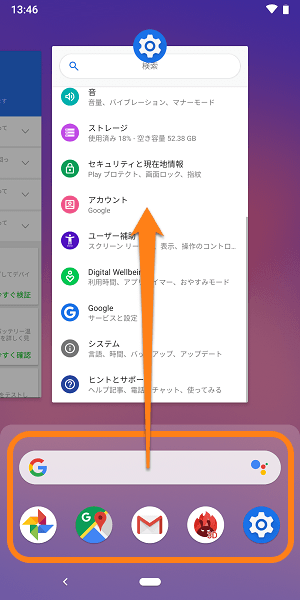
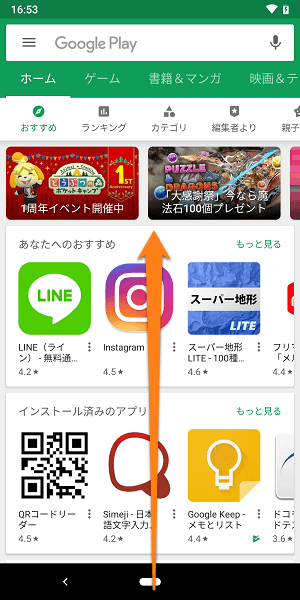
16. New gestures for switching apps
While Android Pie introduced gesture-based navigation, allowing you to switch between recent apps by simply flicking the navigation pill to the right, Android Q introduced new gestures for switching between apps. You can now switch to the last app you used on your phone by lightly swiping the navigation pill up and to the right . While the gesture itself feels more cumbersome than the flick gesture that was in Android Pie, the new gesture uses less animation, making switching between apps much faster .
Both gestures are available at the moment, so you can use whichever you prefer. That said, the back button that was expected to be removed in Android Q is still there, so perhaps Google is still finalizing its plans for gestures in Android Q.
17. Built-in screen recorder
With Android Q, Google finally includes a screen recorder, so you no longer need a third-party app to record your phone’s screen. However, the screen recording feature is kind of hidden , check out our guide on how to enable and enable screen recording on Android Q.
Please note that this is still in the early stages of development and may not work as expected. In our testing, the screen recorder worked on the Pixel 2, but kept crashing on the Pixel 3 XL. Therefore, your mileage may vary.
18. The currently playing music is displayed on the always-on display
With Android Q, Google is adding even more information to the always-on display on Pixel. Unlike Android Pie, which only showed information like notifications, weather, and clock, Android Q also shows the music that’s currently playing on the always-on display.
19. Lock screen background becomes blurred when playing music
When it comes to music playback, Android Q blurs the lock screen background while music is playing on your phone. Unlike in Android Pie, where your lock screen background was simply the album art of the song you were listening to. This new lock screen looks better and the notifications are easier to read, so I have no complaints about this.
20. Haptic feedback during text selection
With Android Q, Google is adding even more haptic feedback to the OS. Now, when you long-press on a website to select text, you get haptic feedback . Additionally, the Pixel 3 XL, especially with its improved haptic engine, provides very satisfying haptic feedback as you scroll and select more or less text. On older Pixels, such as the Pixel 2, the feedback isn’t as good. Anyway, the Pixel 3 also has haptic feedback when you use the Flip to Shh feature , which is also incredibly nice.
21. Modern apps have rounded corners.
The Recent Apps screen in Android Q has also changed. In Android Pie, recent apps showed apps with slightly rounded corners, but in Android Q, the corners are rounder and more defined. 
22. Floating settings panel
In Android Q, third-party app support pops up a floating panel that displays relevant settings that need to be enabled or configured in the app . For example, when you try to use Google Chrome, a panel may pop up asking you to connect or enable WiFi. This allows users to easily enable these settings without leaving the app. I’ve tried getting this to work with a number of apps, including Chrome Canary, with no success. However, according to the Android developer blog, this is a supported feature, so I’m sure it should make its way to at least Google’s own apps soon. 
23. App information page has been changed
Android Q also brings a revamp to the app information page. The new page will display the app’s icon and name in bold in the center, with options to open, uninstall, and force stop below . The rest of the page is pretty much the same, but the Notifications tab now shows the average number of notifications your app sends per day on Android Q, rather than just “on” or “off” on Android Pie. Masu. 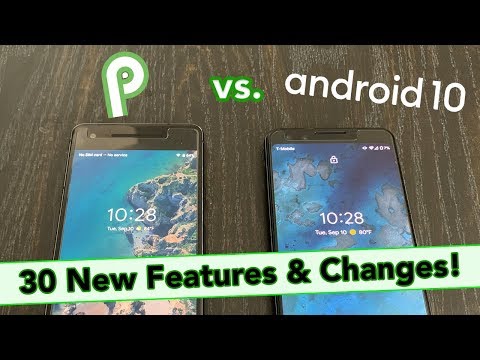
24. Enter key on lock screen will be accented
When using a PIN or password as a lock, Android Q now colors the Enter key on the lock screen with the accent color of your choice. By default, this color is blue, but if you change the accent color using theme options, this is the color that Android Q uses. On the other hand, in Android Pie, the Enter key had no accent at all.
25. Introducing the media output switcher
Android Q now supports audio output for individual apps. This allows you to set up an app like Spotify to send its audio output to your Bluetooth speaker , while the rest of your phone uses your phone’s speakers for sound. This feature must be enabled by going to the Feature Flags option within Developer Options. To find out exactly how to enable this feature, see Android Q hidden features.
26. Reading time/acting time can be adjusted.
Android Q also introduces new accessibility settings that let users adjust how long they want to read and take action on messages that appear temporarily on the screen. Read time affects messages that display information but no action buttons . The value can be adjusted from 10 seconds to 2 minutes.
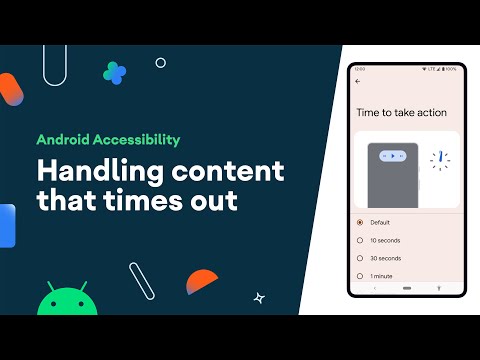
On the other hand, the time to take action affects messages where you can perform some action on the message (such as screenshot notifications with options to share, delete, etc.) , and this value also ranges from 10 seconds to 2 minutes. You can adjust it with .
Note that these values only affect apps that support the Read Time and Action Execution Time accessibility features.
27. Sideloading apps no longer take up the entire screen
Sideloading apps in Android Pie launched a full-screen interface for installing apps. However, on Android Q, Android does not launch a full-screen interface when you sideload an app . Instead, you just get a small popup on your screen, which is definitely much better. Additionally, it also reduces the number of places companies can advertise within the interface, as some companies are known to do. 
28. New “bell” icon now indicates which notification has rang
If you have a ton of notifications showing up in your notification panel almost all the time, it can be difficult to figure out which notification made a sound on your phone. At least that was the case until Android Pie. However, on Android Q, the last notification that sounded will have a new “bell” icon for about 30 seconds after it sounds , making it easier to find.
29. Freeform App
With Android Q, you can finally test freeform apps on your phone. These are incredibly cool. Just go to your developer settings and enable the setting called “Force freeform apps.” You can then force the app to launch as a floating window by tapping the app’s icon on the recent screen and using the Freeform option from the drop-down menu.
In the current beta version, you could only have one floating app running at a time. As soon as I started the new one, the previous one was automatically closed.
30. Desktop mode
Similar to how Samsung introduced DeX, Android Q introduces Desktop Mode, which essentially lets you connect your phone to an external display and use it as a PC. At the moment, this feature is quite buggy and clearly in the early stages of development. However, the UI is very similar to Chrome OS , so once the feature is ready, Pixel owners may be able to use their phone as a PC as well.
SEE ALSO: 10 Best Features of Android Q
Android Q changes a lot
At first glance, Android Q may not seem like it brings a lot of changes compared to Android Pie, but look a little closer and you’ll see that there are quite a few changes. Additionally, Android Q brings a number of changes for developers, including support for foldable displays and depth maps. This is just the first beta of Android Q. More changes are coming as Google releases more Android Q betas, so keep checking back.


![How to set up a Raspberry Pi web server in 2021 [Guide]](https://i0.wp.com/pcmanabu.com/wp-content/uploads/2019/10/web-server-02-309x198.png?w=1200&resize=1200,0&ssl=1)


