Don’t get me wrong. Google Chrome is one of the best browsers out there right now, but the new Chromium builds for Microsoft Edge and Firefox Quantum are very appealing. If you’ve been using Chrome for a long time, now’s a good time to test out the new browser, as the browser wars have never been this close. The good thing is that modern browsers have great cross-browser compatibility, so you can easily export your bookmarks and settings between browsers without any problems. This makes it easy to switch browsers. This article contains all the information you need to export Chrome bookmarks to other popular browsers. So let’s get started.
Export Chrome Bookmarks (2020)
There are two ways to export Chrome bookmarks. First, you can export your bookmarks to an HTML file and manually import them into other browsers . Another option is to sync your bookmarks directly to another browser installed on your PC. This section explains both methods to help you make the right choice.
Steps to export Chrome bookmarks
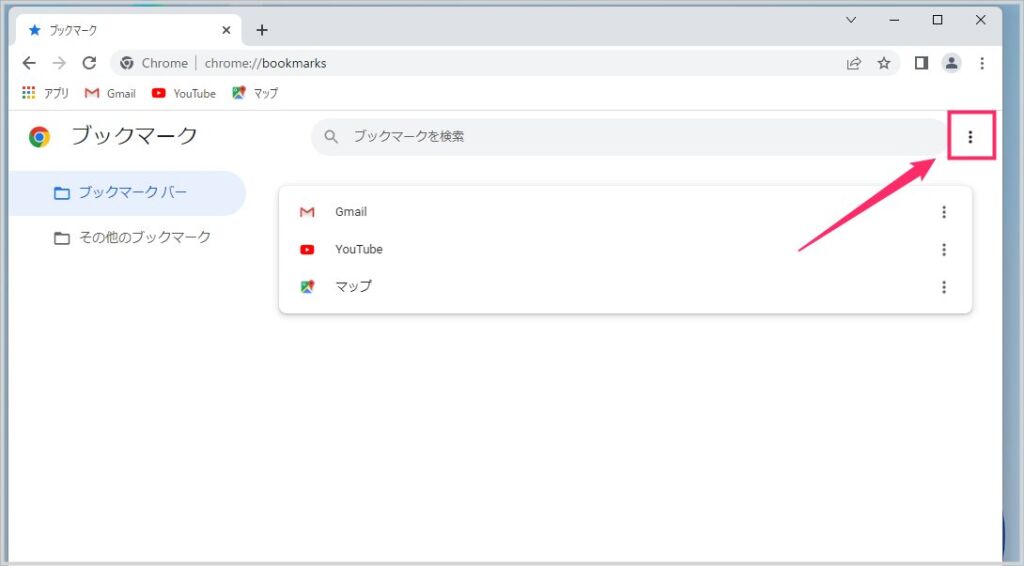
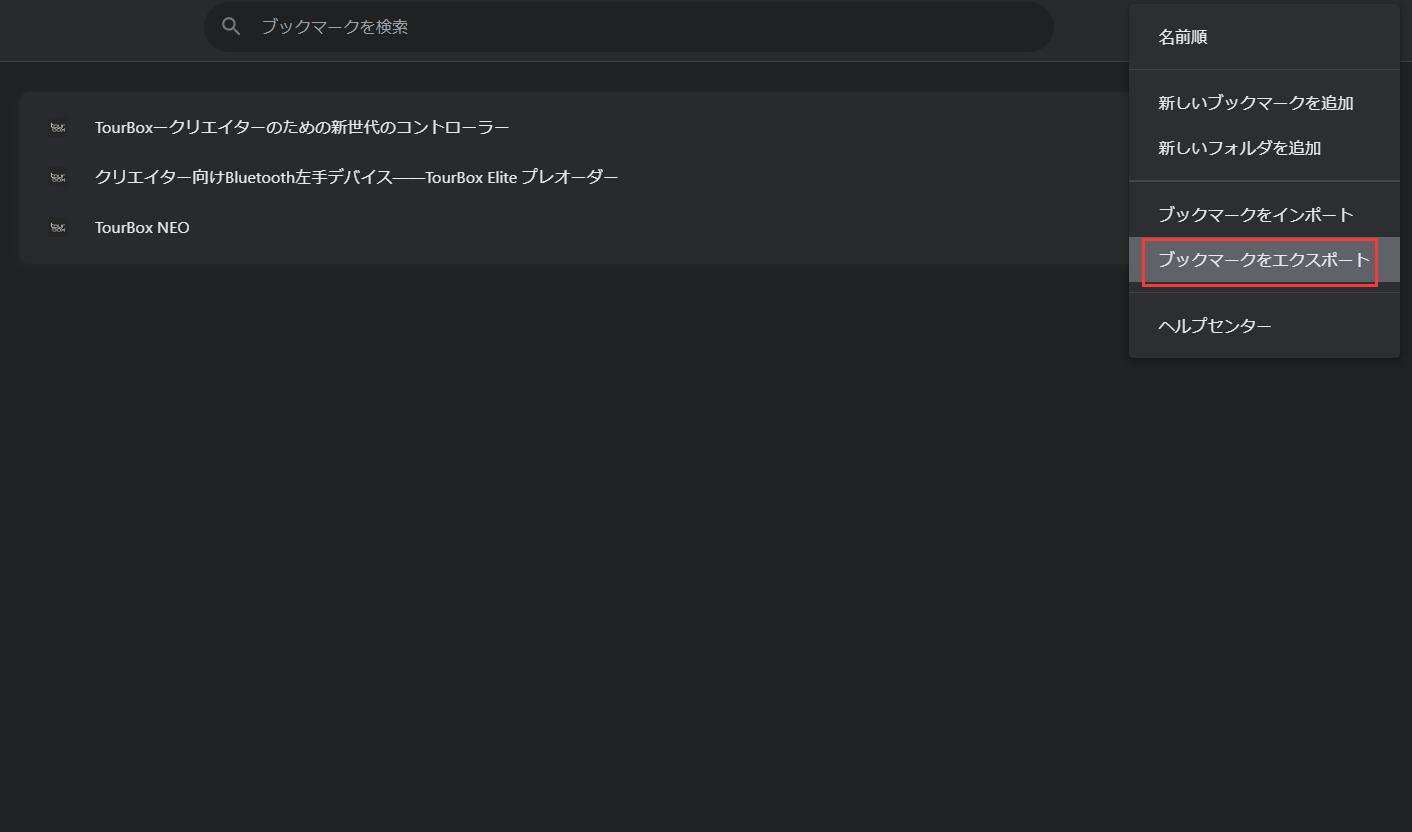
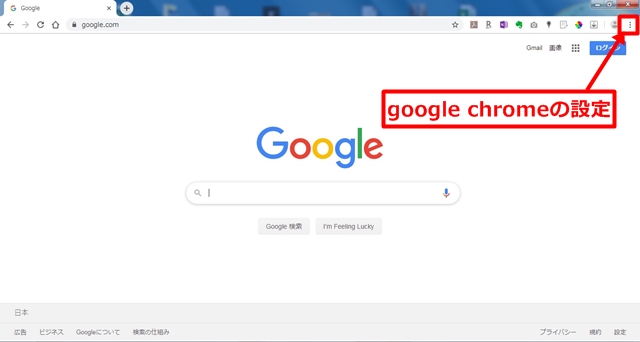
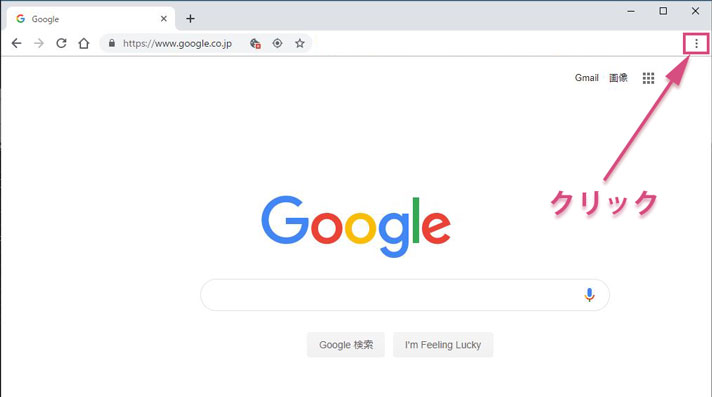
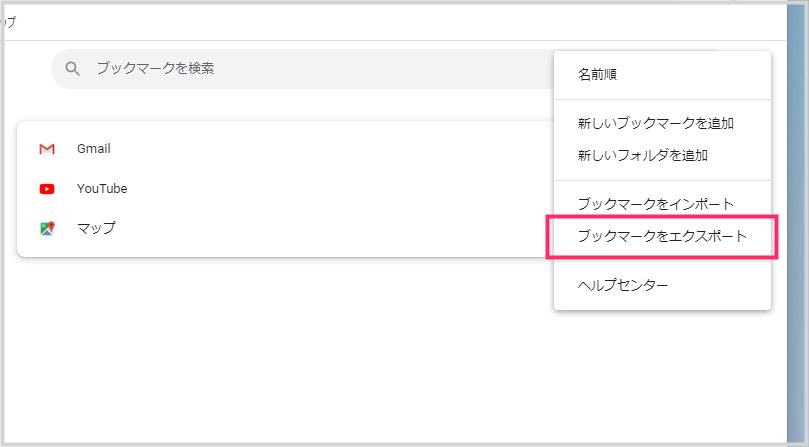
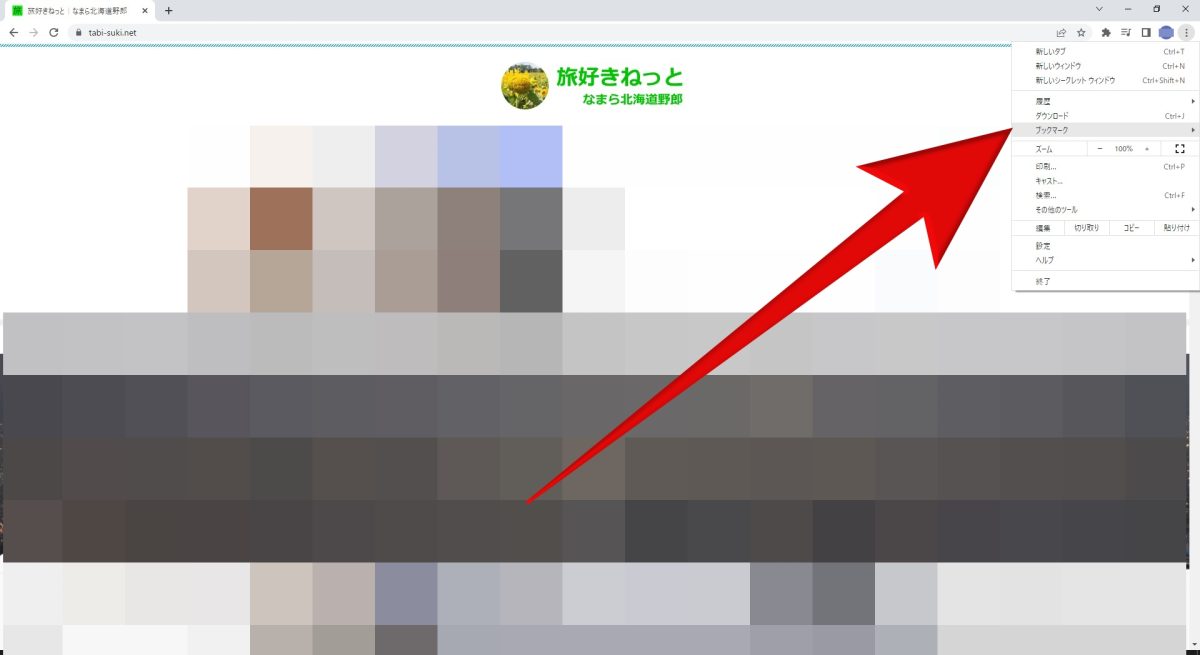
1. Click the three-dot menu in the upper-right corner, then click Bookmarks. A new menu will expand, so click on Bookmark Manager .

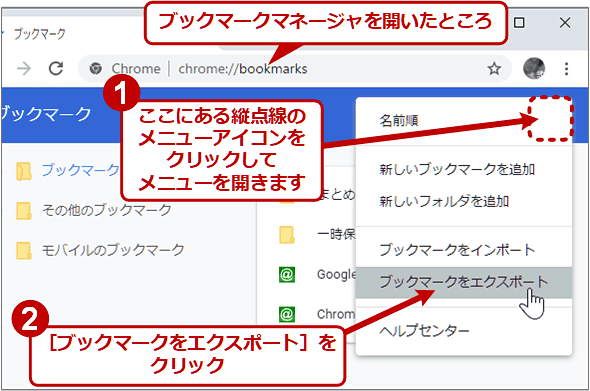
4. Your Chrome bookmarks will finally be exported to an HTML file . Now you can import it into any browser.
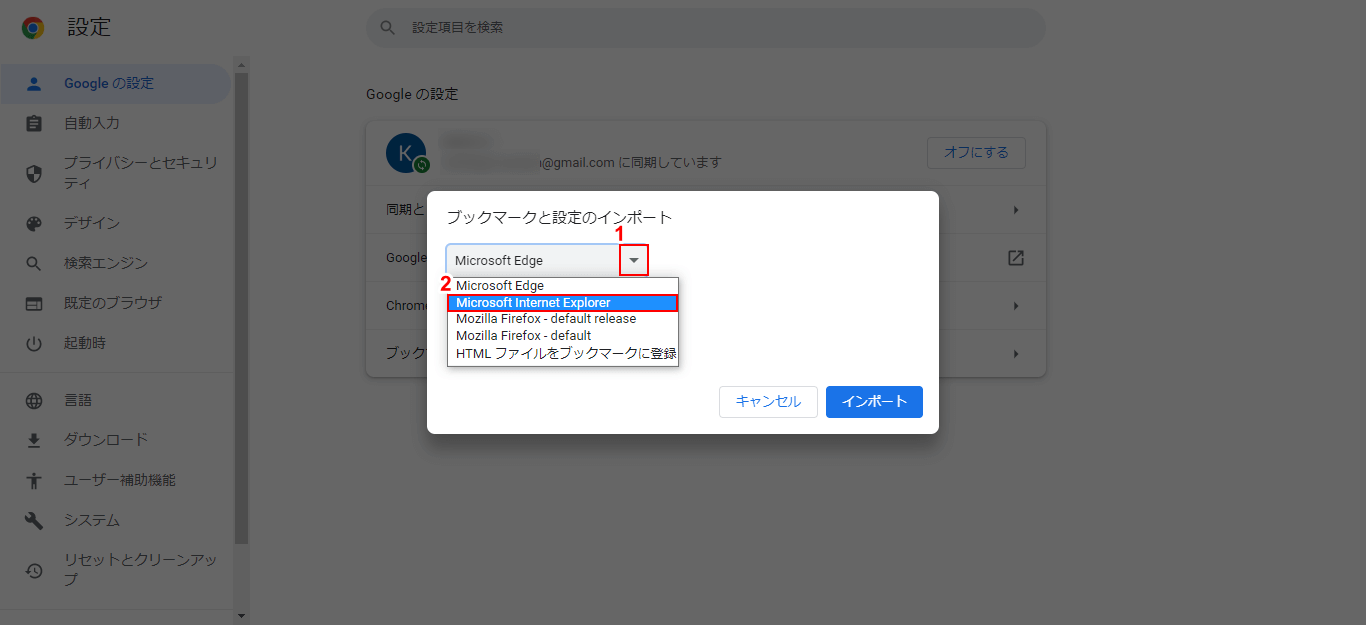
Sync Chrome bookmarks directly to other browsers
If you already have a browser installed on your PC, you can easily sync your bookmarks without having to manually export and import them. Here’s how:
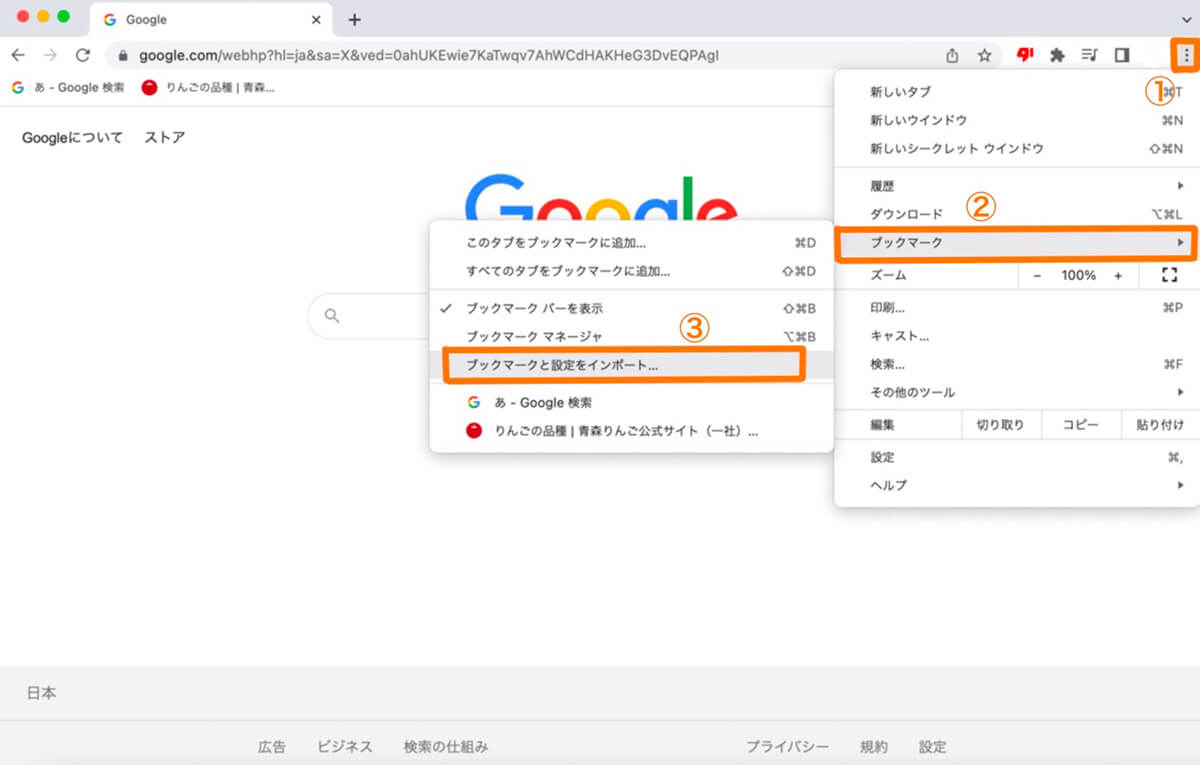
1. Open Chrome’s More menu and click Bookmarks. Click “Import bookmarks and settings” from the expanded menu.
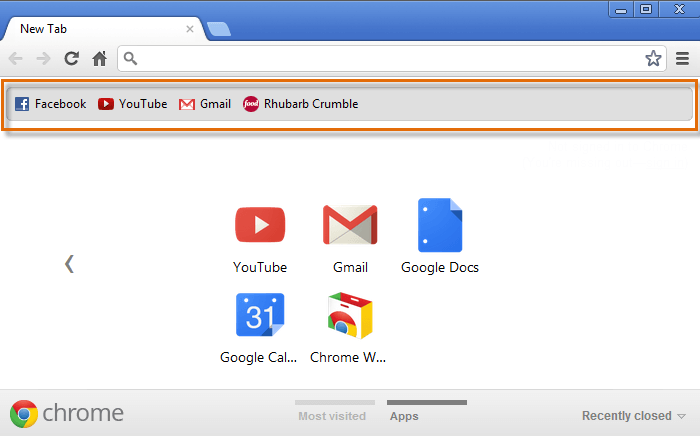
Import Chrome bookmarks to Microsoft Edge
Direct sync may not work well due to various technical errors. So, if you want to manually import Chrome bookmarks to Microsoft Edge, follow these steps. We also explain how to import bookmarks in the Chromium build of Microsoft Edge.
1. Open Microsoft Edge and press the CTRL+I shortcut key to open the Bookmarks/Favorites pane . Now click “Import from another browser”.


Import bookmarks in Chromium builds of Microsoft Edge
1. Open Microsoft Edge and press CTRL+Shift+O . The Favorites page opens. Now click on Import Favorites in the bottom left corner.

Import Chrome bookmarks to the mobile version of Microsoft Edge
There’s no way to manually import bookmarks from Chrome to the mobile version of Edge. However, you can sign in with your Microsoft account on both the desktop and mobile versions of Edge and sync all your bookmarks between your desktop and mobile devices . This way, you can save all your Chrome bookmarks to your mobile device without having to mess with your bookmark files.
Import Chrome bookmarks to Safari
1. Open Safari and click the File menu. Then click “Import from” to open the “Bookmark HTML file”.

Import Chrome bookmarks to Safari mobile browser
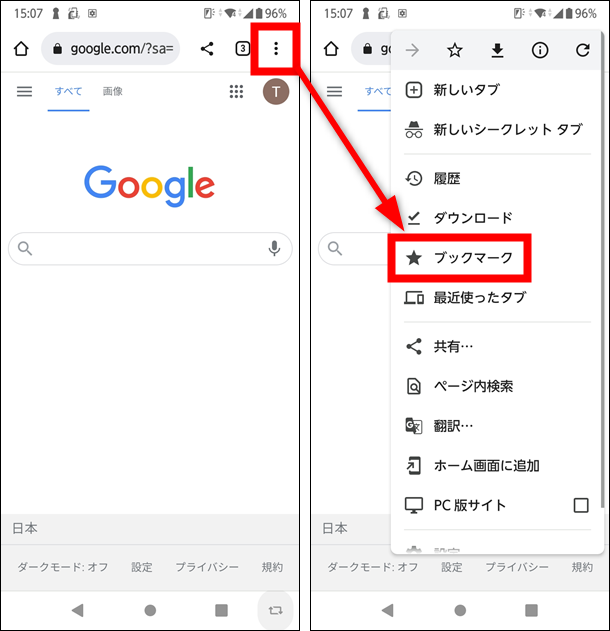
Similar to Microsoft Edge, the Safari mobile browser doesn’t allow you to import bookmarks directly. Mac and iPhone/iPad require you to sign in using your Apple ID . iCloud syncs all your changes in Safari and allows you to access your exported bookmarks on your mobile device.
Import Chrome bookmarks to Firefox
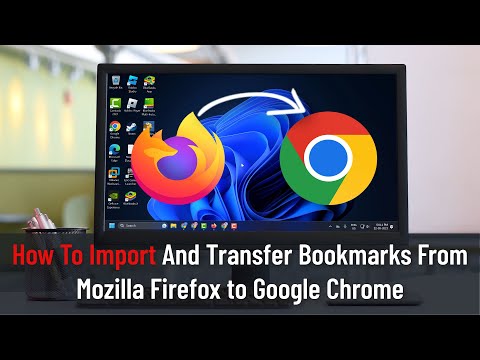
1. Open your Firefox browser and press CTRL+SHIFT+B to open Bookmark Manager . Here, click “Import & Backup” and open “Import Bookmarks from HTML”.


Import Chrome bookmarks to Firefox mobile browser
To use Chrome bookmarks with the Firefox mobile browser, create a Firefox account . Then sign in to your Firefox browser on both desktop and mobile . Once the sync is complete, all bookmarks exported from Chrome will appear in your Firefox mobile browser.
Import Chrome bookmarks into Opera
1. Open the Opera browser and click the settings icon in the top right corner. Scroll to the bottom and you’ll find an Import Bookmarks and Settings button . Click.



Import Chrome bookmarks to Opera mobile browser
As with other browsers, you can’t import Chrome bookmarks directly into your mobile browser. Simply create an Opera account and log in to your Opera browser on both desktop and mobile. Your bookmarks will be synced with your Opera account, giving you access to all your bookmarks on your Opera mobile browser.
Export your Chrome bookmarks and enjoy seamless transitions between browsers
Google Chrome is the undisputed king of all browsers, but Microsoft and several other companies have recently increased their stature in the browser space. If you’re migrating from Chrome, now’s a good time to export your Chrome bookmarks and settings so you can seamlessly migrate to another browser. My recommendation is Microsoft Edge, which is based on Chromium. It looks smooth and performs very well. Anyway, if you liked this article or want to share your opinion, please comment your valuable opinion below.


![How to set up a Raspberry Pi web server in 2021 [Guide]](https://i0.wp.com/pcmanabu.com/wp-content/uploads/2019/10/web-server-02-309x198.png?w=1200&resize=1200,0&ssl=1)


