Minecraft is undoubtedly one of the most popular games in the world. After Minecraft was released, it spawned a new type of game genre called sandbox games, where players can create, modify, or destroy their own environments. After years of anticipation, Minecraft developer Mojang has finally extended support for ChromeOS. This means you can officially install and play Minecraft on your Chromebook with very little effort. Now, let’s check out the steps to install Minecraft on your Chromebook. 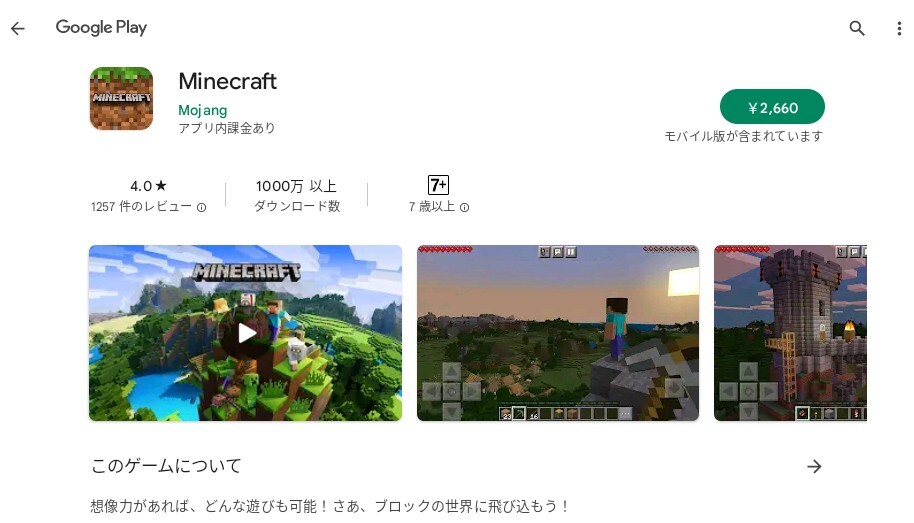
Officially play Minecraft Bedrock Edition on Chromebook
1. First, click here to go to the list of Minecraft apps on Google Play Store and install it. If your Chromebook meets the requirements, you’ll see a price of $19.99, $6.99, or $13 .
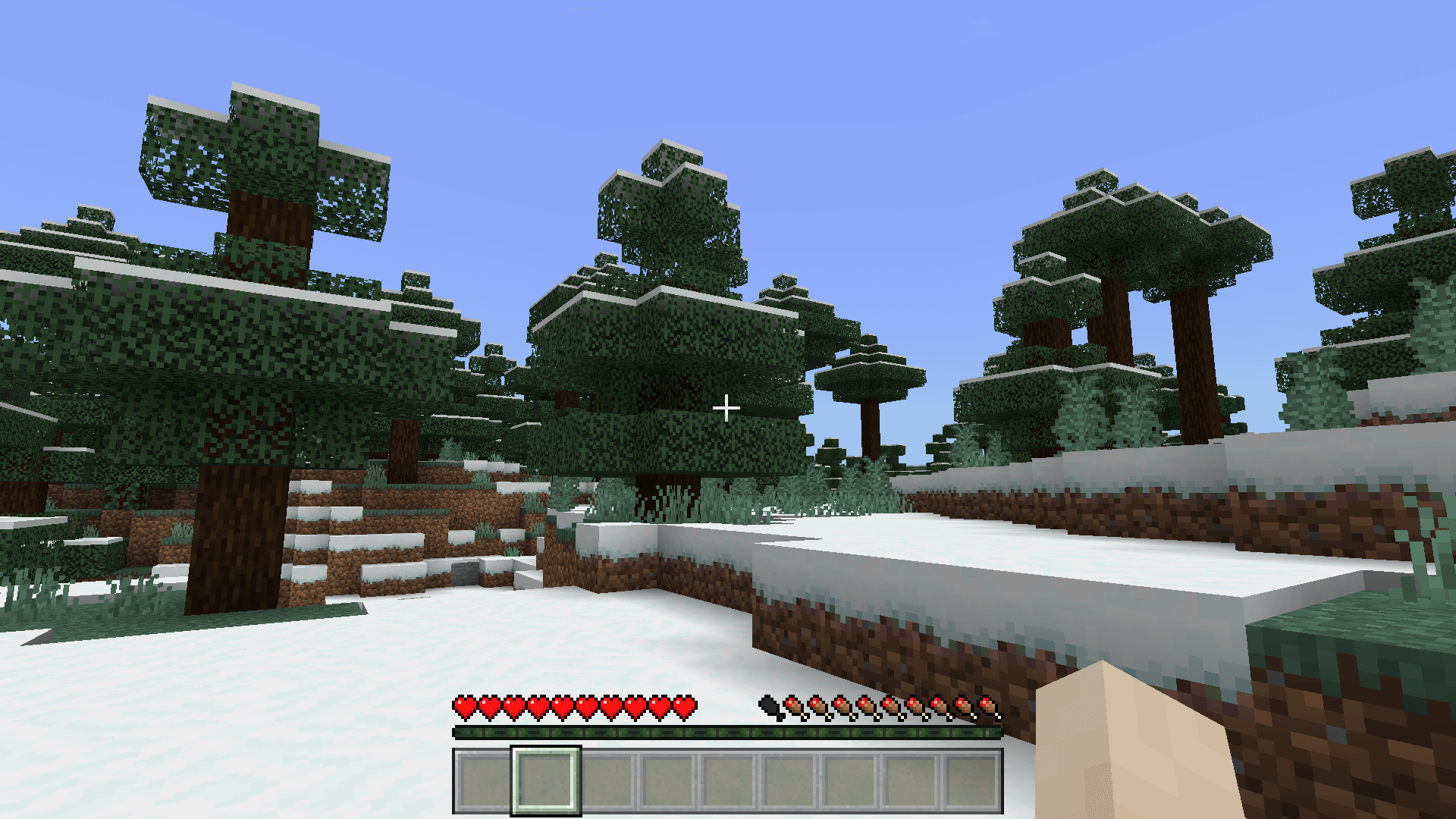
2. Once installed, you can turn on the game and officially play Minecraft Bedrock Edition on your Chromebook. 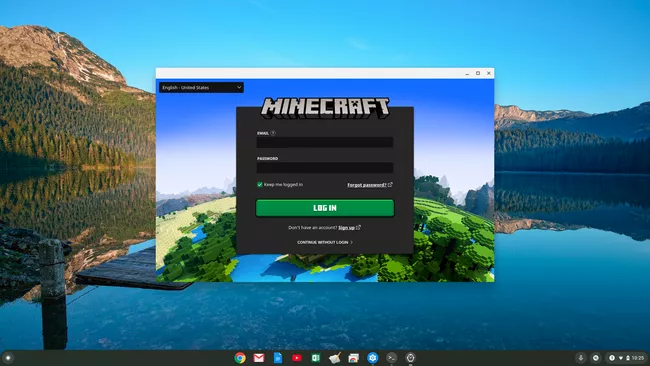
Install Minecraft Education Edition on your Chromebook
1. Open Play Store, search for Minecraft: Education Edition ( Free ) and install the game. that’s it.
2. Please note that students can log in up to 10 times for free. You will then need to purchase a subscription using the linkhere . Additionally, you must use your school account to log in to Minecraft.
Install Minecraft: Java Edition on your Chromebook
1. First, make sure you have Linux set up on your Chromebook.
2. Once Linux is installed, open a Linux terminal.
3. Next, run the following command : This will update your Linux to the latest build.
sudo apt-get update && sudo apt-get upgrade -y 4. After updating your Linux build, download the Minecraft.deb file (Debian/Ubuntu) from the official website . Then move the file to the “Linux Files” section within the Files app.
5.Double-click the downloaded file and click the “Install” button.
6. To play Minecraft, press the search key and type “Minecraft” to open the Minecraft Launcher.
7. Next, log in with your Mojang or Microsoft account.
8. Then click “Play Demo” at the bottom to start downloading the latest release. After installation, the app will be closed and automatically reopened. If not, manually open “Minecraft Launcher” from the app drawer.
9. Finally, Minecraft will open on your Chromebook and you’ll be ready to play. Just click “ Play Demo World ” and proceed to gameplay.
10. If you want to adjust the mouse sensitivity, go to “Options -> Mouse Settings” and change the sensitivity to “Hyperspeed” . Now you can play Minecraft on your Chromebook without worry.
11.If you receive an installation error , open the Terminal app from your app drawer. Then run the following Linux command to install the Java Development Kit. Finally, install the Minecraft.deb file as usual from the Files app.
sudo apt-get install default-jdk -y 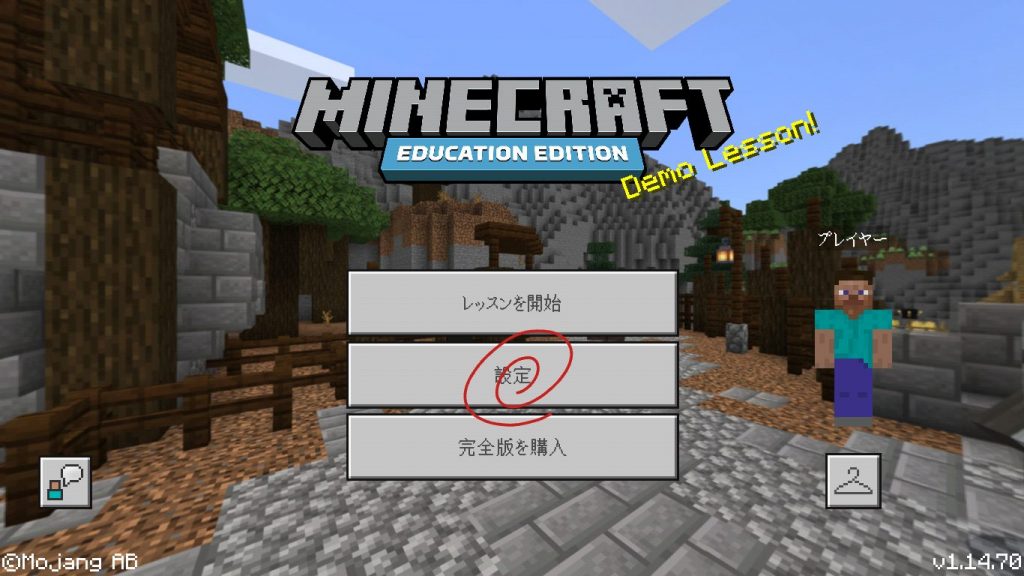
Play classic Minecraft on your school-issued Chromebook
Mojang Studios has released a classic version of Minecraft on the web that can be played in any browser. That means you can play Minecraft on your school-issued Chromebook. However, there are only 32 blocks available for construction, and it’s also a very old-school interface.
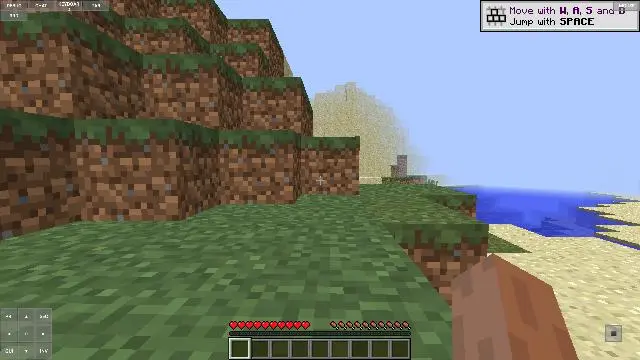
You probably remember the Minecraft interface from 2009. But the best part is that the WASD controls work in your browser and you can play the game without any significant lag. There’s also a multiplayer option where you can invite up to nine players. With that in mind, here’s how to play Minecraft Classic on your Chromebook.
1. Open classic.minecraft.net in your Chrome browser and press Enter. As you can see, you can share the link with your friends to start multiplayer mode, or you can start the game yourself.
2. Here’s some Minecraft Classic gameplay on Chrome OS.


![How to set up a Raspberry Pi web server in 2021 [Guide]](https://i0.wp.com/pcmanabu.com/wp-content/uploads/2019/10/web-server-02-309x198.png?w=1200&resize=1200,0&ssl=1)


