Whenever typing using your fingers is inconvenient, the reliable Dictation feature comes in handy. Just press the little microphone button and enter your criteria. But what should you do if you rarely use dictation, and your fingers often accidentally activate it while typing on the QuickType keyboard? Don’t worry. There’s an easy way to remove the microphone icon from your iPhone and iPad keyboard.
Hide the microphone icon from the iPhone/iPad keyboard
I like dictation, but I prefer to disable it, especially when I’m not using it. Hiding the microphone allows your fingers to glide a little more freely when using the Slide Input feature. Anyway, it’s good to have the option to show/hide the iOS keyboard microphone arbitrarily. Let me explain how it works!
1. Launch the Settings app on your iPhone or iPad.
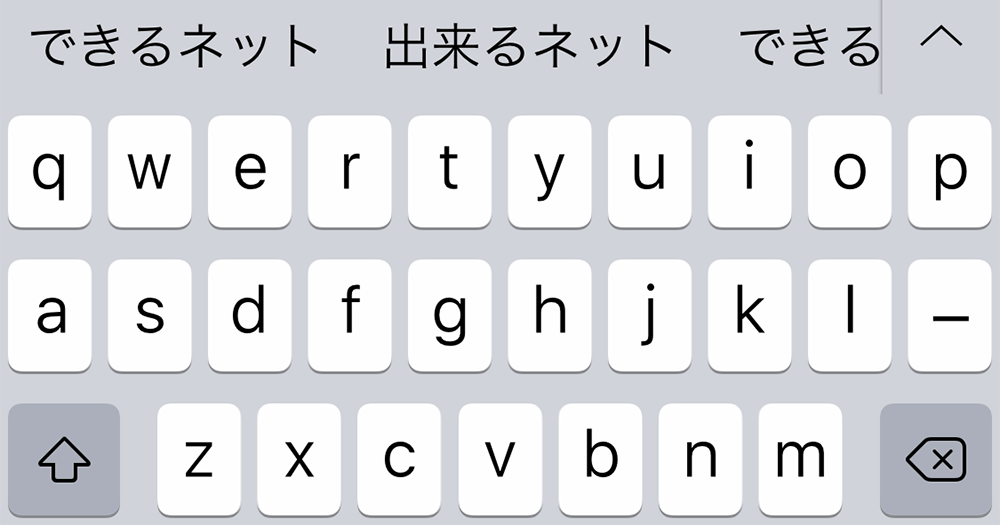
2. Now tap General .

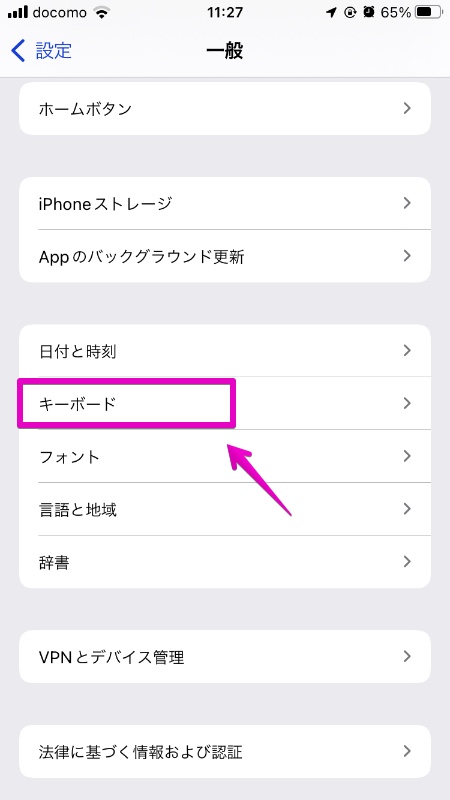
3. Then tap Keyboard .
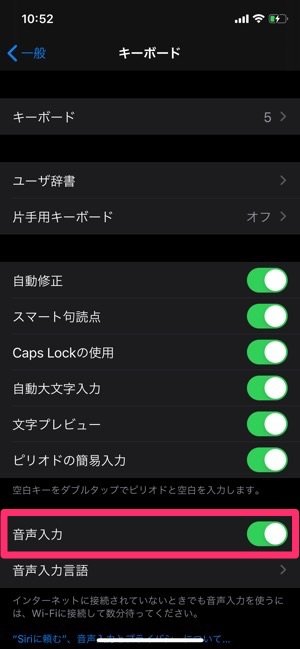
4. Next, find the “Enable Dictation” option and toggle it off.
5. Next, a confirmation menu will appear from the bottom as shown below.
“The information that Dictation uses to respond to your requests is also used by Siri and remains on Apple servers unless you turn Siri off.” Tap Turn Dictation Off to confirm your action.
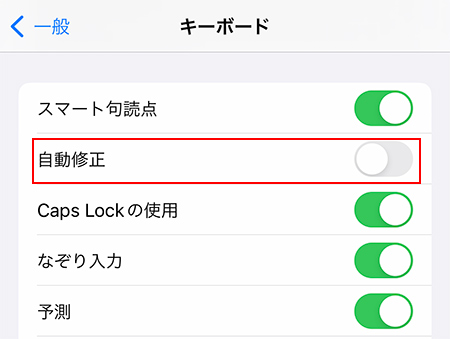
Note:
- Be sure to turn off Siri in case you want your request to be removed from Apple servers as well.
- Just go to Settings -> Siri & Search . Then turn off both the “Listen Hey Siri” and “Press Siri” toggles to disable the personal assistant on your device.
That’s it! Changes take effect immediately. To check if your microphone is missing, launch Apple’s QuickType keyboard within an app like Messages or Notes.
Note:
- In most cases, the microphone icon disappears as soon as you disable dictation. However, in rare cases, this message may remain even after you turn off dictation on your iOS device. In that case, please restart your device.
If you want to see the microphone icon on your Apple QuickType keyboard again, just go back to your keyboard settings and finally turn on the “Enable Dictation” switch.
Remove the microphone icon from the iOS keyboard
The above is the correct way to remove the microphone icon on iPhone/iPad keyboard. Save this nifty little hack for when you don’t need the dictation feature or it interferes with your smooth typing experience.
We recently covered some similarly useful topics, including how to check your iPhone’s battery charge cycle, how to use the redesigned Magnifier, and tips for customizing your home screen widgets. If you didn’t understand these useful tips, be sure to check them out.


![How to set up a Raspberry Pi web server in 2021 [Guide]](https://i0.wp.com/pcmanabu.com/wp-content/uploads/2019/10/web-server-02-309x198.png?w=1200&resize=1200,0&ssl=1)


