The latest iOS 17 brings many new features to the Messages app. One of my favorite iOS 17 features is iMessage check-ins. Whenever I travel at night or early in the morning, my mother makes sure I reach my destination safely. But sometimes I forget to notify her or don’t answer the phone and she keeps worrying. This is where the iPhone’s iMessage check-in feature comes in handy.
Automatically notify family and friends when you safely arrive at your destination, reducing stress. Whether you’re returning home late at night from a friend’s house or leaving early to catch a flight, the check-in feature in iMessage on iPhone provides a convenient way to share what’s going on with your loved ones. Masu. So, in this guide, we will show you how to use the iMessage check-in feature on your iPhone. Let’s dive in!
Prerequisites for using the iMessage check-in feature
- Make sure you and any friends or family members you want to share your location and status with have updated their iPhones to iOS 17.
- Enable Location Services on your iPhone. To do this, go to Settings -> Privacy & Security -> Location Services and turn on Location Services.
- Make sure you have an active data plan.
How to use check-ins in the Messages app on iPhone
Note : All data shared via the check-in feature is end-to-end encrypted, so you don’t have to sacrifice security and privacy.
1. Open the Messages app and select the conversation with the person you want to share your check-in card with.
2. Tap the “+” icon in the bottom left next to the message box.
3. Next, tap More and select Check-in from the menu.
4. The first time you use the iMessage check-in feature on your iPhone, you’ll see an onboarding screen. Click Continue.
5. Next, select the data you want to share if it doesn’t arrive as expected. Limited options share your current location, battery details, and network signal strength. The Full option shares all the data described in the Limited option, plus additional information such as your route and where you unlocked your iPhone or disconnected your Apple Watch.
6. Once you have selected your data sharing options, tap Continue .
7. Next, tap Send Check-in in the Messages app on your iPhone.
8. A check-in card will appear in the message box.
9. By default, check-in will share your home location. Tap Edit to change your arrival time or destination. The check-in details page is displayed.
10. On the Arrival tab, you can change your destination and adjust estimated travel time based on your mode of transportation (walking, driving, or connecting). Additionally, if your plans change during your trip, you can update your arrival time in the iMessage check-in interface.
11. Tap the blue arrow icon to share your check-in.
12. When you arrive at your destination on time, your iMessage check-in card will automatically notify your contacts that you’ve arrived safely.
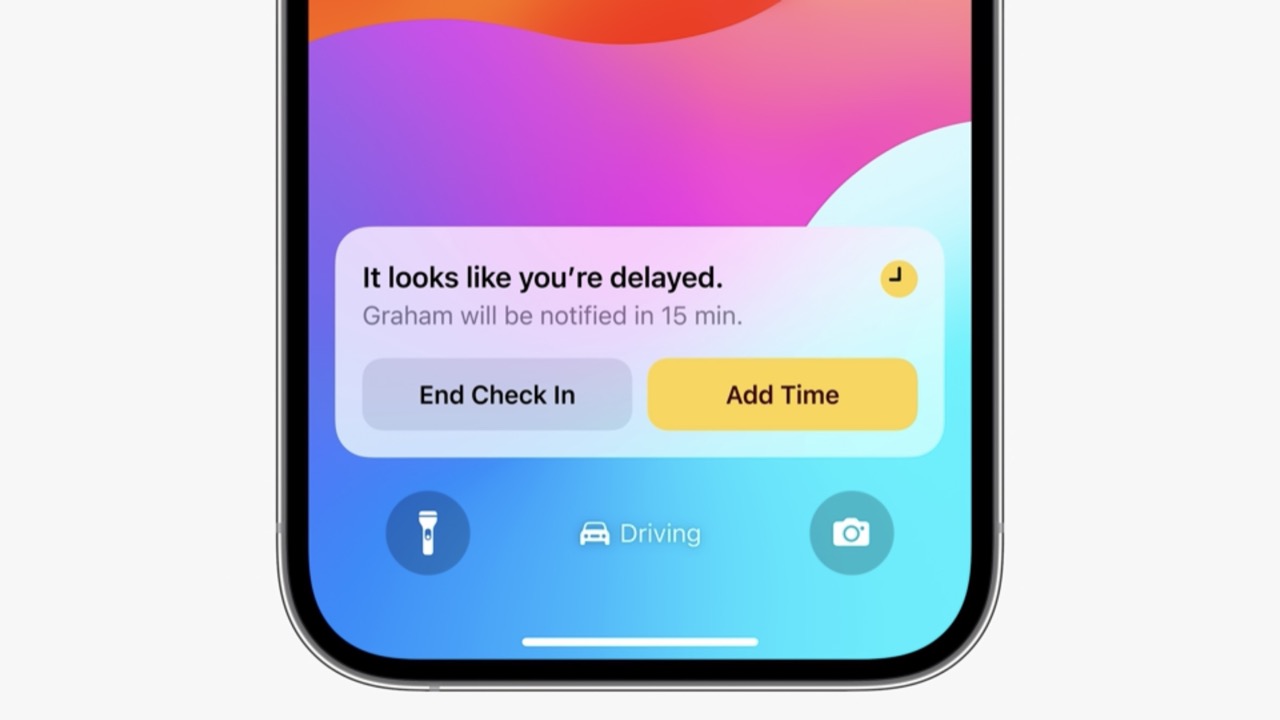
13. If there is a delay or something goes wrong, iMessage’s check-in feature will detect that nothing is going on. In this case, you’ll see a prompt on your iPhone and can choose to end the check-in or add more time. Additionally, there is an option to send an emergency alert.
14. If you do not respond within 15 minutes, your contact will receive a notification of the delay. You can tap to see limited or full data (depending on how much data you choose to share) and take any necessary action.
iPhone XR and later models that are compatible with iOS 17 support iMessage check-in functionality.
No, iMessage’s check-in feature does not share your location in real time. Notify users only when they arrive at their destination or share their location in case something goes wrong.
You can choose to share limited or complete information using iMessage’s check-in feature. Limited options share your current location, battery level, and network signal strength. Full options, on the other hand, share additional details, such as your route and the last location you unlocked your iPhone or disconnected your Apple Watch. If you do not arrive at your destination within the scheduled time or exit check-in, this information will be shared with your selected contacts.
No, to use the Apple Check In feature in iMessage, both the sender and recipient must be using the latest iOS 17.
Apple Check In automatically calculates your arrival time based on your current and destination location. When you arrive at your destination within the estimated time, iPhone automatically notifies your friends (or other contacts you choose) that you’ve arrived safely. If things go wrong and there’s no response from your side, Check In alerts the parties involved.
Apple Check In is only available for iMessage, not SMS messages.


![How to set up a Raspberry Pi web server in 2021 [Guide]](https://i0.wp.com/pcmanabu.com/wp-content/uploads/2019/10/web-server-02-309x198.png?w=1200&resize=1200,0&ssl=1)


