One of the many ways AI is transforming the world is through intelligent code completion and converting natural language into code. In this space, OpenAI has been at the forefront with the GPT-3 series Codex models and the latest GPT-4 model. So, if you want to use ChatGPT in Visual Studio Code itself, follow this tutorial to learn about CodeGPT. This is an AI assistant that lives within VS Code that you can use to chat, find errors in your code, and debug your code. Not only that, you can ask CodeGPT to generate code in any language using a simple comment. Apart from that, you can ask for code snippets to be explained, refactored, documentation created, etc. With that said, let’s learn how to install and use CodeGPT in VS Code.
This article includes instructions for installing and using CodeGPT in VS Code. Apart from that, we also showed you how to use GitHub Copilot X, a modern ChatGPT alternative for coding in IDEs like VS Code. You can expand the table below to navigate to the desired section.
Heading not found. Please save or update your post first. 
How to set up CodeGPT in VS Code
Several extensions for VS Code aim to achieve the best integration with ChatGPT, but CodeGPT ( visited ) by Daniel San is probably the best one. It is deeply integrated with VS Code and supports a large number of features. Chat with CodeGPT, generate code with comments, explain and ask questions about selected code, search for queries on StackOverflow, refactor your code, and much more .
The best part is that you don’t have to pay extra for extensions. However, you need enough credits to use the OpenAI API. You can also use the latest GPT-4 model , but it requires access to the GPT-4 API. That being said, let’s get started.
1. Open Visual Studio Code and go to the Extensions menu in the left panel. Here, search for “codegpt” and select ” Code GPT ” from the search results. You can also open the CodeGPT extension directly in VS Code by clicking here .
2. Then click Install and Code GPT will be added to VS Code within seconds.
3. After installation, just use the “ Ctrl + Shift + P ” shortcut to open the command bar. Here, enter “codegpt” and open “API KEY settings”.
4. Next, you will be asked to enter your OpenAI API key .
5. To obtain an API key from OpenAI, go to platform.openai.com/account /api-keys and click Create new private key . Next, copy your API key.
Note : API keys are visible only at the time of generation and cannot be viewed or copied later. Therefore, we highly recommend that you copy and paste your API key immediately.
6. Next, paste the API key into Visual Studio Code and press Enter. This is almost complete. 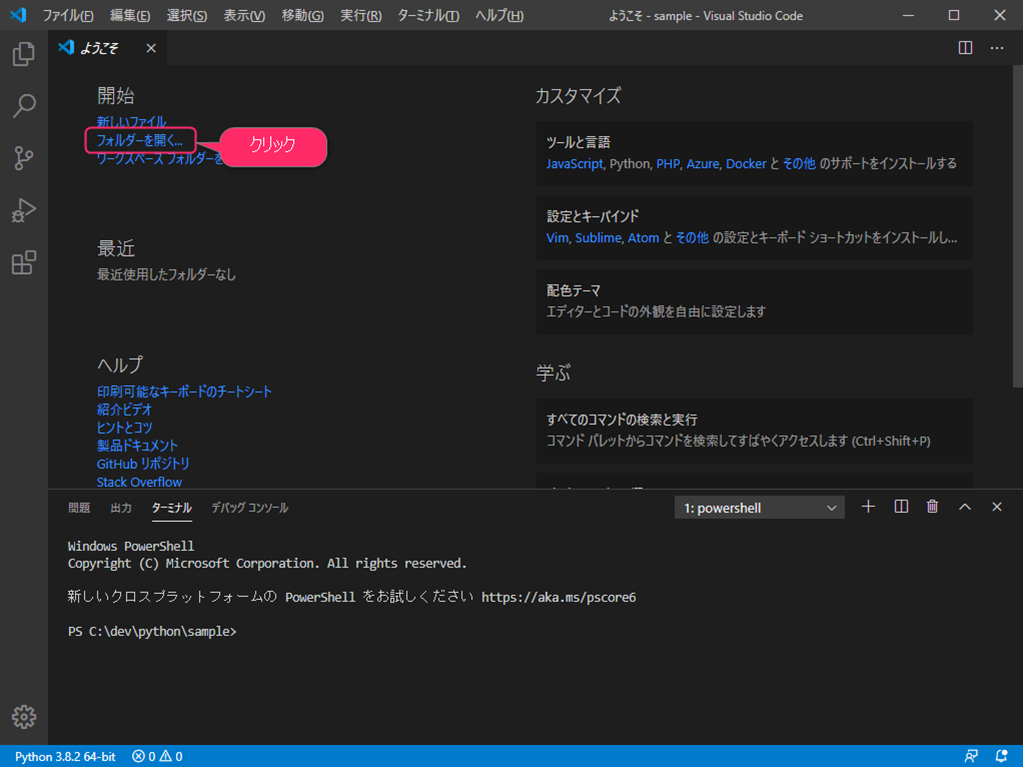
How to use CodeGPT with VS Code
After you successfully provide an API key to the CodeGPT extension for VS Code, you can use it. Here are various use cases where coding this ChatGPT extension can be useful.
1. To generate the code, add a comment for the task you want to perform and press “Ctrl + Shift + I” keys at the same time.
2. This will generate the code on the right. You can then copy and paste the code into the main block .
3. Alternatively, you can select the code and right-click to ask CodeGPT to explain it, refactor it, find issues, debug it, and more .
4. I opened the code for the custom AI bot powered by ChatGPT that I showed you how to create in a recent guide and highlighted some text. Code explanation by CodeGPT .
5. If you have additional queries, you can also open the extension directly from the left sidebar and chat with CodeGPT .
6. Finally, to customize CodeGPT , click on its icon in the left panel and open Settings. You can then choose your OpenAI model, maximum tokens for each request, temperature, language, and more. 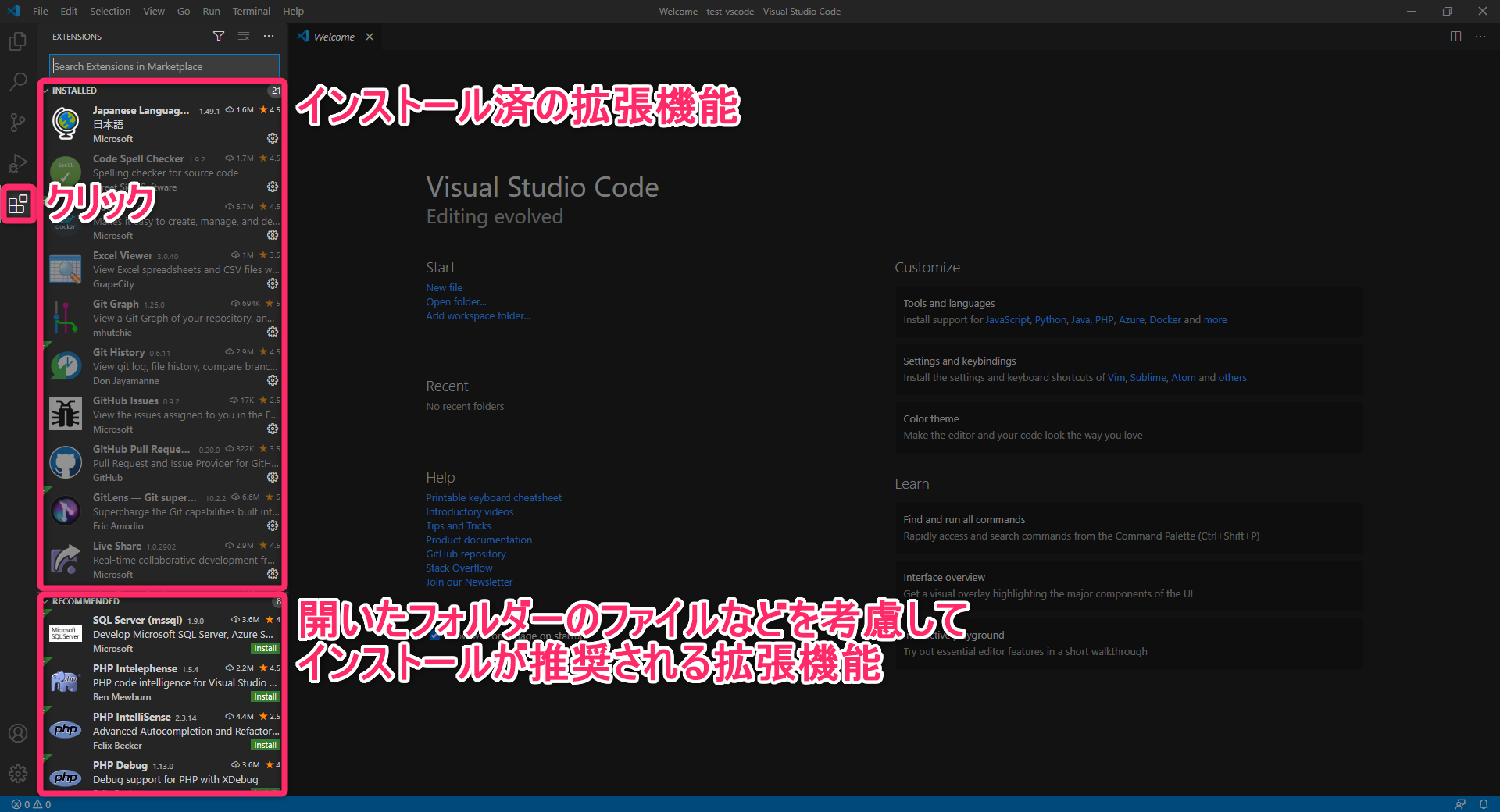
How to install GitHub Copilot on VS Code
GitHub recently announced the Copilot X initiative, which brings the incredible power of OpenAI models such as Codex and GPT-4. If you’re looking for something more streamlined, GitHub Copilot gives you all that for $10/month or $100/year. If you choose the annual plan, you also get a 2-month free trial.
With GitHub Copilot X, you can chat with the AI, ask it to write code for you , debug your code, explain snippets, get answers from the documentation, and more. Moreover, the best part is that GitHub Copilot is not limited to Visual Studio Code but also supports other IDEs such as JetBrains, Neovim, and Visual Studio. Don’t forget, it supports over a dozen programming languages, including Python, JavaScript, Go, TypeScript, Ruby, and more. Follow these steps to use GitHub Copilot with VS Code using the GPT-4 model for code completion and suggestions.
1. Open VS Code and go to the Extensions menu in the left sidebar. Here, search for “copilot” and install ” GitHub Copilot “.
2. Then click Sign in to GitHub in the bottom right corner.
3. Next, sign in to your GitHub account and choose a plan . As shown in the screenshot, you can try this extension for 60 days before deciding to pay for the service.
4. Then you can access GitHub Copilot in an IDE with context-aware suggestions, pull request support, PR explanations, CLI assistance, and more.
That’s how you can install and use the CodeGPT extension in VS Code to dramatically increase your productivity. According to recent research, AI assistance in coding can help developers maximize their productivity by asking AI to perform repetitive tasks. It also frees up developers to focus on more meaningful work. That said, if you’re interested in new OpenAI models and want to use ChatGPT-4 for free, follow the article for great resources. Also, if you want to run an LLM like ChatGPT completely offline on your PC, head on over to our detailed tutorial. Finally, if you have any questions, please write them in the comments section below.


![How to set up a Raspberry Pi web server in 2021 [Guide]](https://i0.wp.com/pcmanabu.com/wp-content/uploads/2019/10/web-server-02-309x198.png?w=1200&resize=1200,0&ssl=1)


