ChatGPT was launched just over six months ago, but this AI chatbot has taken the world by storm. Despite its humble beginnings, OpenAI has added a ton of new features to ChatGPT. This includes the super powerful GPT-4 LLM upgrade that brings enhanced functionality to this AI chatbot. You can also access the internet using the best ChatGPT plugin. However, while using ChatGPT, several users encountered the dreaded “network error” that stopped the bot. We also encountered the same problem, so in this guide we decided to list 8 different solutions to ChatGPT network errors. So let’s start resolving this error.
What is a ChatGPT network error?
As the name suggests, ChatGPT network errors appear when your AI chatbot fails to connect with the OpenAI server . Because the link between the two entities (the browser and its server) fails, the connection is broken and ChatGPT displays this error to the user. The causes of ChatGPT network errors are wide-ranging and can range from something as simple as an OpenAI outage to a long response from a chatbot. But don’t worry. Here’s how to fix ChatGPT network errors.
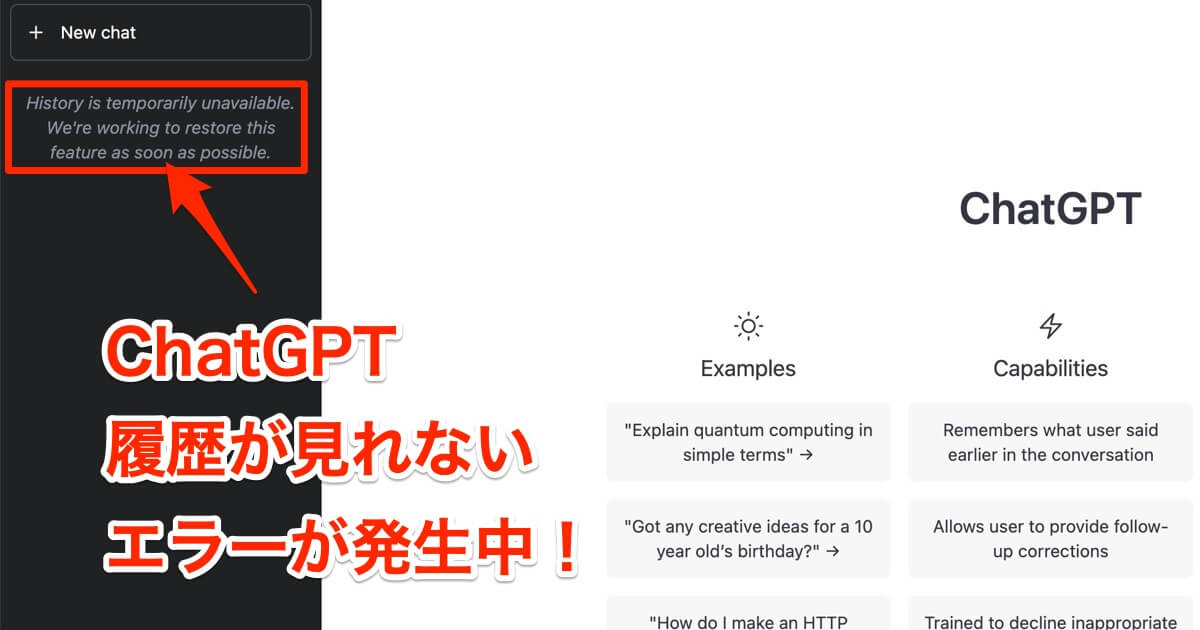
1. Check the OpenAI server status
The first thing you should do is find out if the problem is on your side. ChatGPT network errors often occur when OpenAI’s servers experience problems. This typically occurs when ChatGPT becomes overloaded and the server cannot keep up with the requests.
You can verify the same by visiting the official OpenAI Server Status website and searching for the graph. If it’s green, it’s okay. However, if it is red, there is an issue with OpenAI and all you can do is wait.
2. Limit the length of ChatGPT responses
One of the reasons mentioned for ChatGPT network error is that the response is too long. ChatGPT is very informative, but it’s not exactly concise. If you run a detailed query, the bot will output an even longer response.
However, it’s quite possible that these long responses are the cause of network errors in ChatGPT. Thankfully, this problem can be easily resolved. All you need to do is ask the bot not to return such long responses. You can do this by pasting the prompt below.
Whatever question I ask, please limit your output to 100 words and see if I should continue with your question.
This will cause ChatGPT to limit answers to 100 words or less. You can always tell us to keep retrieving complete messages, but make sure the length of one entire message is not enough to avoid ChatGPT network errors. If this solved your problem, check out these best ChatGPT prompts and have fun with your bot. 
3. Clear your browser cache
If you’ve been troubleshooting long enough, you should know what browser caching is. For those who don’t know, cache is a dedicated place where web browsers store small pieces of information such as website metadata, image previews, and text chunks. This is done to help the website load faster for users. However, in some cases this cache can become corrupted and cause multiple errors such as ChatGPT. However, it’s easy to clear your browser’s cache right away.
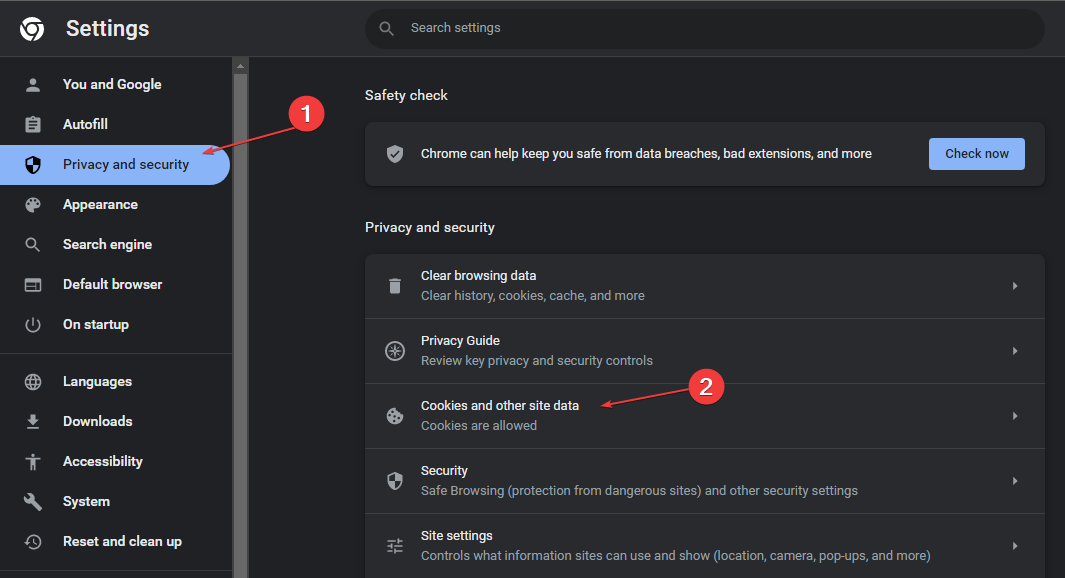
Instructions are provided for Google Chrome on all platforms, but instructions for other browsers are similar. To do so, please follow the steps below:
How to clear your browser cache on your PC
- Click the ellipsis icon (three dots) in the top right corner, then click the Settings icon that appears in the drop-down menu.
- Click Privacy & Security in the left sidebar.
- Finally, click “Clear browsing data” in the right pane. In the window, uncheck everything except cached images and files. Leave the time range as Always and click Clear Data .
How to clear browser cache on iOS
- On your iPhone, tap the ellipsis icon (three dots) in the bottom right corner. Then tap History in the pop-up menu.
- Then tap ” Clear browsing data ” to open another menu.
- As before, uncheck everything except cached images and files. Tap ” Clear browsing data ” and you’re done.
Following the steps above should clear the Chrome cache on iOS and clear the ChatGPT network error.
How to clear browser cache on Android
- On your Android device, tap the ellipsis icon (three dots) in the top right corner. Then tap on the “ History ” option.
- In the browsing history that appears, tap ” Clear browsing data ” to open the menu.
- Clear menu only sees cached images and files. Here, tap “Clear Data” and then tap “Clear” to confirm. You can also choose another website if available.

4. Try a different browser
If clearing your browser’s cache doesn’t resolve the issue, you may be currently experiencing issues with certain types of browsing. This could be due to a widespread software bug or a general installation flaw. However, if you keep getting ChatGPT network errors, there’s no need to stick with that browser. There are various best Windows browsers that you can install without any complications. So go ahead and grab one of those and try loading ChatGPT. 
5. Turn VPN on/off
If you recently learned what a VPN is and are currently using it, you should already know the benefits it offers. However, VPN services can often cause issues with ChatGPT. This includes the dreaded ChatGPT network error that causes your connection to stop.
This is true for all types of VPNs and ChatGPT network errors can occur anywhere. Simply put, to fix this issue, just turn off your VPN service. The exact steps vary for each VPN, so I can’t explain them here. However, in most cases it’s as simple as clicking the ” Disconnect ” button. Once that’s done, try reloading the page again and see if it works.
6. Reset the connection
This step may be basic, but it is also one that may come in handy in a pinch. Similar to web browsers, routers have their own caches that store various metadata for easy access. However, intermittent links can corrupt this cache, causing ChatGPT network errors as well as other common problems .
Don’t worry, you don’t need to install any drivers or ISPs. Go to your router and turn it off. Wait 10-15 seconds and then turn it back on. This will clear your router’s cache and hopefully resolve the ChatGPT network error.
7. Try a different platform altogether
This problem is a bit rare, but does not exclude the possibility. There’s always a chance that your device is experiencing issues that cause ChatGPT network errors. In this case, all you can do is switch platforms completely. If you’re using ChatGPT on PC, it’s time to switch to mobile.
Thankfully, learning how to use ChatGPT on Android and iOS is easy. Or, if you’re already tired of network errors, check out these best ChatGPT alternatives to try out another AI chatbot already.
8. Contact OpenAI Support
After all, if all else fails, the only thing you can do is go straight to the source. OpenAI itself has an extensive help center with all sorts of FAQs, community support, and even enterprise help.
First, go to the OpenAI Help website ( Visit ) and click the message icon to open the chat bubble. This will open the company’s official chat where you can discuss and resolve any issues. Although not the most ideal, this is one solution you can try and see that might work.


![How to set up a Raspberry Pi web server in 2021 [Guide]](https://i0.wp.com/pcmanabu.com/wp-content/uploads/2019/10/web-server-02-309x198.png?w=1200&resize=1200,0&ssl=1)


