Instagram is definitely one of the most used social media apps and websites. This is more than just an app for viewing and sharing reels and memes. From connecting with different people who share similar interests to growing your business, Instagram is even bigger in 2024. But sometimes the Instagram app crashes while you’re posting something or just casually browsing . Additionally, in some cases, Instagram may not be able to update your feed. If you are facing such problems, it is time to use the various methods mentioned in this article to fix Instagram crashing issue on Android and iOS. 
1. Restart the Instagram app
The easiest thing to do if your Instagram app crashes is to close it and reopen it. I don’t mean exiting and returning to the home screen. That is, remove it from your recent apps and tap to restart the Instagram application. You can also force stop an app on Android. Once you have it running, just reboot and it will start working again. To force stop the Instagram app, follow these steps:
1. Go to Settings and look for the Apps section.
2. Then select App Management . Once you’re here, manually search for Instagram or search and tap.
3. Next, you will see a “Force Stop” option between the “Open” and “Uninstall” options. Tap on it, then tap “Force Stop” again in the small confirmation window.
So if you have a problem with the app, that should fix it. Unfortunately, the iPhone doesn’t have an option to force close the app, so you have to swipe up from the bottom of the multitasking screen to force close the app. You can then reopen the Instagram app. 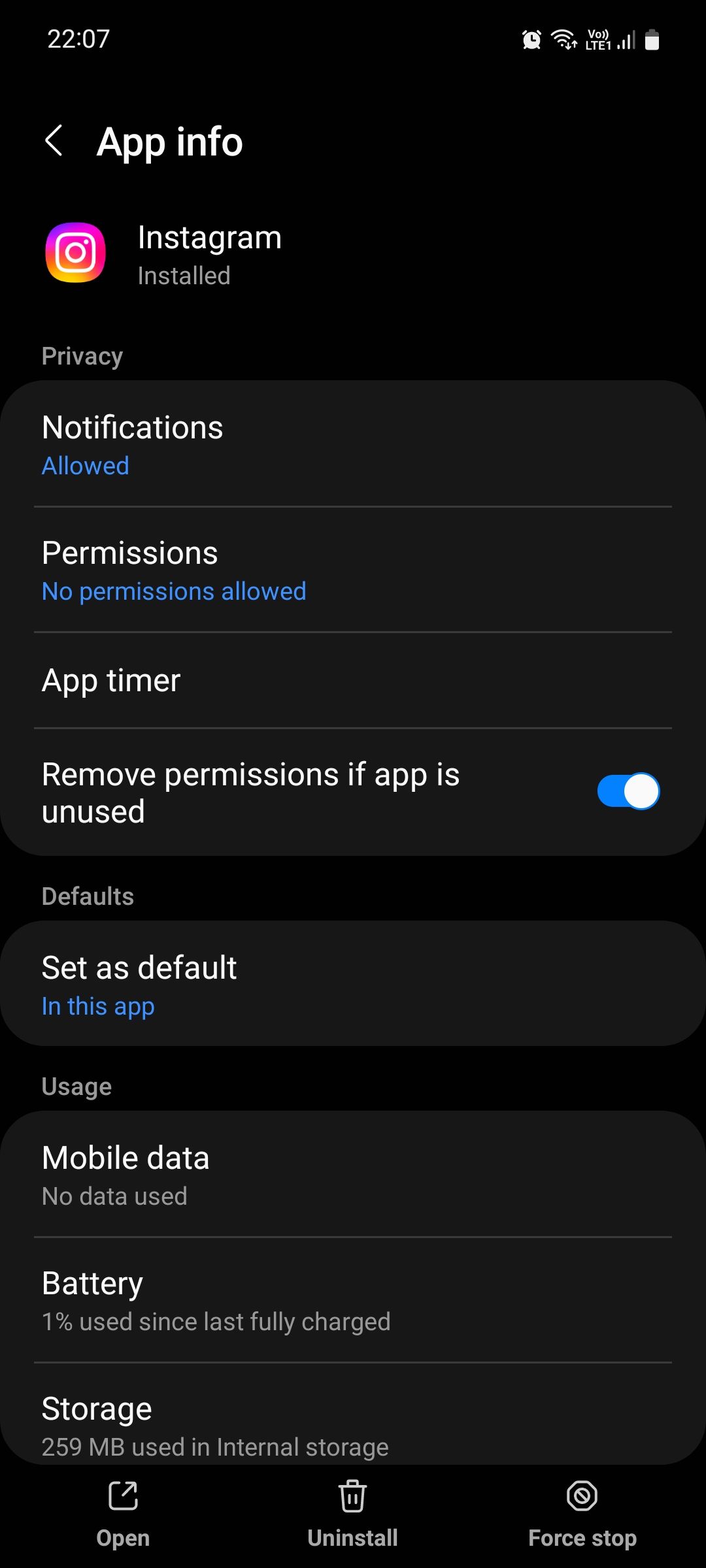
2. Check for app updates
The next best thing to fix Instagram crashing issues is to check for app updates . In many cases, you may end up running an outdated version of the Instagram app, especially if your device’s automatic updates are turned off. This prevents the app from running seamlessly as intended. You may be able to avoid crashes by simply visiting the Google Play Store (Android) or App Store (iOS) and updating the Instagram app. 
3. Check for OS updates on your device
If updating the Instagram app on your Android or iOS device doesn’t resolve the issue, you may be using an older version of Android or iOS. What I’m basically saying is that it’s most important to keep your operating system up to date.
For Android :
1. First, go to your phone’s Settings app and look for About Device . Then tap on it.
2. The current OS version will be displayed here. Tap on it and your device will automatically start checking for updates.
For iPhone :
1. Open the Settings app and tap General .
2. Then select “Software Update” and your iPhone will automatically start checking for updates. 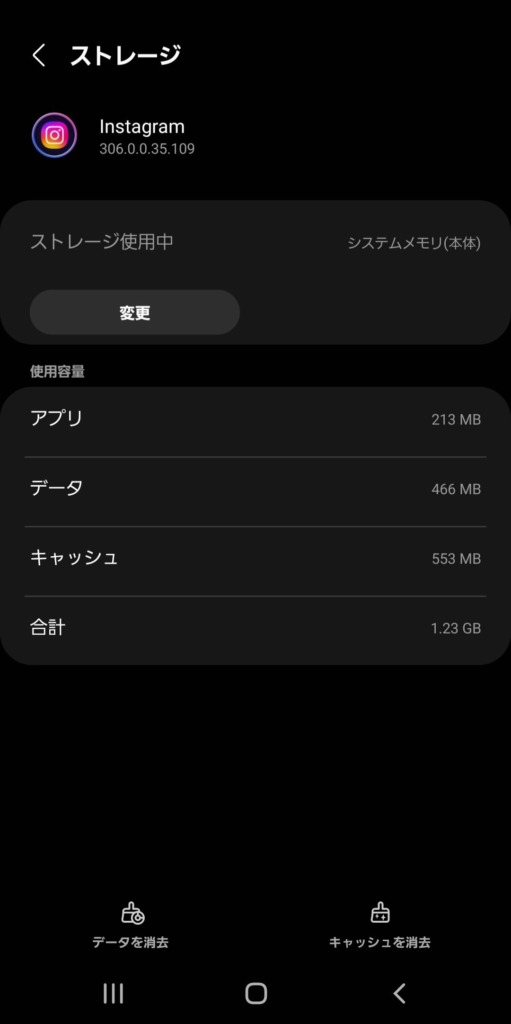
4. Restart your device
Restarting your phone can easily fix Instagram crashing issues. So, restarting your phone will clear the cached apps and this may help resolve the issue. Therefore, we recommend that you start your smartphone and try opening the Instagram app after restarting. This may fix a bug that was causing the Instagram app to crash.
5. Clear cache/offload apps
Another great way to fix Instagram crashing issues is to clear the app’s cache on your smartphone. On Android, you can easily do this by following these steps:
1. Go to the Settings app on your Android device.
2. Now, find and tap the Apps section. Then go to App Management and scroll to find Instagram, or manually search for it and tap it.
3. Then select Storage Usage . Here you will see the Clear Cache and Clear Data options. Tap to clear cache files. You can also erase your data. However, please note that you will be signed out of Instagram and will need to sign in again.
However, you can only do this on Android devices, so if you’re wondering how to clear app cache on your iPhone, keep in mind that you can’t do that. Instead, you can offload or delete the Instagram app to resolve the crashing issue. Here’s how:
1. Go to the Settings panel on your iPhone.
2. Next, tap the General tab and select iPhone Storage .
3. Now find and tap Instagram from the list of apps.
4. Next, you will see the options for both “Offload App” and “Remove App” .
5. You can try offloading first and if it doesn’t work, you can try deleting and reinstalling from scratch.
For those wondering the difference between offloading and deleting an app, I’ll explain it as simply as possible. Offload basically keeps all your data and just deletes the app. However, if you reinstall the app, your data is kept offloaded so you can pick up where you left off.
On the other hand, completely deleting an app will also uninstall it along with the app data. So if you delete Instagram and reinstall the app, you’ll have to sign in again, grant the necessary permissions, and so on. In any case, you will find that these are great ways to fix Instagram crashes.
6. Check your internet connection
Maybe none of the above fixes work, simply because your internet isn’t stable to begin with. To make sure there are no internet issues, do a quick internet speed test.
If your internet is working fine, the Instagram servers may be down. Visiting Down Detector will give you good data about whether and when Instagram is down. So, if you check this site and see many reports of Instagram being down, you will find the answer there. Perhaps that’s why you can’t fix Instagram crashing issue. Please wait a moment and try again.
7. Check your device storage
All applications on your smartphone rely on your device’s storage to store data files . Now, the more you use an application, the more data files it accumulates over time.
Therefore, if your device does not have enough memory to store data, it will cause these apps to crash. The Instagram app is no exception, and if it suddenly crashes frequently, it’s most likely due to a lack of storage on your device.
Another reason why you need enough storage space on your device is to ensure smooth app updates . If you don’t have enough free space on your device, your app’s files may get corrupted when you update the app, causing a crash.
Ideally, you should have at least 150-200 MB of free space on your smartphone for the Instagram app to run smoothly. However, in rare cases, Instagram data may require up to 1 GB of space to run the app without crashing. We recommend that you have sufficient storage space on your smartphone.
How to check storage on Android
1. Go to the Settings app on your Android device and select About Device .
2. You should now see a section called Storage . Tap on it to see how much storage is being taken up by which files.
How to check iPhone storage
1. On your iPhone, go to the Settings app and select General .
2. Then just select iPhone storage from here. Not only can you see how much storage space you have left, you can also see how much space is being used by apps, photos, etc., just like on Android.
8. Grant the necessary permissions
Every time you install an application, you may be asked for permission to access your device’s storage, camera, etc. In many cases, you may accidentally skip some of these permissions, which can cause your application to break and not work properly. Importantly, the Instagram application on your Android or iOS device also requires these permissions.
You can choose not to grant certain permissions, such as location , if you don’t need them, but denying them permission to access your storage or your device’s camera may cause a crash. So, granting all permissions might resolve the issue of Instagram app crashing on your Android or iOS device.
How to grant permissions to apps on Android
1. On Android, go to Settings , find Apps, and select App management .
2. Now search for Instagram or manually scroll to find the app.
3. Once you find it, tap it. Then select Permissions .
4. Next, you will see options such as Photos & Videos, Camera , Contacts, Microphone, etc. Select each one to see if Instagram is allowed to access them.
5. If not, tap Allow to grant access to important permissions like camera, microphone, photos, videos, etc.
How to grant permissions to apps on iOS
1. Open the Settings panel on your iPhone, scroll down and tap the Privacy & Security option.
2. Here you will see subsections such as Contacts, Camera, Microphone, Photos, etc. Tapping on each of these will show you a list of apps using them.
3. Tap on each to see if Instagram has been granted access to these permissions. If not, simply toggle it on.
9. Exit Instagram Beta
Beta versions of any apps are not stable and may crash more often than stable versions. Check if you are using the beta version of the Instagram app. If so, it may be the cause of the crashing issue and you will need to exit the beta version of the Instagram app to resolve the issue. Here’s how:
1. Go to Google Play Store and search for Instagram.
2. Once that’s done, tap on Instagram and scroll down to find the section that asks you to exit the beta .
3. Tap on it and tap Leave in the next window. This should opt you out of the Instagram beta.
4. Next, uninstall the Instagram app and install it again.
On iPhone, you will need to access the Testflight app and exit the Instagram beta. After uninstalling the Instagram beta, you will notice that the app works smoothly without any crashes.
10. Contact Instagram Support
If none of these tricks worked, the last thing you should do is contact the Instagram support team. The good thing is that you can do this from the app itself. Here’s how:
1. In the Instagram app, tap your profile icon at the bottom.
2. Now find and tap the hamburger menu in the top right corner of the screen.
3. This will bring up the Settings & Privacy option. Select this and on the next page scroll down to the Help option.
4. Now select the Report a problem option.
5. Shake your phone to report the issue and a small pop-up window will appear. Now, personally, I don’t like this feature. So let’s run it manually and select the option to Report a problem without shaking .
6. Then tap Include and Continue . Next, simply enter your problem and attach supporting screenshots, images, and videos. When you’re done, press Send .
7. Once you press submit, you will receive a notification that the bug has been reported.
After a bug is reported, Instagram takes some time to respond. Now, the reason I put this last is because it is a time consuming process. It is also difficult to get a response from Instagram regarding the same. However, this is really a last resort if you have not been able to resolve your Instagram crashing issue using other methods.
To find out, head over to Downdetector and see for yourself. This site will give you good statistics about when Instagram is down or not.
There can be multiple reasons why Instagram crashes, including running on an outdated version of the app, not updating your Android or iOS device to the latest version, and third-party app intervention.
If you can’t update your feed in the Instagram app, the app’s files may be corrupted. Performing a clean reinstall or clearing the app’s cache may resolve the issue. Similarly, you can also try offloading or deleting the Instagram app on iOS.


![How to set up a Raspberry Pi web server in 2021 [Guide]](https://i0.wp.com/pcmanabu.com/wp-content/uploads/2019/10/web-server-02-309x198.png?w=1200&resize=1200,0&ssl=1)


