The ChatGPT hype isn’t going away anytime soon, as chatbots continue to spread across platforms. Now that the chatbot developer API is open, many developers have jumped on board and started creating apps and experiences. If you’ve used our guide on how to use ChatGPT with Siri, you know what we’re talking about. But if you thought wearables weren’t part of this equation, you’d be in for a surprise. What if we told you that you could use ChatGPT right from your wrist? Keep reading as we’ll show you how to use ChatGPT directly from your Apple Watch without any complicated steps. Try doing this with your Apple Watch on and your phone by your side.
Below we detail the process of setting up ChatGPT, but we also show you how to create an Apple Watch complication for the same. If you want to check that, use the table below.
Heading not found. Please save or update your post first. 
How to set up and use ChatGPT on Apple Watch
Integrate ChatGPT to your Apple watch using a newly released app called watchGPT . However, please note that it is a paid app. If you decide to purchase, follow the steps below to get set up and started using it right away.
1. Go to the App Store and purchase the watchGPT app ( $3.99 / Rs 349) to get started. Once complete, the app will be installed directly on the watch itself. Now let’s head to the clock.
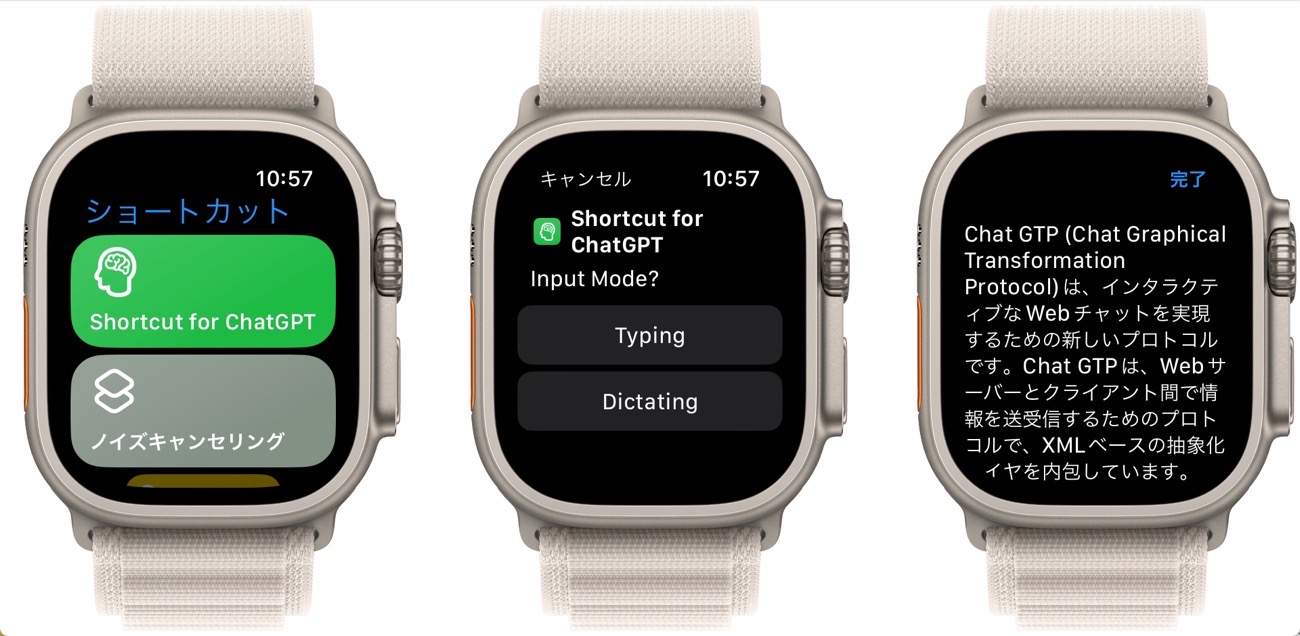
2.Press the crown to open the Apple Watch app list. Scroll down the list until you find watchGPT and tap to open it.
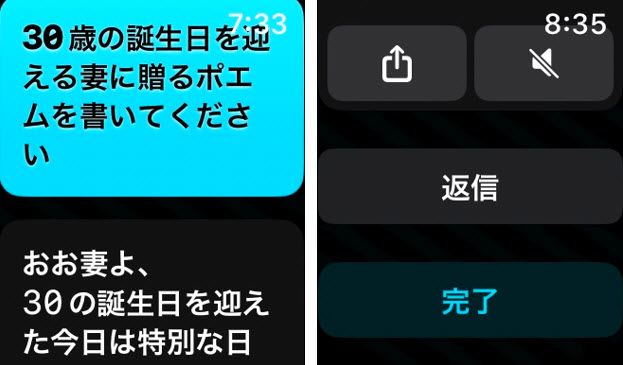
3. The watchGPT mascot will greet you. Tap the ” Ask Me Anything ” box and enter your question. Once you press the “Done” button, the app will start thinking.
4. After a few seconds, watchGPT will display the answer and you can scroll to read it. ChatGPT functionality is now added to your Apple Watch.
5. Then, if you want to share your answer, scroll down and tap the Share button. You can then choose to send your ChatGPT-generated answers via iMessage or email. Useful if you don’t have access to your phone or laptop but need to draft an urgent email or answer an important question in writing.
In my short test of the app, I found it to work very well. Similar to ChatGPT, this app allows you to write essays, tell jokes and recipes, solve math equations, and more . Response was quick and there was almost no downtime. However, due to an unknown word limit, the app appears to display an error message when asking for a long answer. Although you can’t have long conversations yet, the developers plan to provide support for it, the ability to add your own API keys, and other features in the future.
How to add watchGPT as a complication
Constantly navigating to the app drawer for watchGPT apps can be a pain. Thankfully, you can easily add the ChatGPT app as a complication on your Apple Watch and get started right away. To do this, follow the steps below.
1. Long press on the watch face on the home screen to switch to editing mode. Once you get there, tap the ” Edit ” button to get started.
2. Swipe left until you see the Complications tab. Once there, tap on the specific complication you want to replace. The lower right complication is being replaced.
3. A list of available complications will be displayed. Scroll down until you see “watchGPT” and tap on it.
4. When you’re done, just tap anywhere or press the crown to go to the watch face and you’re done.
And it was done. ChatGPT is now displayed on the home screen of your Apple Watch. Whenever you want to have a quick chat, just tap.
We hope this quick guide helps you easily set up and use ChatGPT on your Apple Watch. The wearable version is a bit limited at the moment, but the full version is packed to the brim. There are so many great things you can do to make your day more fun with ChatGPT. You can also bring a chatbot to your browser with these best ChatGPT Chrome extensions. Tired of chatbots? Now’s the time to check out these best ChatGPT alternatives and see where your imagination takes you.


![How to set up a Raspberry Pi web server in 2021 [Guide]](https://i0.wp.com/pcmanabu.com/wp-content/uploads/2019/10/web-server-02-309x198.png?w=1200&resize=1200,0&ssl=1)


