While WhatsApp remains the most popular messaging app across platforms, iMessage has taken the title of the most loved messaging app among iDevices. That makes sense, since Apple’s messaging app is deeply integrated into its ecosystem. Whether you want to share fun Animoji or Memoji, bone-tickling GIFs, or photos and videos, stock messaging apps give you the flexibility to communicate the way you want. But have you ever wanted to see all the photos in your message threads on your iPhone or iPad, but didn’t know how? If yes, then the photos and videos you shared via iMessage Follow the steps to manage your .
View all photos in a message thread on iOS
iMessage allows you to check out shared images and clips from each conversation thread. So if you want, you can access a specific conversation thread and see the file size of each image. Additionally, there is an option to save and share images.
- Launch the Messages app on your iPhone and iPad.
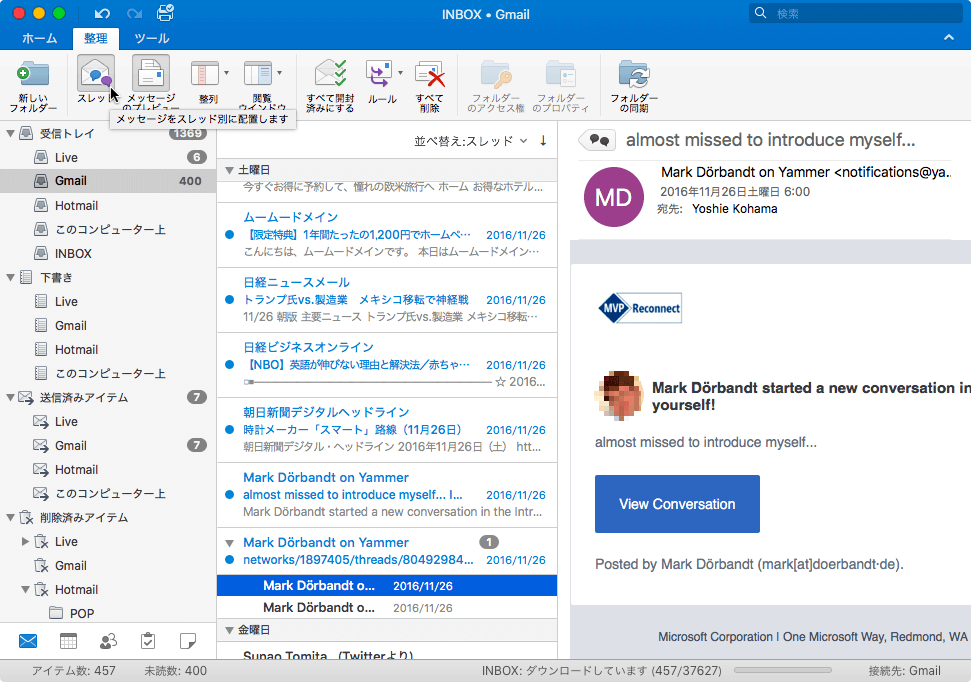
2. Next, go to the conversation thread where you share the images you want to access.

3. Then tap the contact’s name at the top center.
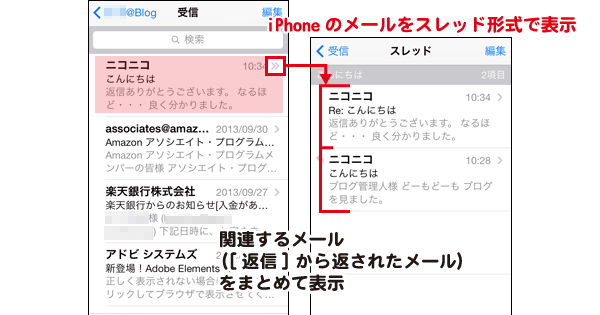
4. Then tap the Info button.
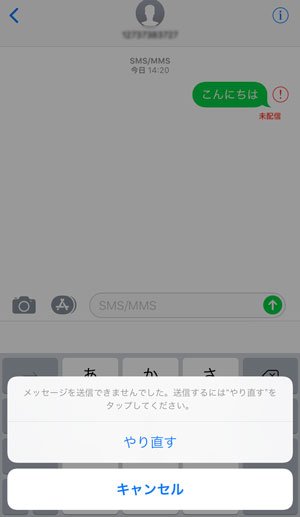
5. Next, scroll down and click on the Show All option. You should now see your entire library of shared photos and screenshots. Then browse your entire library to view your photos.

It is worth noting that you can also save and share certain photos. To do this, tap the Share button and select Save Image to save it to your photo library or share it via your preferred medium.
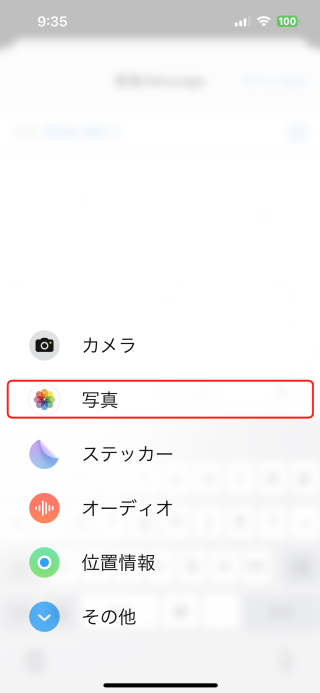
Note:
- To help you navigate all your photos/videos and other media, iMessage has three tabs named All, Photos, and Screenshots .
- By default, All is selected. Therefore, you can tap on each tab to proceed to a particular section.
6. If you want to view all shared images in list view , tap the list view button . The next screen will show you a list of all your photos and videos and their file sizes.
Note:
- Unfortunately, iMessage doesn’t have a way to remove unwanted photos from list view.
- If you want to remove all unnecessary images, go to Settings app -> General -> iPhone/iPad -> Messages . Then tap on “Photos/Videos” and press the “Edit” button in the top right corner.
- Then select the image you want to delete and press the delete button.
That’s it!
See all photos in a message thread on iPhone and iPad
Now you can track all the photos and videos in your iMessage threads. Now that you know how to display images, you can make the most of this hidden feature to not only boost your nostalgic mood but also prevent unwanted images from clogging up your iOS device’s storage.
With iOS 14, Apple has made significant improvements to the standard Messaging app. We’ve added features like pinning and mentions to make it even more convenient. What do you think about the Messages app? And what changes would you like to see made to the Messages app? Share your thoughts in the comments section below.


![How to set up a Raspberry Pi web server in 2021 [Guide]](https://i0.wp.com/pcmanabu.com/wp-content/uploads/2019/10/web-server-02-309x198.png?w=1200&resize=1200,0&ssl=1)


