If you’ve been using Snapchat for a long time, your conversation view is probably filled with chats with people you may no longer talk to or even know in the real world. And amid all this clutter, you don’t want to miss messages from your best friend or partner.
If so, you can use Snapchat’s pinned conversations feature to pin important chats to the top. This may seem like a no-brainer, but it makes navigating the app faster and more convenient. So, keep reading to learn how to pin a user on Snapchat.
Things to remember
- You can pin up to three people to the top of your Snapchat chat screen.
- If you pin a conversation on Snapchat, the other person won’t be notified.
- According to Snapchat, the ability to pin conversations is only available on iOS, but testing has shown that you can also pin conversations on Android .
- This feature is currently not available on Snapchat Web.
Pin a conversation on Snapchat
Pin someone’s conversations on Snapchat on Android and iOS so you never miss a message or Snap. Here’s how to pin someone on Snapchat.
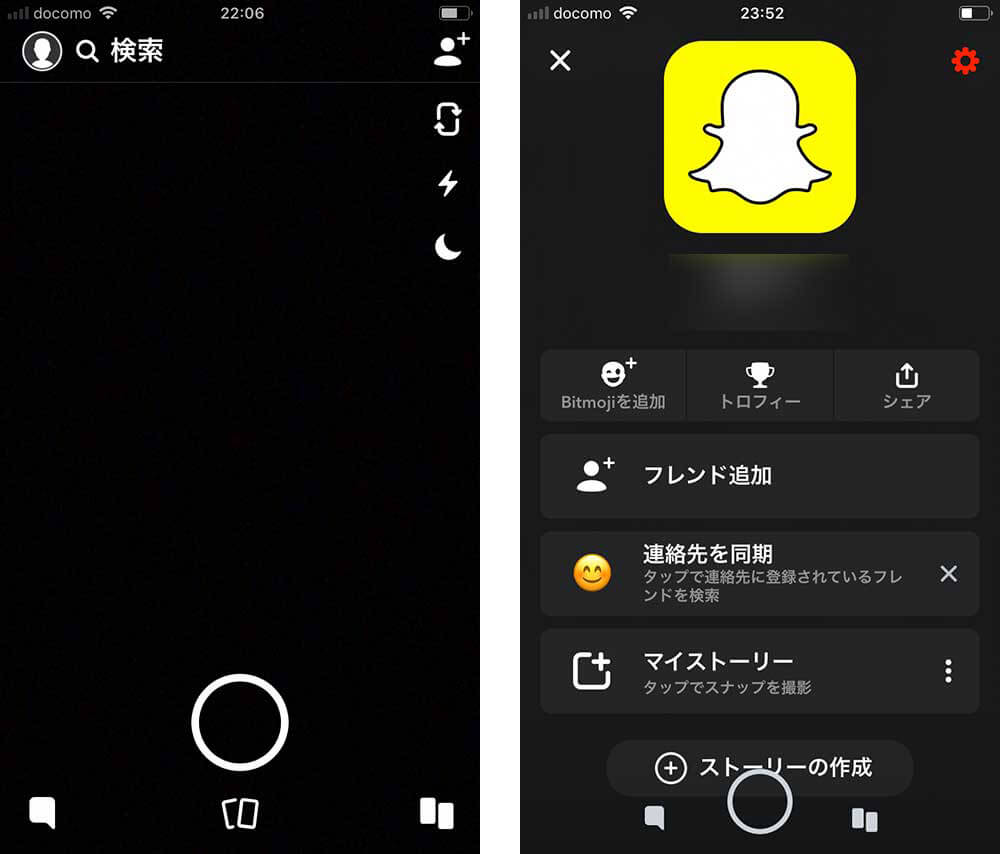
- Open the Snapchat app and swipe right or tap the chat icon at the bottom.
- Now, long press on the conversation you want to pin to the top.
- Then tap the Chat Settings option in the pop-up menu that appears.
- On the next screen, select the Pin conversation option.
- The pinned conversation will now appear on your chat screen, with a pin emoji next to your username.
Unpin someone on Snapchat
You only pin conversations with people if they are more valuable than others in your life, but there may come a time when you no longer feel like conversations with that person are the most important. yeah. Regardless of the reason, you can easily unpin a user from the Snapchat chat screen and they won’t even be notified. Here’s how it works:
- Open the Snapchat app and swipe right or tap the chat icon at the bottom.
- Now, tap and hold the conversation you want to unpin from the chat screen.
- Then tap on the Chat Settings option in the pop-up menu.
- On the next screen, tap the Unpin conversation option.
- You’ll notice that the conversation has been removed from the top of the chat screen.

Customize Snapchat’s red pin icon
By default, when pinning a user on Snapchat, Snapchat uses the red pin emoji, but similar to Snapchat’s red heart , the app allows you to change the pin emoji or use any other available friend emoji. You can do that. Follow the detailed steps below to customize your pinned conversation emojis on Snapchat.
- Open the Snapchat app and tap the Bitmoji (or profile) icon in the top left.
- Now, tap on the settings icon in the top right corner.
- Then, scroll down and tap the Friend Emoji option if you’re on an iPhone, or the Customize Emoji option if you’re using an Android phone.
- Then tap on the Pinned Conversation option at the bottom of the menu.
- You can now choose an emoji to replace the pin emoji.
While you’re here, you might also want to check out our guide on how to remove My AI chatbot from Snapchat. The AI bot resides at the top of the conversation view, which can be annoying for some users. Additionally, you can learn the meanings of all Snapchat emojis using the guide linked here.



![How to set up a Raspberry Pi web server in 2021 [Guide]](https://i0.wp.com/pcmanabu.com/wp-content/uploads/2019/10/web-server-02-309x198.png?w=1200&resize=1200,0&ssl=1)


