Customization is what you need to do to fine-tune your iPhone to your liking. It may not be a big deal to some people, but those who are interested in personalization want it a lot. That’s why they always jailbreak their iPhones to access exciting custom features with crazy tweaks. If you were part of that legend, you’ll be happy to know that you can create custom home screen widgets in iOS 14 on your iPhone. And that’s without the hassle of jailbreaking your device.
Create custom home screen widgets in iOS 14
So how do you create custom iOS 14 home screen widgets on your iPhone?At this point, Apple doesn’t offer much customization for the stock widgets. However, I am hopeful that it will improve over time and open the door to personalization.
But there’s no need to worry. This is where third-party widget apps come into play. You can use these to create great-looking home screen widgets for your iOS device.
- Best third-party home screen widgets for iPhone and iPad
- Create custom home screen widgets with Widgetsmith on iPhone and iPad
- Add third-party widgets to your iOS 14 device home screen
Best third-party home screen widgets for iPhone and iPad
At the moment, there aren’t that many apps that allow you to create custom home screen widgets, but the number is growing rapidly. There are several options in the App Store, but these are the ones that caught my eye.
- Widgetsmith ( free , in-app purchases available)
- Color widget ( free , in-app purchases available)
- Widget Wizard ( $1.99 )
They’re all very easy to use and have plenty of home screen widgets that you can customize to your liking. So download any of these apps to get started.
In this guide, we’ll be experimenting with Widgetsmith. Note that the process for creating custom widgets is very similar for these apps. So you won’t encounter any hurdles while creating something cool for your device.
Create custom home screen widgets with Widgetsmith on iPhone and iPad
- Launch Widgetsmith on your iPhone or iPad.

2. Next, select the widget you want to customize.
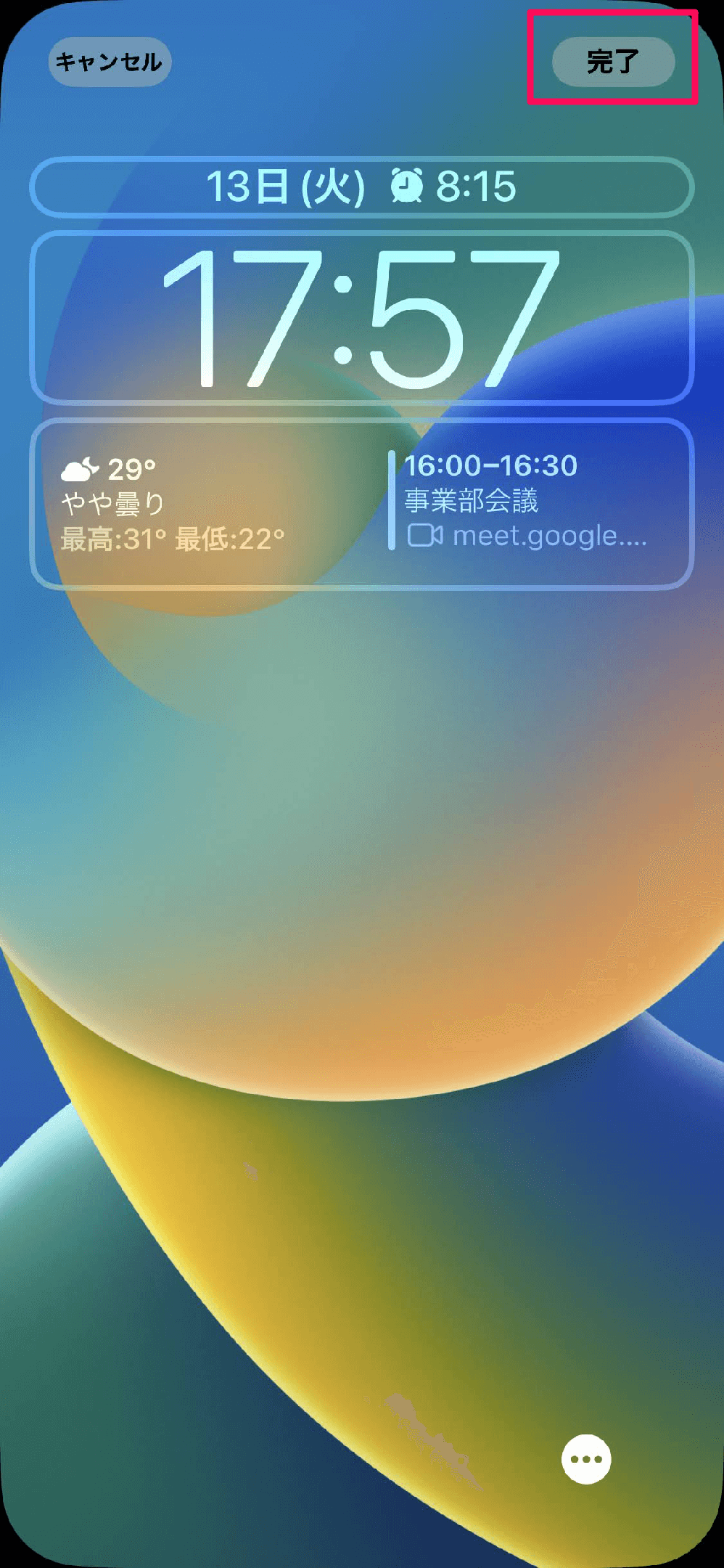
3. Next, choose from tons of tools to customize your widget . For example, you can use locations, reminders, and even images to make your widget stand out. Once you’ve customized your widget, tap the back button in the top left corner of the screen.
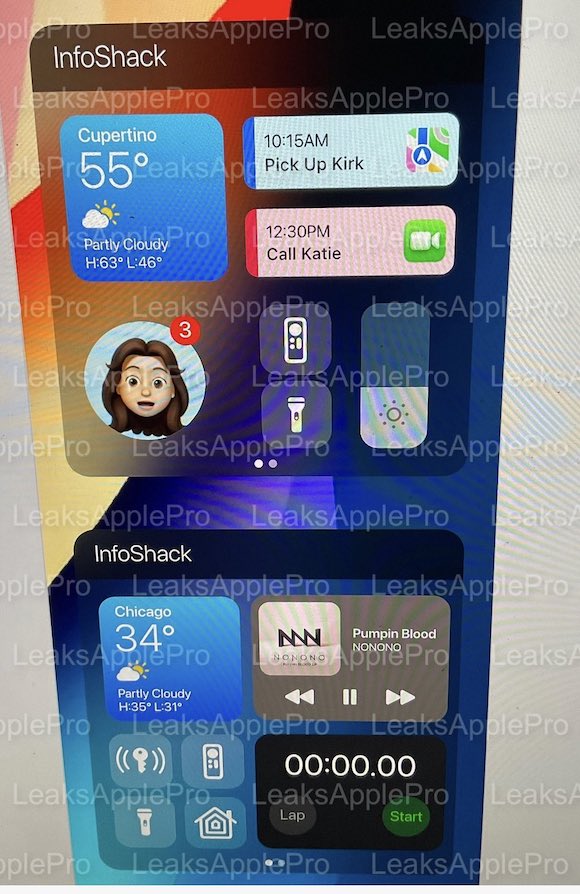
4. Then tap Save in the top right corner of the screen.

Add third-party widgets to your iOS 14 device home screen
- Long press on the empty screen of your device and tap the “+” button in the top left corner of the screen.
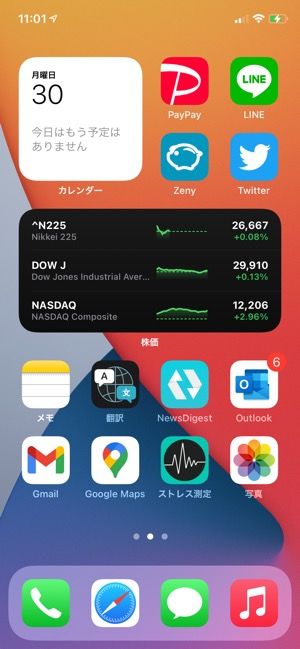
2. In the Widget Library, scroll down to find and select Widgetsmith .
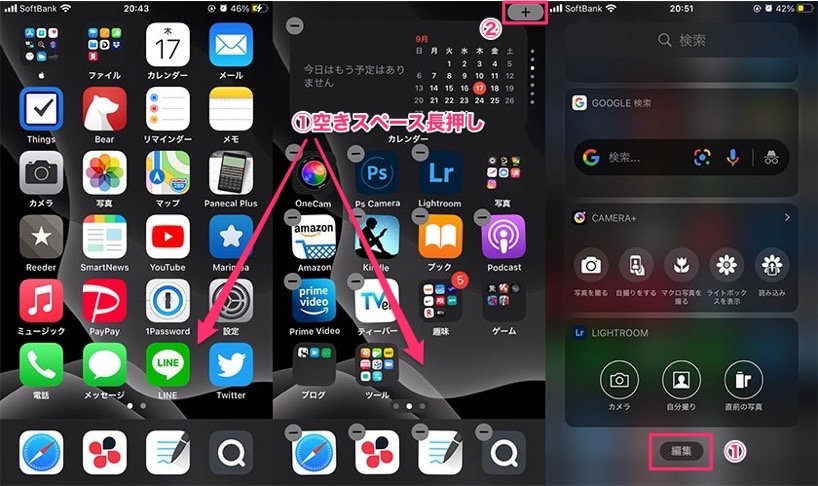
3. Next, select the desired size of the widget and tap the Add Widget button.
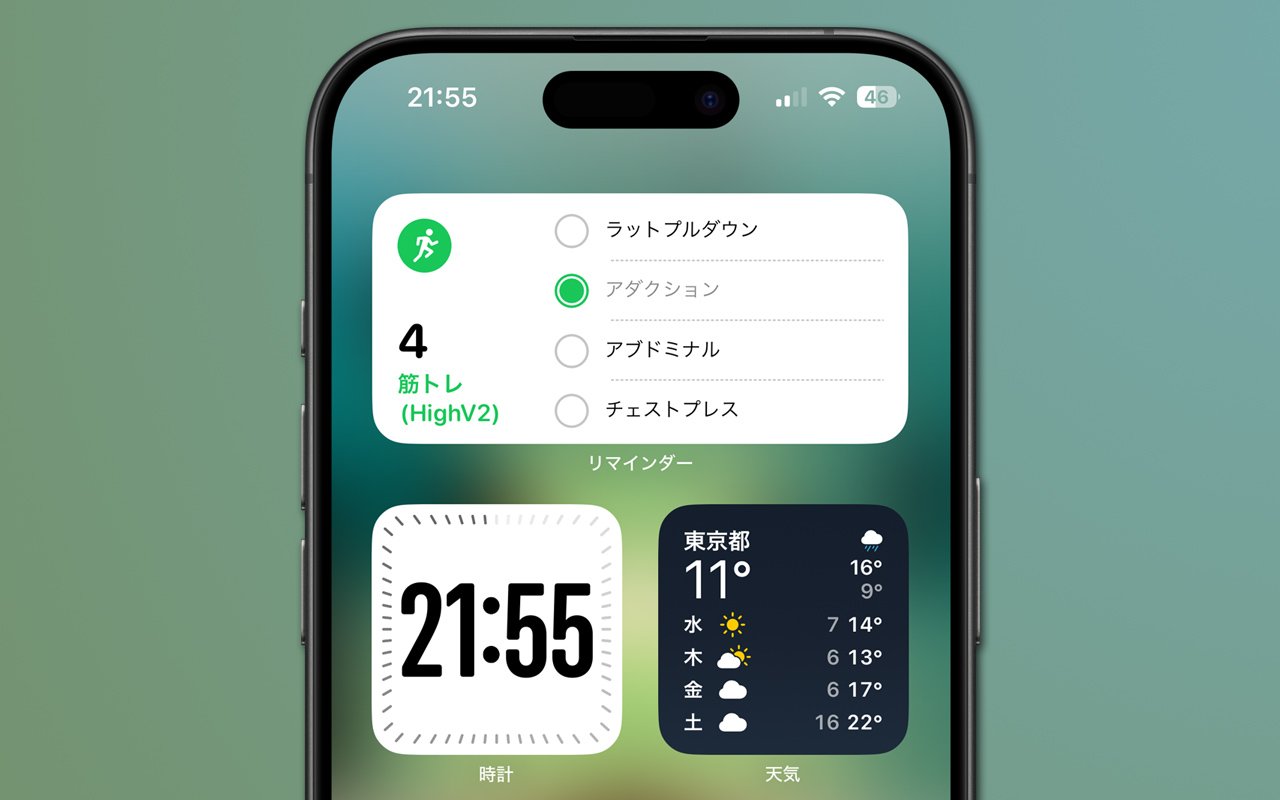
That’s it! Your custom widget will appear on your home screen.
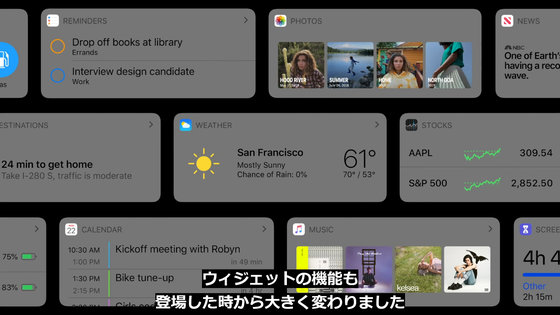
Create great-looking custom home screen widgets on iOS 14
Here’s how to create great-looking custom widgets for your home screen. Apple may be a little late to developing home screen widgets, but the tech giant has shown great intentions in opening the door to personalization.
Like I said, it might not rank at the top for everyone, but it’s a delight for many. Since we’re talking about iOS 14, you can create your own app icons to give your iOS 14 home screen a unique aesthetic, sort images and videos in the Photos app, create shortcuts folders, use sleep tracking, and more. Be sure to check out other articles of interest. more.


![How to set up a Raspberry Pi web server in 2021 [Guide]](https://i0.wp.com/pcmanabu.com/wp-content/uploads/2019/10/web-server-02-309x198.png?w=1200&resize=1200,0&ssl=1)


