Ad-based revenue models have helped online services and publishers stay functional for years. But there’s no denying that malicious trackers are now making it nearly impossible to maintain an anonymous profile on the internet. Easily identify users within seconds with new fingerprinting techniques and trackers integrated into the app SDK. Not to mention, ad-heavy web pages consume important resources and slow down your device. So, if you bought a Raspberry Pi to remove all ads from your device, this article will help you install Pi-hole. This article details how to set up Pi-hole to block ads and trackers on your Raspberry Pi. 
Set up Pi-hole on Raspberry Pi to block ads and trackers (2021)
Here’s a quick guide to setting up and running Pi-hole. This tutorial used a Raspberry Pi 4 Model B, but older boards will work too. You can expand the table below to easily navigate to the corresponding section.
Install Pi-hole on Raspberry Pi
It is assumed that you have already set up a Raspberry Pi. If not, you can follow our tutorial to learn how to access and set up your Raspberry Pi using your Windows laptop as a monitor in case you don’t have another monitor. With that said, let’s move on to the steps.
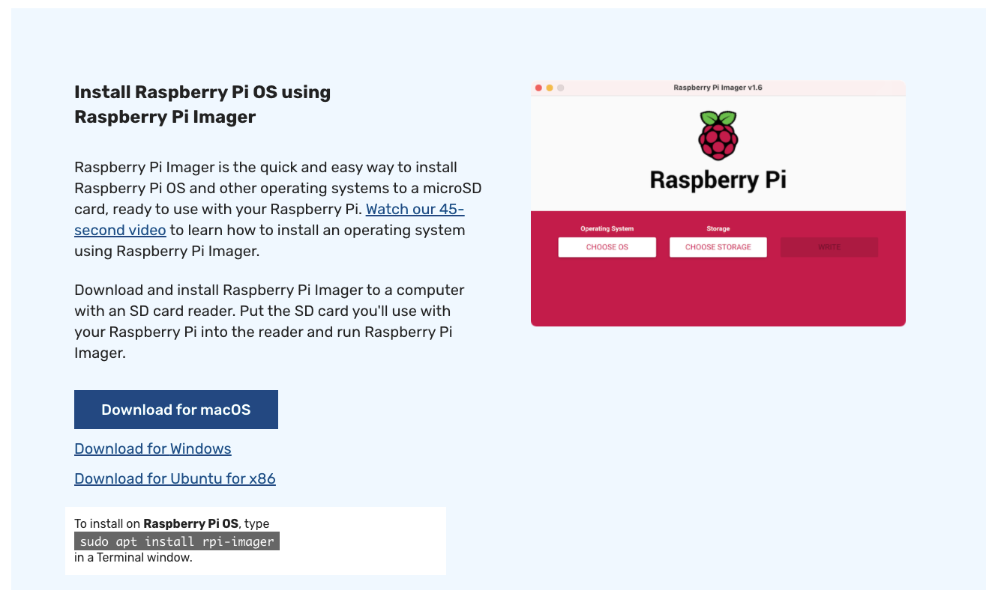
1. First, connect your Raspberry Pi to your home Wi-Fi network and open a terminal . Then run the command below. The installation of Pi-hole on your Raspberry Pi will begin.
sudo curl -sSL https://install.pi-hole.net | bash 2. If you are using Putty or VNC to access your Raspberry Pi remotely, you can run the same command in a terminal window. For example, I’m using Putty to install Pi-hole from the Raspberry Pi’s console.
3. Once the first step is complete, the Pi-hole setup screen will appear. Information about Pi-hole will be displayed, so press “Enter”. Please note that the UI can only be interacted with from the keyboard . Use the arrow keys and the “Tab” key to move between options. Press Spacebar to select an option.

4. After a few dialogs, you will see a warning that Pi-hole requires a static IP address . Press “Enter” again.
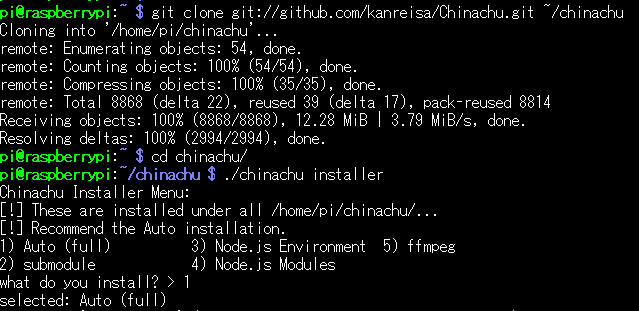
5. Next, select wlan0 if your Raspberry Pi is connected via Wi-Fi. If you are using a wired Ethernet connection, select eth0.
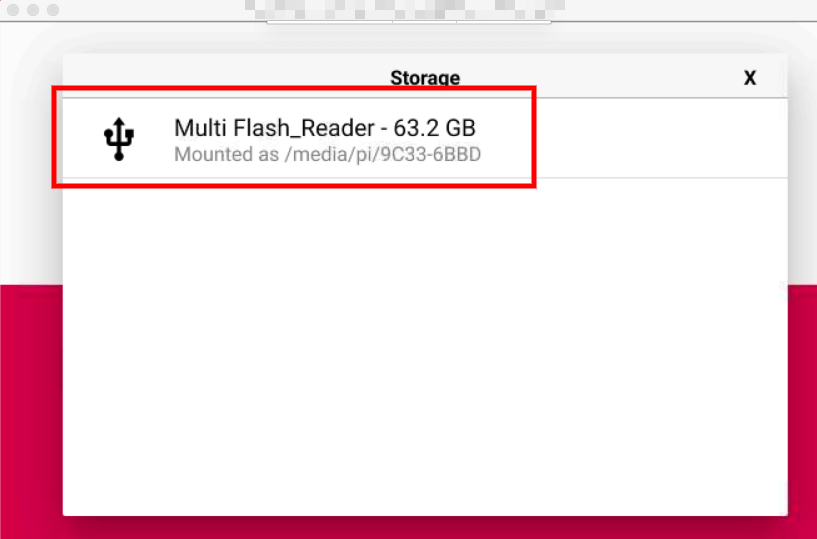
6. Next, you will be asked to select a DNS provider . I usually use Google’s DNS servers, but you are free to choose your own DNS servers.
7. On the next page you will see that Pi-hole is using StevenBlack’s host to block ads. Previously, there were multiple third-party hosts files, but now Pi-hole uses a consolidated list to reduce inconsistencies . You can add more host files later if needed. So, don’t change anything, make sure the list is marked (an asterisk symbol will appear next to the list), and press Enter.
8. Then select both IPv4 and IPv6 protocols. You can mark both options by pressing the spacebar.
9. Next, press Yes to set a static IP address on your Raspberry Pi . These steps are important to ensure that your IP address does not keep changing.
10. On the FYI: IP Conflict page, press OK . You will take steps later to address IP conflict issues.
11. Then select “On” and press “OK”. This makes all queries accessible in the web interface.
12. Similarly, select “ On ” and press “OK” to install the web server (lighttpd) on the Raspberry Pi.
13. If you want to log queries, select On to continue.
14. In the next dialog box, select Show All and press OK. You can monitor all queries and IP addresses to learn where these requests are coming from. Everything is done locally on the Raspberry Pi, so you don’t have to worry about the privacy aspect.
15. You are almost done. The installation will start again and configure the Pi-hole according to your Raspberry Pi settings. Please be patient as this step will take a considerable amount of time.
16. Once the installation is complete, you will see a final screen with all the details. Be sure to write down your IPv4 address (this is your RPi’s IP address), your password, and your web interface address. With these details, you will be able to monitor all queries on your home network. Press OK to close the window.
17. Next, open your web browser, type the web interface address, and press Enter. Basically, open [IP address]/admin page. If the dashboard opens, you have successfully set up Pi-hole on your Raspberry Pi. Click Login in the left pane and enter your password. Now, sign in and you’ll be almost at the finish line.
Set up your router
While everything is configured correctly, you need to change one important setting on your router. All traffic must be redirected to the Raspberry Pi so that all ads and trackers can be filtered. Here’s how:
1. Type 192.168.0.1 in a web browser on any device in your home network and press Enter. As you know, the router’s settings page will open. Then, enter your router’s default credentials to sign in.
2. Next, you need to look for the “ DHCP Server ” configuration option. I’m using a TP-Link Archer C6 router. This is available under Details -> Network. For other routers, search to find the settings page, as it may be on a different page.
3. At this point, enter the Raspberry Pi’s IP address in both the primary and secondary DNS . The IPv4 address you noted in step 16 above is the IP address of your Raspberry Pi. Then click Save. All traffic will now be redirected to Pi-hole on your Raspberry Pi, excluding all ads and trackers. If you want to remove the Pi-hole configuration from your router in the future, just remove both DNS and you will be able to connect as before.
4. Next, scroll down to the Address Reservations section. For other routers, you will need to look for this option on a separate settings page. This step is required to prevent IP conflict issues . Essentially, you can reserve your Raspberry Pi’s IP address so it won’t be assigned to any other device in your home network.
5. Click Add and enter the Raspberry Pi’s IP address in the Reserved IP Address field. The RPi’s MAC address can be found in the client list below on the same page. Then enter a name in the Description field and check the Enable this entry checkbox. Finally, click Save. Reserve an IP address for your Raspberry Pi.
6. If you can’t find your Raspberry Pi’s MAC address , open a terminal on your RPi and run ifconfig . Check the value of “ether” under “wlan0”. That is the RPi’s MAC address.
7. Finally, restart your router and the changes will be applied.
Block ads and trackers with Pi-hole on Raspberry Pi
1. You have configured Pi-hole and made all the necessary changes. Now let’s see Pi-hole in action. Open Pi-hole’s web interface address: [IP address of RPi]/admin . You can open the page on any device in your home network.
2. Next, when you log in, you will see the Pi-hole dashboard with all the statistics and queries that will be redirected to your Raspberry Pi.
3. Scroll down to see the top allowed and blocked domains . It didn’t happen to me, but if you can’t access the website, open the query log from the left menu and whitelist the relevant domain. You can also click on the suspicious domain and choose to blacklist it .
4. At the bottom you will see a list of all your devices and total and blocked requests .
Disable system-wide ads and trackers using Pi-hole and Raspberry Pi on your home network
That’s how you can set up Pi-hole on your Raspberry Pi to block ads and trackers on your home network. Although the steps may seem complicated, they are certainly doable and can be made to work in just a few minutes. Anyway, that’s all from us. If you run into any issues, please let us know by commenting below. We will definitely help you.


![How to set up a Raspberry Pi web server in 2021 [Guide]](https://i0.wp.com/pcmanabu.com/wp-content/uploads/2019/10/web-server-02-309x198.png?w=1200&resize=1200,0&ssl=1)


