Microsoft announced the next big Windows 11 2022 update, but also released new builds in the Dev channel. The Redmond giant is wildly experimenting with new features on its Dev channel. One such feature is a full-screen widget board, but it’s still hidden behind a feature flag. However, there is a nifty way to enable full-screen widget boards in Windows 11. So, if you’re on the latest development build, you can enable full-screen widgets on your Windows 11 PC right away. With that in mind, let’s move on to the tutorial. 
Enable or disable full-screen widget boards in Windows 11 (2022)
I tested the full-screen widget panel on Windows 11 Dev Build (25201 and later) and it worked fine. However, the same command did not work with the Windows 11 22H2 update being rolled out to all users. Therefore, users of the stable channel will have to wait until this feature is rolled out in the future or join the Windows Insider program. 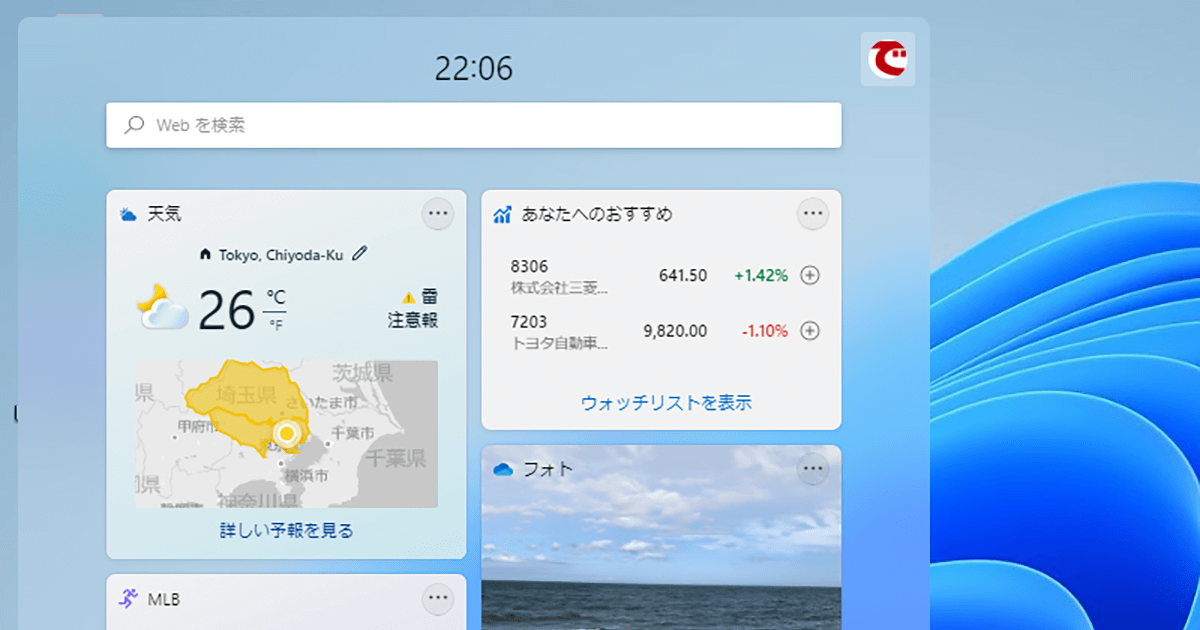
Enable full-screen widget boards in Windows 11
At this time, Windows 11 development channel insiders can immediately enable full-screen widgets. Here’s how:
1. First, you need to set up ViVeTool on your Windows 11 PC. For those who don’t know, ViVeTool is a free, open-source tool that allows you to enable experimental features in Windows 11. Therefore, please download ViVeTool from the developer’s GitHub page .
2. Then right-click and unzip the ZIP file in Windows 11. Then select the Extract All option and click Next. The files will be extracted to a folder within the same directory.
3. Once the files are extracted, right-click on the extracted folder and select ” Copy as path “. This will copy the folder path to your clipboard.
4. Now press the Windows key to open the Start menu and search for “CMD”. Command Prompt will appear at the top of the search results. Click Run as administrator in the right pane.
5. In the Command Prompt window that opens, type cd and add a space. Then right-click in the CMD window and automatically paste the directory path you copied above. You can also press “Ctrl + V” to paste the address directly. Finally press Enter and you will be taken to the ViveTool folder. Please note that the path will be different on your PC.
cd "C:\Users\mearj\Downloads\ViVeTool-v0.3.1" 6. In the command prompt, navigate to the ViVeTool folder and run the following command to enable full-screen widget board in Windows 11.
vivetool /enable /id:34300186 7. Next, close the Command Prompt window and restart your PC . After logging in, click the widget button in the bottom left corner or use the Windows 11 keyboard shortcut “Windows + W”. You will see an ” Expand ” button in the upper right corner. Click.
8. You’re done! The full-screen widget panel now works fine on Windows 11 PCs. You can click the expand button again to make it half screen or full screen if needed. 
Disable the full-screen widget board in Windows 11
If you want to disable the full-screen widget panel in Windows 11, follow the steps above to return to the ViVeTool directory. Then run the following command from the CMD window.
vivetool /disable /id:34300186 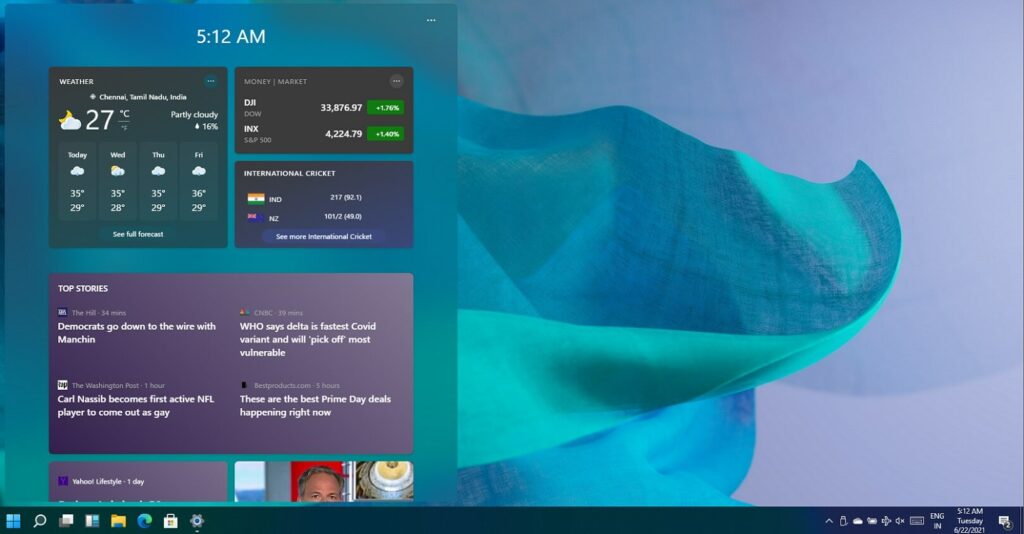
Use the widget panel in full screen mode in Windows 11
To display the full-screen widget panel on your Windows 11 PC, you need to run the following command: It looks pretty clean and I think you can get all the information that’s happening around the world at a glance. In the near future, the widget panel will become even more useful as third-party widgets are supported. Anyway, that’s it from us. If you want to enable taskbar overflow in Windows 11, please follow the linked guide. To learn more about the upcoming Windows 11 features, we have compiled a list for you. Finally, if you have any questions, please write them in the comments section below.


![How to set up a Raspberry Pi web server in 2021 [Guide]](https://i0.wp.com/pcmanabu.com/wp-content/uploads/2019/10/web-server-02-309x198.png?w=1200&resize=1200,0&ssl=1)


