With watchOS 9, Apple added many new features to Apple Watch. There’s a new low-power mode to extend battery life, improved sleep tracking in watchOS, and a powerful new Compass app. So if you’re looking to go hiking or explore the roads less traveled, know that the new Compass app has a lot to offer to help you find your way, retrace your steps, and more. must be kept. If you’re interested, let’s take a look at how to use the new Compass app on Apple Watch. 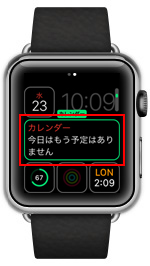
Learn to use the watchOS 9 Compass app
The new Compass app in watchOS 9 enables many useful features. Of course, you can do basic things like find bearing, altitude, and coordinates. However, you can also do more by adding waypoints and recording steps to retrack later. We will look at all this in this article. As always, you can use the table of contents to navigate to the section you want to learn more about. 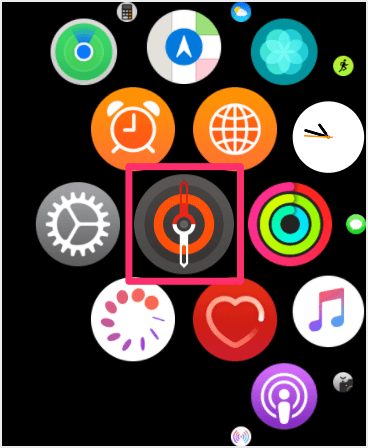
Check bearing, elevation, slope, and coordinates
The new Compass app shows more information, including heading (also available in the old app), altitude, slope, and even current coordinates. It is also very easy to check all this information.
Just open the Compass app on your Apple Watch to see what direction you’re facing and more. Rotating the Digital Crown allows you to see additional information such as altitude, slope, and even coordinates (latitude and longitude) of your location.
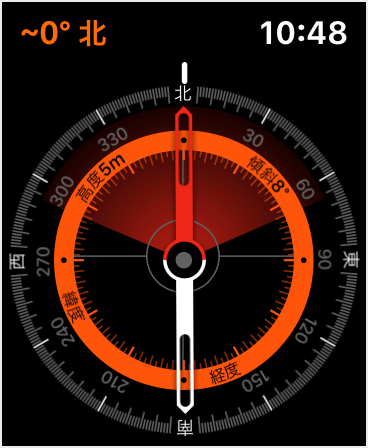
Alternatively, you can tap the menu icon in the top left. Here you can see elevation, slope, and other information.
Add new bearings
To add a new bearing to the Compass app, you need to do the following:
- Tap the menu icon in the top left.
- Scroll down and tap Orientation.
- Turn the Digital Crown to set your heading, then tap Done.
clear bearing
- Tap the menu icon in the top left.
- Scroll down and tap Clear Bearing.
Add elevation information to your watch face
The Compass app in watchOS 9 also supports some really cool complications for your favorite Apple Watch faces. Therefore, you can easily add elevation information to your watch screen if you wish. Here’s how:
- Long press on the watch face and tap Edit.
- Now, swipe to the Complications screen and tap the complication you want to add elevation information to.
- Go to the “Compass” category and select “Elevation” as the dial complication.
Note: You can also select a tilting complication among the compass complications .
waypoints in watchOS 9
One of the coolest new features in the Compass app is the ability to create waypoints. Waypoints are a great way to get around outdoors if you’re hiking or exploring off the beaten path. Waypoints allow your Apple Watch to remember the coordinates of a location and use the Compass app to return to that location. Here’s how to create waypoints in the Compass app in watchOS 9.
Create waypoints with the compass app
- In the Compass app, tap the Location Arrow icon.
- Enter a label for the waypoint.
- You can also choose the waypoint color and symbol if you wish.
- When you’re done, just tap Done. The waypoint will appear in the Compass app.
Display/move waypoints
- Tap any waypoint in the Compass app to access a list of all waypoints.
- Select the one you want and tap Select.
- The compass app shows you the direction and distance you need to travel to reach your waypoint.
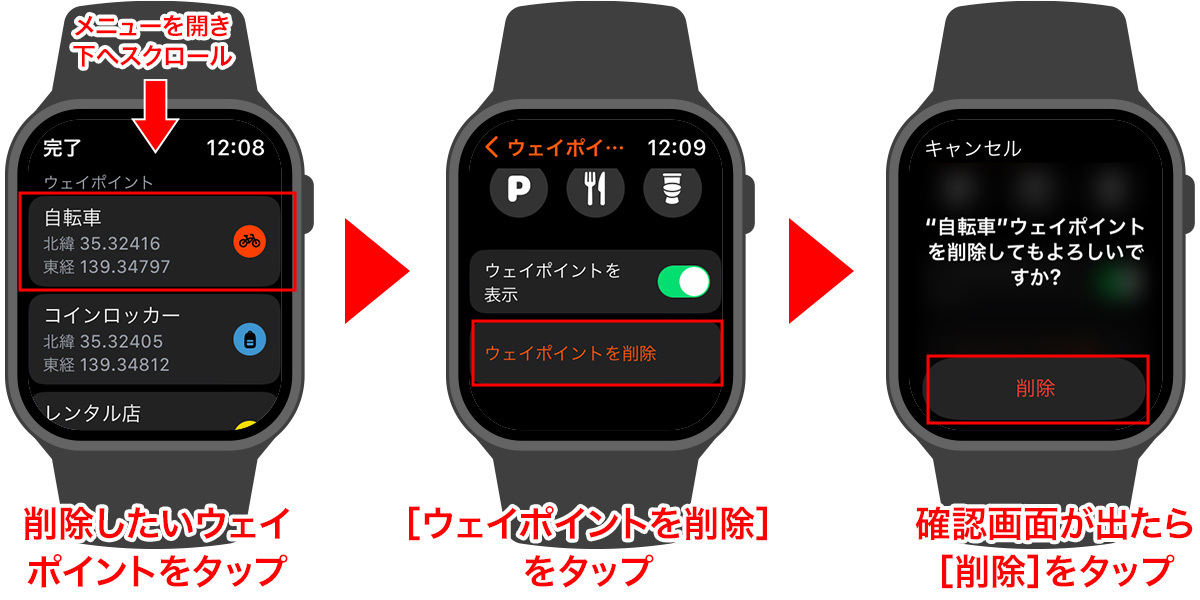
Delete waypoint
- Tap any waypoint in the Compass app to access a list of all waypoints.
- Select the one you want and tap Select.
- Tap the “pencil” icon to edit the waypoint.
- Scroll down and tap Delete Waypoint.
Add waypoints to watch faces (Apple Watch SE, Series 6 and later)
The great thing about waypoints is that you can add them as a complication to your Apple Watch face for easy access whenever you need them. Here’s how:
- Long press on the watch face and tap Edit.
- Now, swipe to the Complications screen and tap the complication you want to add elevation information to.
- Go to the “Compass” category and select any complication from the “Compass Waypoints” on your watch face.
Record and retrace steps
If you’re on a hike or at a location where you want to be sure to retrace your steps to your starting point, watchOS 9’s new step tracking and retracing features will be a godsend for you. Here’s how to track and retrace your steps on your Apple Watch.
- In the Compass app, tap the “foot” icon in the bottom right corner of the app screen.
- The app will start recording your steps. A pause icon will appear in the bottom right corner instead of a step icon. If you want to repeat the step, just tap the pause icon.
- You can now tap Retrace Steps to retrace your path, or Delete Steps to delete a recorded path.

Check out the new and improved Apple Watch Compass
That’s pretty much all you can do with the new Compass app in watchOS 9. As you can see, there’s a lot you can do with this app. You can retrace your steps, record waypoints to make exploring new places easier, and of course display information such as elevation, bearing, and slope. Plus, we’ve added a compass complication so you can see important information at a glance. So what do you think about the new Compass app in watchOS 9? Let us know in the comments.


![How to set up a Raspberry Pi web server in 2021 [Guide]](https://i0.wp.com/pcmanabu.com/wp-content/uploads/2019/10/web-server-02-309x198.png?w=1200&resize=1200,0&ssl=1)


