Xiaomi, the king of budget smartphones, has released its latest smartphone, the Redmi 5. It has proven to be a great successor to previous Redmi phones. In fact, we’ve already given this phone a high rating in our full review. While the hardware features of this smartphone are impressive, it’s the software aspect that has us hooked. While testing this new device, we discovered various tips and tricks that will improve your Redmi 5 experience. In this article, we will share these Redmi 5 tips and features for you all to enjoy.
Best features and tricks of Redmi 5
1. App full screen mode
As you may know, Redmi 5 comes with a beautiful 18:9 display. I’ve always been a fan of 18:9 displays. Not only does the 18:9 display offer more vertical space, but its narrower width makes even larger phones easier to handle with one hand. However, one of the problems faced by smartphones with 18:9 displays is that not all apps are optimized for smartphones, resulting in unsightly black bars at the top and bottom. is. Xiaomi helps solve this problem by enabling full-screen mode for all apps. To do this, go to Settings -> Additional settings -> Button and gesture shortcuts -> Full screen mode .
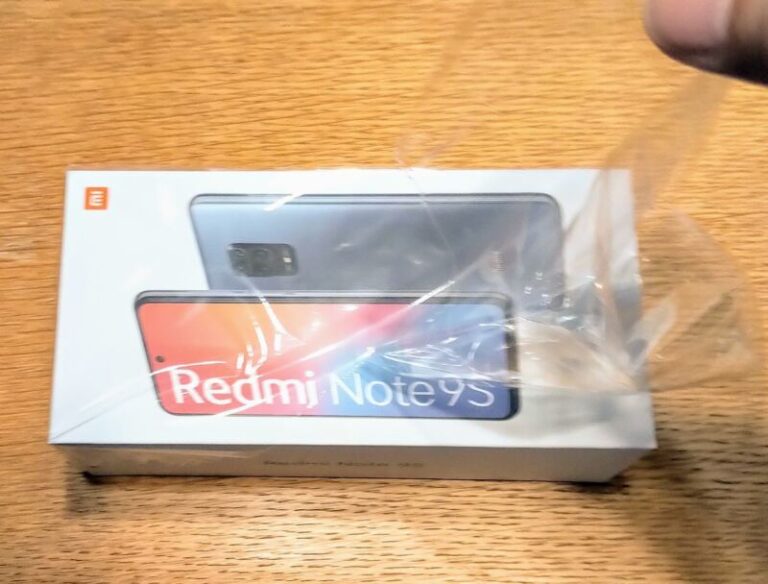
Now you can enable full-screen mode for individual apps and never have to see those dreaded black bars again.
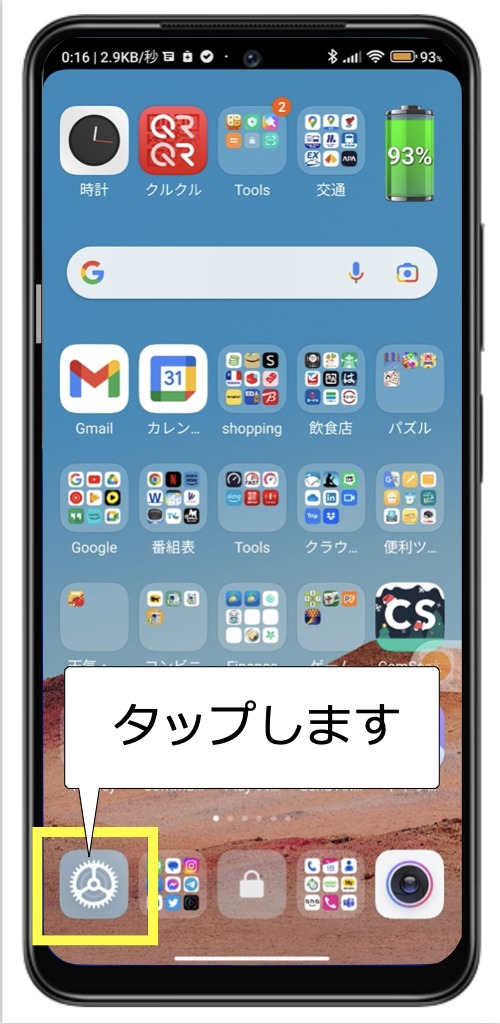
2. Customize App Vault
One of my favorite features of MIUI is the App Vault feature that allows users to quickly access app shortcuts, notes, apps, and other information by swiping from left to right on the home screen . With Redmi 5, Indian users can also enjoy some India-specific features that Xiaomi has introduced for Indian users.
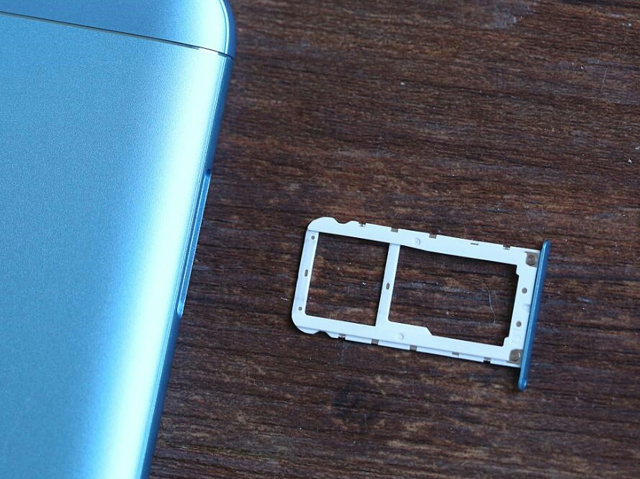
My favorite cards in the App Vault are the Ola card and the Cricket card . The Ola card lets you book a cab instantly and the cricket card is for keeping track of scores. I like the fact that you can customize your experience by selecting your favorite teams and only seeing scores for those teams on your cricket card.
3. Quick ball
Another great feature of Redmi 5 is Quick Ball, which allows users to easily navigate the interface. This feature basically enables the floating ball by tapping on the Redmi 5’s display, allowing users to access various commands. To enable Quick Ball , go to Settings -> Additional Settings -> Quick Ball and enable the toggle next to Turn on Quick Ball.

The best part about using Quick Ball is that you can place it anywhere on the screen . I primarily use my phone with my left hand, and I like that I can place the Quick Ball on the left edge of the screen and navigate the Redmi 5’s interface with just one hand.
4. Second Space
One of the useful features of the Redmi 5 is a second space where you can basically run two instances of the same app. For example, the second space feature allows you to run two WhatsApp accounts on the same phone. This is very convenient as you can continue to use both your work and personal accounts on the same phone. If you want to create a second space on your phone, go to Settings -> Second Space, tap the Turn on Second Space button, and follow the steps .

When you create the second space, you’ll notice that both spaces are treated as separate phones. So basically you can run two instances of the app you want. To switch spaces , simply pull down the notification shade, tap the persistent space switching notification, and confirm with your lock screen password .

5. Do more with gestures and buttons
Gestures are another important feature of Redmi 5 that allows users to easily interact with the user interface and perform actions such as taking a screenshot or launching the camera. To take advantage of these gesture and button shortcuts , go to Settings -> Additional Settings -> Button and Gesture Shortcuts.

Here you can tap actions like launch the camera, take a screenshot, launch Google Assistant, and set custom gestures and buttons. My favorite action is to double-tap the power button to launch the camera and slide with three fingers to take a screenshot .
6. Customize the navigation bar
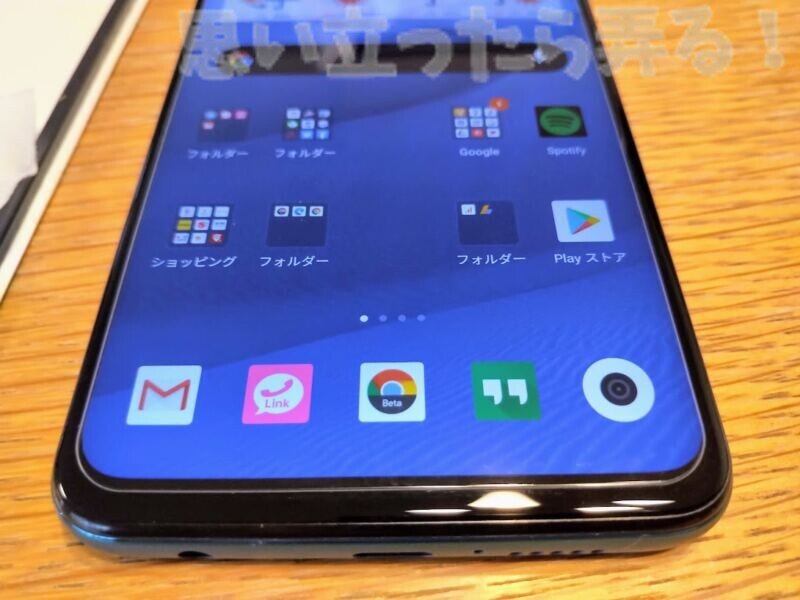
Redmi 5 has an almost bezel-less display, so there are no hardware buttons, so you have to use the on-screen software buttons. You can hate or love on-screen buttons, but there’s no denying the fact that on-screen buttons have their own benefits. For example, you can swap the recent and back buttons, or hide them all together to free up more screen space . To customize the navigation bar, you need to go to Settings -> Additional Settings -> Button and Gesture Shortcuts and scroll down to the Screen Buttons section.

Now, enable the Mirror Buttons option to swap the recent and back buttons . Enabling “Hide Soft Buttons” will hide the navigation bar. Swipe up from the bottom of the screen to easily access the software buttons.
7. Split screen multitasking
Redmi 5 has a large 5.7-inch display, but you won’t be able to take advantage of it without multitasking. To start multitasking, tap the Recent button, then tap the Split Screen button at the top left of the screen . All you have to do is select the apps you want to use in split screen mode.
I also like the fact that there are no restrictions on using both apps in half-screen mode. In fact, you can resize the app in split-screen mode by holding and dragging the center bar. So if you want to give your app extra space in split screen mode, you can do that easily.
8. Customizable one-handed mode
The quick ball feature is very useful for one-handed use, but it’s not perfect. Thankfully, it has a built-in one-handed mode that allows you to easily use your phone with one hand. To enable it, go to Settings -> Additional Settings -> One-handed mode.
Here, select the screen size you want for one-handed mode and enable the toggle . Once you enable the toggle, you can easily switch to one-handed mode by swiping left or right on the virtual home button. To exit one-handed mode, simply tap anywhere in the darkened area.

9. Lock home screen layout
MIUI 9 doesn’t come with an app drawer, so if you’re like me, it might take you a while to set up your home screen layout. Therefore, I don’t want anyone to change the layout even if they make a mistake. That’s why I keep my home screen layout locked so that no one can interfere with my home screen arrangement . If you also want to lock your home screen layout, first pinch two fingers together to enter edit mode. Now, tap on “Settings” and enable the “Lock Home Screen Layout” option.

10. Lock the app
One of the best features of MIUI 9 on Redmi 5 is that it allows users to lock individual apps, improving privacy. To lock an app, go to Settings, scroll down to find and tap App Lock . Now tap the “Set Password” button and set a password. You can also enable the fingerprint unlock toggle to easily unlock apps with your fingerprint and avoid having to enter passwords over and over again.

See also: Redmi Note 5 Pro camera review: Decent camera on a budget
Use your Redmi 5 like a pro with these features and tricks
Did you find these tips and features helpful? If so, please share this article with your friends. Also, if you know any tips or tricks that you would like to share with us, drop them in the comments section below. I’m always happy to receive tips and tricks from my readers. Also, the Redmi 5 review is almost complete, so please follow us so you don’t miss it.


![How to set up a Raspberry Pi web server in 2021 [Guide]](https://i0.wp.com/pcmanabu.com/wp-content/uploads/2019/10/web-server-02-309x198.png?w=1200&resize=1200,0&ssl=1)


