We do a lot of things on our Android smartphones, like texting friends on WhatsApp, clicking selfies with the camera, jotting down notes, and preparing presentations in board meetings. Therefore, it is important to keep track of what may be going wrong on your device. Nowadays, everyone tends to publish tips to improve the performance, battery, etc. of Android devices, but they probably do more harm than good. Well, we are here to tell you about 10 things that can go wrong unintentionally on your Android smartphone.
Things you’re doing wrong with your Android device in 2020
- Force quit the app manually
- Installing an antivirus app
- Clear cache frequently
- Keep battery saver mode always on
- Do not restart device
- Lack of care when granting privileges
- Using default apps
- Continue using the button navigation bar
- Using questionable file sharing apps
- Sideloading apps from unknown sources
What not to do with your Android device
1. Close the app manually or use a task killer
Most people do this without realizing that using third-party task killer apps or using the recent apps button to force close apps can slow down the performance of their Android device. It is something you are doing or have done in the past.
In fact, these apps were also useful in past Android versions such as Lollipop and KitKat. However, Android has evolved significantly and is much more efficient when it comes to handling tasks running in the background.
In 2014, Google abandoned Dalvik for memory allocation and introduced a much improved mechanism called ART (Android Run Time) . ART uses Ahead-of-Time (AOT) compilation to manage memory more efficiently while running in the background. Manually killing the app actually prevents ART from working properly. In fact, you’re asking the OS to do more, which impacts both performance and battery life.
This means that it is important to stop apps only if they are malfunctioning or draining your battery too much , and avoid the various task-killer apps on the Play Store completely. This will significantly improve the performance of your Android device.
2. Installing an antivirus app
To be honest, I don’t think you need an Android antivirus app at all. These apps consume a lot of resources on your phone and keep running in the background, which consumes a lot of battery. In fact, if you install apps from the Play Store and don’t have any third-party apps sideloaded on your device, Google will protect you from all malware and viruses.
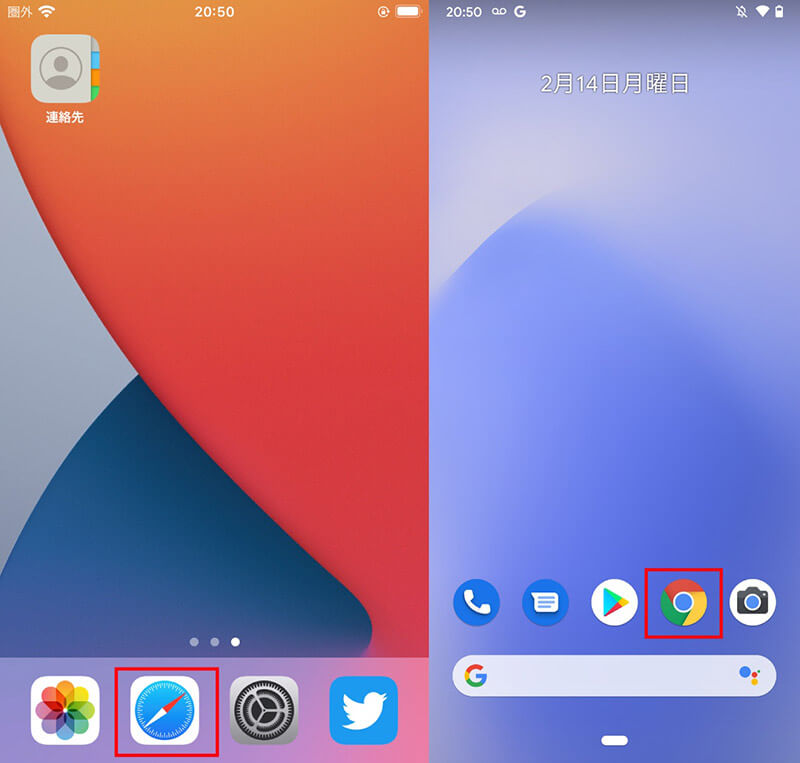
In 2018, Google introduced Play Protect, which brings malware protection built into every Android device . It uses Google’s machine learning algorithms to detect suspicious apps and keep you away from such malware. In summary, Android is now very secure and you don’t need antivirus software to keep your device safe.
3. Clear cache using app cleaner
We recommend using App Cleaner from time to time. But only if you have an older device running an older version of Android and you don’t have any free space left on your internal storage .
However, if you have a modern Android device (Android 8 or newer) with sufficient storage, it is better to leave the cache alone. Cached data helps apps and services run flawlessly because app data is retrieved locally and can be accessed quickly .

For example, WhatsApp caches data such as your contacts’ profile pictures and shared media so that it doesn’t have to load the data every time you open the app. Therefore, if you want the apps on your smartphone to work smoothly, stop deleting cache data . Also, if you delete the cache, the app will start rebuilding the cache again, so you’re back to square one.
4. Keep battery saver mode on
We have come across many Android users who always keep the battery saver mode on to save battery even when the battery is 90% left. This is not a good practice as it seriously prevents Android from working properly. For example, when Battery Saver mode is turned on, Android natively disables the CPU’s high-performance cores .

When you perform intensive operations on your smartphone, it uses only less powerful cores, which causes performance degradation, battery drain, and heat generation issues . Basically, if you have plenty of battery power left, battery saver mode will do more harm than good.
This means that you should only enable Battery Saver mode when your battery level reaches 15% or 20% . Indeed, if you want to limit background processes while traveling, you can turn on battery saving mode.
5. Don’t restart your device
There’s still a lot of speculation behind this, but if you ask me, it’s a good idea to restart your Android smartphone from time to time. Samsung has had this feature since the days of the S7, and the latest One UI builds also allow you to schedule automatic restarts . There’s clearly something about Android that slows it down over time.

This will remove unnecessary processes holding up memory and give your device a fresh start . We recommend rebooting once a week or once every two weeks.
6. Lack of care when granting privileges
Many Android users grant all kinds of sensitive permissions to apps without carefully checking whether the app requires the permissions. For example, photo editing apps don’t require Contacts or Messages permissions . There are a large number of such apps that abuse Android permissions, mainly due to the lack of knowledge of the users and the possibilities it poses.
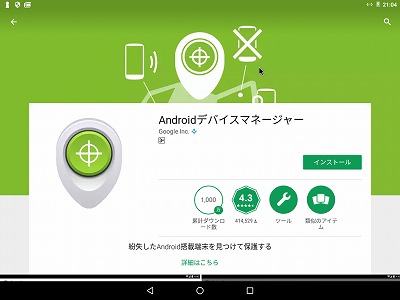
Therefore, we recommend checking the prompts carefully before granting permission. Apart from that, you can also use an app called Bouncer ( $0.99 ). This app will revoke your permissions after you finish using the app. These healthy practices will make your Android experience more secure and private, so you should develop these habits.
7. Using default apps
There are many examples of using default Android apps, most of which come from Google or device manufacturer Android skins. In my opinion, these default apps don’t necessarily give you the best experience and you need to customize your Android smartphone to your liking.
For example, SMS Organizer ( free ) is a better text messaging app than Google Messages. Similarly, there are many Android launchers that offer endless customization. You can also find many useful Android apps in the video below.
8. Continue to use the button navigation bar
It’s been two years since Google introduced the gesture system to Android, but users are still stuck with the old-fashioned button navigation system. Of course, it works very well for some users and they are used to it. However, the new gesture system is very fun to use, allowing you to complete actions with a swipe.
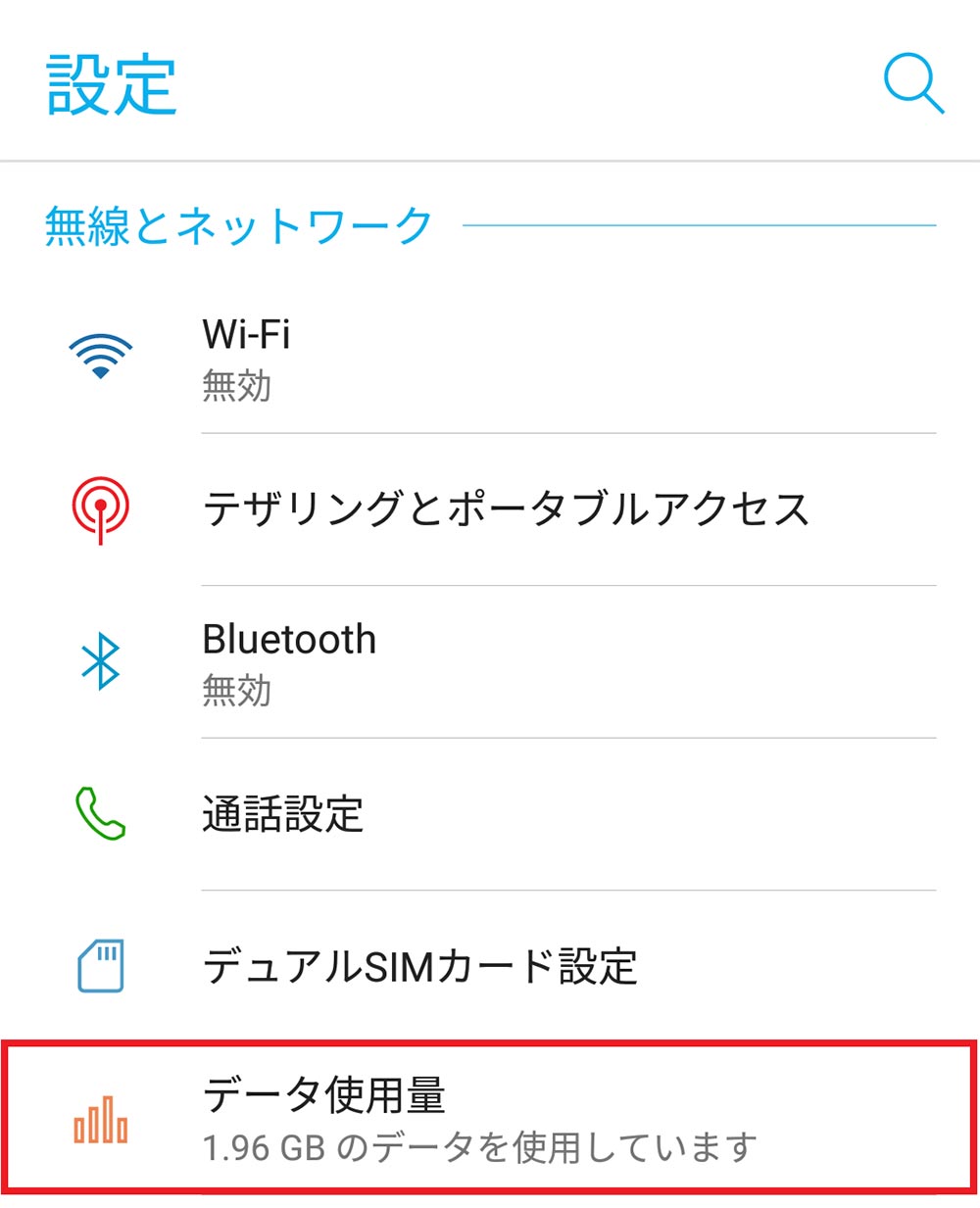
Google has further improved the gesture system in Android 10 and the latest Android 11, giving you even more reasons to try new ways to navigate the Android OS. Please give the gesture system a try.
9. Using questionable file sharing apps
Android has many apps, but file sharing apps that share files and media between devices are very popular. ShareIt, Xender, etc., to name a few, dominate this space and users don’t seem to know of any better alternatives.

These apps display all kinds of ads and the user experience is unpleasant . We recommend using the new Nearby Share feature (works on Android 6 and above) or installing the Files by Google app ( free ). These are much better alternatives and give you a seamless file sharing experience.
10. Sideloading apps from unknown sources
The ability to sideload apps on your Android device makes it an open OS that you can do whatever you want. It can be a bane for many and a boon for some . If you have the necessary knowledge and understanding of how Android works, you can sideload apps from unknown sources.
However, avoid sideloading apps unless you know the intricacies behind the Android ecosystem. It can be more deadly than you think, especially on older versions of Android .
Therefore, make sure to only install apps from trusted sources (such as the Play Store) and avoid running into apps that guarantee unlimited lives or money in-game. These apps are believed to contain malicious code.
If the Play Store isn’t available on your device , check out our top Play Store alternatives. We only mention sources with secure and strict APK verification mechanisms, so you can safely sideload apps from these sources.
FAQ
Q. How can I fully customize Android?
As mentioned above, you need to first change the default apps and then install the launcher of your choice. I mentioned the link above, so please refer to the article for more information.
Q. What’s wrong with Android smartphones?
Comparing Android smartphones and iPhones, we can clearly see that privacy is at the forefront and Android is lagging behind. Enable better and more stringent privacy controls to protect your users. Apart from that, Android is still quite fragmented even after Project Treble, so it is once again far behind iOS in terms of updates. If you purchase a non-Pixel Android device, you won’t get day-one updates.
Q. How can I make my Android smartphone run more smoothly?
Today, most Android smartphones come with a large amount of bloatware, which is a major cause of stuttering and poor performance. If you are running MIUI, we highly recommend uninstalling bloatware from your Xiaomi device. For other Android devices, see our general guide to making your Android phone run smoother.
Q. How can I improve the performance of my older Android smartphone?
If you have an older Android device, be sure to uninstall unused apps to ensure you have enough storage. Next, you need to limit background processes by going to Settings -> About -> Developer options -> Background process limit -> Up to 1.
Note that Android devices only run one process at a time, but this solution is only intended for older Android devices. Also, insert an SD card and offload apps to external storage.
Avoid the following on Android devices:
These are some of the things we tend to do wrong on Android devices, which negatively impact performance. Today, Android has made great strides and matured as a modern OS. Simply put, these Android habits are a thing of the past and best forgotten. Anyway, that’s it from us. If you think we may have missed something, please let us know in the comments section below. Help us complete the list of things we do wrong with Android.


![How to set up a Raspberry Pi web server in 2021 [Guide]](https://i0.wp.com/pcmanabu.com/wp-content/uploads/2019/10/web-server-02-309x198.png?w=1200&resize=1200,0&ssl=1)


