Google Docs provides a powerful set of tools to easily create and manage professional documents, but that’s not all it has to offer. Not many people are aware of the fact that Google Docs supports third-party add-ons that bring additional functionality. This is one reason why many similar online document processing tools cannot compare to Google Docs. Google Docs has hundreds of add-ons that make editing your documents much easier. Well, worry no more as we have listed 10 best Google Docs add-ons that will definitely improve your Google Docs experience and help you create professional documents with ease.
1. Table of Contents
The table of contents is the most important part of a long document. You can see the document’s characteristics at a glance, so you can easily navigate to the desired location. The Table of Contents add-on allows you to create a complete table of contents for your document and easily add direct links to headings .
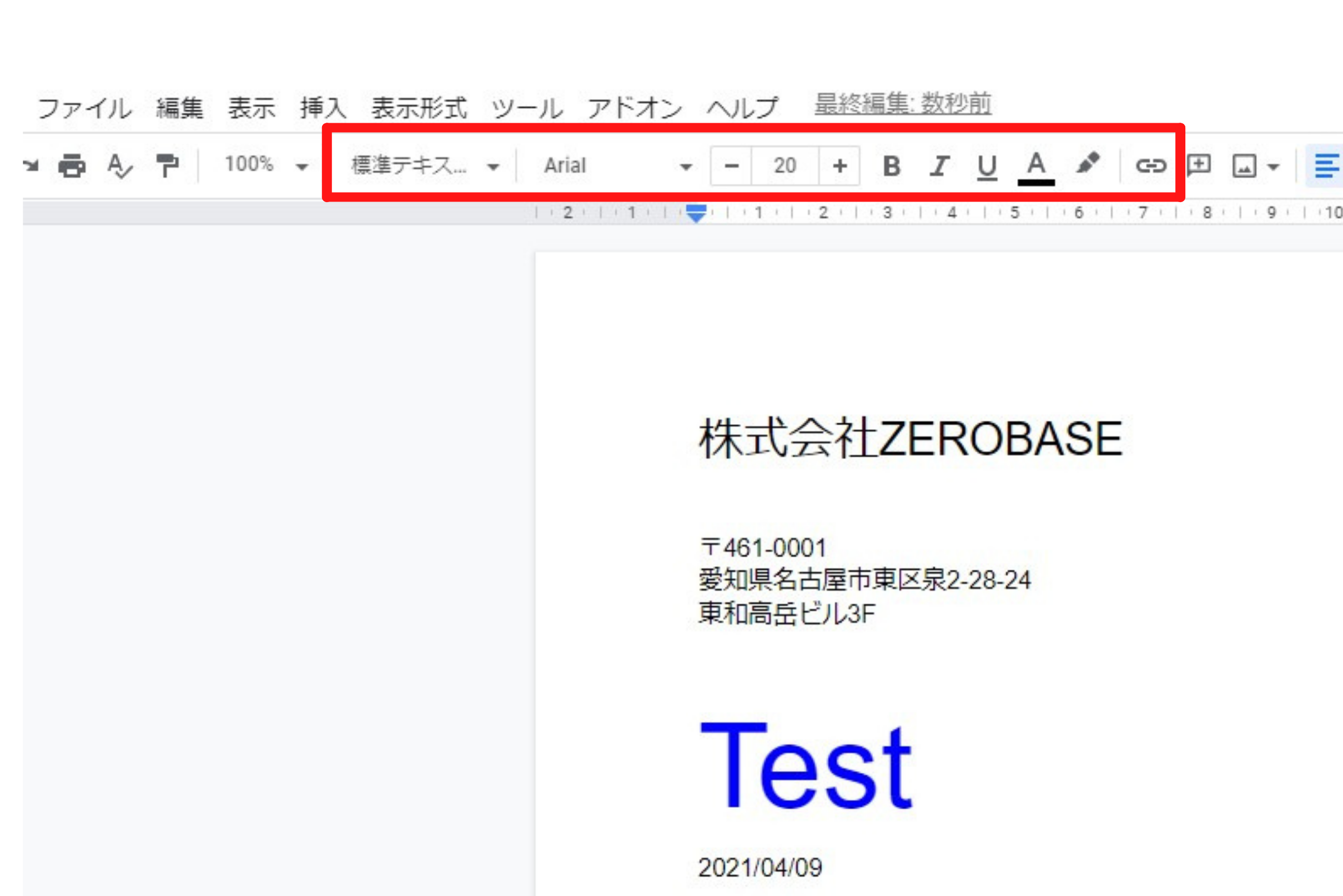
The add-on displays your content in the right-hand sidebar, where anyone can access it instantly by clicking on the heading. The document must be properly formatted for a table of contents to work, including giving each heading the appropriate heading name (Heading 1 or Heading 2). Additionally, the Table of Contents also works a little slower in very large documents. In my test. Navigating to a heading in a 4000+ word document took 2-3 seconds.
2. SAS Writing Revisor
SAS Writing Reviser’s job is to help you revise your documents to make them more impactful. This is not a tool to help non-native English speakers write better without grammatical errors. Instead, it helps you find different types of words and phrases that can make your document better or worse. You can use these suggestions to improve your document. Of course, using this tool requires a good understanding of the rules of the language.

You can identify passive voices, repeated words, ambiguous words, weak verbs, and unnecessary words. Parallel processing, simple statements, transitions, fragments, etc. With this add-on, you can easily get overall statistics to understand how well your documents are written. With access to so much knowledge, you can easily revise your document and fix what needs to be fixed.
Get the addon
3. Highlight tool
Google Docs comes with a built-in highlighting tool that allows you to highlight text in different colors, but its functionality is quite limited. The Highlight Tools add-on makes highlighting super easy and adds a ton of features that give you complete control. Apart from the ability to highlight text in different colors, you can also name your highlights so you know what each highlight color means. Additionally, you can also export all highlighted text to another document, which is great for quickly moving random text from a document.

You can create multiple highlights and save them to your highlights library for future use. Plus, all the highlighters you create can be shared with others so they can use them too.
Get the addon
4. Translate
As the name suggests, this add-on allows you to translate text in your documents to another language with just a few clicks. Translations are powered by Google Translate, and you can translate the content from the sidebar on the right. Just highlight the text you want to translate and it will automatically detect the language and provide you with supported languages to translate to.
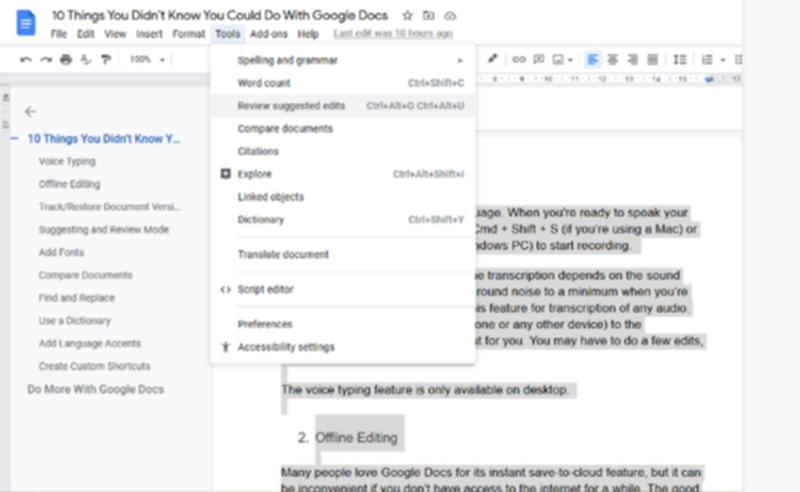
Just click “Translate” and all the text will be highlighted in the sidebar, making it easy to see the translated text. You can copy and paste the translated text wherever you like, or click the “Insert” button below to replace the original text with the translated text. Unfortunately, this addon only supports five languages: English, French, German, Japanese, and Spanish. Although Google Translate supports over 100 languages.
5. Student’s prefecture
Google Docs has a built-in option to change the background of your document to make it easier on the eye. The Pupil Pref add-on gives you the same features as Google Docs, but with a focus on making it easier to work with your documents. Pupil Pref makes your work easier with 16 colors to choose from that are proven to be easy on the eyes , based on research by Professor Arnold Wilkins.

All colors are listed in the sidebar and you can quickly switch between colors. You can also click the Remove Color button to return to the default white color. The colors listed here are all bright colors. If you are looking for a dark background color for a dark environment, you should use Google Docs’ default background color changer.
6. Doc Secret
Not all of the content of the document is intended to be visible to everyone who reads it, or lying around for someone to hack into. Documents may contain passwords, account IDs, sensitive information, and other types of sensitive data. DocSecret allows you to add encrypted content within a document that can only be opened with a passphrase known only to you (or the person you share the document with).

Simply create a phrase and start writing your confidential content within the DocSecrets sidebar. Click “Insert” to insert the phrase at the cursor position. Encrypted content is added and randomly colored to differentiate. Only the content text within the DocSecrets panel is displayed. Please note that if you forget your passphrase, there is no way to recover your encrypted content.
7. Wolfram Alpha
Wolfram Alpha is actually a calculation-based search engine, providing computable information to your queries . This add-on lets you add all the computing power of Wolfram Alpha to your Google Docs sidebar. When you search for something here, the add-on displays computable results such as size, weight, distance, radius, and other similar data. This is useful if you want to add computable details to your technical documentation.
For example, instead of explaining what the Earth is, if you search for “Earth” in it, it will show you the distance between the Sun and the Earth, its orbital period, mass and age, etc. All this information is at your fingertips thanks to the Wolfram Alpha add-on for Google Docs.
8.ez notification
The ezNotifications addon is still in beta stage, but it already looks very promising. This add-on will notify you of all edits made in your document by other collaborators. You can schedule hourly notifications as a minimal option. There’s also an Owner Options section where you can control whether other collaborators (including editors and viewers) receive notifications.

The add-on is free for now, but the “owner options” will be locked behind a paywall after the beta stage. Instant notifications for title changes have already been added, and I believe instant notifications for other edits will be added soon.
9. Extended fonts
In case you haven’t noticed, it’s quite difficult to access all the fonts available in Google Docs. It takes at least a second to scroll and open a new font, so you may have to click a few times before seeing the font. If you use a variety of fonts extensively, you should get the Extensis Fonts addon, which makes the process a lot easier. You can open all 1200+ fonts provided by Google, making it very easy to move and apply the fonts you need.
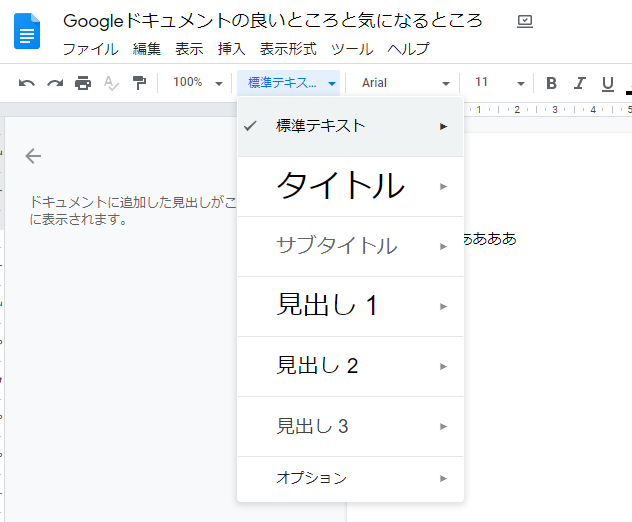
You can also view fonts by category and sort by date, popularity, or alphabetically. You can also adjust the preview size if necessary.
10. Lucidchart Diagrams
Diagrams play an important role in the most detailed documents. If you need to create and add diagrams in Google Docs, Lucidchart Diagrams is the tool for you. Once added, you will be able to create many different types of diagrams, including Venn, Flowcharts, Organization Charts, Floorplans, Mind Maps, Android, Circuits, and more. Diagram templates open in the Lucidchart editor and can be easily edited by dragging and dropping items.
Some templates are locked in the free version and you can only add 60 items. To access all features , you need to upgrade to a paid package starting at $4.95 per month. All diagrams you create are saved to Google Drive and can be accessed using the Lucidchart Diagrams add-on.
See also: 10 Google Drive tips and tricks to improve your productivity
Enhance your Google Docs with these add-ons
Add-ons are the best way to increase your productivity with Google Docs. We’ve highlighted some of the most useful Google Docs add-ons, most of which are free to use as well. Personally, I recommend trying out SAS Writing Reviser for its amazing revision capabilities. If you need to be glued to the screen while you work, we recommend giving Pupil Pref a try. If you know of any other great Google Docs add-ons, please share them in the comments section below.


![How to set up a Raspberry Pi web server in 2021 [Guide]](https://i0.wp.com/pcmanabu.com/wp-content/uploads/2019/10/web-server-02-309x198.png?w=1200&resize=1200,0&ssl=1)


