At its 5th annual developer conference held in San Francisco during the first week of November, Samsung announced a complete overhaul of its smartphone UI. Samsung’s new Android skin, called One UI, will replace the classic Experience UI. I installed the beta version of One UI on my Galaxy Note 9, and my first impressions were all positive. The new skin brings many positive changes to the experience UI, making the software feel fresher and lighter. So, if you’re debating whether Samsung’s new UI is good for you, here are 13 great One UI features to help you understand what this new Android skin has to offer.
Samsung One’s best UI features
1. Improved operability with one hand
With One UI, Samsung hopes to address the biggest problem with the ever-increasing size of smartphones: one-handed usability. The new UI introduces a fresh new look and makes it easier to operate your phone with just one hand . Basically, the new UI has a large viewing area at the top and an interaction area in the bottom half. This is implemented throughout the native app. The user can now easily interact with the top-level controls.

The best part is that the visible area disappears when you scroll down the app. This basically means no screen real estate is lost. I also like the fact that Samsung moved the interactive buttons from the top to the bottom, making them easier to use with just one hand . Overall, I like the new UI, which is much easier to use for one-handed use.
2. Navigation gestures
With One UI, Samsung is also releasing its own take on gesture-style navigation. Essentially, users can choose to use gesture navigation instead of Android buttons. Enabling gesture navigation lets you navigate your phone using only gestures. Samsung’s gesture implementation is similar to what we’ve seen on Oppo and Vivo phones. So swipe up from the bottom left to go back, swipe up from the bottom center to go home, and swipe up from the bottom right to open the recent apps menu. Like the buttons, the gestures for going back and bringing up the recent apps menu are interchangeable.
3. Adoptable storage
One of the biggest improvements with One UI is a feature called Adaptable Storage. This feature essentially allows you to use your microSD card as an expanded memory for your phone. This means that the SD card is not treated as additional memory, but is read as the phone’s internal memory . This allows users to install apps and games on the SD card without any issues. This is a big improvement for SD card users. That said, this feature did not work in the beta version, so we will have to wait until future versions of the skin to see if it works properly. This is still a really cool feature and I can’t wait to test it out.
4. New icons and design elements
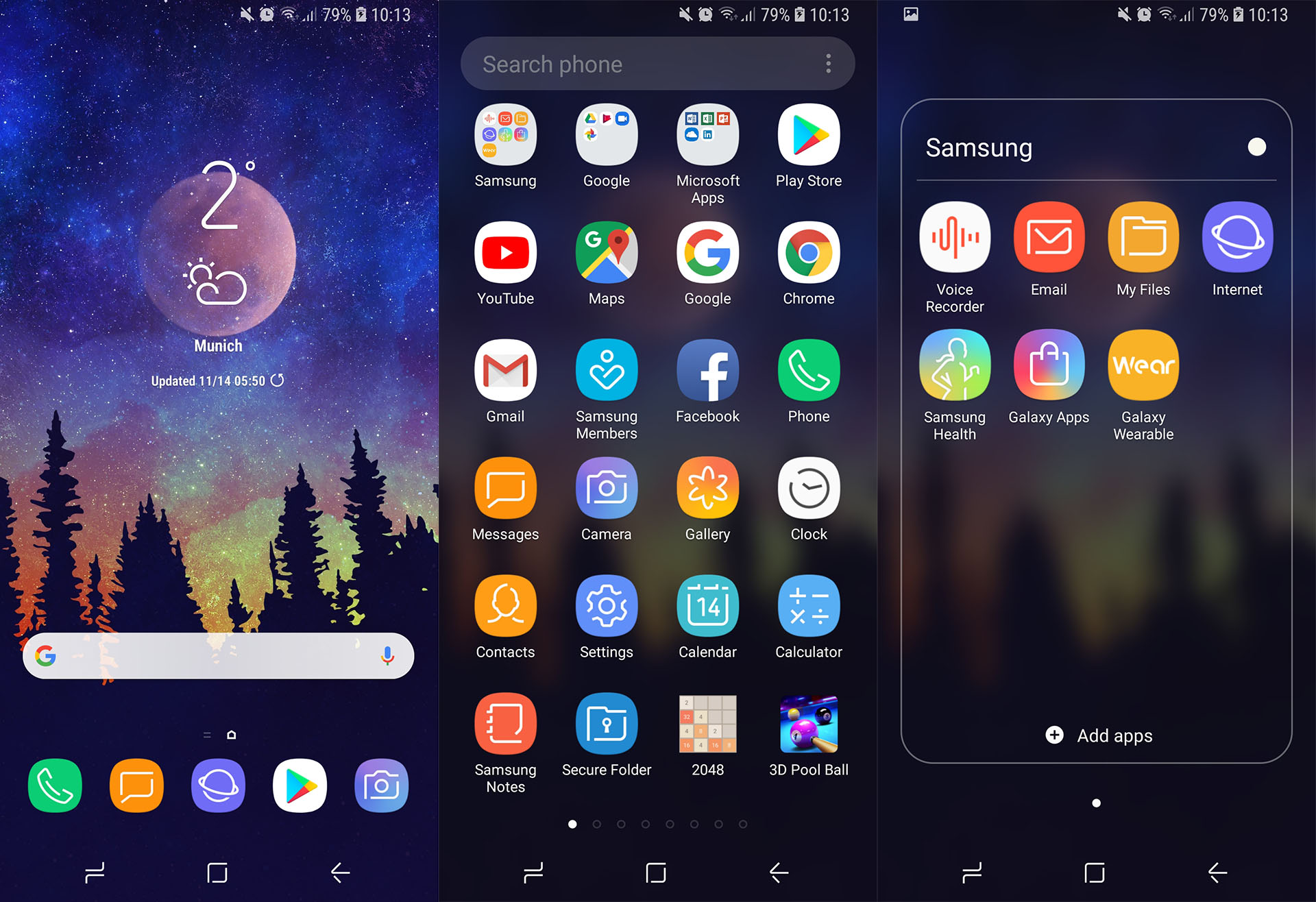
In some cases, the overall look of the UI has also been significantly updated. First, new icons have been added that are flatter and more regular. The icons are still squawkly shaped and look a bit cartoonish, but the new icons are much better than the previous Experience UI icons . It also takes inspiration from the hardware design of the company’s flagship smartphones, with many rounded edges visible throughout the user interface. Most of the time these rounded edges look pretty cool, but there are a few places where they look a little overdone. One such place is the Bixby screen, which I really don’t like. Other than these small issues, I think Samsung did a great job with the design.
5. Dark mode
One UI also introduces a complete system-wide dark mode, one of the most requested features by users, and I love it. Dark mode is system-wide, so all UI elements and all native applications support it . This means you’ll see a dark notification panel, a dark Settings app, a dark app drawer, and more. Dark mode on the Note 9 looks great thanks to the edge-to-edge OLED screen. In addition to looking great, it also makes viewing very comfortable, especially at night.

6. Gallery trash can
One of my favorite features of Google Photos is the Trash feature, which stores deleted photos for a limited period of time. I accidentally deleted many photos. Without the Trash feature in Google Photos, I would have lost many important photos. One UI also brings the same functionality to Samsung’s native Gallery app. This feature is called Recycle Bin, and it basically stores all deleted photos for 15 days before permanently deleting them. So even if you accidentally delete a photo, you can easily get it back.

7. Wake up in the lift
We still don’t know why it took Samsung so long to introduce this nifty feature, but it’s finally here. This feature, called the “Lift to Wake” feature (commonly known as Lift to Wake on other devices), automatically wakes up the screen when you lift it to look at it . This feature is even more useful if you are using Samsung’s iris scanner. This allows the system to start scanning even before the screen is turned on, making the process much faster.
8. Battery optimization settings
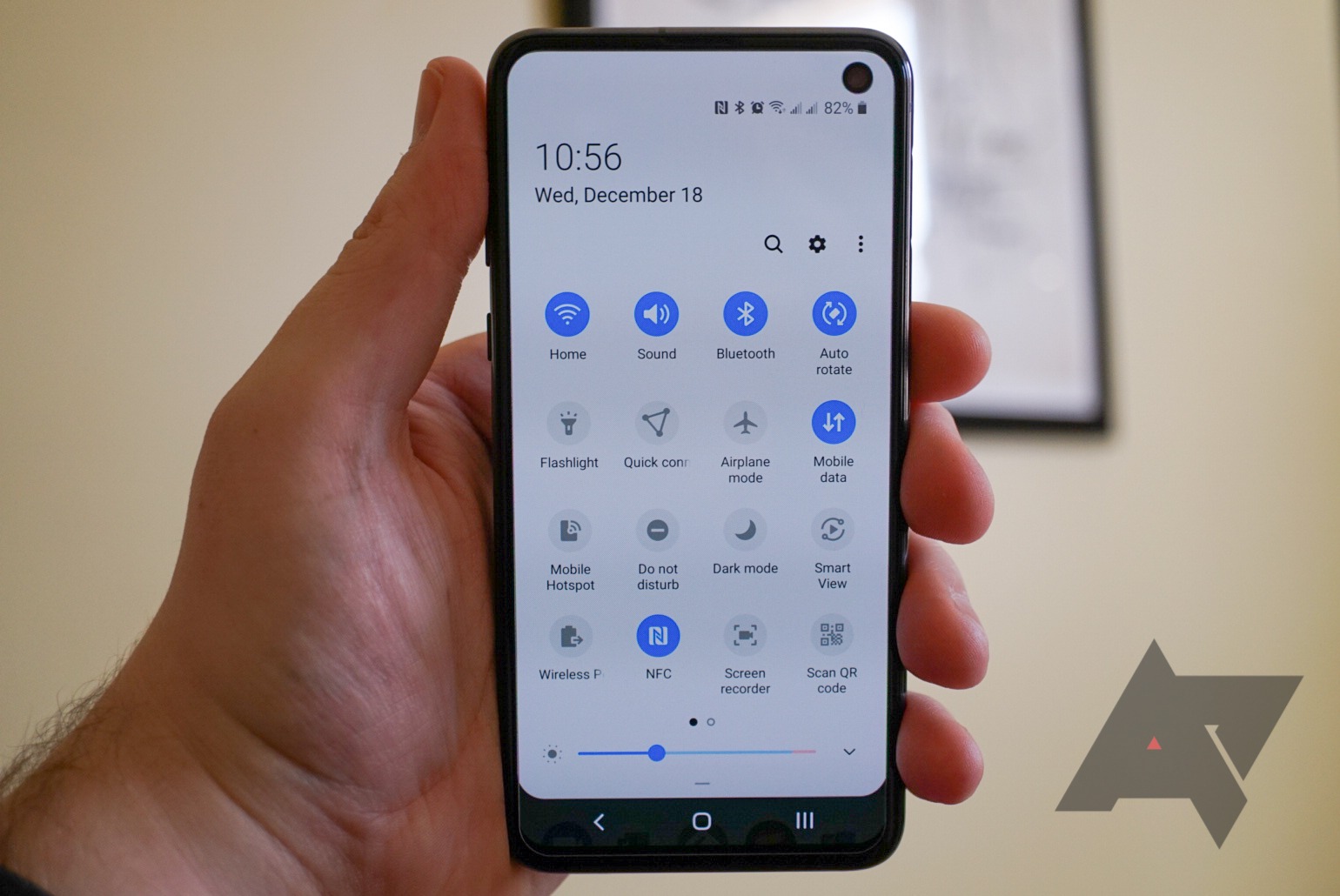
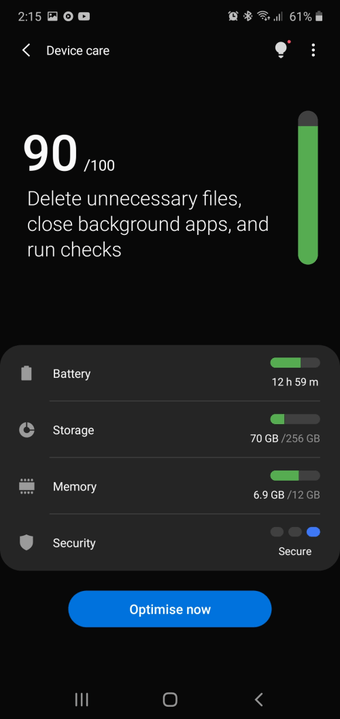
Samsung is introducing a new ‘Optimize Settings’ option in the battery settings in One UI. Enabling this will automatically reset brightness, screen timeout, and media volume at midnight to save battery. So if you tend to keep everything turned on to maximum power during the day, it’s nice to have all these settings automatically reset to a lower level to save your phone’s battery.
9. Smart direction
One UI is based on top of Android Pie, so many Android Pie features are integrated directly into the skin. One of my favorites is the Smart Orientation Lock feature , which displays a small button at the bottom if you try to change orientation while the auto-rotate setting is turned off . This makes it very easy to adjust the orientation without having to open the quick settings panel.
10. New keyboard features
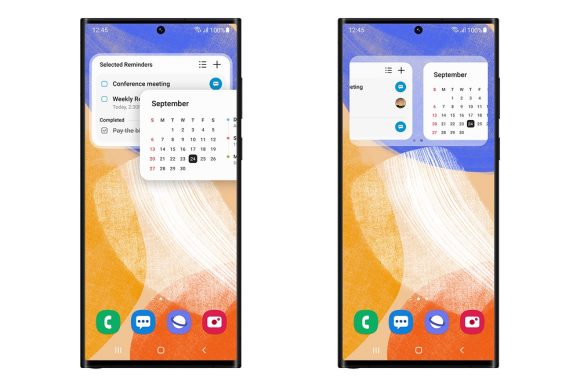
The Samsung keyboard also has some cool new features. First, we’ve added a new “floating mode” to the keyboard modes page. As the name suggests, floating mode causes the keyboard to float, allowing users to move it anywhere on the screen. You can also adjust the keyboard size and transparency in floating mode. This is very useful. There’s also a new adaptive theme option that automatically changes your keyboard theme to light or dark depending on the color of the app you’re using.
11. New camera features
The camera app has also been updated. You may either like or dislike the new camera UI depending on your taste. Personally, I like the new user interface as I feel it is more user friendly . Apart from the new look, the camera app now supports HEIF file format . Additionally, there is also a setting that, when turned on, launches the camera in the mode it was last used. This is definitely very useful.
12. New animations and animation controls
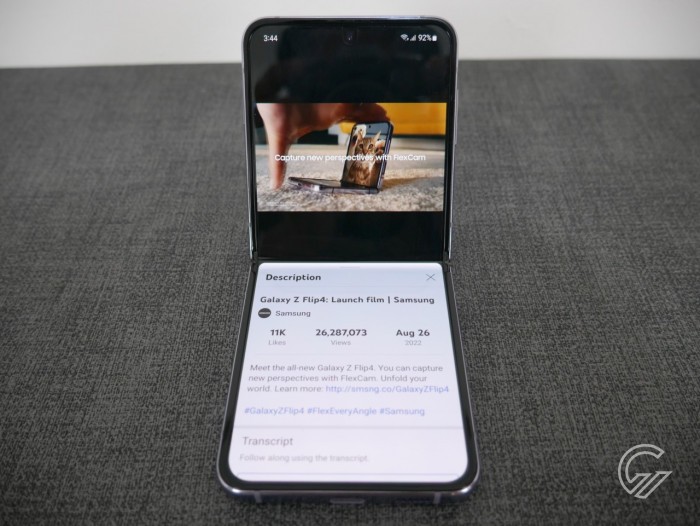
One UI also introduces new and sleek animations throughout the user interface. Animations like closing an app and returning home, launching the multitasking menu, and dropping down the quick settings panel feel more responsive and elegant. I especially like the new screenshot animations because they look really nice. If you don’t want to handle animations, there is also a built-in setting to reduce animations throughout the UI. It doesn’t completely remove the animation, but it tones it down.
13. New watch design
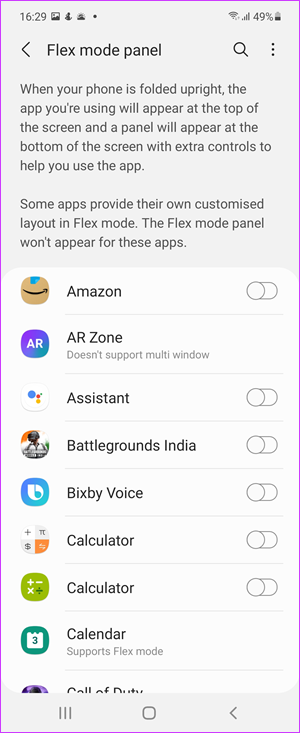
This isn’t a huge feature, but I love the design of the new watch so much that I had to include it in this list. As the title suggests, One UI has a lot of new clock designs that are both informative and beautiful. We think most Samsung users will love these new watch designs.
See also: 22 new features in Android P you need to know
Features worth installing Samsung One UI
That concludes our list of the best One UI features to expect from the big release. Personally, I love the new UI and prefer it to the Experience UI that Samsung has been using so far. Let us know your thoughts in the comments section below.


![How to set up a Raspberry Pi web server in 2021 [Guide]](https://i0.wp.com/pcmanabu.com/wp-content/uploads/2019/10/web-server-02-309x198.png?w=1200&resize=1200,0&ssl=1)


