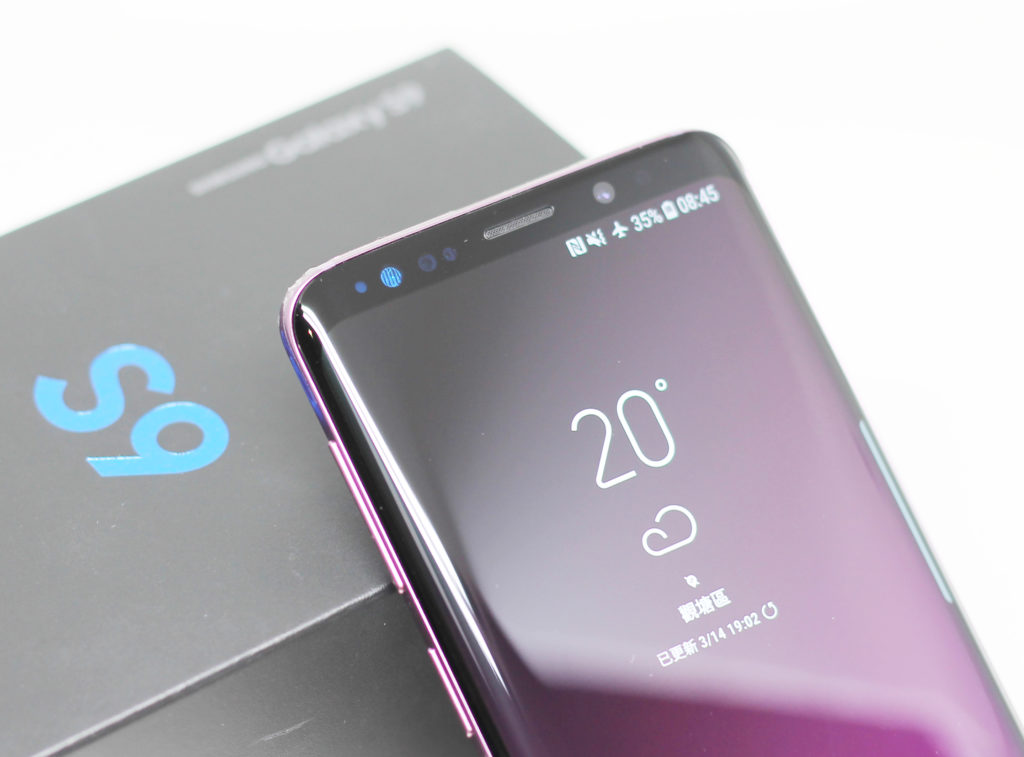
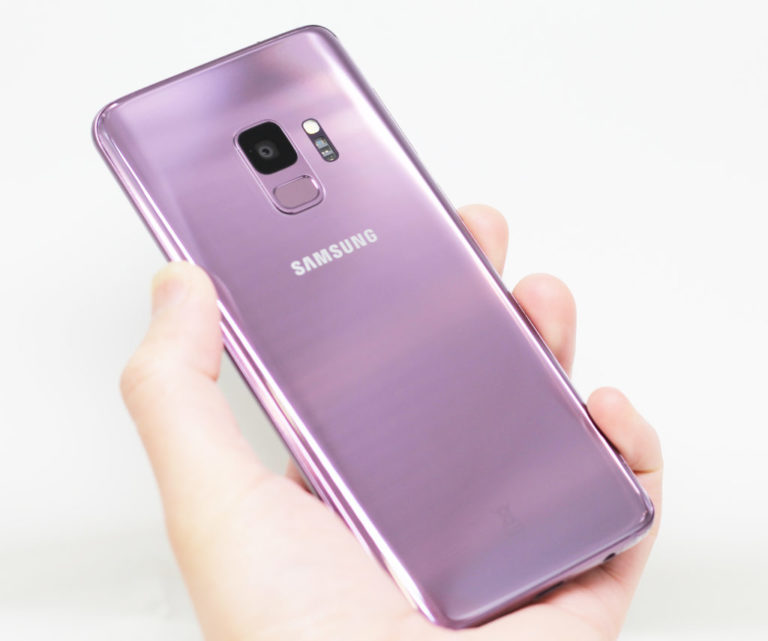
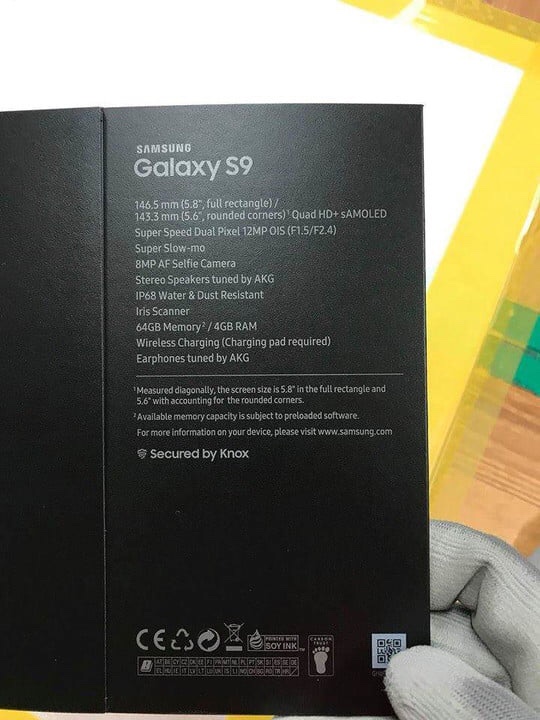
Samsung’s latest flagships, the Galaxy S9 and S9+, have been hogging the spotlight and attention of tech experts for the past few weeks. A surprisingly fast processor, an industry-first camera setup with variable aperture, and, of course, a more comfortable placement of the fingerprint sensor are the notable changes brought by the new device.
However, if you take a closer look at the Galaxy S9’s UI, you’ll notice a number of very nifty new changes. But not all of it is really productive, as some new features seem just gimmicks (I’m looking at you, AR emoji). Fanboys and critics aside, let’s take a look at the new software tricks and features introduced by the Galaxy S9 that you should try out if you buy Samsung’s latest flagship.
15 great Galaxy S9 features and tricks
Note : We tried all these new features and tricks on the Galaxy S9 Plus, and they should work just as well on the S9.
1. Variable aperture of camera sensor
One of the best features of the Samsung Galaxy S9 is the variable aperture of the camera sensor, which you won’t find on other smartphones. This feature allows the user to choose between two aperture values. f/1.5 (best for low light photography) and f/2.4 (best for click photos in normal lighting conditions).
To change the aperture, simply open the camera app and switch to Pro mode . Once Pro Mode opens, tap the lens icon with the aperture written below it, then press the pill-shaped button on the left side of the screen to adjust the aperture.
Below are some camera samples that show what a difference the variable aperture feature can make to your photos. 
2. AR makeup effect in selfies
Another nifty integration of AR in the Galaxy S9’s camera app is makeup effects. This can be applied in real time to test the results. By default, users can select options such as lip color, eyelashes, and eyebrows in selfie mode in the Galaxy S9’s camera app. Additionally, Samsung recently partnered with ModiFace to bring AR makeup effects to the Galaxy S9’s camera app, which will soon be available to users in the Bixby Vision section.
To use AR makeup effects, open selfie mode, tap the “sparkle” icon on the right side of the screen, select a filter, then tap the pencil icon to choose your preferred AR effect.
3.Dolby Atmos
A unique feature that didn’t get much attention during the Galaxy S9’s launch event or subsequent marketing campaign was the addition of Dolby Atmos audio technology to the Galaxy S9. Enabling the Dolby Atmos feature provides a 360-degree surround sound experience and enhances audio output on the new Samsung flagship. When we tested the Galaxy S9 and Galaxy S8 side-by-side for audio playback, we found that the Galaxy S9’s Dolby Atmos feature provided better music output than its predecessor.
You can enable Dolby Atmos feature by following these steps:
- Go to Settings > Sound & Vibration > Sound Quality & Effects .
quality n effect
- Slide the Dolby Atmos toggle to the “on” position
- Tap on the “Dolby Atmos” option and choose from four modes. Auto, movies, music, audio.
4. 4K video recording at 60fps
The Galaxy S9’s camera is definitely a huge improvement over its predecessor, and one notable upgrade is the ability to record UHD video at 60fps. To record UHD video at 60fps, open the settings menu in the Camera app and tap the “Video Size” option under the “Rear Camera” header. Once there, select the “UHD (60fps)” option. However, please note that you can only record up to 5 minutes of UHD video at 60fps frame rate.

5. Intelligent scan
Samsung has equipped the Galaxy S9 with three authentication methods. Fingerprint sensor, iris scan, face unlock. However, if you rely on the latter two, you may find that this feature is not very reliable in low light. To address this issue, Samsung introduced an intelligent scanning feature on the Galaxy S9. This feature combines iris and facial recognition data to improve the speed and accuracy of security measures, allowing them to operate properly even in dimly lit environments. To enable security features:
- Open the settings menu and tap on the “Lock screen & security” option

- Open “Intelligent Scan” and register your iris and face scan data to enable the feature.
6. Create an app pair for split-screen view
The ability to use two apps side by side is useful, especially if you use them regularly. However, the tedious process of selecting two apps and enabling multi-window/split-screen multitasking can be frustrating. The Galaxy S9 has a nifty feature that allows users to create shortcuts for app pairs, which when tapped open the two apps in multi-window format. So how do you set up app pair shortcuts? Well, it’s easy. Just follow the steps listed below.
- Open and minimize the two apps. Next, open any app and press and hold the multitasking button. This allows users to select other apps they want to multitask with.

- Once you have two apps open in multi-window format, tap the trapezoid icon with the ‘+’ symbol to create an app pair on your home screen.
7. Super slow motion video
One of the most touted features of the Galaxy S9 is its ability to record super slow-motion videos at an incredible 960FPS. This is truly insane. Samsung’s flagship can record 0.2 seconds worth of slow-motion video, which can be stretched into a 6-second clip at 720p resolution.
To use this feature, open the Camera app and tap the “Super Slow Motion” option at the top of the screen to enable the feature. You can choose between automatic and manual modes to capture slow-motion videos, change the background music, and set slow-motion videos as your smartphone wallpaper.

However, keep in mind that this feature only works best in outdoor environments with plenty of natural light, or indoor areas with strong lighting.
8.AR Emoji
Why did Apple introduce the concept of Animoji and Samsung retaliate with AR emojis on the Galaxy S9? To play with AR emojis, open the Galaxy S9’s camera app, switch to the selfie camera, and click at the top of the screen. Tap on the “AR Emoji” option to get started. Add fun effects to your selfies by choosing from a wide range of AR effects, including stickers, wallpapers, tags, animal faces, and more.
But the best part is the custom AR emojis you can create by tapping the Create Emoji button. When you take a template selfie, an AI avatar is generated that allows you to change the skin tone, outfit, and hairstyle to your liking. Additionally, you can save AI emojis and share them with your friends during conversations.
9. Live focus and selfie focus
Bokeh and background blur effects are all the rage these days, and Samsung knows it all too well. Galaxy S9 brought a background blur effect for selfies and shots clicked with the rear camera. To take a selfie with bokeh effect, just launch the selfie camera, select “Selfie Focus” mode and click a great shot, but you may need to adjust the distance a little.
When it comes to actually applying background blur on the Galaxy S9, the feature works like a charm on the flagship device. Simply open the camera app and tap the “Live Focus” option to take a photo, which will be saved in two formats in Gallery Viz. A close-up shot with a blur effect and a wide-angle shot without any bokeh. You can also adjust the intensity of the background blur effect with “Live Focus”, which is a very useful addition.
10. Device security scan
We are all too aware of the serious threat of malware on smartphones, and even Google’s own security checks can sometimes fail to identify malware-infected apps on the Play Store. To protect users from threats, Samsung has equipped the Galaxy S9 with device security features from McAfee. This feature performs a thorough system-wide security check and notifies you of any threats.
- To run a security scan, go to Settings > Device Maintenance.
- Select the “Device Security” option from the bottom pane and tap the “Scan Phone” button.

11. Bixby Vision
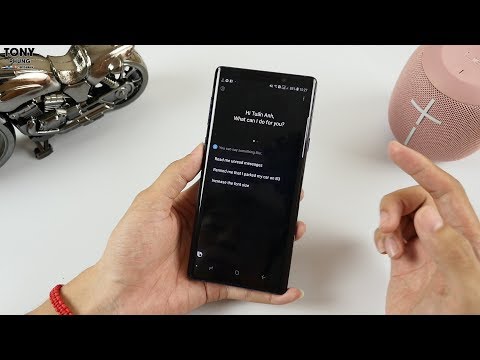
Samsung has integrated its version of Google Lens, called Bixby Vision, into the Galaxy S9’s camera app, and it works very well. Just click on the Bixby Vision logo on the left side of the screen above the black bar in the camera app and you’ll see six options. Text (to translate text on an image), Images (to find similar images), Food (to find information about a dish such as calorie count), Location, Wine, and QR code scanner. I played around with this nifty feature a bit and found it to be surprisingly useful.
12. New edge lighting effect
The Edge Lighting feature that alerts users to incoming notifications was already great on the Galaxy S8, but it’s improved even more on the Galaxy S9 by introducing new lighting effects and more controls. Users can now choose from glitter lighting effects, basic monochromatic lighting, multicolor, and glow effects. Users can also control the color of edge lighting, adjust transparency levels, and choose the width of the lighting band around the display.
You can access improved edge lighting features by following these steps:
- Open Settings Menu > Display Edge Screen
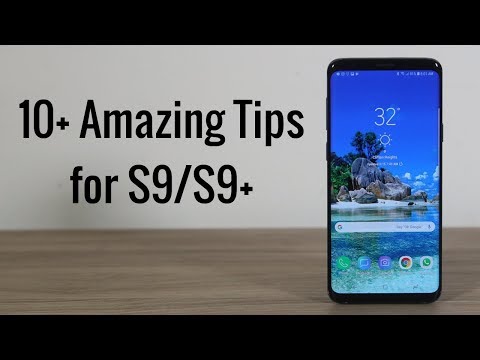
- Activate the Edge Lighting toggle and tap the text to choose an edge lighting style .
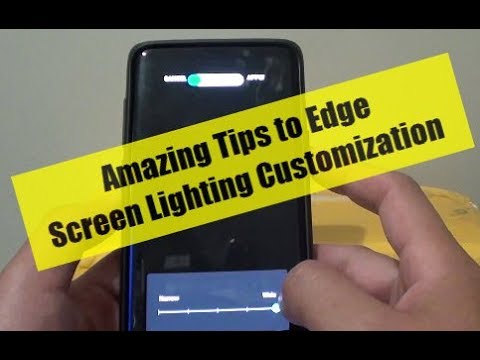
- Select an edge lighting effect and adjust its settings
13. Enable landscape mode on home screen
The layout of apps on an Android smartphone’s home screen is typically portrait, and only transitions to landscape mode when you open an app or feature. This can prove annoying if you minimize it when playing games or watching videos and have to move the smartphone’s position in your hand to get used to the portrait orientation of the home screen. The Galaxy S9 significantly alleviates this by allowing users to change the home screen orientation to portrait mode. Please follow these steps:
- Go to Settings > Display > Home Screen .
- Disable the ” Portrait mode only ” option.
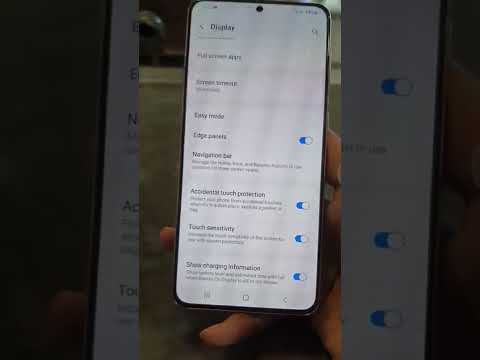
14. Improved touch sensitivity when using screen guard
Using Screen Guard on your smartphone can take some getting used to, as the extra layer on the display requires a bit of effort to register touch input. The Galaxy S9 solves this problem by introducing a new touch sensitivity feature. This enhances the display’s touch reception when a screen protector is applied.
- To enable this feature, go to Settings > Advanced Features .
- Enables touch sensitivity toggle.
touch
15. App shortcuts
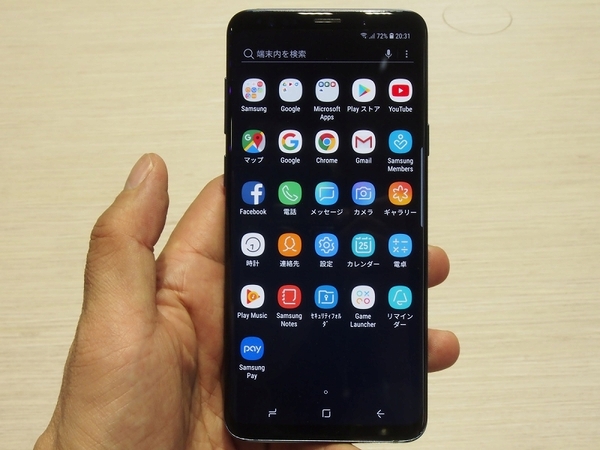
Previously, long-pressing an app icon only allowed users to move, relocate, or uninstall the app, but Galaxy S9 adds a whole new dimension to how this feature works. When you long-press an app’s icon, an extension tray slides out and allows users to perform a host of related tasks associated with the app.
For example, a long press on the YouTube icon will reveal quick access controls to YouTube’s ‘Subscribes’ and ‘Trends’ sections, and tapping on either of them will take the user directly to the respective page. Similarly, for Twitter, users have quick access controls for “New Tweet,” “New Message,” and QR code scanning options without having to open the app and search.
See also: Galaxy S9 Plus camera review: Redefining smartphone photography
Best Galaxy S9 features and tricks. Have you tried it yet?
Well, that’s our list of 15 cool tips and tricks for the Galaxy S9, but that’s not the end of the new features brought to you by the flagship device. Other new features include support for Project Treble (which is huge considering Samsung’s habitually slow approach to rolling out Android updates), Smart Things integration, and smarter notification channels. There are some notable changes.
What do you think about the features mentioned above? Do you have any really productive features introduced in the Galaxy S9 in mind? Feel free to write your suggestions in the comments section below and use these new features to create your new Galaxy Get the most out of your S9.


![How to set up a Raspberry Pi web server in 2021 [Guide]](https://i0.wp.com/pcmanabu.com/wp-content/uploads/2019/10/web-server-02-309x198.png?w=1200&resize=1200,0&ssl=1)


