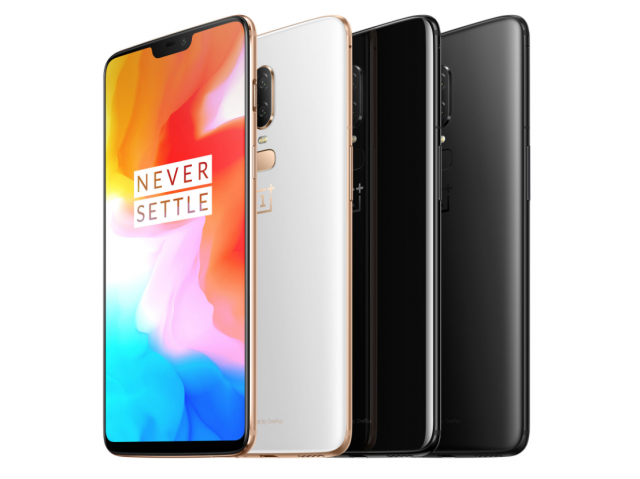
After much speculation, OnePlus 6 is finally here. There is no doubt that this device, which is thoroughly equipped with superior hardware and features, has managed to earn a profit of Rs 100 crore. 100 million in sales in just 10 minutes. Be it the overall performance, camera, or even portrait mode, the OnePlus 6 is definitely a great device. However, after personal use of the device, I found that the OnePlus 6’s OxygenOS hides a ton of useful tools and nifty features that the average user might not be aware of. I did. So, keep reading as we bring you 15 of the best OnePlus 6 tips and tricks that every OnePlus 6 user must know.
Great OnePlus 6 features, tips and tricks
1. Enabling/disabling notch
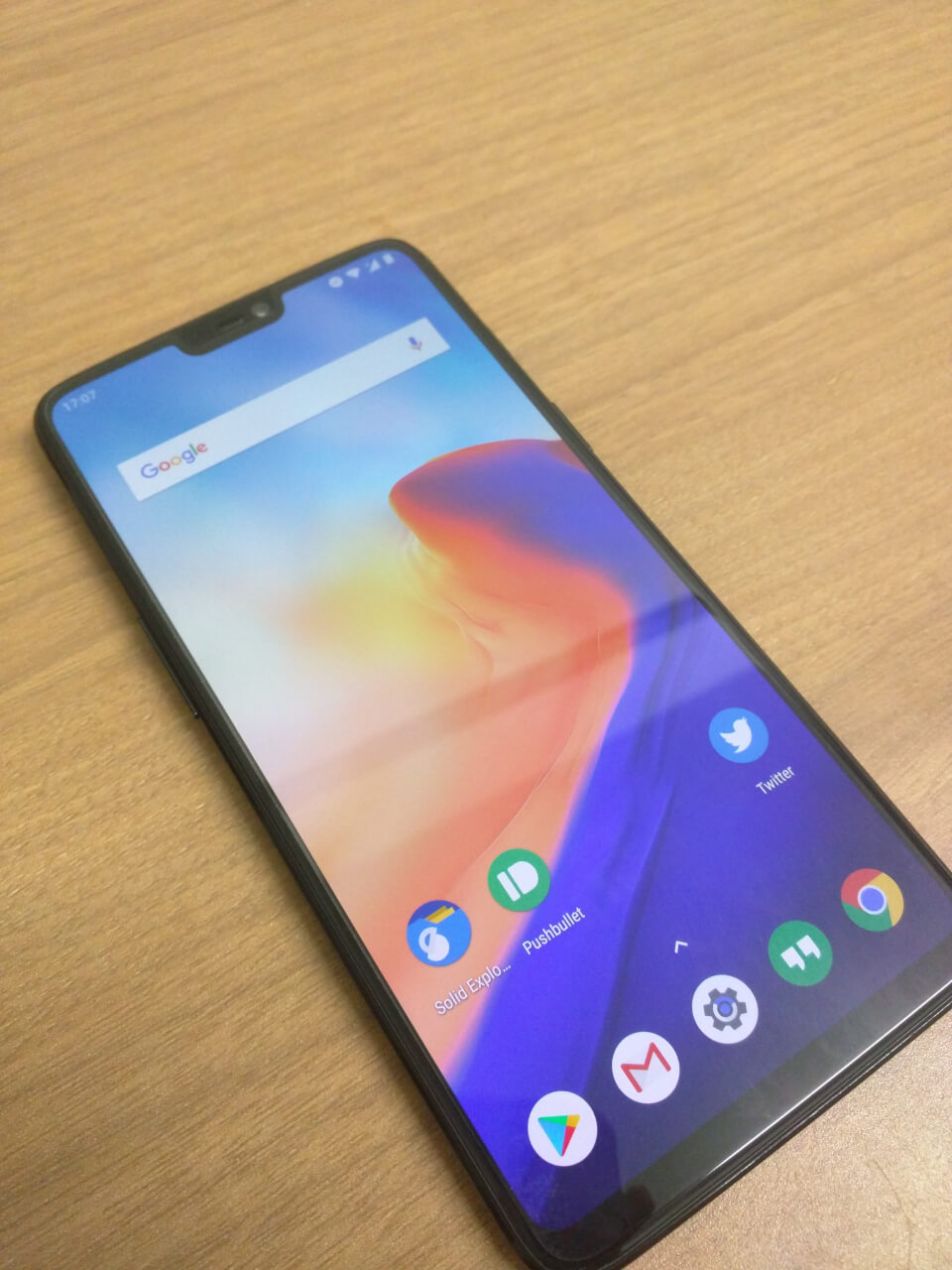
Notches are the current trend, and whether you like it or not, the OnePlus 6 has one. That said, you can also customize whether the notch is visible or not. If you want to disable the notch, please go to Settings -> Display -> Notch Display . You can now choose to enable or disable the notch depending on your preference.
2. Use gesture navigation
First introduced with the OnePlus 5T, the OnePlus 6 features the company’s gesture navigation mode that allows you to easily navigate around the device. To enable gesture navigation on your OnePlus 6, follow these steps:
1. First, go to Settings -> Buttons -> Navigation bar and gestures.

2. Then tap Navigation Gestures .
That’s it. OnePlus 6 now lets you use gestures to move around your device. The gestures supported by your device are:
- To return home, swipe up from the center of the screen.
- Swipe up from the center of the screen and press and hold to see recent apps.
- Swipe up from the left or right edge of the screen to go back.
3. Customize various gestures
OnePlus 6 comes with OxygenOS which supports multiple gestures on the device. Just go to Settings -> Gestures and you’ll have a wealth of gestures at your disposal. This settings page allows you to enable three-finger screenshots and capture images with a long press on the fingerprint sensor.
Additionally, OnePlus 6 also supports double-tap to wake and the ability to draw a specific alphabet on the lock screen to launch a specific application. Pretty cool, don’t you think?
4. Record videos in super slow motion
Another standout feature of the OnePlus 6 is that it has the ability to record very nice slow-motion videos. OnePlus 6 allows you to record slow-motion videos at 720p@480fps or 1080p@240fps. To do this, open the Camera app and swipe up from the bottom. Tap “Slow Motion” to record video in slow motion.
5. Customize the bokeh shape
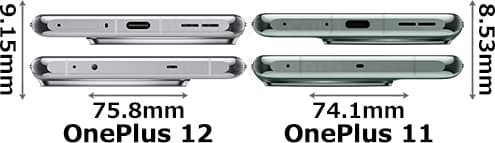
Portrait mode on the OnePlus 6 is definitely very good. But what’s surprising is that you can also customize the shape of the bokeh with this device. Yes, that’s right. OnePlus 6 allows you to customize the shape of light objects that blur in the background. First, open the Camera app, select Portrait mode , and tap the Bokeh icon in the top right corner as shown in the image. You will now have the option to convert light objects into circles, hearts, and stars.
6. Use game mode
One of the major additions to the OnePlus 6 is the improvements it brings to Game Mode. Game Mode is basically OnePlus’ innovative game launcher that essentially frees up RAM on your device to help games run faster. Additionally, Gaming Mode can also provide a network boost to your games, reducing ping when playing online games with friends.
1. To enable this feature, go to Settings -> Advanced Settings -> Game Mode .
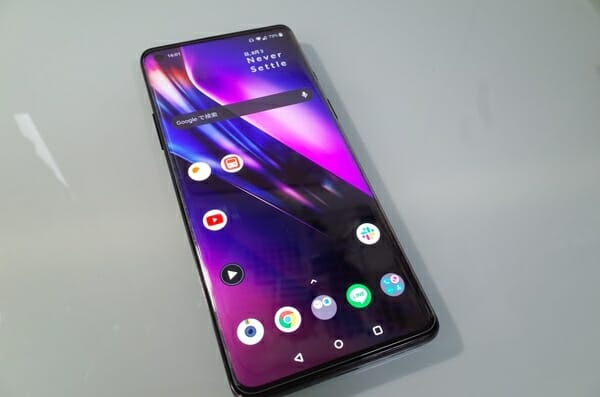
2. Then tap Add app for game mode . All you have to do is select the game for which you want to enable game mode.

7. Enable reading mode
While the OnePlus 6 already has a night mode for using the device at night, the company has also added a reading mode option for those who want to read books on their mobile devices. Basically, it uses ambient light conditions to adjust the color temperature of your screen and adjust the readability of text to suit your environment. To enable Reading Mode on your OnePlus device, go to Settings -> Display -> Reading Mode and enable the toggle next to Turn on Reading Mode .

Additionally, you can add specific apps for which reading mode will be automatically enabled.
8. Use app locker
Privacy is something we’re all concerned about. I know that many users download certain app lockers from the Play Store for better protection of their apps. But what if we told you that OnePlus offers its own way? Yes, you’re right. OxygenOS on OnePlus 6 includes an App Locker feature. Just go to Settings -> Security & Lock Screen -> App Locker .
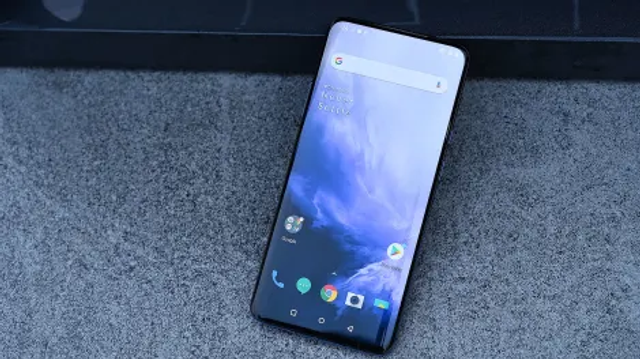
Here you can add the apps you want to lock. If you already have a locking method (PIN, password, or pattern) set, App Locker uses the same method to lock your app. Otherwise, App Locker will prompt you to set a specific password for the locked app.
9. Show network speed in status bar
Some people really like the network speed meter in the status bar that appears on Xiaomi devices running MIUI. Heck, I even wrote an article about how to display network activity in the status bar of your Android device. However, this uses a third-party application, but OnePlus’ OxygenOS has that functionality built-in. Yes, that’s right. Just go to Settings -> Status Bar and enable the toggle next to Show network speed.

10. Enable OTG storage
The OnePlus 6 comes in 64GB and 128GB storage options, with the 256GB version reserved for the Avengers Special Edition. Unfortunately, however, microSD cards are not supported, which is a bummer for those who want to easily expand their storage. That said, it comes with the next best feature: USB OTG support. Yes, that’s right. Easily connect a USB pendrive to your OnePlus 6 via the USB Type-C port to access your data and expand your storage on the go. However, you need to enable this feature from settings. To do this, go to Settings -> Advanced Settings and enable the toggle next to OTG Storage .
11. Enable Pro Mode on Camera
The OnePlus 6 features some of the best camera hardware currently available on the market. This phone also lets you get the most out of this hardware by offering a full pro mode. You can use your camera to manually adjust things like ISO, shutter rate, aperture, and more. To enable Pro mode on your OnePlus 6, open the camera app and swipe up from the bottom. Now tap on “Pro Mode” to access manual controls for your camera.

12. Disable beauty mode
OnePlus 6 comes with a beauty mode that makes your face look more beautiful in the images you capture. However, not everyone is a fan of this feature. To disable Beauty Mode, open the Camera app and tap the Beauty Mode icon in the bottom right . Drag the slider to adjust the filter that Camera AI adds, or drag it to the far left to turn it off completely.
Additionally, you can disable this feature completely if you prefer. In the Camera app, just swipe up from the bottom and tap Settings . Then, just disable the toggle next to “Rear Camera Beauty Mode” . That’s it. Beauty mode will no longer appear on the screen again.
13. Record video at 4K@60FPS
OnePlus 6 comes with the ability to record videos at an incredible 4K resolution at 60 frames per second. So the results you get are great and on par with most flagship devices. If you shoot a lot of videos and want to record at 4K@60fps on your OnePlus 6, just open the camera app and switch to video mode . Then tap on the resolution shown in the top right corner and select 4K 60FPS . that’s it.
14. Enable QuickPay
The OnePlus 6’s OxygenOS comes with a nifty trick to easily enter the payment screen for your desired payment option. When you enable Quick Pay, you simply swipe your fingerprint over the fingerprint scanner and your phone automatically opens the payment app of your choice. To enable this feature, go to Settings -> Security & Lock Screen -> Quick Pay and enable the toggle next to Turn off Quick Pay screen .
that’s it. Quick Pay should now be enabled on your OnePlus 6 device. Please note that currently this feature is only supported by WeChat, AliPay, and Paytm.
15. Front camera portrait mode
OnePlus 6 comes with a nice portrait mode for the rear camera. However, this feature is currently missing from OnePlus 6. Nevertheless, the Chinese giant has assured that portrait mode support will also be added to the front camera in a future software update .
Bonus: Update to Android P
One of the best things about the OnePlus 6 is the fact that it’s one of the few devices outside of Google’s own that is compatible with Android P Developer Preview 2. So, you can install Android P on your OnePlus 6 device and test the latest and upcoming features of the Android world.
SEE ALSO: OnePlus 6 Review: A little pricey, but hard to beat!
Master your OnePlus 6 with these tricks
Well, that’s it. After spending a lot of time with OnePlus 6, I have hand-picked the above list of tricks for your experience. We are sure it will help improve the overall experience of your device. But do you think we’re missing an important feature? Or do you have a specific question? Let us know in the comments section below. We will be happy to assist you.


![How to set up a Raspberry Pi web server in 2021 [Guide]](https://i0.wp.com/pcmanabu.com/wp-content/uploads/2019/10/web-server-02-309x198.png?w=1200&resize=1200,0&ssl=1)


