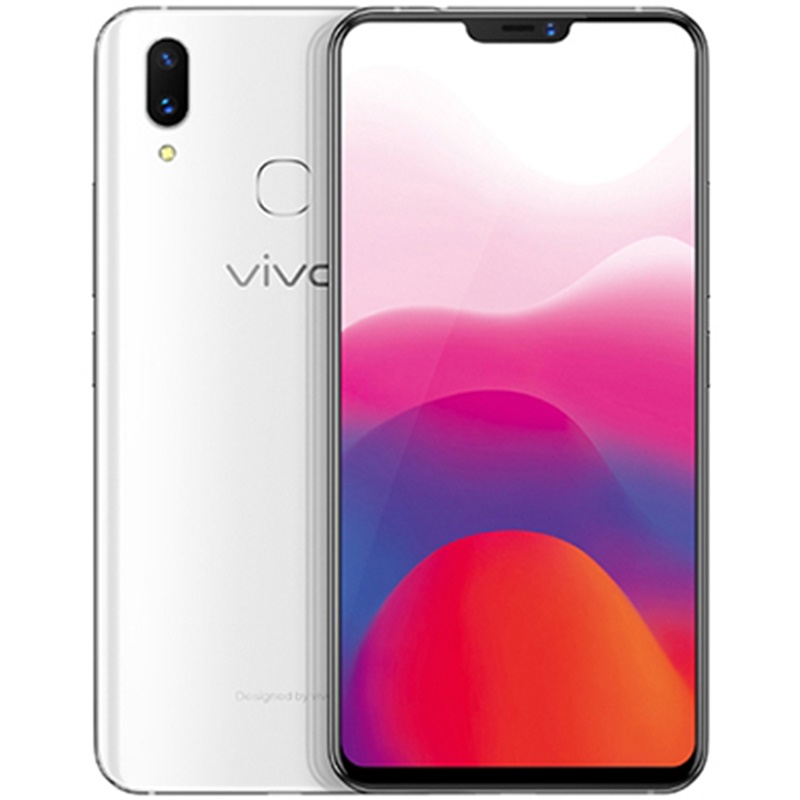
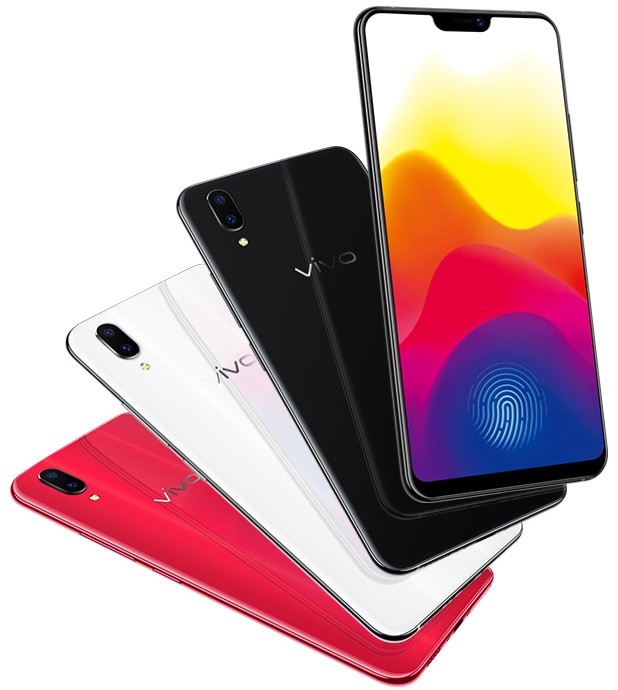
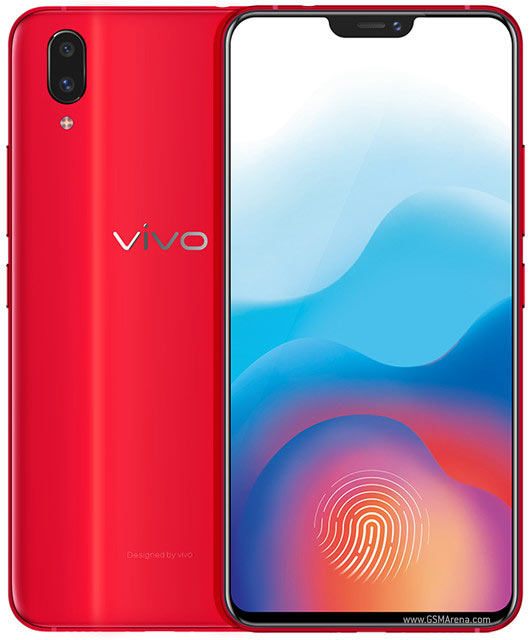
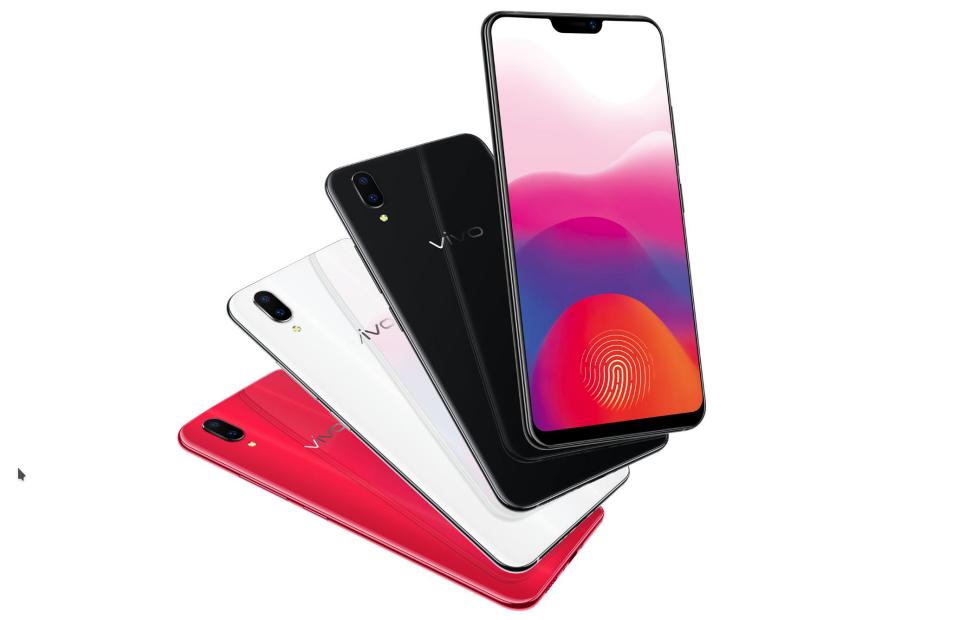
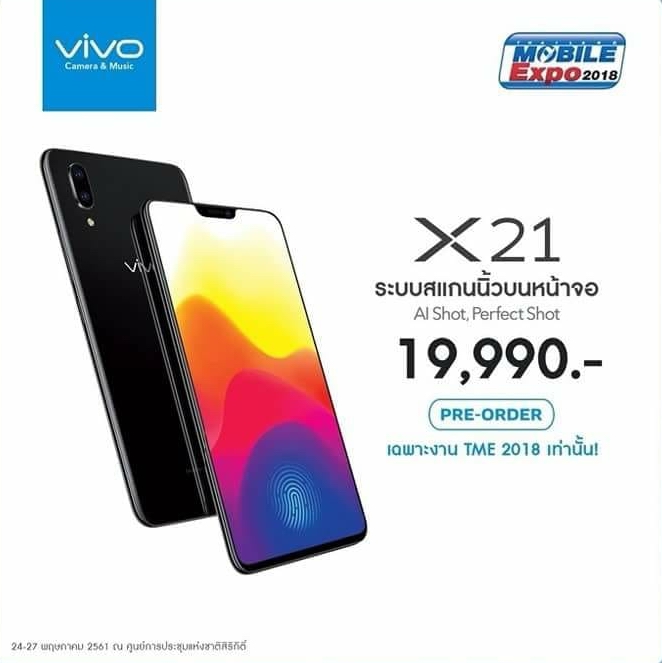
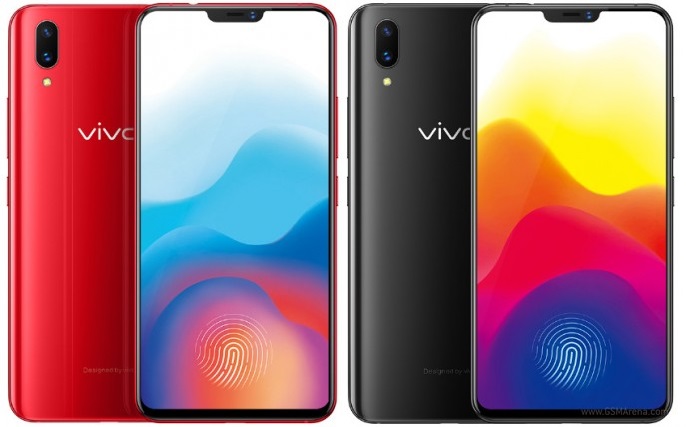
Vivo X21 UD is finally here! One of the first to adopt an under-display fingerprint scanner, the Vivo X21 UD ( ₹35,990 ) is definitely revolutionary. However, apart from the great hardware this device has, it also comes with the company’s FuntouchOS in addition to Android 8.1 Oreo. The OS is easy to use and reminiscent of the iOS experience, but there’s a lot hidden beneath the surface. If you are planning to buy the Vivo X21 UD or have already bought it, keep reading as we will introduce you to some of the best features and tricks of the Vivo X21 UD.
15 tips and tricks for Vivo X21
1. Set up the new under-display fingerprint scanner
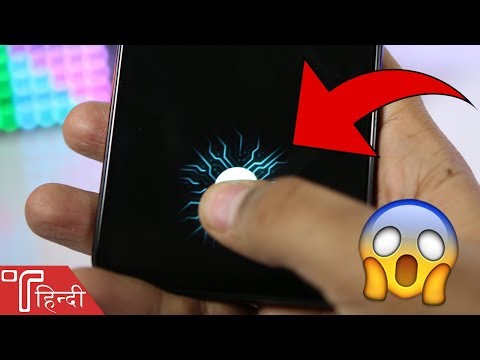
The highlight feature of the Vivo X21 UD is the under-display fingerprint scanner. Therefore, I think many people would like to try this feature. Well, setting up fingerprint on Vivo X21 UD is very easy.
1. First, go to Settings -> Fingerprint, Face, Password -> Fingerprint .
2. Next, tap Add Fingerprint and place your finger on the display multiple times to enroll your biometric. that’s it.
2. Set face recognition lock
Apart from face unlock, Vivo X21 UD also comes with the feature of unlocking the device with your face. And it’s amazingly fast. If you want to use facial recognition on your device, follow the steps below.
1. Go to Settings -> Fingerprint, Face & Password -> Face.
2. Then tap Add Face and follow the onscreen instructions to register your face.

3. Use gestures for navigation
In addition to having a custom skinned OS similar to iOS, the Vivo X21 UD also features iPhone X-inspired navigation gestures. To enable gesture navigation, go to Settings -> System Navigation -> Navigation Gestures and enable it .

That’s it. You’ll notice that the Android navigation keys have been replaced with three new bars. Swipe the left bar to launch Control Center, swipe the center bar to go back home, swipe the right bar to go back one page, swipe and hold the center bar to bring up the Recent apps menu can be started.
4. Change fingerprint unlock animation
You have now configured your device for fingerprint unlock. And I’m sure you’ve used it too. If so, you must have noticed the really cool animation that appears on your screen when you unlock your device, right? You can change this animation too. Go to Settings -> Fingerprint, Face & Password -> Fingerprint -> Animation Style and select your preferred animation.

5. Set always-on display
The Super AMOLED display on the Vivo X21 UD is amazing and it shows. But another great thing about this display is that it also supports Always On Display mode. If so, please follow the steps below.
1. Go to Settings -> Lock screen, home screen, wallpaper -> Always on display.

2. Now enable the “Always on” toggle : You can also customize the style of your watch by tapping on ‘Clock Type’ .

6. Custom call recording
Call recording is a feature that many companies like OnePlus and Xiaomi include in their smartphones. This feature is very useful and comes on the Vivo X21 UD along with some additional features. Apart from standard call recording, you can also specify the contacts whose calls you want to record . Just go to Settings → Phone → Recording Settings and tap Automatically record custom calls . Now, tap on the Custom button and select the number you want to be able to record calls from.
7. Built-in phone number identifier
The Vivo X21 UD has a built-in phone number identifier that works exactly like Truecaller and identifies the caller’s ID . This feature is very useful if you tend to receive a large number of calls from unknown numbers.
1. First, go to Settings -> Phone -> Online strange number recognition.

2. Now turn on the toggle next to Recognize unknown numbers online .

8. Live Photo
Similar to iPhone and Pixel devices, Vivo offers its own format of Live Photos. Basically, users will be able to record a small video that can be published by touching and holding a photo. To use Live Photo, launch the Camera app and tap the Live Photo icon (marked in the image below) .
9. Voice control your camera
Vivo has certainly copied a lot of features, but one of the most interesting features this device has is the inclusion of voice commands in the camera app. That’s right, Vivo X21 UD allows you to capture images and videos using your voice. To do this, first launch the Camera app and click the settings gear icon in the top right. Now, tap “Audio” on the third line from the top. Just say “cheese” and the camera will automatically take a photo.

10.Portrait mode
An old trend is portrait mode. Each manufacturer is trying to create a bokeh similar to that of a digital SLR camera. Portrait mode on the Vivo isn’t as good as a DSLR, but it’s pretty good. To take a portrait photo using your camera, just tap the portrait mode icon before taking the photo.
11.AR sticker
Another fan-favorite feature of the Vivo X21 UD is AR stickers. To access AR stickers, swipe your camera’s viewfinder from right to left until you see “AR Stickers” mode . To change your AR sticker, first tap the smiley icon and select the AR sticker you want to use.
12. Setting up app lock with fingerprint or face
You may have already set up Fingerprint ID or Face ID on your Vivo X21 UD. However, in addition to simply being used to unlock your device, these biometric measures can also be used to protect your apps. Just go to Settings → Fingerprint, Face & Passwords → Fingerprint (or Face, depending on the method you use for protection) and enable the toggle next to Privacy & App Encryption. is.
13. Blur specific apps in “Recent apps”
The Recent Apps menu shows mini previews of recently used apps. Vivo X21 UD comes with a feature that allows you to blur cards in the recent apps menu. To enable this feature, go to Settings -> More Settings -> Recent Apps and enable the Blurred option.
Once that’s done, you can select the apps you want to blur in the Recent menu to protect your data.
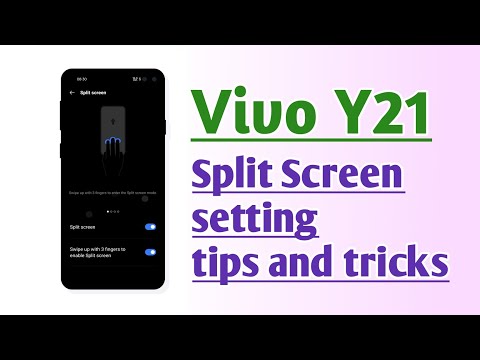
14. Split screen for messaging only
One of the most innovative features that Vivo has brought to the Vivo X21 UD is a dedicated split-screen mode for messaging. This feature essentially allows you to seamlessly convert your full-screen app to split-screen mode whenever you receive a message and tap on the notification. To enable this feature, go to Settings -> Smart Split -> Message Screen Split and enable it .
Additionally, you can choose which apps you want to enable smart split-screen mode for.
15. Use app clone
Vivo X21 UD comes with the ability to create a secondary copy of installed apps, so you can have two numbers on the same device. For example, you can clone Whatsapp or Facebook apps to run multiple accounts on the same Vivo X21 UD device. To do this, go to Settings -> App Clone and enable the toggle next to the app you want to create a clone copy of.
See also: Vivo X21 first impressions!
What are your favorite Vivo X21 features and tricks?
I hope you found these tips and tricks useful and learned something new. Vivo X21 UD comes with many hidden features, but these are just some of the most important ones. If you have any more questions or want to check out more such hidden features of Vivo X21 UD, let us know by writing in the comment section below.


![How to set up a Raspberry Pi web server in 2021 [Guide]](https://i0.wp.com/pcmanabu.com/wp-content/uploads/2019/10/web-server-02-309x198.png?w=1200&resize=1200,0&ssl=1)


